This illustrated review uses three existing Quady3D examples to show what to inspect before a generated asset enters a scene: a character, a hard surface prop and a small environment model. The checks cover shape, surface appearance and the preparation that remains for a destination tool.
The first view is persuasive. The armor is there, the cape is pink, and the character has become a volume you can rotate. It is tempting to judge the result from that one image and move on.
But an image-to-3D result has a second job beyond looking recognizable. It must hold up from the viewpoints and at the scale where you intend to use it. A single source image cannot show every surface, so some of what appears when you rotate the model is an inference.
This review uses an existing example: a storybook-style pink knight generated with Tripo H3.1 from one AI-created reference artwork. The original reference, the recorded GLB and its previews already existed. The comparison below is a look at that one asset, not a contest between generators or a claim about typical results.
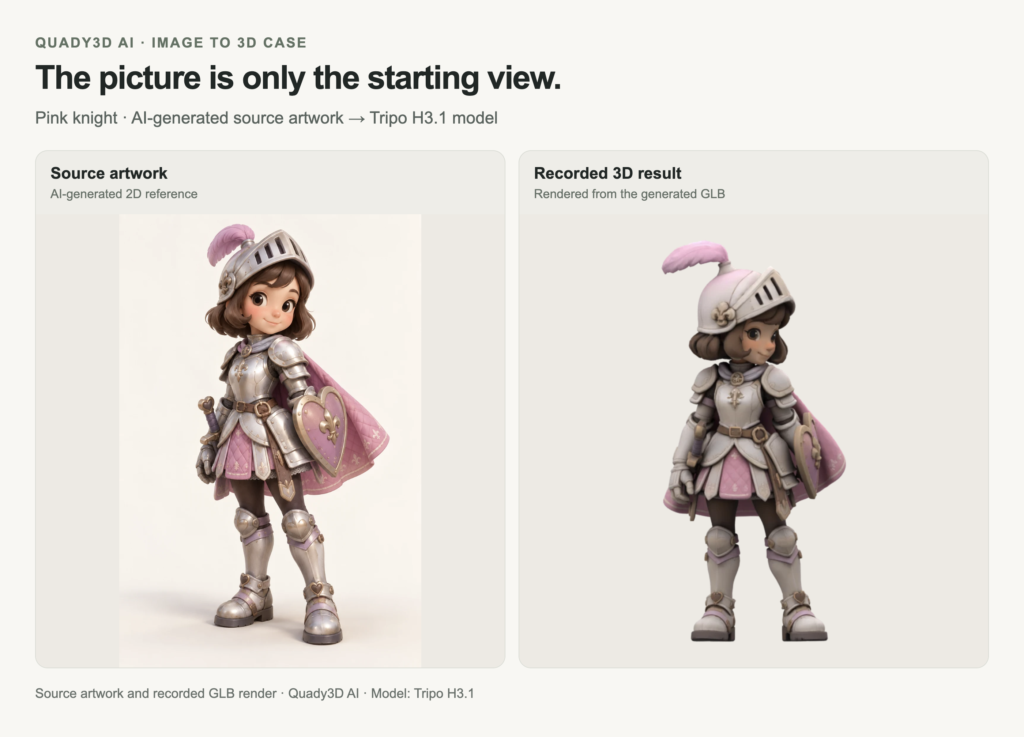
Figure 1. Left: AI-generated source artwork. Right: a recorded render of the resulting Tripo H3.1 model. Broad design cues carry over, while finer details are simplified.
Illustrated case source: image-to-3D example
First ask what survived the move into 3D
The useful starting point is recognition. In this pair, the helmet and plume, silver-colored armor, pink cape and shield make the relationship to the source easy to see. The result is a coherent starting asset rather than a literal copy of every painted feature.
Look at the shape before the ornament. Compare the helmet’s outline, the head-to-body ratio, the width of the shoulders and the placement of the shield. Then look more closely at the face, trim and small surface motifs. Decide which differences matter to the intended use instead of treating any visual resemblance as a pass.
A distant scene prop and a close-up character portrait ask different things of the same mesh. A result can be helpful for one and still need substantial work for the other. Choosing that use first makes the inspection more concrete.
Inspect the sides and back
The source artwork supplies a particular view of the knight. It does not supply a complete description of the back of the cape, the rear of the helmet or every hidden gap around the equipment. Those surfaces still need to exist in the generated model, and they need your attention.
On the side and back views, follow the cape’s outline and the thickness of the shield. Look around the legs, hands and equipment for intersections or fused-looking areas. The question is not whether the hidden side resembles a photograph you never supplied. It is whether that inferred design is usable for the job you are trying to do.
Turn off the texture for a different kind of inspection
Color makes detail easy to read. It can also make a shallow feature feel more substantial than it is. A clay preview provides a second view of the same model, with the painted appearance removed so that the outline and volumes are easier to judge.
Use the helmet openings, shield outline, fingers and separations between accessories as inspection targets. If a detail only reads under the texture, decide whether that is acceptable at the final camera distance. If the asset is headed for a physical print, painted detail alone cannot provide the relief you want to hold in your hand.
The recorded generation settings requested textures, disabled the PBR option and set a 50,000-face limit. That last value is a requested limit, not a measured polygon count for the exported GLB. Likewise, a textured result should not be described as a complete PBR material set when that option was not enabled.
Give the model a specific next step
Inspection is most useful when it leads to a decision. A still render needs silhouette and material checks at the intended distance, while animation requires inspection of joint regions, pose and topology. For printing, perform separate checks for thickness, closed surfaces, scale and supports. Each intended use needs its own evaluation after the preview.
- Keep the source image beside the model when checking proportions and recognizable design cues.
- Inspect the side, back and underside wherever your use will expose them.
- Separate texture appearance from geometry using a clay view.
- Write down the changes that matter for your intended output, then edit or regenerate selectively.
Check a hard surface prop against its reference
A character is only one type of asset. The separate dragon-axe example makes silhouette changes easier to discuss: compare the blade outline, the opening below the head and the proportions of the handle. The artwork and the stored model preview face different directions, so this pair introduces the case rather than providing an aligned-camera measurement.
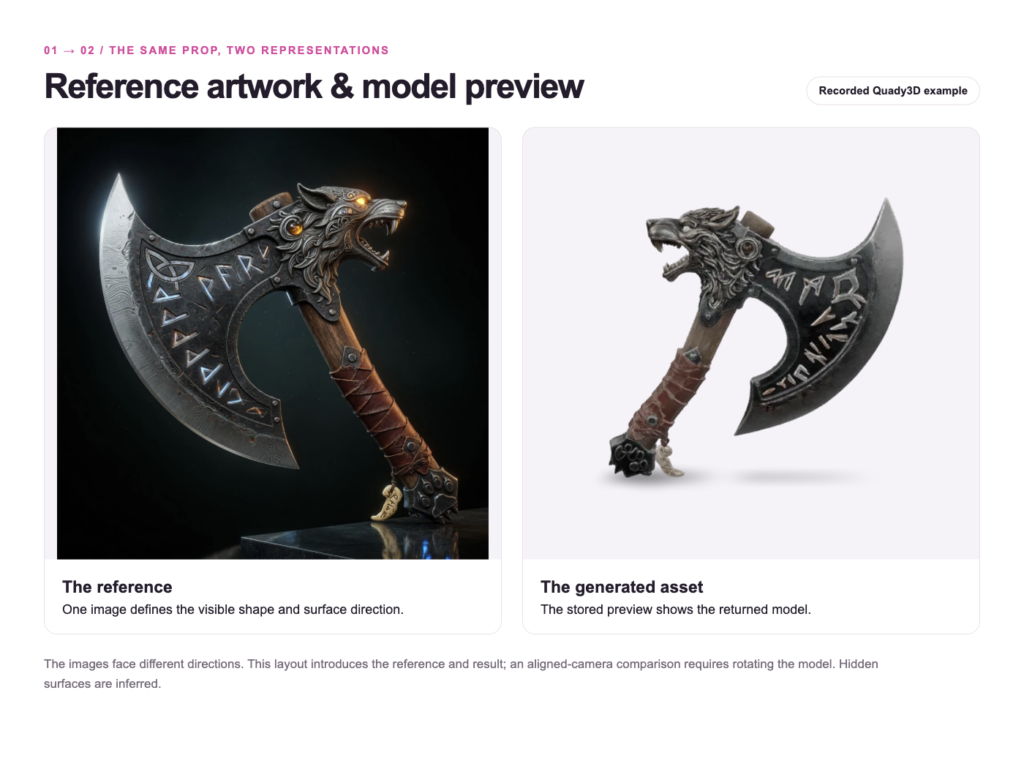
Figure 2. Dragon-axe reference artwork on the left and a recorded model preview on the right show the same case from different camera directions. Rotate the actual model before judging shape correspondence.
The archived GLB inspection counted 198,343 indexed triangles in this axe file. That is a file-level observation, not a game-performance result. Inspect the asset at the intended distance and within the target scene budget before deciding whether it needs simplification or lower-detail variants.
Inspect a small environment model
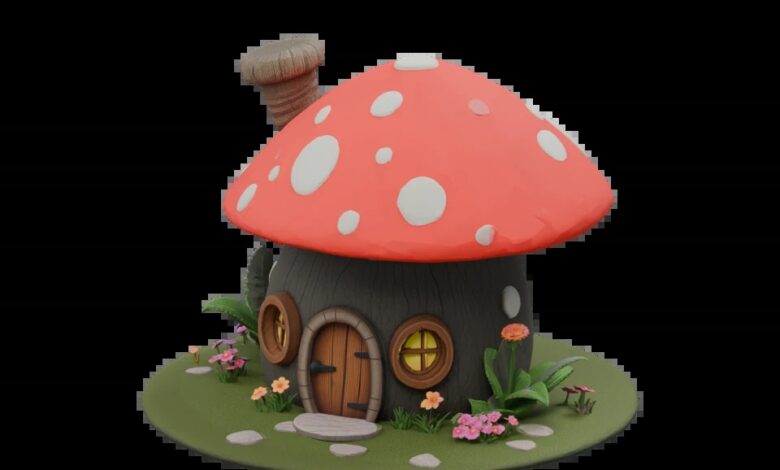
A small environment asset asks different questions from a character or weapon. The mushroom cottage shown here is a separate recorded text-to-3D result from Meshy 7.1. It helps a reviewer examine the base silhouette, the readability of the windows and flowers, and the amount of geometry beneath the color texture.
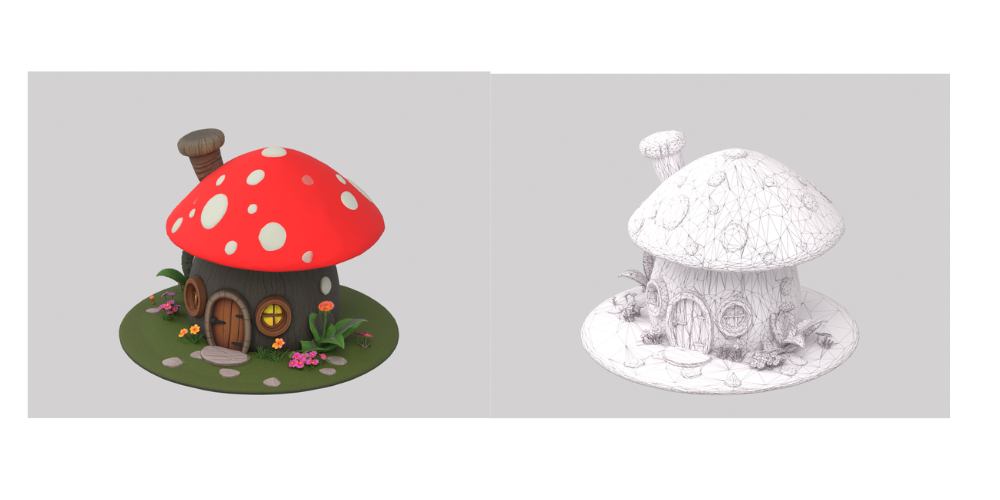
Figure 3. Separate text-to-3D environment example generated with Meshy 7.1. The same archived cottage mesh is shown in color and with a wireframe inspection material. The geometry was not edited to create these Blender views.
The archived file contains 30,900 triangles, one mesh and one 2048-pixel color texture. Normal and metallic-roughness maps were not present in that inspected export. Inspect the surface response under the lighting of the intended scene before deciding which additional materials or geometry edits are needed.
Map assignment needs to follow the destination shader. For a format-specific reference, see the glTF material specification. Check texture usage and material assignments in the actual exported file and destination renderer rather than inferring them from a colored preview.
Check the intended scene workflow
For a game scene, compare the asset with the surrounding modular pieces at the intended scale. Check the pivot and orientation, then import a copy into the target editor and examine it under the lighting and camera distances the scene will use. These are proposed checks, not tests already performed on the example.
Inspect triangle count, texture resolution and material assignments in the destination tools. A practical budget depends on the target hardware and the number of assets visible together, so there is no universal face count that guarantees acceptable performance. Where appropriate, create simplified levels of detail and collision geometry, and profile the scene rather than relying on the preview alone.
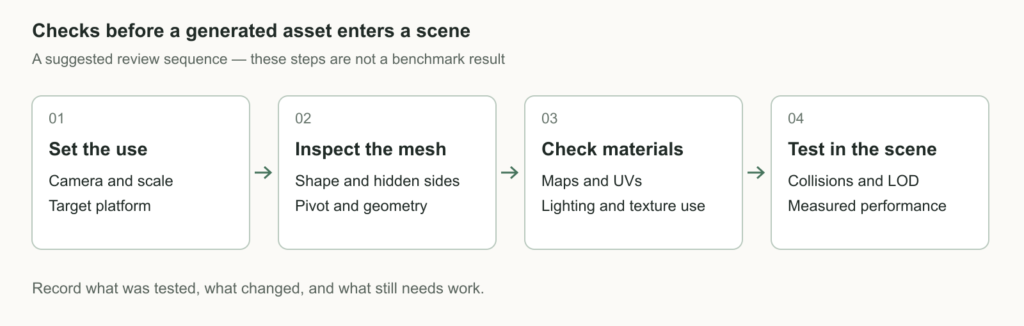
Figure 4. Suggested review sequence for a game-scene asset. This is a process diagram, not a screenshot of a released product feature or a claim that any of these models has passed these checks.
When using Godot, the official 3D scene import guide explains the supported import workflow and where to configure imported scene data.
Keep the source, exported file, and notes about edits together. Record the decisions a reviewer can reproduce: which angles were inspected, what was changed, the target application, and which checks remain untested. That record helps the next person distinguish an attractive draft from an asset that has actually been evaluated for its destination.
Sources and contact
Contributor contact: Tover Wu, Quady3D AI, [email protected]. The knight reference is AI-generated artwork and its model was generated with Tripo H3.1. The dragon axe is a separate recorded image-to-3D example. The mushroom cottage is a recorded Meshy 7.1 text-to-3D asset from the company archive.
This article was prepared with AI assistance from existing company case records. The visual examples include AI-generated artwork and renders of recorded model files. No new model generation was commissioned for this article. The illustrations do not establish printing, rigging or game-engine performance.