
You don’t need to build a complicated system to start exploring AI business automation. Begin with one clear goal and a product you want to sell. Whop’s CLI can help connect your business tasks with a compatible AI assistant.
Imagine you run a coaching business and want to launch a new monthly plan. You need a product, a price, and a checkout link. You also need a simple way to track sales and understand customer activity. An AI assistant can help coordinate these steps through Whop’s CLI.
Here is a practical workflow you could try:
- Choose your business idea: Decide what you want to sell, such as a coaching package, a software subscription, or a service retainer.
- Prepare your product: Ask your AI assistant to help create the product and organize its details.
- Set your pricing: Choose a suitable price based on your audience and business costs.
- Create a checkout link: Use the supported CLI commands to prepare a way for customers to purchase.
- Review your results: Ask your assistant to summarize sales and identify useful trends.
- Improve your offer: Use customer feedback and business data to decide what needs attention.
This is a practical example of using AI to run an online business. Whop’s CLI handles the connection between your assistant and Whop’s tools. The assistant helps coordinate tasks, while you remain responsible for business decisions.
How to Get Started With Whop’s CLI
Getting started involves installing the tool, signing in, and connecting your preferred AI assistant. The exact steps depend on your computer and chosen workflow. Beginners should follow the official instructions rather than copying commands from unknown sources.
Whop offers prebuilt installs for macOS and Linux, plus an npm package for other platforms. On other platforms, the documented npm option requires Node.js 22 or later:
Step 1: Install the CLI
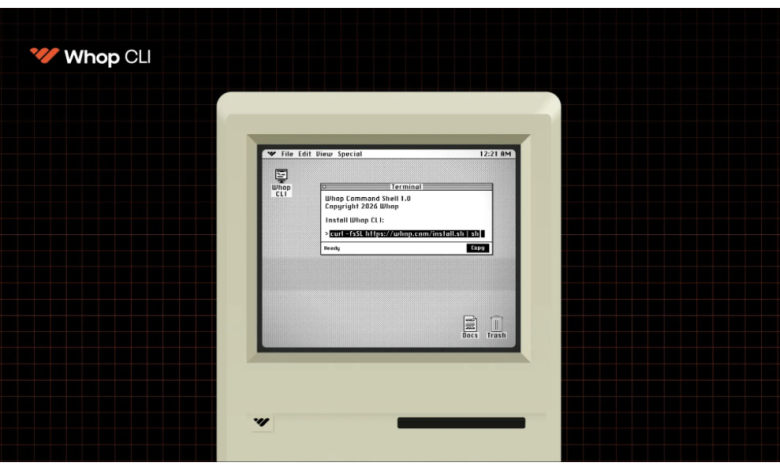
On macOS or Linux, Whop documents this installation command:
curl -fsSL https://whop.com/install.sh | sh
For Windows, the documented npm option requires Node.js 22 or later:
npm install -g @whop/cli
Only run installation commands from sources you trust. Review the official documentation if you’re unsure about your system or security requirements.
Step 2: Check Your Installation
After installation, you can check whether the command-line tool works. Open your terminal and enter:
whop –version
If the installation succeeds, the command should display the installed version. You can then explore the available commands and their options.
Step 3: Sign In to Your Account
Next, authenticate with the Whop business you want to manage. The login process supports browser authentication and API key authentication. Available permissions can differ depending on your chosen method.
Keep your API keys private and never paste them into public chats. Give your AI assistant only the access required for its tasks. This helps reduce the risk of unwanted changes or exposed business information.
Step 4: Connect Your AI Assistant
Whop’s documentation describes ways to connect its CLI with compatible assistants. You can also add its agent skills using the supported setup command:
whop skills add
Follow the official setup guide to confirm that your assistant can access the correct commands. Start with a simple request, such as listing your products. Check the results before allowing the assistant to change prices or manage payments.
For complete instructions, visit the official Whop CLI guide and Whop developer documentation.
Who Should Use Whop’s CLI?
Whop’s CLI can help different people, depending on their business needs. You don’t have to be an experienced developer to benefit from AI-assisted workflows. However, some tasks still require technical knowledge and careful setup.
Online Business Owners
Business owners often spend too much time on routine management. They need to check sales, update products, and keep their stores organized. Whop’s CLI can help reduce repeated manual steps through commands and AI-assisted workflows.
SaaS Founders and Service Businesses
Founders billing customers on monthly or annual plans can use supported commands to update pricing and generate checkout links without opening the dashboard. That leaves more time for the product and the customers using it.
Developers and Technical Teams
Developers can use the CLI to make business operations more repeatable. They can combine commands, build custom workflows, and connect business systems with software tools. This may reduce manual work during development and routine maintenance.
Agencies and Growing Teams
Agencies often manage several products, clients, or team members. Automation can make reporting and administrative work easier to organize. However, each team should use suitable access controls and review important changes.
Benefits of Using Whop’s CLI
One major benefit is the ability to repeat tasks without starting from scratch. Once a workflow is set up correctly, it can become easier to run again. This can help businesses spend less time on routine operations.
Another benefit is AI assistance. Instead of learning every command immediately, you can describe your goal to a compatible assistant. It can help identify the required steps and explain the results in simple language.
The CLI also creates opportunities for more connected workflows. Product management, reporting, and other supported operations can work together. This can give business owners a clearer view of their daily operations. Product management, subscription billing, checkout links and payouts can all run from the same set of commands.
However, the actual time saved depends on your business and setup. Some tasks are simple, while others need testing and troubleshooting. Start small, measure the results, and expand automation when it proves useful.
Limitations and Safety Tips to Know
Whop’s CLI can make business management easier, but it isn’t a complete replacement for human judgment. AI assistants can misunderstand instructions, choose unsuitable actions, or interpret business data incorrectly. You should review their work, especially when money or customer access is involved.
Here are some useful safety practices:
- Protect account access: Keep API keys private and use appropriate permissions.
- Review financial actions: Check transfers, payouts, and spending changes before proceeding.
- Test new workflows: Start with low-risk tasks before automating important operations.
- Check AI results: Verify prices, product details, and reports before using them.
- Understand your costs: Review platform fees and advertising expenses before committing funds.
- Keep records: Review available command logs to understand what your assistant has changed.
You should also remember that automation does not create customers by itself. A successful business still needs a useful product, clear marketing, and customer trust. Whop’s CLI can support the work, but your business strategy remains essential.
Is Whop’s CLI Worth Trying?
Whop’s CLI is worth exploring if you already use Whop and want to automate repetitive business tasks. It connects command-line access with business operations and compatible AI assistants. This makes it useful for founders, agencies, developers, and teams looking for more efficient workflows.
It may be less useful if you prefer managing everything manually through a dashboard. Beginners may also need time to understand installation, authentication, and permissions.
Frequently Asked Questions
1. What is Whop’s CLI used for?
Whop’s CLI lets users manage supported Whop business features through text commands. It can help with products, pricing, checkout links, statistics, and other available operations. Compatible AI assistants can also use it to coordinate business tasks.
2. Can beginners use Whop’s CLI?
Yes, beginners can explore it with help from compatible AI assistants. You don’t need to write every command yourself. However, you should learn basic account safety and review actions before allowing changes to your business.
3. Can Whop’s CLI run a business with AI?
Whop’s CLI can help automate parts of running an online business. An AI assistant can help manage supported tasks, gather statistics, and organize workflows. You still need to make decisions, check results, and oversee important actions.
4. Does Whop’s CLI help create products?
Yes, it supports product management through available commands. Depending on your needs, you can use it to inspect products and create or update supported details. Always verify product information before making it available to customers.
5. Which AI assistants work with Whop’s CLI?
Whop documents workflows with compatible tools such as Claude Code, Cursor, and Codex. Setup requirements may differ between assistants. Check the official documentation for current compatibility and configuration instructions.
6. Is Whop’s CLI free to use?
Check Whop’s current documentation and account terms for applicable charges. The cost of using the CLI may differ from costs associated with other services. AI tools, advertising, and certain business operations may also involve separate expenses.
7. Is Whop’s CLI safe?
Its safety depends partly on how you configure access and use the tool. Keep API keys private, limit permissions, and review sensitive actions. You should also verify commands and avoid giving an AI assistant unrestricted access unnecessarily.
Final Thoughts
Whop’s CLI offers a practical way to connect AI assistance with everyday online business operations. It can help users manage products, prepare checkout links, review sales, and organize repeatable tasks. These features make it an interesting option for anyone exploring AI-powered business automation.
The biggest win isn’t using AI just because it is popular, but offloading repetitive tasks that take time away from impactful work.
Start with one small workflow and check its results carefully. Protect your account, review important changes, and keep your customers’ needs at the center. With a clear plan and sensible oversight, AI can become a useful partner in running your online business.