
When important photos suddenly refuse to open, show gray previews, or display broken images, the problem may be JPG corruption. Files can become damaged after interrupted transfers, storage failures, or failed editing operations.
However, corruption does not always mean permanent loss. Before giving up on an image, you can try several ways to repair JPG files, starting with simple viewer checks and moving to dedicated repair software.
Common Reasons JPG Files Become Corrupted
JPG images depend on structured data that tells an application how to read and display the picture. Damage to this information or the image data can make an otherwise normal-looking file unreadable.
Interrupted File Transfer
Removing an SD card while files are being copied can interrupt the transfer and leave an incomplete image. USB connection problems, sudden computer shutdowns, and interrupted transfers can cause similar damage.
This is especially common when moving photos from cameras, phones, or SD cards to a computer. If several recently transferred images are affected, check the original storage device before making additional changes.
Storage Device Errors
Bad sectors and failing storage devices can damage image files over time. SD cards can also develop errors after heavy use or improper removal.
If JPG files stored on the same drive begin showing errors, avoid saving new data to that location until you determine whether the storage device is causing the problem.
Software Or Editing Issues
A failed image-editing operation can also affect a JPG. For example, a program may crash while saving changes, leaving the file incomplete or damaged. Insufficient storage space during an export can create similar problems.
Method 1: Try Opening JPG Files With Another Viewer
Before assuming that the JPG itself is damaged, check whether your usual image viewer is causing the problem. A temporary application error or unsupported feature can prevent an otherwise healthy image from displaying.
Right-click the JPG file and select “Open with”. Try opening it with “Photos”, “Paint”, or a web browser that supports local image previews. If the image opens normally in another application, the JPG may be fine. In that case, repair or reset the original image viewer instead of modifying the file. If every application shows an error or displays a blank image, continue with the next methods.
Method 2: Convert The JPG Format
Conversion can sometimes help with minor image problems, particularly when an application can partially read the damaged JPG. The process creates a new copy of the image and may remove minor structural inconsistencies.
1. Open the JPG in an image editor like Canva that can still display it, even partially. Select “Save As” or “Export”, then choose another format such as PNG. Save the new image to a different location.
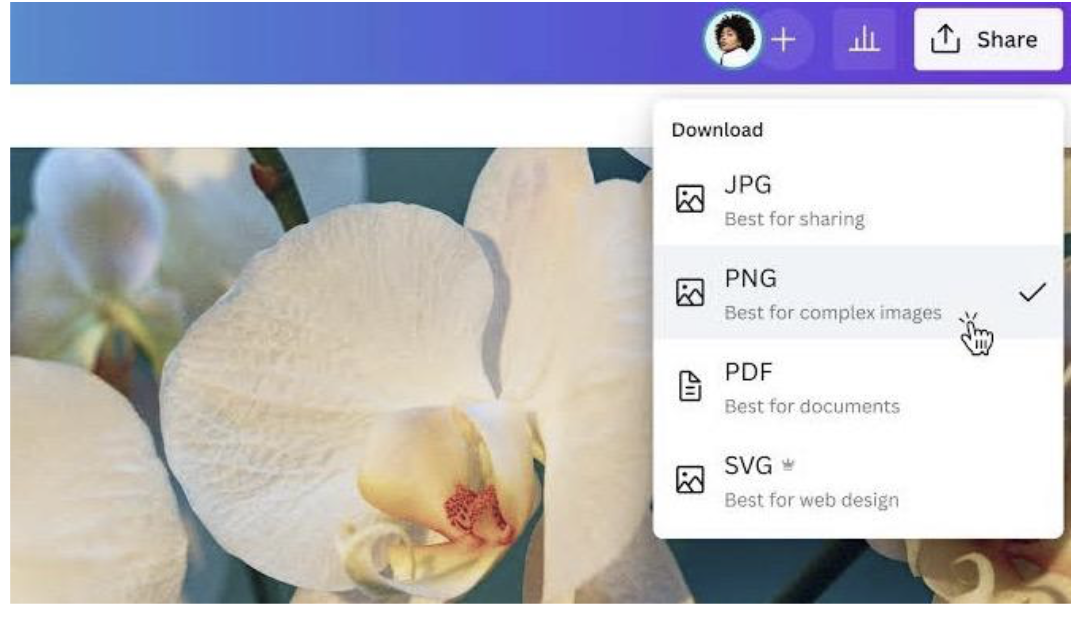
2. Afterward, open the converted image to check whether it displays correctly. If necessary, save the image back as a JPG using the editor’s export options.
This method has an important limitation: it cannot recover image information that the application cannot read. If the JPG is severely corrupted and will not open at all, conversion is unlikely to help.
Method 3: Restore JPG Files From Backup
A clean backup is often the safest solution when an original photo has become damaged. Check whether another copy exists before attempting complicated repairs.
Look through your cloud storage, external drives, phone backups, or previous computer backups. If you find an earlier version of the photo, compare it with the damaged file before replacing anything.
For files stored on Windows, you can also check available previous versions or backup tools. Recovering an intact copy avoids modifying the damaged original and gives you the best possible image quality.
Method 4: Repair Corrupted JPG Files With Professional Software
When a JPG remains unreadable after trying different viewers and conversion, the image data itself may be seriously damaged. In this situation, JPG repair software can provide a more suitable recovery option.
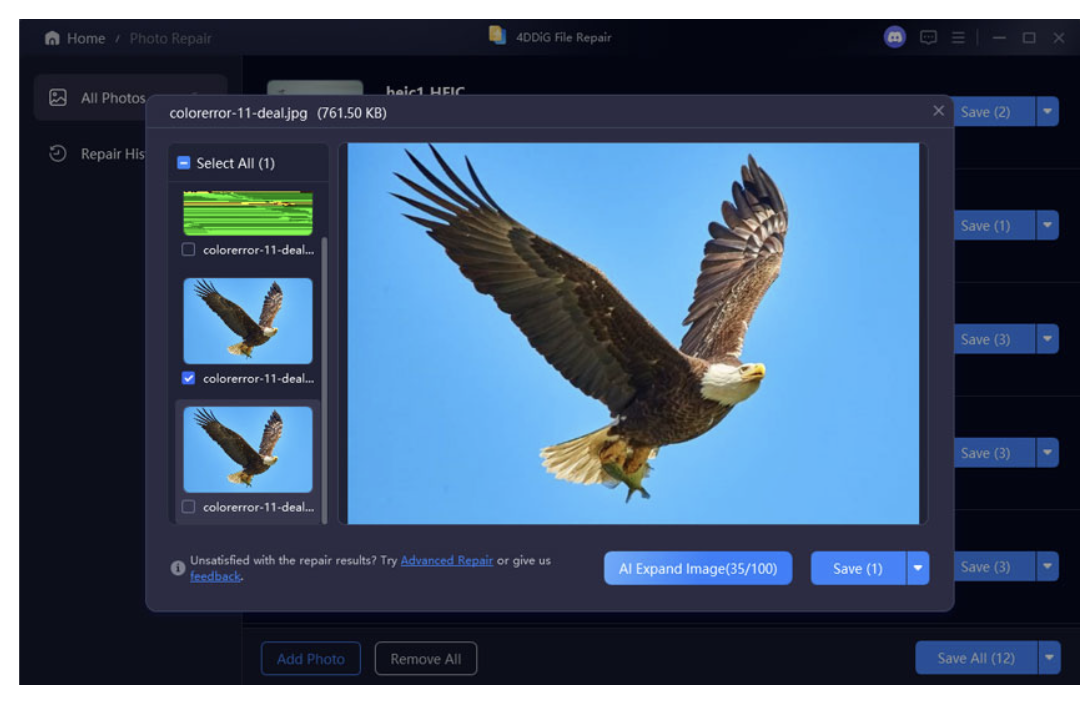
4DDiG Photo Repair is designed to repair corrupted JPG images and other damaged photo files. It can help with problems such as images that will not open, distorted previews, gray areas, or other visible corruption. The software also provides a preview of the repaired result before you export it.
1. To begin, open 4DDiG Photo Repair and select the “Photo repair” option. Add the damaged JPG files by clicking “Add Photos”
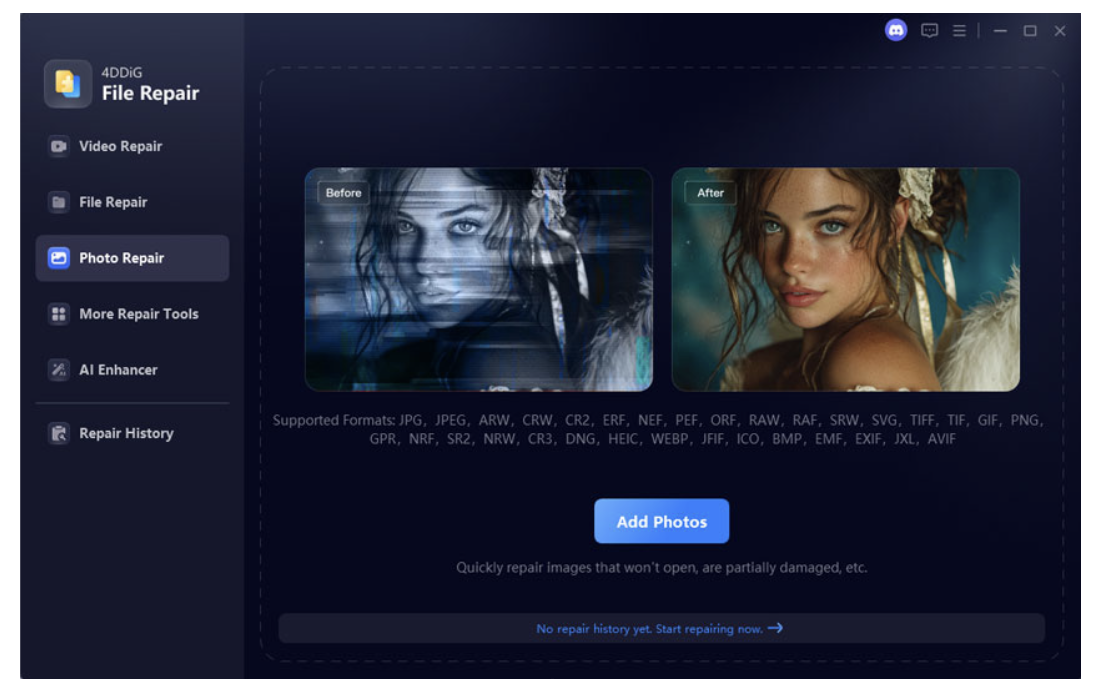
2. Click “Repair All” to start the repair process so the software can analyze their image data.
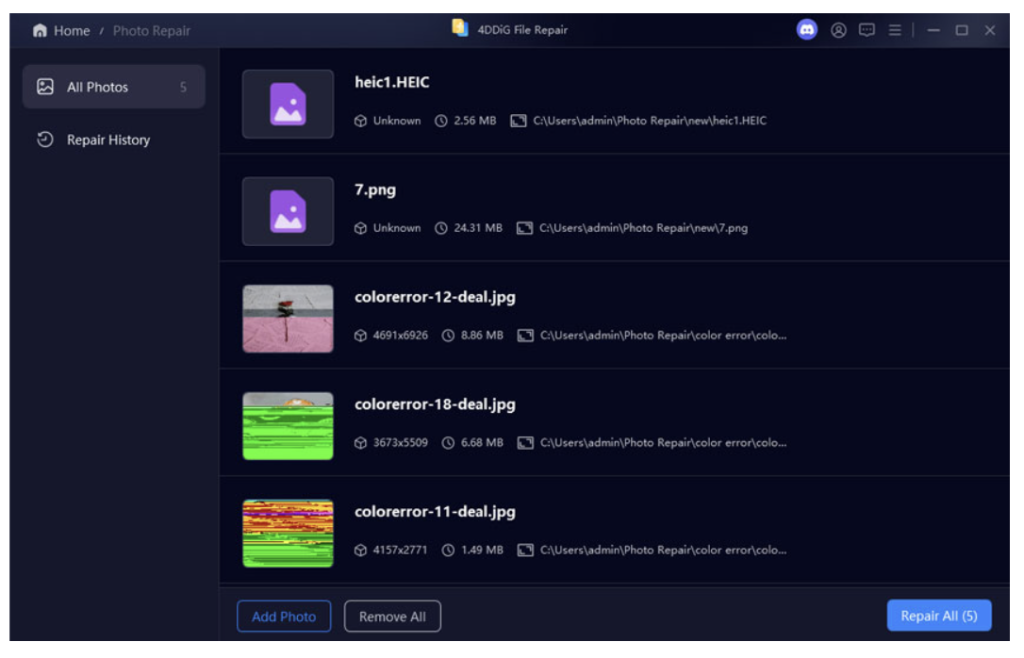
3. Once processing finishes, preview the repaired images to check their quality with the “Preview” button.
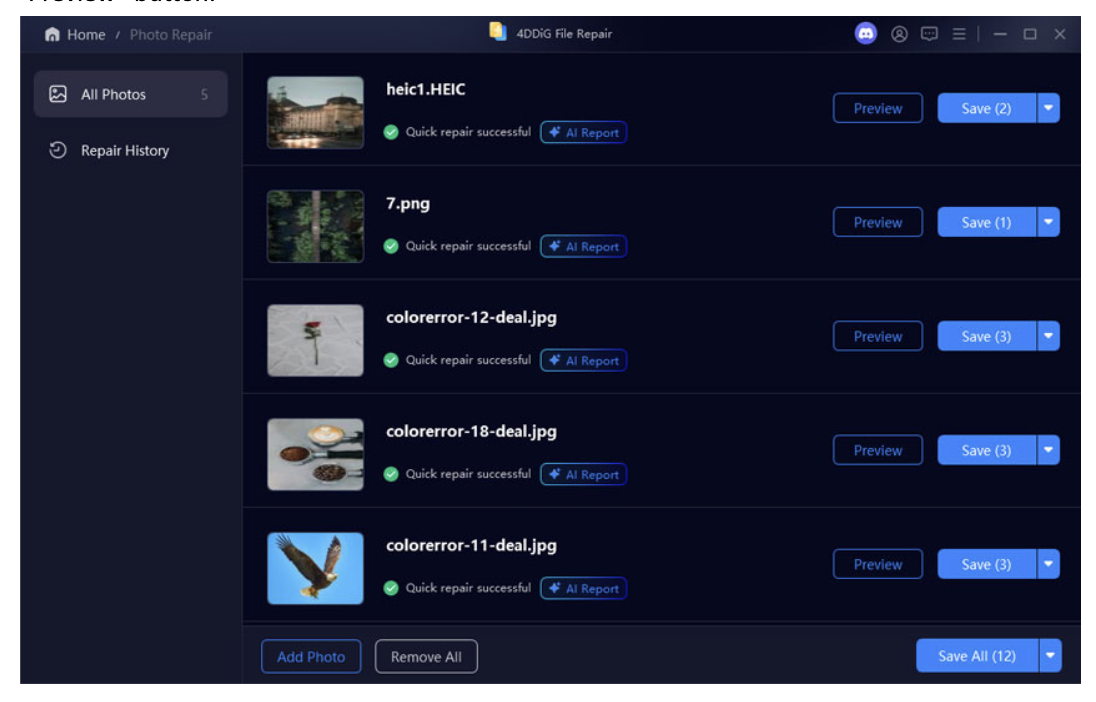
4. If the results are satisfactory, select the option to save the repaired photos and choose a separate output location.
Do not overwrite the original JPG files during the repair process. Keeping the originals unchanged gives you another recovery option if the first repair attempt does not produce the expected result.
How To Prevent JPG Corruption
Simple storage and transfer habits can reduce the risk of future image damage after your repair JPG files:
- Keep multiple backups of important photos.
- Use reliable SD cards, USB drives, and hard drives.
- Safely eject removable storage before disconnecting it.
- Avoid interrupting photo transfers.
- Keep sufficient free storage space on your devices.
- Create a backup before performing major image edits.
Conclusion
JPG corruption can result from interrupted transfers, storage errors, or failed editing operations. Before attempting advanced recovery, test the image with another viewer and check for an intact backup. Minor problems may respond to conversion, while severely damaged images may require dedicated repair.
Knowing the cause helps you choose the safest way to repair JPG files without unnecessarily risking the original photo.