
Upgrading to a new Windows version involves more than downloading an update. Before installing Windows 11 26H2, you should check your processor, RAM, storage, TPM 2.0, Secure Boot, and system firmware. These checks can help you find problems before the installation starts. Microsoft’s current Windows 11 requirements include a compatible 64-bit processor, at least 4 GB of RAM, 64 GB of storage, UEFI with Secure Boot capability, and TPM 2.0.
This guide explains the Windows 11 26H2 system requirements, how to check your PC, and what you can do if storage or partition problems prevent the upgrade.
Windows 11 26H2 Minimum Requirements
Windows 11 26H2 keeps the main Windows 11 hardware requirements. However, meeting the basic requirements does not always mean your upgrade will complete without issues. Your system also needs enough working space and a suitable disk configuration.
| Requirement | Minimum |
| Processor | 1 GHz or faster, 2+ cores, compatible 64-bit CPU |
| RAM | 4 GB |
| Storage | 64 GB or larger |
| Firmware | UEFI, Secure Boot capable |
| TPM | TPM 2.0 |
| Graphics | DirectX 12 or later, WDDM 2.0 |
| Display | 720p or higher, larger than 9 inches |
Microsoft also notes that some Windows 11 features require additional hardware.
Processor Requirements
Your processor must support a compatible 64-bit architecture, run at 1 GHz or faster, and have at least two cores. However, clock speed alone does not determine eligibility. Windows 11 checks whether the CPU model appears on Microsoft’s supported processor list. This means an older processor may have enough speed and cores but still fail the compatibility check. Before upgrading, use PC Health Check rather than relying only on the CPU’s GHz rating.
Memory and Storage
Windows 11 requires at least 4 GB of RAM and a 64 GB or larger storage device. These numbers represent the minimum hardware requirements, not necessarily the amount of free space you should have before starting an upgrade.
A feature update also needs temporary working space for installation files, updates, and rollback data. Therefore, check the free space on your Windows partition, especially the C drive, before starting the upgrade.
If your system partition has limited space, a partition manager for Windows 11 upgrade can help you manage partitions and make better use of available disk space.
TPM 2.0 and Secure Boot
TPM 2.0 and Secure Boot often cause compatibility problems on older PCs. TPM provides hardware-based security functions, while Secure Boot helps the system start using trusted boot software. Microsoft lists TPM 2.0 and UEFI firmware with Secure Boot capability among the minimum Windows 11 requirements. You can check TPM by pressing Windows + R, typing tpm.msc, and checking the Specification Version. It should show version 2.0.
To check Secure Boot and firmware mode:
- Press Windows + R.
- Type msinfo32 and press Enter.
- Find BIOS Mode.
- Check Secure Boot State.
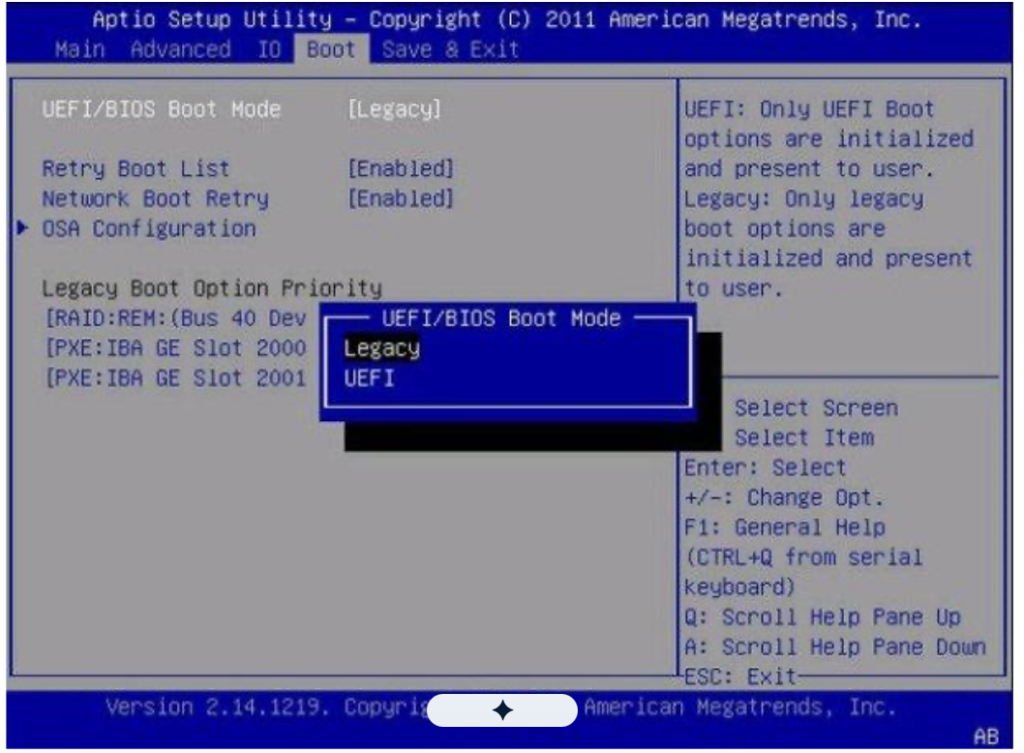
Your system should use UEFI, and Secure Boot should be available and enabled when required.
How to Check Your PC Compatibility
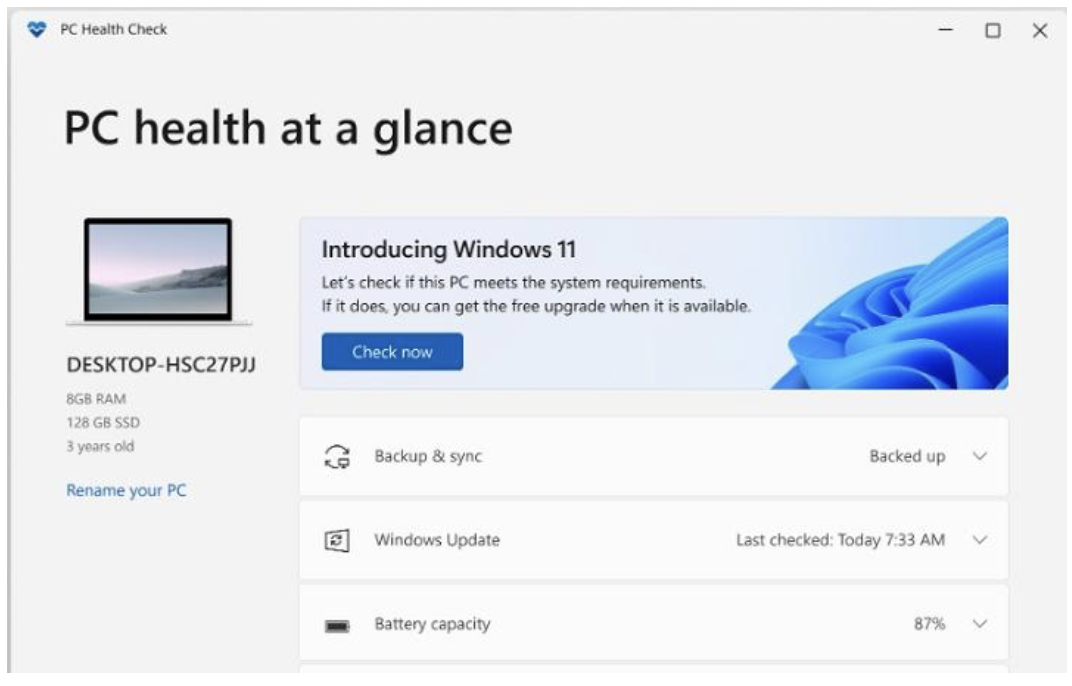
The easiest way to check your computer is to use Microsoft’s PC Health Check app. Microsoft provides this tool to assess Windows 11 upgrade eligibility.
Use PC Health Check
Open PC Health Check and select the Windows 11 eligibility option. Run the check and review the result. If your PC fails, look at the reason instead of simply trying the installation again.
The result can point to issues such as:
- Unsupported processor
- TPM 2.0 not detected
- Secure Boot disabled
- Unsupported firmware mode
- Insufficient storage
You can also check Windows Update. Microsoft says Windows Update can assess whether your device is ready for Windows 11.
What If Your PC Meets Requirements but Cannot Upgrade?
Sometimes a PC passes the basic hardware check but still cannot complete an upgrade. Storage and partition layout can cause this problem. For example, your computer may have a 256 GB or 512 GB SSD, but the C drive may have very little free space. Windows needs working space during the update, so the total disk capacity alone does not guarantee a successful installation. Partition layout can also matter. In this situation, 4DDiG Partition Manager can help prepare your disk before upgrading to Windows 11 26H2. If the C drive does not have enough free space, you can use its partition tools to resize, move, or manage partitions without relying only on Windows Disk Management. The software can help you make better use of unallocated space when the existing partition layout makes it difficult to extend the system drive.
Key Features:
- Resize Partitions: Adjust partition sizes to make better use of available disk space before starting the Windows 11 26H2 upgrade.
- Move Partitions: Move partitions when their current position prevents you from adding available unallocated space to the C drive.
- Manage Unallocated Space: Use unused disk space more effectively when your system partition needs additional room for an upgrade.
- Disk Management Tools: Manage partitions and disks from one place instead of depending only on Windows built-in disk management options.
- Upgrade Preparation: Prepare your system drive before upgrading Windows to help reduce storage-related installation problems.
Preparing Your PC Before Windows 11 26H2
Before you begin the upgrade, complete a short preparation checklist.
- Back up important files: Save your documents, photos, work files, and other important data to another drive or a trusted backup location.
- Free up C drive space: Remove temporary files, unused applications, and files you no longer need. Do not delete system files unless you know what they do.
- Check your partitions: Make sure the Windows partition has enough free space. If the disk layout prevents you from extending C, consider using a suitable partition management tool.
- Update drivers: Install available driver updates from your PC or hardware manufacturer. Old drivers can cause problems during or after major Windows updates.
- Check security settings: Confirm TPM 2.0 and Secure Boot before starting the installation.
Windows 11 26H2 Compatibility Checklist
Before upgrading, make sure your PC passes these checks:
- Compatible 64-bit processor with two or more cores
- Processor runs at 1 GHz or faster
- At least 4 GB RAM
- At least 64 GB storage capacity
- Enough free space on the Windows partition
- TPM 2.0 available
- UEFI firmware enabled
- Secure Boot supported and enabled
- DirectX 12-compatible graphics
- Important files backed up
- Drivers checked for updates
Conclusion
Checking the Windows 11 26H2 system requirements before upgrading can prevent many common installation problems. Start with the processor, RAM, TPM 2.0, Secure Boot, and UEFI settings. Then check your storage carefully because a large drive can still have too little free space on the C drive. If partition layout limits your available system space, fix that issue before running the upgrade. Most importantly, back up important files and check compatibility before making major system changes. Proper preparation gives Windows 11 26H2 a better chance of installing without failed updates or unexpected errors.