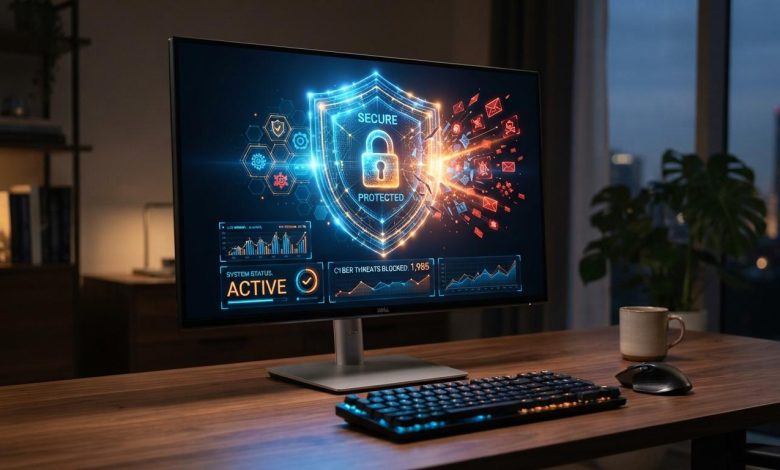
My PC’s default security settings seemed sufficient until I realized they couldn’t protect against every privacy risk. That prompted me to review my privacy settings and add another layer of security with a free antimalware tool. In this article, I’ll explain the importance of PC privacy settings, the signs your privacy may be at risk, the Windows settings I changed, and other practical tips to keep my PC secure.
Reasons Why Optimizing Your PC’s Privacy Settings Is Essential
Over time, I realized my computer stored many of my most important personal files and personal information. My PC contained everything from passwords and financial information to documents, photos, emails, and browsing history, all of which deserved strong protection.
I discovered that some Windows features and apps collect information automatically to support different functions. This included diagnostic data, usage information, and access to features such as my camera, microphone, and location. I was surprised to learn how much personal data the default settings collected automatically.
Using my PC every day made me realize how valuable my personal information was. I wanted to better understand what information Windows and my apps were collecting and why it was needed. I soon realized that failing to adjust my privacy settings could allow unnecessary data sharing and tracking.
Signs Your PC’s Privacy May Be at Risk
I realized that understanding the signs of privacy risks helps me identify potential problems early. Identifying them early made it easier to understand when my PC’s privacy required attention. Paying attention to these warning signs also gave me a better understanding of my computer’s overall security and the importance of regularly reviewing my privacy settings.
The following signs may indicate my PC’s privacy is at risk.
- Your default search engine is changed unexpectedly.
- You are redirected to unfamiliar or suspicious websites.
- Unknown browser toolbars or extensions appear automatically.
- Your security software is disabled without any action from you.
- Your PC runs unusually hot or shows high CPU, disk, or memory usage while idle.
- Unknown programs appear in your startup list or installed apps.
- Your internet or network usage remains unusually high when your PC is idle.
- Friends receive suspicious emails, messages, or links from your accounts.
- Your passwords suddenly stop working.
- Apps access your webcam or microphone unexpectedly or without your approval.
- Your PC displays intrusive ads or fake security warnings without opening a browser.
Quick Windows Privacy Settings Everyone Should Change
After learning how Windows’ default settings handled my data, I decided to review my privacy options. A few simple changes helped me gain more control over my personal information. These are the privacy settings I updated first.
- Turn off Advertising ID and personalization settings to reduce unnecessary data collection and ad tracking.
- Choose Required diagnostic data and disable Tailored experiences.
- Allow Location, Camera, and Microphone access only for trusted apps.
- Turn off Activity History to stop Windows from recording your activities.
- Turn off Clipboard History and cloud syncing if you don’t want copied items stored online.
- Turn off personalized advertising, browsing data sharing, and search data sharing to limit tracking.
How I Used IObit Malware Fighter Free to Strengthen My PC Security
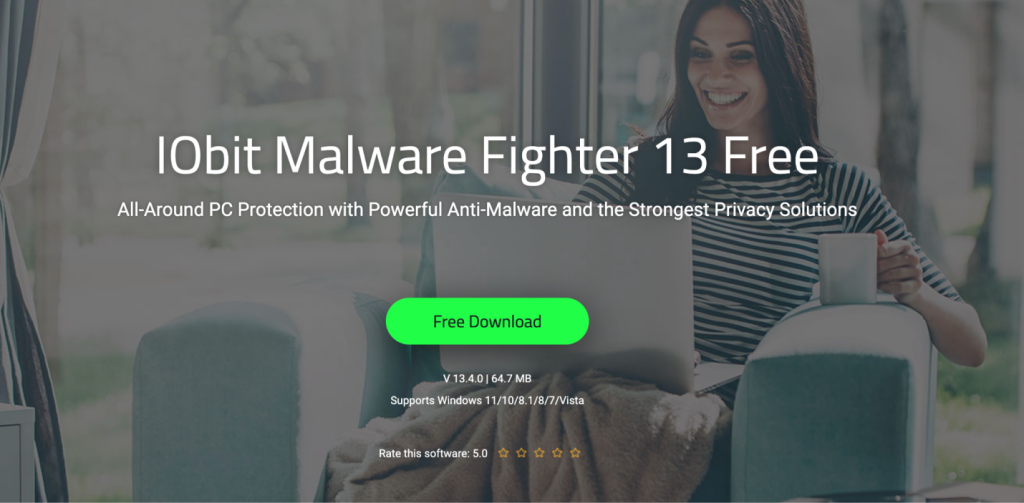
Updating my privacy settings was only one part of protecting my PC. To strengthen my overall security, I chose IObit Malware Fighter Free, a free antimalware solution.
Here’s how to strengthen your PC Security.
- Make a Full Scan for a dedicated check of potential threats.
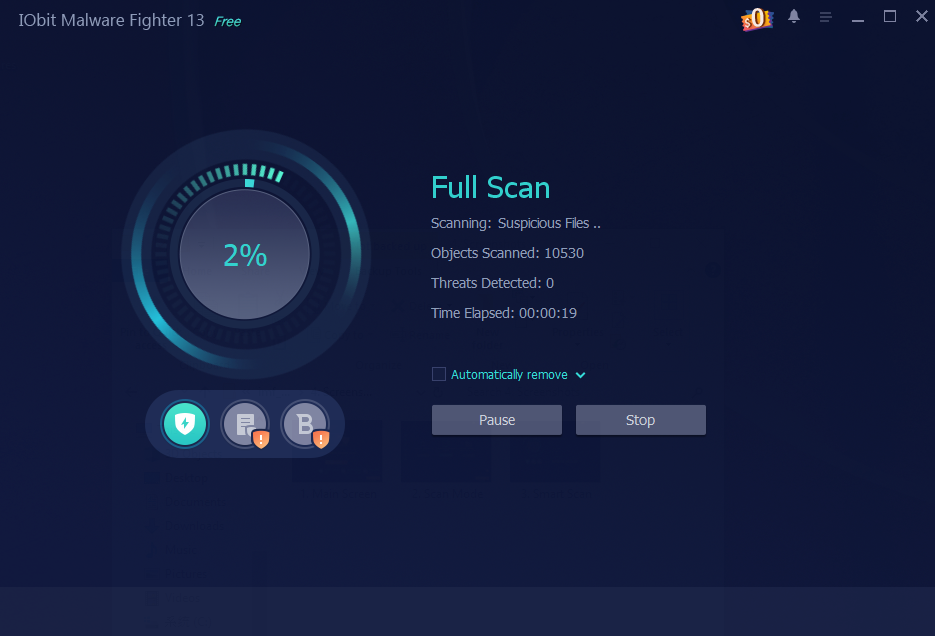
- Activate the IObit Anti-Malware Engine to strengthen your PC’s security.
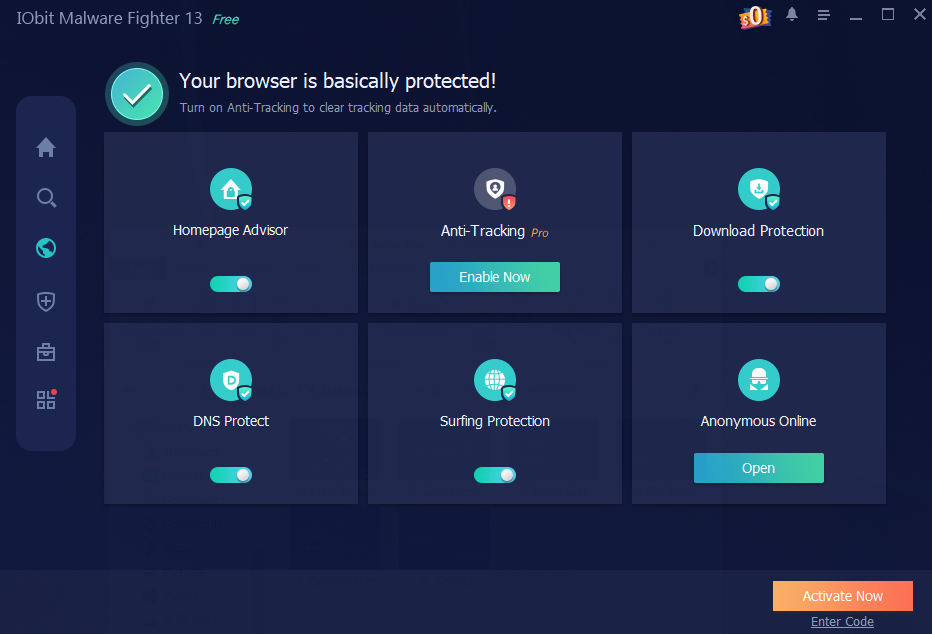
- Enable Browser Guard and Ads Block to improve my browsing security.
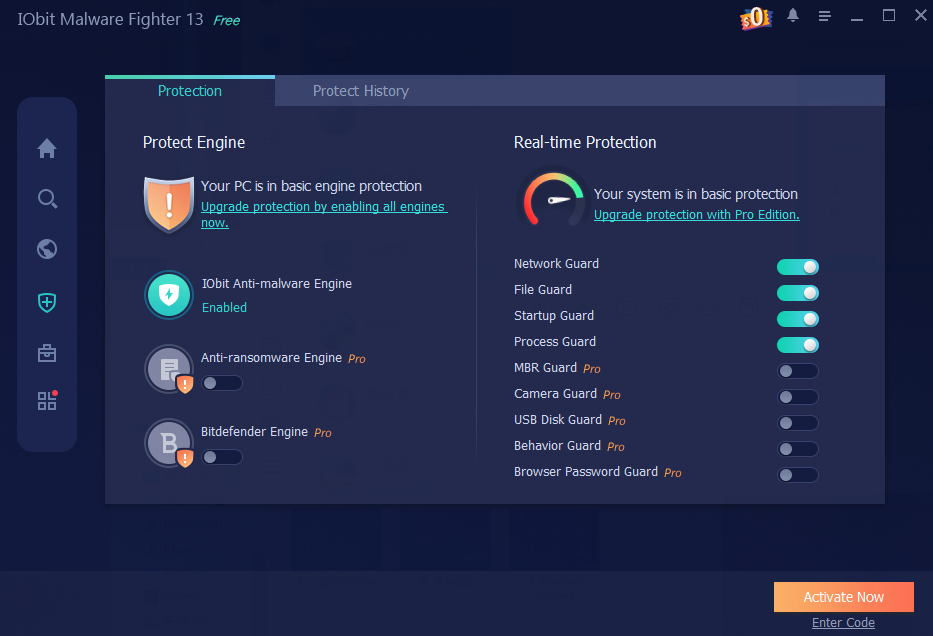
- Enable USB Guard to help protect your PC from infected USB drives. Use Startup Protection to strengthen startup security.
Step-by-Step: How I Blocked Unauthorized Access in Just a Few Clicks
Although privacy settings were important, I wanted stronger overall protection. I followed several easy security measures that added another layer of protection. Each measure helped keep my personal information more secure.
Step 1: Keep your account more secure by turning on Multi-Factor Authentication (MFA).
Step 2: Check your active devices and remove any unfamiliar sessions.
Step 3: Remove unknown apps and unnecessary browser extensions.
Step 4: Delete unknown remote access tools and end suspicious tasks.
Step 5: Turn on Windows Firewall if it’s disabled.
Step 6: Keep your PC secure by enabling automatic updates.
Other Useful Ways to Keep Your PC Private
After improving my privacy settings and PC security, I followed a few additional practices to better protect my personal information. These simple steps added another layer of security.
- Use a VPN on public Wi-Fi.
- Use strong, unique passwords and a password manager.
- Lock your PC with Windows Hello, a PIN, or a password.
- Encrypt your drive with BitLocker.
- Back up your important files regularly.
- Download software only from trusted sources.
- Avoid phishing emails and suspicious links.
- Remove unused apps and browser extensions.
Conclusion
I used stronger privacy settings together with IObit Malware Fighter, a free antimalware solution, to better protect my PC. While no security method can eliminate every threat, combining smart privacy settings with trusted antimalware software provides stronger everyday protection for your PC and personal information. A few simple changes today can help better protect your personal information in the long run.