
Have you ever looked at a static photo and wished it could move? Whether it’s a product shot that needs a dramatic slow zoom, a portrait that could come alive with a subtle smile, or a landscape begging for drifting clouds — image to video ai makes it possible in seconds, with no editing skills required.
In this guide, we’ll show you exactly how to generate videos from images online for free, share the prompt techniques that most tutorials skip, and compare the top tools so you can pick the right one for your project.
What is Image to Video AI?
Image to video ai uses advanced neural networks to analyze the content of a static image — its subjects, depth, lighting, and textures — and then predicts how those elements would naturally move. The result is a smooth, realistic video clip generated from a single photo.
Recommended Tools for Every Need
Not all image to video ai tools are built for the same job. Here’s how to choose:
🏆 Top Recommendation: Beatmo
If your priority is motion realism and creative control, Beatmo is our top pick. Where many free tools produce generic “floaty” animation, Beatmo excels at handling complex textures — fabric, hair, water, product surfaces — with lifelike physics. Its prompt interpretation is notably precise, meaning the keywords from the guide above actually translate into the motion you asked for.
Best for: Content creators, e-commerce sellers, and anyone who needs to quickly produce fun short videos.
Other Notable Options
- Pixlr / InVideo: Great for quick, casual social media clips with minimal setup.
- Canva: Convenient if your images already live inside a Canva design workflow.
- NightCafe: Solid free tiers for experimentation and hobbyist use.
Data Visualization: The AI Motion Capability Matrix
How do the leading tools actually compare? We evaluated them across four dimensions that matter most to creators:
| Tool | Ease of Use | Motion Realism | Customization | Speed |
| Beatmo | ★★★★☆ | ★★★★★ | ★★★★★ | ★★★★☆ |
| Pixlr | ★★★★★ | ★★★☆☆ | ★★★☆☆ | ★★★★★ |
| InVideo | ★★★★★ | ★★★☆☆ | ★★★☆☆ | ★★★★☆ |
| NightCafe | ★★★☆☆ | ★★★★☆ | ★★★★☆ | ★★★☆☆ |
The takeaway: Speed-focused tools like Pixlr are perfect for quick drafts, but if the final quality of the motion matters, Beatmo’s lead in realism and customization makes the difference visible in the final frame.
How to Generate Videos from Images (Step-by-Step)
Below are the detailed steps to generate videos from images online using Beatmo:
Step 1. Select a Style/Theme: Browse the available categories to choose the style that best fits your photo.
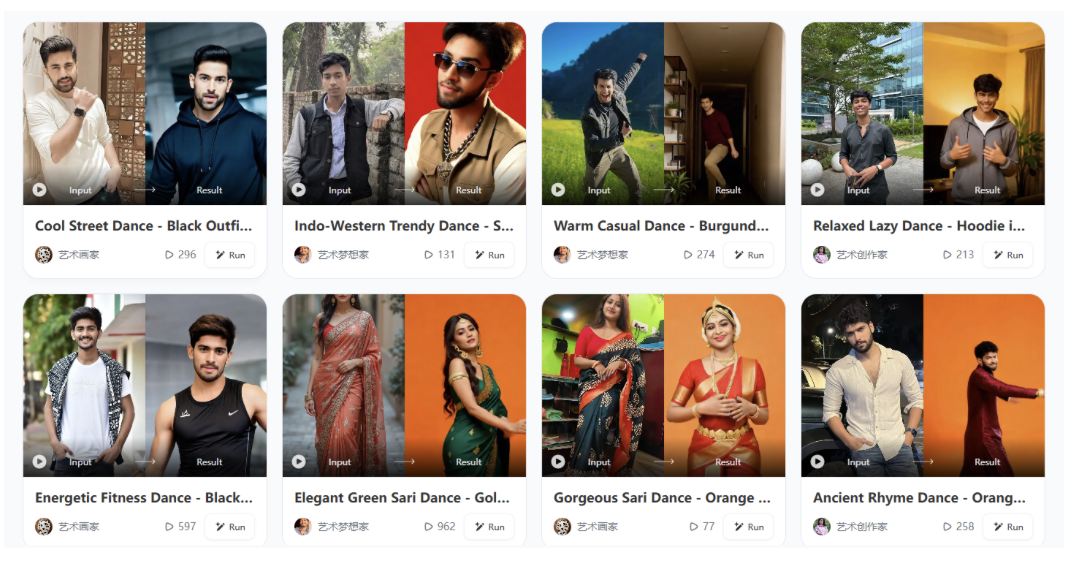
Step 2.Upload Your Image: Click on the upload area to select the photo you want to video from your device.
Step 3.Generate: Click the “Generate” button to start the AI processing.
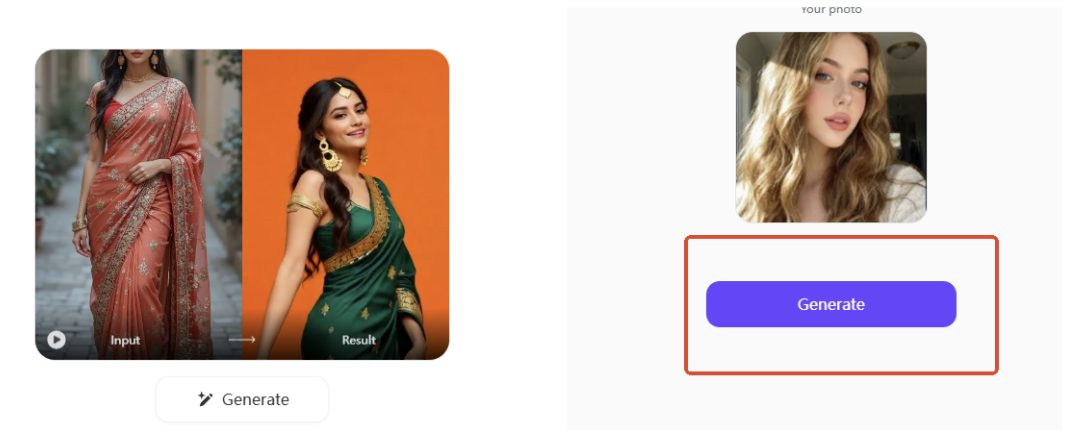
Step 4.Preview and Download: Once the AI finishes processing, preview your video result. If you are satisfied with the animation, click the download button to save your video.
Frequently Asked Questions
Is Image to Video AI really free?
Most platforms offer a genuine free tier — typically a daily limit of generations, sometimes with a watermark. Paid plans remove watermarks and unlock higher resolution and longer clips. Always check the export policy before starting a client project.
Can I use this for e-commerce product showcases?
Absolutely — this is one of the highest-ROI use cases. A subtle rotating or zooming product animation consistently outperforms static images in ad engagement. Tools with strong texture handling (like Beatmo) are especially suited for product surfaces like glass, metal, and fabric.
How long can the generated videos be?
Most free tools generate 5–10 second clips. For longer sequences, generate multiple clips with consistent prompts and stitch them in an editor.
Will the video look obviously “AI-generated”?
Not if you follow the prompt guide above. The telltale signs — warping, jitter, morphing — are almost always prompt problems, not tool limitations. Subtle motion + stable camera = believable results.
Final Thoughts
Image to video ai has crossed the threshold from novelty to genuine production tool. The workflow is simple, but the difference between amateur and professional results comes down to prompt craft and choosing the right tool for the job.
For quick social clips, any of the free tools above will serve you well. Start with Beatmo, you’ll be surprised how far a single photo can go.