

The Canva AI picture generator helps people create images in seconds without design skills. Today, many users want quick and high-quality visuals for social media posts, blogs, and marketing work. The Canva AI image generator makes this process simple. Many creators, students, and small business owners now use this AI photo generator tool because it saves time and effort. If you are new to AI tools, don’t worry. Learning how to use Canva AI is simple and beginner-friendly. You can also use the Canva text to image feature to turn your words into visuals quickly. This guide will explain everything step by step in simple words.
Part 1: What Is Canva AI Picture Generator and How It Works
The Canva AI picture generator is a simple tool that helps users create images using written text. It is built for people who do not have design skills but still want good visuals. This tool turns ideas into images in just a few seconds. Many users also call it the Canva AI image generator because it creates visuals from prompts.
- It turns written text into images using AI
- It works inside Canva without extra software
- It supports different image styles for users
- It helps beginners create designs quickly
- It is part of the Canva text to image feature
The main idea behind Canva text to image is very simple. You type a description of what you want, and the system creates an image based on those words. For example, if you write “a sunset over a beach,” the tool will generate a matching visual.
When you use the Canva AI picture generator, your words act as instructions. These instructions are called prompts. The Canva AI image generator reads your prompt and creates an image that matches your idea in a visual form.
Part 2: Key Features of Canva AI Image Generator
The Canva AI image generator comes with features that make image creation simple and flexible. It is built for people who want quick results without confusion. When you generate images with Canva, you get access to different styles and options. These features help you create images that match your needs.
Here are some useful features:
- Multiple styles like realistic, cartoon, and artistic
- Fast image creation within seconds
- Simple interface with easy controls
- Ready-to-use templates for quick editing
These features help users save time and effort. Instead of learning complex tools, you can just enter your idea and get results instantly. This is why many people now prefer an AI photo generator tool like Canva for daily content creation.
Part 3: How to Use Canva AI Picture Generator Step by Step
If you want to understand how to use Canva ai, this simple guide will help you create images easily using the Canva AI picture generator and Canva text to image feature. Follow these clear steps to work with the Canva AI image generator.
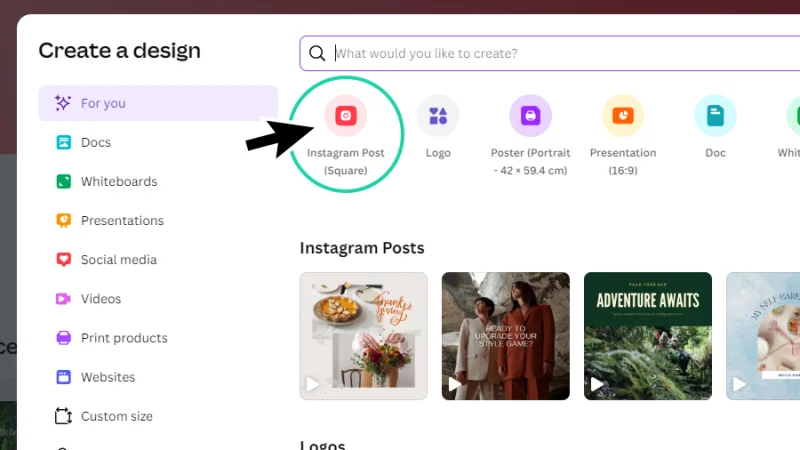
Step 1: Open Canva and Create a Design
Go to Canva and open the homepage. Click on “Create a Design” and select any format like Instagram Post or Poster. This is your starting point to use the AI photo generator tool.
Step 2: Find the AI Image Tool
On the left side panel, click on “Elements” and scroll down. Look for the AI image section where you can generate images with Canva using text prompts.
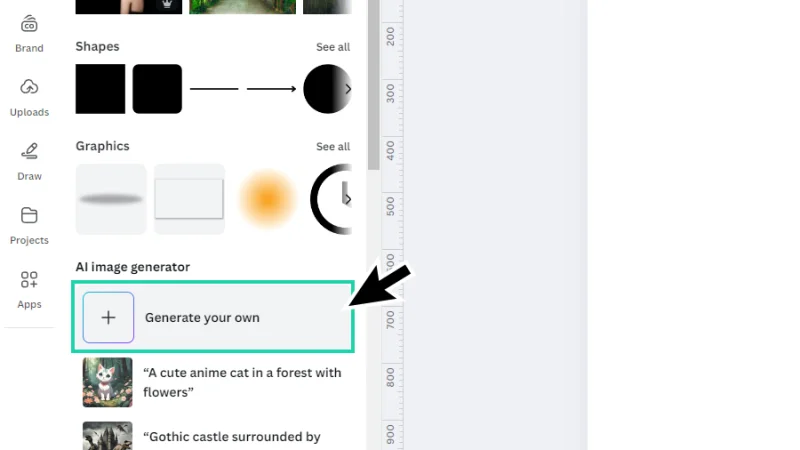
Step 3: Open Magic Media or AI Generator
Click on “Generate your own” or Magic Media option. This will open the Canva AI image generator where you can create images from text.
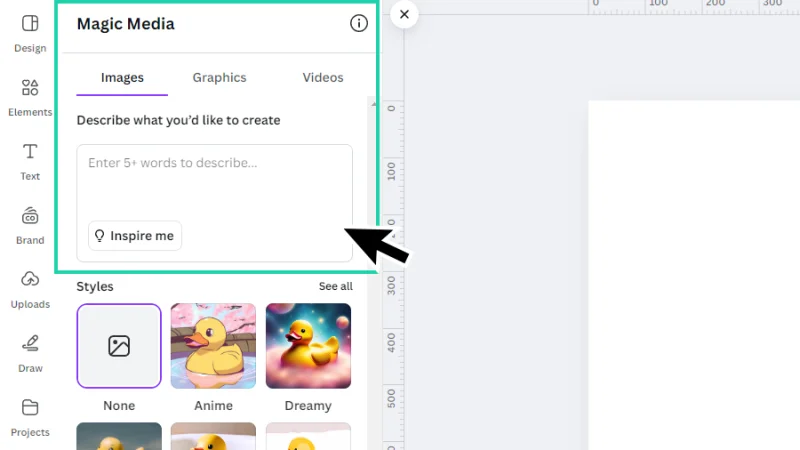
Step 4: Enter Your Text Prompt
Write a clear description of your image idea. For example, “a dragonfly resting on a green leaf.” This is how Canva text to image works. The tool reads your words and creates visuals.
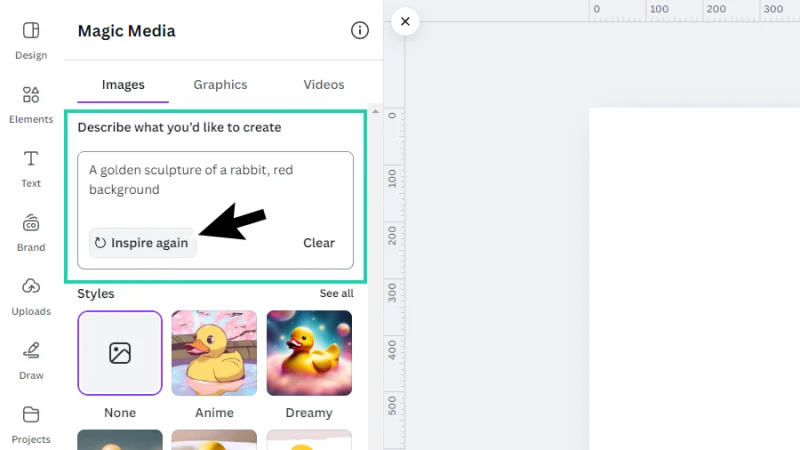
Step 5: Choose Style and Settings
Select a style like realistic, cartoon, or minimalist. This helps the Canva AI picture generator produce better and more suitable results for your design.
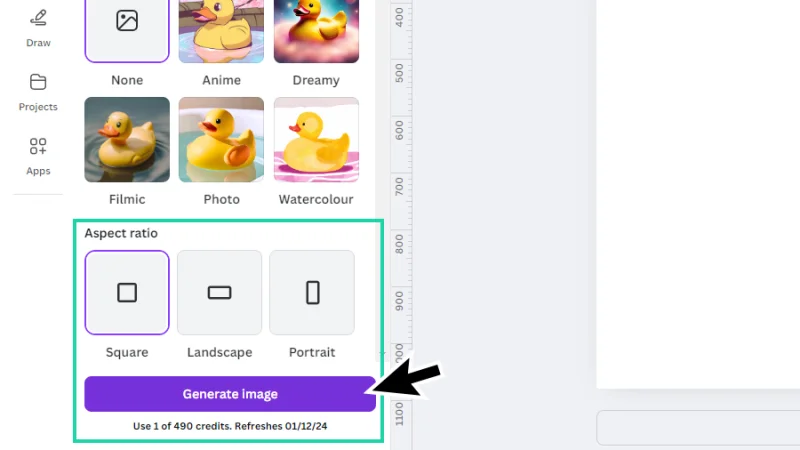
Step 6: Generate, Review and Download
Click the generate button and wait for results. The AI image generator Canva free version will show multiple options. Select your favorite image, download it, or edit it. If needed, you can later enhance AI generated images to improve image quality AI results.
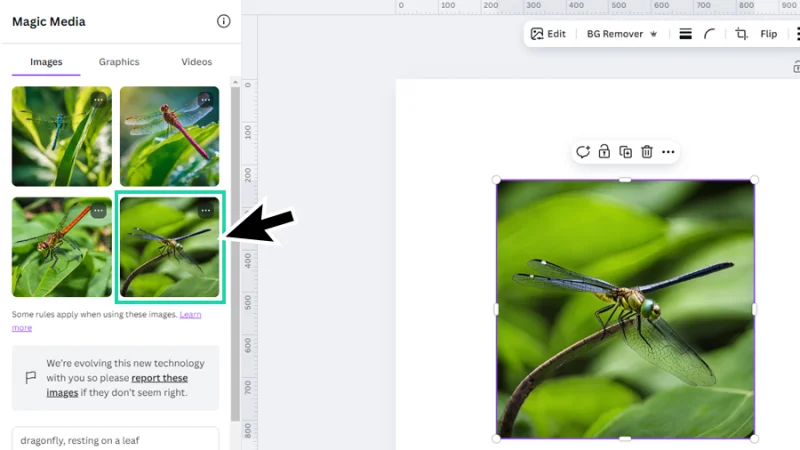
While learning how to use Canva ai, you may notice some images look soft or unclear. In such cases, an AI image upscaler can help you improve image quality AI and make your visuals sharper.
Part 4: Limitations of Canva AI Generated Images
The AI image generator Canva free tool is helpful for quick image creation, but it is not perfect. Like many AI tools, it has some limits that users should know before relying on it for important work. These issues usually appear when you need high-quality or detailed visuals.
- Low resolution output that may not look sharp
- Lack of fine detail in complex objects or faces
- Inconsistent results even with similar prompts
- Limited control over small design elements
- Sometimes unclear or distorted image parts
The AI image generator Canva free version is great for basic use, but it may not always produce professional-level results. That is why users often need extra editing or enhancement tools to fix and improve the final image quality.
Part 5: How to Improve Canva AI Generated Images
The Canva AI image generator can produce many valuable images, but they are sometimes not as good as you would want. Users often find AI images to be blurry, fuzzy or lacking detail. That’s why post processing is important. By post processing AI generated images you can correct these problems, and make the images clearer to use for your projects such as social media, blogs or designs. You can make basic changes to the image brightness and contrast and sharpen the image but to get really good results you need more advanced tools. To get better AI generated images, users often use software like 4DDiG AI Photo Enhancer to upscale and sharpen images. It has a lot to offer when you want to add a touch to images made with the Canva AI image generator.
Key Features
- AI Upscaling: Scales up the image size and makes it sharper without losing quality, to improve image quality AI results.
- Detail Enhancement: Focuses on enhancing details in the image so that objects and faces look more realistic.
- Noise Reduction: Eliminates blurriness or graininess that can occur when using the AI image generator Canva free.
- Sharpness Improvement: Creates sharper edges, making Canva text to image results sharper.
- Color Correction: Enhances tones and colours to make Canva AI images appear more natural.
Steps to Enhance Image with 4DDiG AI Photo Enhancer
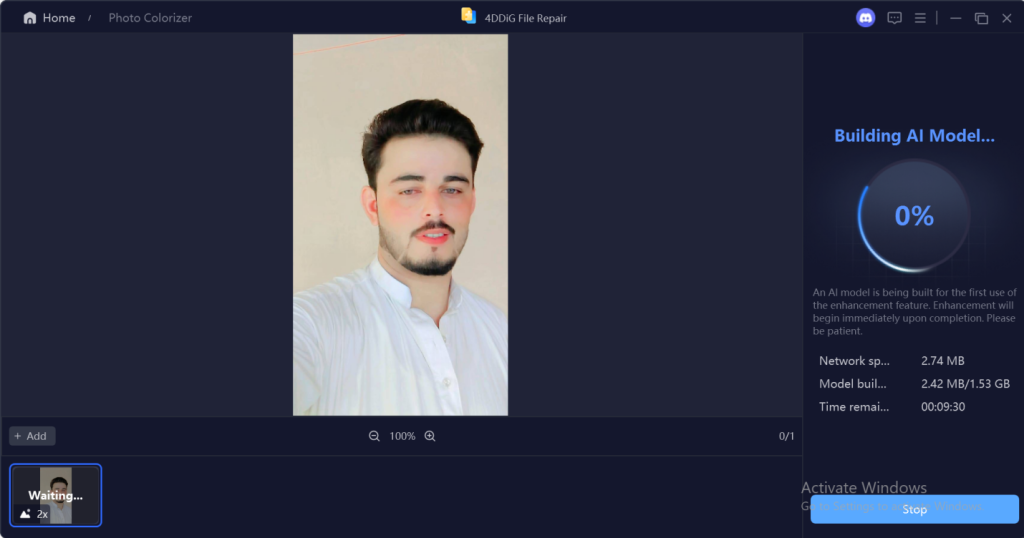
Step 1: Add the Photo
Drag your photo into the software. There are no complicated settings or menus to adjust. The tool prepares your image for analysis while keeping the original safe.
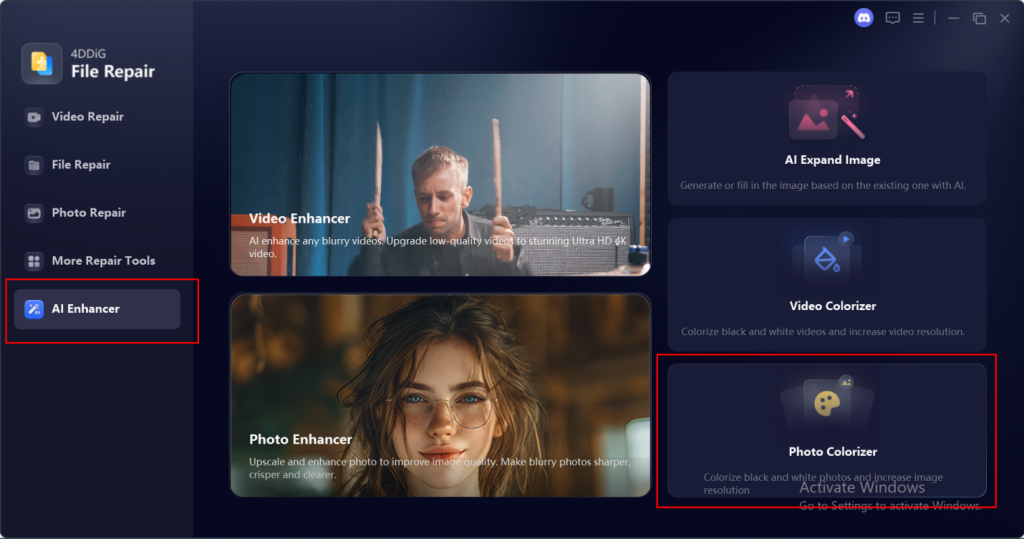
Step 2: Let AI Analyze (You Stay in Control)
The program inspects the picture and finds scratches, faded or stains. You are also in charge of the process. Most importantly, there is a preview of the photo being restored before saving; therefore, nothing is changed permanently until you approve it.
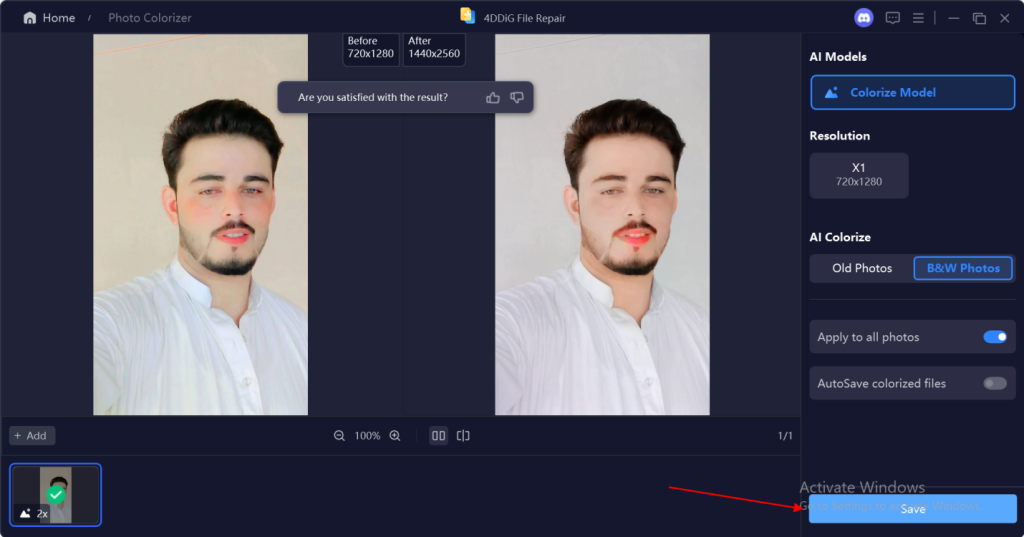
Step 3: Preview, Then Save
Compare the original and restored images side by side. Only click Save when satisfied. Nothing is deleted, and every change is optional. You decide when the restoration is complete.
Part 6: Tips to Get Better Results with Canva AI
Getting good results depends on how you use the tool. Small changes in your input can make a big difference. If you want to improve image quality ai, focus on how you write your prompts and edit your images.
Here are some helpful tips:
- Use clear and detailed descriptions
- Choose the correct style for your goal
- Avoid too many edits after generation
These simple tips help you get better results when using the Canva AI image generator.
FAQ Section
Q1: Is Canva AI picture generator free?
Yes, the AI image generator Canva free version is available with limited features. You can use the Canva AI picture generator for basic image creation, but advanced options may require a paid plan.
Q2: How to create better images with Canva AI?
To get better results, focus on clear prompts. The Canva text to image feature works best when you describe your idea in detail. This improves output from the Canva AI image generator.
Q3: How to improve AI generated image quality?
You can enhance AI generated images by editing them or using tools like 4DDiG. An AI image upscaler helps you improve image quality AI and make images sharper.
Q4: Can I upscale Canva AI images to 4K?
Yes, you can use an AI image upscaler to increase resolution. Images from the AI photo generator tool can be improved to higher quality with the right tools.
Conclusion
The Canva AI picture generator allows you to easily make images from text, even without design experience. It allows users to easily create images for social media, blogs, and other applications using the Canva AI picture generator and Canva text to image tool. But the images are not always flawless, and some may require a bit of editing. This is why it’s essential to learn how to use Canva AI, and how to edit results to enhance them. For blurry or low quality images, users can use 4DDiG AI Photo Enhancer. It can sharpen AI images, enhance their quality and improve image quality to give better results overall.


