Photographs naturally deteriorate. Physical copies show fading, tearing, and discoloration. Digital files frequently have issues with blur, noise, or poor detail.
By 2026, quite a few AI restoration tools can fix most of those issues. Some give you detailed manual controls — perfect if you need precision for archival work. Others focus on fast, simple results with almost no effort from you.
In this overview, we look at the main options available now. We point out the key features that actually matter and give some practical tips on picking the one that fits what you’re trying to do.
What to Look for in a Photo Restoration App
There are many AI photo restoration apps now, but they do not all perform the same. Tools built for modern photos often struggle with vintage images. The criteria below can help you choose the right one.
1. Specialization in “Old” Photos vs. General Enhancement
Apps good at general enhancement or modern photos usually struggle with vintage ones. They don’t account for film grain, age-related fading, or wear like tears and scratches.
Look for apps that mention training on historical or old photographs — that usually gives better results on vintage material.
2. Damage Repair Capabilities
Restoration goes beyond color correction and sharpening. A capable app should handle physical damage. When evaluating an app, check whether it can:
- Remove scratches, cracks, and tears from scanned prints.
- Correct water stains, mold spots, and other blemishes without blurring the image.
- Reconstruct missing sections using surrounding pixels.
3. AI Colorization Accuracy
Colorizing black-and-white photos varies a lot between apps. Better ones use AI trained on historical color data for realistic results. Skip apps that produce overly bright or dull, muddy colors. User reviews mentioning “natural” or “historically accurate” colors are a good quick check.
4. Control and Manual Adjustment
Automated tools are convenient, but manual control is often necessary for detailed work. Determine whether an app allows adjustments beyond the automatic output.
Some apps offer healing brushes or clone stamps for manual corrections. Others provide extensive manual control through layers and masking. Apps that combine automation with simple manual sliders offer a middle ground.
5. Output Quality and Resolution
If you intend to print restored images, output resolution is a key factor. Check whether an app upscales to HD or 4K. Also, confirm that the app does not compress images, which can degrade detail.
6. Privacy and Security
Uploading old family photos to an app means trusting that company with your personal images. So privacy policies matter.
Look for apps that are clear about data use. The best ones state upfront that they do not use uploaded photos for AI training unless you opt in. Some even advertise features like “100% Privacy Protected.”
If an app does not explain how it manages your photographs, this is a red flag. It is preferable to select one that is transparent from the start.
7. Pricing Model
Restoration involves more than color and sharpness adjustments. A useful app should also repair physical damage. Evaluate whether an app can:
- Remove scratches, tears, and cracks from scans.
- Correct stains and blemishes without blurring.
- Reconstruct missing areas using nearby image data.
Top Photo Restoration Apps in 2026
Photo restoration tools have expanded to include both automated AI apps and manual editing software. Different users have different requirements, from processing family collections to professional archival work. Software choice impacts quality.
We review several apps below, noting what each does well, where they fall short, and who they are for.
Renew
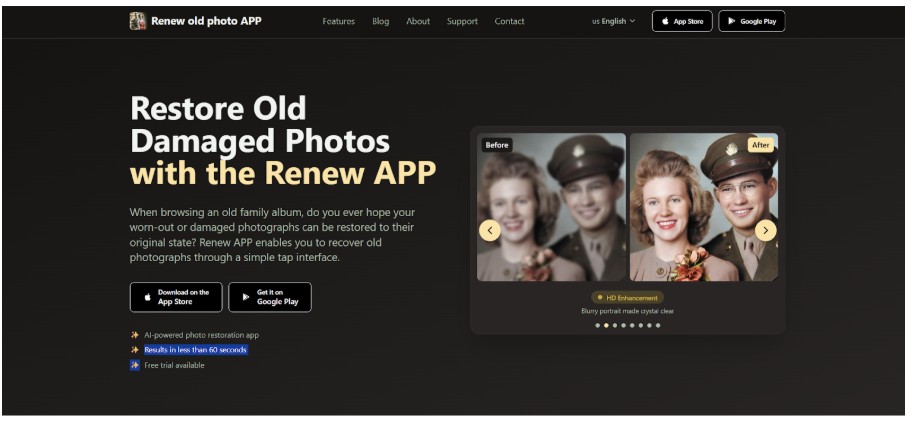
Renew is a photo restoration app built to restore old, worn, or faded images. Trained on thousands of authentic vintage pictures, it identifies problems like rips, color loss, or missing areas and fixes them while aiming to keep the original feel intact. Torn family prints, faded color shots, black-and-white portraits — most jobs are done in under a minute.
The interface stays simple on purpose. You upload your picture, pick what kind of restoration you want, and the AI takes over—no editing skills needed.
They’ve already handled more than a million photos, and privacy is something they actually emphasize, which matters when you’re dealing with family pictures. If you just want to bring memories back without hassle, it’s a reliable choice.
Besides the main automatic repair, there are several other tools included. You can sharpen for higher clarity, add color to black-and-white photos, remove scratches or cracks with one tap, correct lighting, merge multiple images into one, or apply basic AI animation to still shots.
Manual adjustments are also available if you want more say in the outcome. This setup makes it useful for both fast fixes and somewhat more involved restoration tasks.
Key Features:
- AI Photo Restoration – Repair torn, faded, and damaged pictures with a single tap.
- HD Enhancement – Sharpen faces, clarify backgrounds, and make details pop.
- Photo Colorization – Add realistic colors to black-and-white images instantly.
- Scratch Removal – Eliminate cracks and scratches in one step.
- Lighting Fix – Correct photos that are too dark or too light using AI.
- Photo Combining – Merge multiple photos into a single perfect image.
- Photo Animation – Bring still photos to life with AI motion.
- HD Print Quality – Output suitable for sharing online or printing in high resolution.
Best For: Families and casual users. The app is fast and straightforward. Covers everything from scratch removal to photo animation. You do not need any editing experience.
RetroFix
RetroFix specializes in restoring historical photographs. Its AI was trained on vintage images, so it accounts for faded colors, film grain, and typical print damage. The app delivers colorization, face enhancement, and scratch removal. RetroFix states it is used by over one million people and offers an interface that does not require technical expertise.
The app handles multiple restoration tasks in one workflow. Users can repair damage, add color to black-and-white photos, sharpen images, remove blemishes, and animate still photos.
Upscaling to 4x resolution is available for prints or digital use. A free tier lets users test the app before paying. The tool is aimed at genealogy users and anyone restoring family photos without using complex software.
Key Features:
- Vintage AI – Trained on historical photographs.
- Damage Repair – Removes scratches, tears, and blemishes.
- Colorization – Era-appropriate color for black-and-white photos.
- HD Upscaling – Up to 4x resolution increase.
- Face Enhancement – Sharper details, natural likeness.
- Photo Animation – Bring still images to life.
- All-in-One – Restoration, colorization, sharpening, animation.
Best For: People who want professional-quality vintage photo restoration without spending time on complicated software. Ideal for genealogy enthusiasts and family historians.
Remini

Remini became well known for its ability to enhance faces and for the many before-and-after examples that spread on social platforms. Its “Old Photos” tool sharpens facial details, corrects color fading, reduces blur, and clears noise — typically completing the task in just a few seconds after you upload the image and select the mode.
It works on both mobile apps and the web version, and includes features for video enhancement and some AI photo generation. The tool delivers the strongest results with recent blurry or low-quality photos, especially portraits. It is not the best option when the goal is careful, historically accurate restoration of vintage images.
The design is simple and keeps the main features easy to access. However, the output can occasionally look too sharply defined, and the app does not offer manual fine-tuning. It is a practical choice for quick enhancements. When more control or historical accuracy is required, dedicated restoration tools are generally more appropriate.
Key Features:
- Face Enhance – Sharper, more detailed portraits.
- Face Glow – Subtle touch-ups for a refreshed look.
- Auto Color – Automatic color and tone adjustment.
- Background Enhance – Improved clarity in backgrounds.
- Old Photos Restorer – Sharpens, unblurs, and performs color correction.
- Denoiser – Removes grain and noise.
- Image Enlarger – Upscales photos up to 2x.
- Video Enhancer – AI-powered video enhancement.
Best For: Casual users, families, and social media enthusiasts looking to quickly improve blurry or low-resolution photos, especially portraits.
Adobe Photoshop
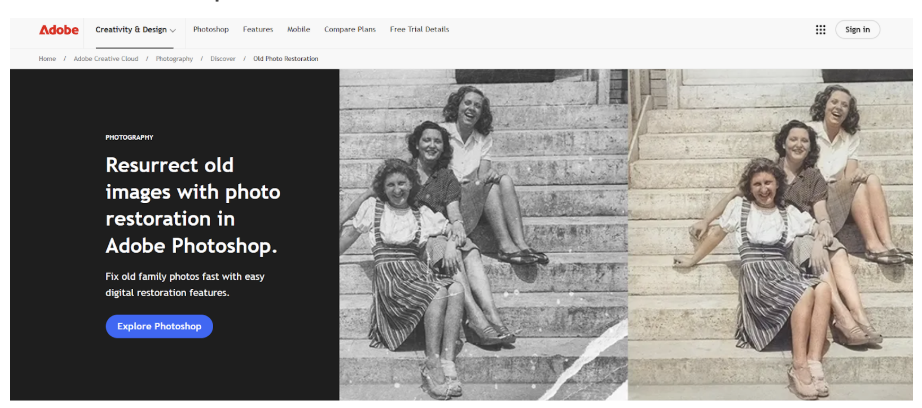
Adobe Photoshop is widely used for professional image editing. One of its more recent additions, the Photo Restoration Neural Filter, can reduce scratches, lower noise levels, and improve face details in a single application.
The program’s layer system keeps edits non-destructive, so the original scanned file stays unchanged. That approach is particularly helpful when working on archival material. After the Neural Filter has run, you can still make precise corrections using tools such as the Healing Brush or Clone Stamp.
Photoshop combines some AI automation with very detailed manual options. The interface takes time to learn — more than most basic restoration apps — but a large number of tutorials and third-party plug-ins exist to assist users. It is aimed mainly at professionals, archivists, and anyone who requires accurate control for either digital files or printed output.
The subscription plan also includes Lightroom, which adds photo cataloging and further editing features.
Key Features:
- Neural Filter – Fix scratches, noise, and faces with one click.
- Non-Destructive Workflow – Layers and masks protect original scans.
- Healing Brush – Manual removal of imperfections.
- Clone Stamp – Copy clean areas to cover defects.
- Color Controls – Professional-grade tone adjustments.
- Plugin Support – Works with specialized restoration tools.
- High-Resolution Output – Print-ready quality.
Best For: Photographers, archivists, and designers who need maximum control and professional-grade tools for both digital and print output.
AKVIS Retoucher
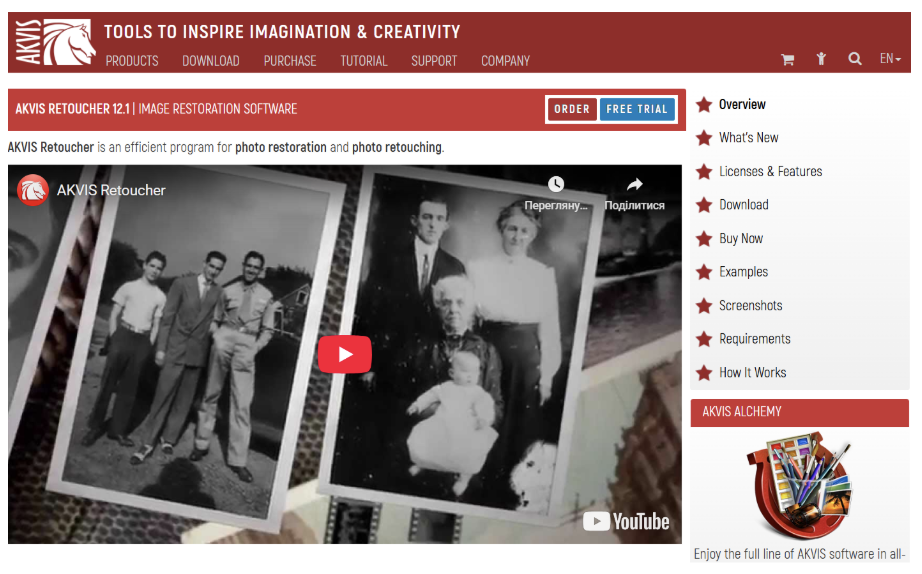
AKVIS Retoucher repairs physical damage on scanned photos: dust, scratches, stains, and missing sections. Works standalone or as a Photoshop plugin. Inpainting samples nearby pixels to fill gaps and restore texture, lighting, and color.
You select exactly what to fix — good for targeted work like tears or creases on vintage images. Simple workflow: brush over damage and process. Interface isn’t modern, but the results hold up. Standalone for fast jobs; plugin for layered workflows. Also removes date stamps, objects, or extends the canvas by filling blanks.
The workflow is simple. You select the damaged area—whether a small speck or a large rip—and the software processes it. The interface is not as modern as some web-based apps, but the results on blemish removal and reconstruction are reliable.
The standalone version works for quick tasks. The plugin version fits into layer-based workflows for more complex projects. You can also use it to remove date stamps, distracting objects, or extend canvas sizes by recreating patterns in blank areas.
Key Features:
- Inpainting – Fills missing parts using nearby pixels.
- Scratch Removal – Removes dust, scratches, and age-related marks.
- Object Removal – Cleans up date stamps, text, and distractions.
- Canvas Extension – Adds borders with intelligent pattern generation.
- Standalone or Plugin – Works independently or with Photoshop.
- Targeted Repair – Focus on specific damaged areas.
- Composition Tools – Center subjects, clean up framing.
Best For: Archivists, genealogists, and hobbyists who primarily need to repair physical damage like scratches, creases, tears, and missing pieces on scanned prints.
Conclusion
Photo restoration has changed significantly. Not long ago, fixing a torn photo or colorizing a black-and-white portrait took hours of manual work on expensive software. That is no longer the case.
In 2026, there are tools for different needs and budgets. Some apps offer quick automated fixes for digital portraits. Others provide specialized algorithms or professional manual controls for archival work or badly damaged prints.
The right choice depends on your goal. Some users want to animate photos. Others need high-resolution prints or just basic cleanup. Matching your needs to the features covered in this article—from AI automation to manual controls—helps ensure your old photos get restored and preserved.