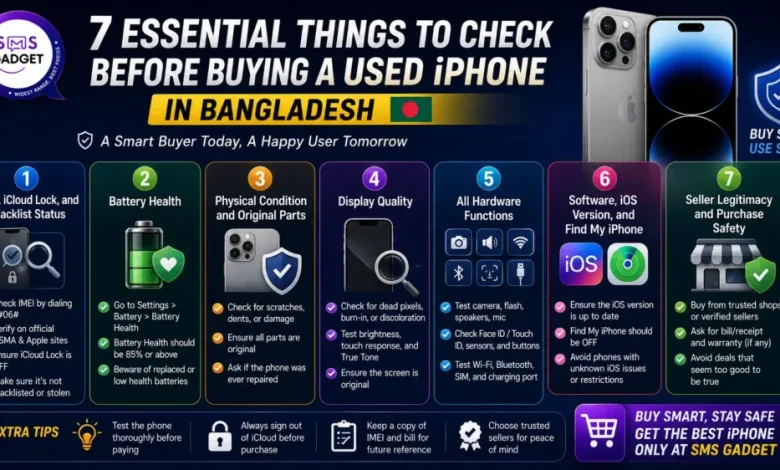

Before buying a used iPhone in Bangladesh, always check these seven things: IMEI and iCloud lock status, battery health, physical condition and original parts, display quality, all hardware functions, software and iOS version, and the seller’s legitimacy. Skipping even one of these checks is how most buyers in Bangladesh end up with a stolen, tampered, or counterfeit device — often at a price that didn’t seem worth the risk at the time.
This guide gives you the exact steps for each check, including how to detect replaced or fake parts that most sellers won’t tell you about.
Why Used iPhone Buyers in Bangladesh Get Scammed (And How to Avoid It)?
Bangladesh’s used iPhone market is large, fast-growing, and largely unregulated. Most transactions happen on Facebook Marketplace, Bikroy.com, or at local markets like Bashundhara City, Multiplan Center, or Motaleb Plaza, where individual sellers have no accountability after the sale is done.
The most common traps buyers fall into:
- Buying an iCloud-locked phone that becomes a paperweight after the seller disappears
- Getting a “Frankenphone” — an iPhone assembled from mixed genuine and third-party parts that looks real but won’t pass Apple service diagnostics
- Purchasing a stolen device with a blacklisted IMEI that gets carrier-blocked
- Receiving a phone with 60-70% battery health that was hidden under Settings
None of these require technical expertise to spot—they just require knowing what to look for before you hand over your money.
Check 1: IMEI, iCloud Lock, and Blacklist Status
Why This Is the Most Critical Check of All
This single check can save you from buying a completely unusable phone. An iCloud-locked iPhone cannot be set up, used, or even factory reset without the original owner’s Apple ID — making it worthless to anyone except the person who locked it.
Step 1: Get the IMEI
Dial *#06# on the phone — the IMEI appears instantly without needing to unlock it. Also cross-check it in Settings → General → About → IMEI and on the physical SIM tray (on older models, it’s printed there too). All three should match exactly.
If any of these numbers don’t match, walk away immediately. IMEI tampering is a serious red flag for a stolen or fraudulently modified device.
Step 2: Check iCloud Lock Status
Power the phone on. If it shows an “Activation Lock” screen asking for someone else’s Apple ID and password, the previous owner did not properly remove their account. Never buy this phone, regardless of what the seller tells you. There is no legitimate way to bypass Activation Lock — if you buy it, it is useless.
A properly cleared iPhone shows the “Hello” / “Swipe to Begin” setup screen or a normal Home Screen with no Apple ID prompt.
Step 3: Verify IMEI Online
Go to checkcoverage.apple.com and enter the IMEI. This shows:
- Whether the phone is a genuine Apple device
- Its model and original purchase region
- Warranty and repair eligibility status
For a deeper check, especially whether the device has been reported lost or stolen, you can use IMEI-checking services. A clean IMEI is non-negotiable.
Check 2: Battery Health
The Single Most Hidden Problem in Bangladesh’s Used iPhone Market
Sellers routinely hide poor battery health with a fresh charge, a screen protector over Settings, or simply by not mentioning it. A phone with 65% battery health will drain entirely within a few hours of normal use—and replacing the battery costs ৳2,500–৳5,000+ depending on the model and shop.
How to Check
- iPhone 15 and later: Settings → Battery → Battery Health
- iPhone 14 and earlier: Settings → Battery → Battery Health & Charging → Maximum Capacity
What the Numbers Mean
| Battery Health | What It Means |
| 95–100% | Excellent — likely lightly used |
| 85–94% | Good, solid everyday performance |
| 80–84% | Acceptable — factor in replacement cost soon |
| Below 80% | Avoid, or negotiate a significant price reduction |
Also check: Does a “Service Recommended” warning appear under the battery health? If yes, Apple has flagged the battery as needing replacement—use this as a strong negotiating point or simply walk away.
Check 3: Physical Condition and Original Parts
The “Frankenphone” Problem in Bangladesh
One of the most underreported issues in Bangladesh’s used iPhone market is what the tech community calls a “Frankenphone”—a device that looks like a genuine iPhone from the outside but has had its display, battery, or other internal components swapped for third-party or lower-quality replacements. These pass a visual inspection but fail under regular use.
How to Detect Replaced Parts
Check the Model Number Prefix: Go to Settings → General → About → Model Number (tap it once to reveal the full model number). The first letter reveals important information:
| Prefix | Meaning |
| M | Original retail unit, never repaired |
| F | Apple Factory Refurbished unit |
| N | Replacement unit issued by Apple |
| P | Personalized (engraved) device |
An “F” or “N” prefix isn’t automatically bad—it means Apple itself serviced or refurbished it. But if a seller is claiming a fully original, never-repaired device and the prefix is “F” or “N,” they’re being dishonest about the device history.
Check for Third-Party Parts Warning: On iPhone 12 and later running iOS 15.2 and above, Apple added a native parts detection system. Settings → General → About → [scroll down to parts list]
Any component replaced with a non-Apple-genuine part shows an “Unknown Part” or “Unable to Verify” warning next to that specific component (battery, display, or camera). This is Apple’s own authentication system—it cannot be faked or cleared.
Physical Inspection:
- Remove any screen protector and inspect the display edges—a replaced screen often shows a slight gap or uneven adhesive around the bezel
- Check that True Tone works (displays a “True Tone” option in Display & Brightness settings—non-genuine screens disable this)
- Look for any signs of the phone being opened: stripped screws on the bottom, pentalobe screws, residue around the edges, or uneven gaps in the frame
Check 4: Display Quality
What to Test
The display is both the most expensive component to replace and the most commonly swapped. A thorough screen check takes under two minutes.
Brightness and colors: Increase brightness to 100% and check for uneven backlight, yellow tinting on corners, or washed-out colors compared to what an OLED panel should look like.
OLED burn-in test: Search “OLED burn-in test” on YouTube and play the test video at full screen. This cycles through solid red, green, blue, white, and black screens—burn-in from a previous owner’s usage pattern (often a keyboard outline or status bar ghost) becomes visible immediately on solid colour backgrounds.
Touch responsiveness: Tap, swipe, and scroll in every corner of the screen, including the very edges. Dead zones or areas with reduced sensitivity usually indicate a non-genuine replacement panel.
Face ID or Touch ID: Test biometric unlock thoroughly. Face ID issues almost always mean the Face ID module was damaged or tampered with — this cannot be repaired without Apple’s own proprietary calibration tools, so a failing Face ID on a used phone is a serious problem.
Check 5: All Hardware Functions
Do not skip any of these—testing each one takes under five minutes total and covers the components most likely to have hidden damage.
Camera system: Open Camera and test every lens — wide, ultrawide, and telephoto (on Pro models). Switch to the selfie camera. Record a short video clip. Check that autofocus locks properly, and there are no dark spots, blurring from dust inside the lens, or autofocus hunting.
Audio — speakers and microphones: Play a YouTube video at full volume and listen for any distortion, crackling, or muffling. Then open Voice Memos, record a clip while speaking normally, and play it back—a healthy microphone produces clear, undistorted audio.
Buttons: Test Volume Up, Volume Down, Side/Power button, and the Mute switch on every press. Soft, sticky, or unresponsive buttons often indicate moisture damage or physical wear.
Connectivity: Connect to Wi-Fi, pair a Bluetooth device, insert your SIM card and make a test call, and plug in a cable to verify the charging port works without wobbling or intermittent connections.
Charging port: Physical damage to the charging port is common in used iPhones. Plug in a cable and check that it seats firmly without wobbling—a loose port often means it needs replacement soon.
Check 6: Software, iOS Version, and Find My iPhone
Verify the iOS Version
Go to Settings → General → About → Software Version. A phone running a very outdated iOS version may have been deliberately kept on an older version to hide software-level issues, or it may not have been maintained properly.
Update eligibility can be checked at Settings → General → Software Update. If the phone shows “Your software is up to date” on the latest iOS, that’s a good sign. If it’s several versions behind, ask why — there may be a reason it wasn’t updated.
Confirm Find My iPhone Is Off
This is non-negotiable. Before completing any purchase: Go to Settings → [Seller’s Name at top] → Find My → Find My iPhone—it must show OFF.
Alternatively: Settings → General → Transfer or Reset iPhone—if the seller can access this without an Apple ID prompt, their account is properly signed out.
If Find My iPhone is still enabled, the seller must turn it off in front of you by signing out of their Apple ID. Do not accept any promise to “turn it off later”—once you leave, you have no leverage.
Check for Any MDM (Mobile Device Management) Profile
Some iPhones, especially those previously used in corporate environments or imported via certain channels, may have a Mobile Device Management profile installed. This gives a third party control over the device.
Check: Settings → General → VPN & Device Management — if any profile appears here that isn’t one you installed, the phone is under external management and should be avoided.
Check 7: Seller Legitimacy and Purchase Safety
Red Flags in Bangladesh’s Used iPhone Market
- Price significantly below market rate—if an iPhone 15 Pro is listed for ৳60,000 when the market rate is BDT 1,00,000+, the gap is almost always explained by a blacklisted IMEI, iCloud lock, or fake parts
- Seller refuses to meet in person or won’t let you test the phone before payment
- “Box original” claims without a verifiable IMEI match—many boxes are sold separately in the market and paired with mismatched phones
- Seller rushes the transaction or creates artificial urgency (“three other buyers are coming today”)
- No return policy, no invoice — any serious seller provides written proof of purchase
Where to Buy Safely in Bangladesh?
For the safest used iPhone purchase in Bangladesh, buy from established, verifiable sellers—either trusted physical stores in Bashundhara City or Jamuna Future Park, or well-reviewed online sellers who provide certified grading, battery health disclosure, IMEI verification, and a warranty period before you commit.
Before agreeing on a price, always check the current Unofficial iPhone price in Bangladesh for that specific model and storage to ensure you’re not overpaying—prices shift frequently based on import supply and USD/BDT rates.
Quick Pre-Purchase Checklist (Print or Screenshot This)
| Check | What to Do | Pass Condition |
| IMEI | Dial *#06# and verify all 3 match | All numbers identical |
| iCloud Lock | Power on, check for Activation Lock | “Hello” screen or normal Home Screen |
| Apple Coverage | checkcoverage.apple.com | Valid Apple device shown |
| Battery Health | Settings → Battery → Battery Health | 85% or above |
| Parts Authenticity | Settings → General → About → scroll down | No “Unknown Part” warnings |
| Model Prefix | Settings → General → About → Model Number | Confirm M/F/N prefix matches seller’s claim |
| Display | OLED burn-in test + touch all corners | No burn-in, no dead zones |
| Face ID / Touch ID | Test unlock 3–4 times | Unlocks consistently |
| All cameras | Test each lens, selfie, video | Clear, in-focus, no dust spots |
| Speakers & mics | Voice Memos recording + playback | Clear, in-focus, no dust spots |
| Buttons & ports | Press each button, plug in cable | Clear audio, no distortion |
| Find My iPhone | Settings → [Name] → Find My | Shows OFF |
| MDM Profile | Settings → General → VPN & Device Management | No unknown profiles |
| iOS Version | Settings → General → Software Update | Current or recent iOS version |
| Price vs. Market | Compare against current used iPhone rates | Priced within reasonable market range |
And once you’ve confirmed the device checks out, completing the purchase through a trusted iPhone mobile shop with a physical presence and after-sales accountability is the safest way to protect your investment in Bangladesh’s market.
Frequently Asked Questions
How do I check if a used iPhone is genuine in Bangladesh?
Dial *#06# to get the IMEI, verify it on checkcoverage.apple.com, and go to Settings → General → About and scroll down to check for any “Unknown Part” or “Unable to Verify” warnings on the display, battery, and camera—Apple’s native parts authentication system.
What is the minimum battery health I should accept for a used iPhone?
Aim for 85% or above. Anything below 80% is eligible for a meaningful price reduction — factor in a battery replacement cost of Tk 2,500–Tk 5,000 when negotiating.
What happens if I buy an iCloud-locked iPhone in Bangladesh?
The phone is completely unusable without the original owner’s Apple ID and password. There is no legitimate way to bypass activation lock—you will not be able to set it up, use it, or reset it. Never purchase an iCloud-locked device regardless of what the seller promises.
Is it safe to buy a used iPhone from Facebook Marketplace in Bangladesh?
It can be, but it carries more risk than buying from an established shop with a return policy. If buying from an individual, insist on meeting in person in a public place, test every function on the checklist before paying, and never transfer money before physically holding the phone.
What is a “Frankenphone” and how do I detect one?
A Frankenphone is an iPhone assembled from a mix of genuine Apple and third-party replacement parts. Detect it by checking Settings → General → About and scrolling to the parts list—any non-genuine component shows an “Unknown Part” warning on iPhone 12 and later running iOS 15.2 or above.