
Discover Why Tenorshare PDNob Is the Go-To Choice for Easy PDF Editing
Every software has its strengths and weaknesses. Here’s a quick look at the main pros and cons of Tenorshare PDNob based on real user experience.
| Pros | Cons |
| Clean, user-friendly interface with an intuitive layout and short learning curve | Mobile devices are not supported. |
| Straightforward and efficient PDF editing options | The free version has limited functionality. |
| Powerful AI features powered by GPT 4.1 and DeepSeek R1 for summarizing and explaining documents | — |
| Accurate OCR tool that converts scanned PDFs into editable text seamlessly | — |
Best For:
- Office professionals who manage reports and contracts
- Students who summarize long PDFs
- Businesses that value secure file handling
- Anyone who needs reliable PDF editing daily
Table of Contents
Part 1: Why Tenorshare PDNob Stands Out
Part 2: Main Features of Tenorshare PDNob
- AI-Powered Assistance
- Merge and Organize Documents
- PDF Editing Made Simple
- Password Protection and File Security
- Convert PDF to Multiple Formats
- Compress PDF Files
- OCR (Optical Character Recognition)
Part 3: Tenorshare PDNob Pricing
Part 4: What Users Say About Tenorshare PDNob
Part 5: My Personal Experience with Tenorshare PDNob
Part 6: How to Use Tenorshare PDNob
Part 7: Final Thoughts
FAQs
Handling PDF files can often be frustrating, especially when you need to edit, convert, or organize them. Many tools claim to help, but only a few deliver everything in one platform. After doing my own Tenorshare PDNob Review, I can say this software stands out for being simple, fast, and reliable. Whether you want to edit text, merge documents, or protect confidential files, Tenorshare PDNob handles it with ease. In this article, I’ll share everything you need to know about its key features, pricing, user opinions, and my own hands-on experience.
Part 1: Why Tenorshare PDNob Stands Out
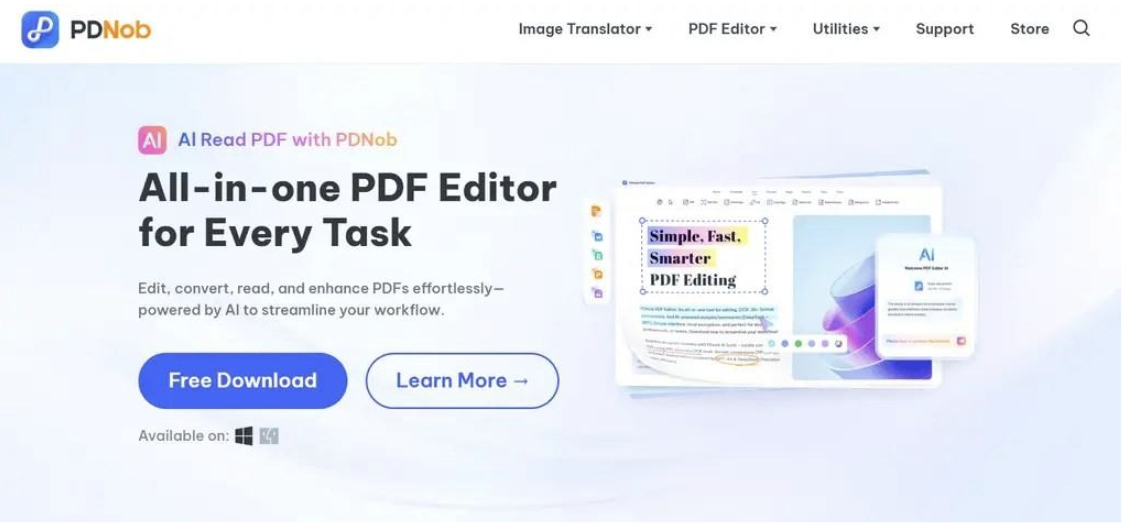
When it comes to Tenorshare PDF editing, the PDNob software has earned praise from professionals, teachers, freelancers, and business users. It combines all essential tools editing, conversion, OCR, and AI assistance into one neat interface. What I liked the most is how smooth the workflow feels. You don’t have to switch between multiple apps. PDNob keeps everything in one place, saving time and effort.
Part 2: Main Features of Tenorshare PDNob
Let’s explore the tools that make Tenorshare PDNob a favorite for both beginners and professionals.
1. AI-Powered Assistance
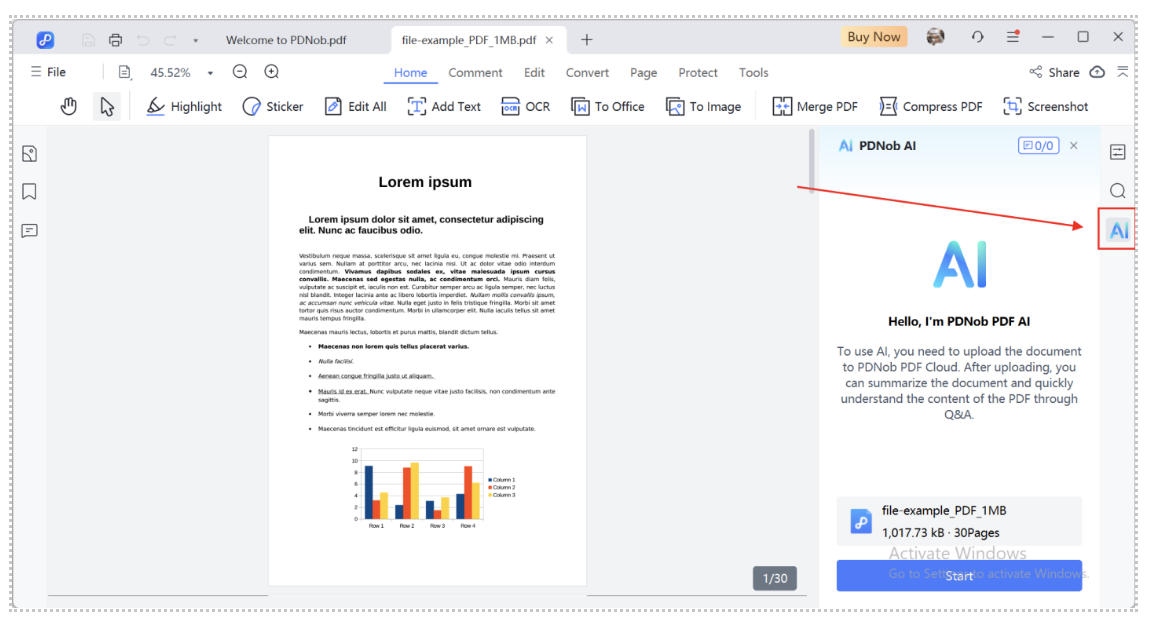
One of the most impressive features of Tenorshare PDNob is its AI-powered assistance. This smart tool can quickly summarize long documents, answer questions from within a file, or explain complex content in simple terms. Whether you’re reviewing contracts, studying reports, or analyzing data, it saves hours of manual reading. It’s a game-changer for students, professionals, and researchers who want to extract key insights from large PDF files efficiently.
2. Merge and Organize Documents
Tenorshare PDNob makes document organization effortless. You can easily merge multiple PDFs into one file, rearrange pages in any order, or remove unnecessary sections. This feature is ideal for combining research papers, contracts, or client reports into a single, polished document. The intuitive drag-and-drop interface makes it simple for anyone to manage large projects or create streamlined PDFs without switching between different apps.

3. PDF Editing Made Simple
Editing a PDF doesn’t have to be complicated. With Tenorshare PDNob, you can add or delete text, adjust formatting, and insert images with just a few clicks. It also supports real-time font and alignment adjustments to keep your document professional-looking. Unlike most PDF tools, PDNob’s interface is beginner-friendly, so you don’t waste time figuring out controls. It’s ideal for making quick edits or detailed design adjustments effortlessly.
4. Password Protection and File Security
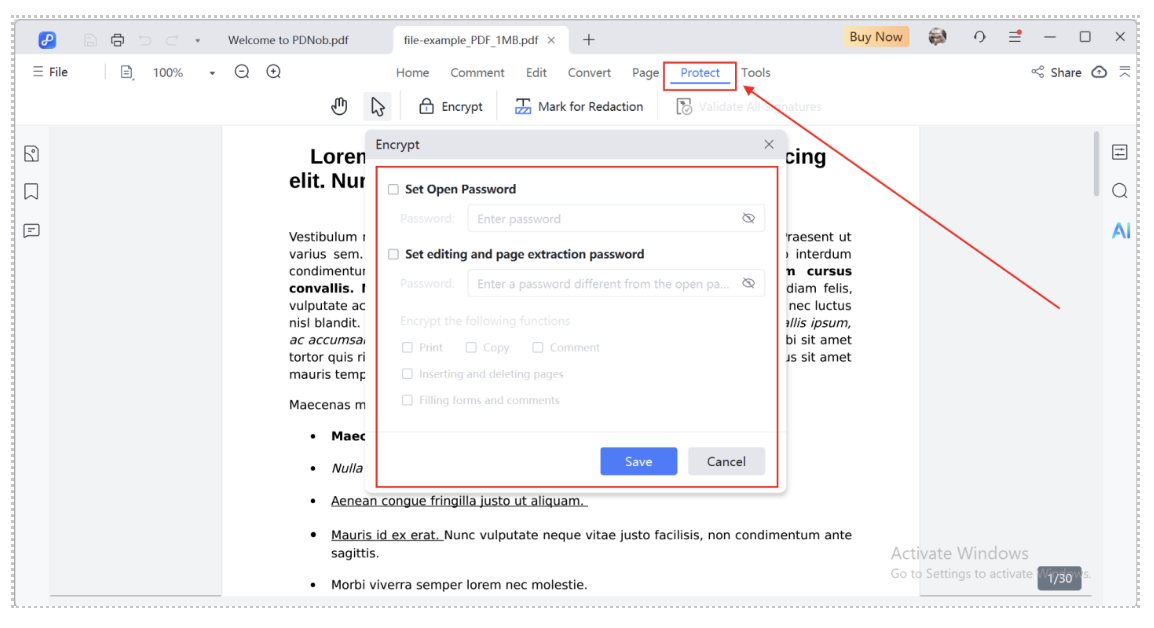
Security is a major highlight of Tenorshare PDNob. You can lock your documents with passwords, restrict copying or printing, and limit access to sensitive files. This feature ensures that your confidential data stays safe whether it’s business contracts, invoices, or personal records. With PDNob’s strong encryption and permission controls, you can confidently share documents knowing they’re protected from unauthorized access or misuse.
5. Convert PDF to Multiple Formats
Need your PDF in another format? Tenorshare PDNob lets you convert files into Word, Excel, PowerPoint, or image formats without losing layout or quality. This feature is especially useful for office work, data analysis, or school assignments. It maintains all tables, graphics, and fonts accurately, making your converted files ready for immediate use. The conversion process is fast, seamless, and works perfectly for both small and large files.

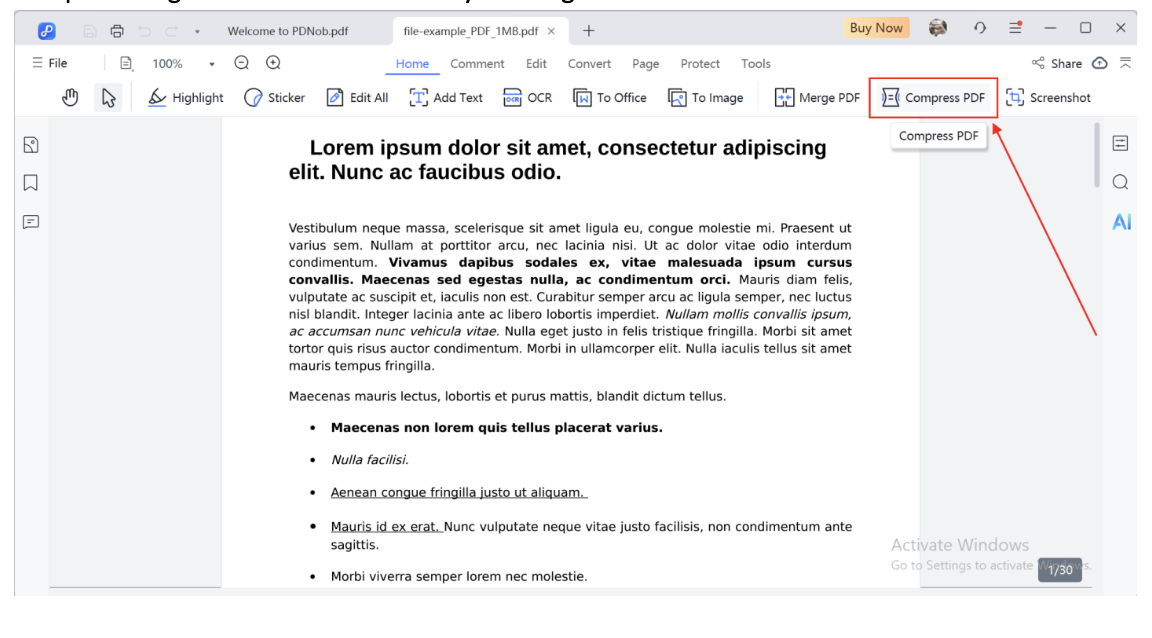
6. Compress PDF Files
Large PDFs can be hard to share or upload, but PDNob solves that instantly. Its compression feature reduces file size while keeping images and text crisp. You can choose different compression levels depending on whether you need smaller file size or better quality. It’s ideal for sending documents via email, uploading to the cloud, or saving storage space without compromising on document readability or design.
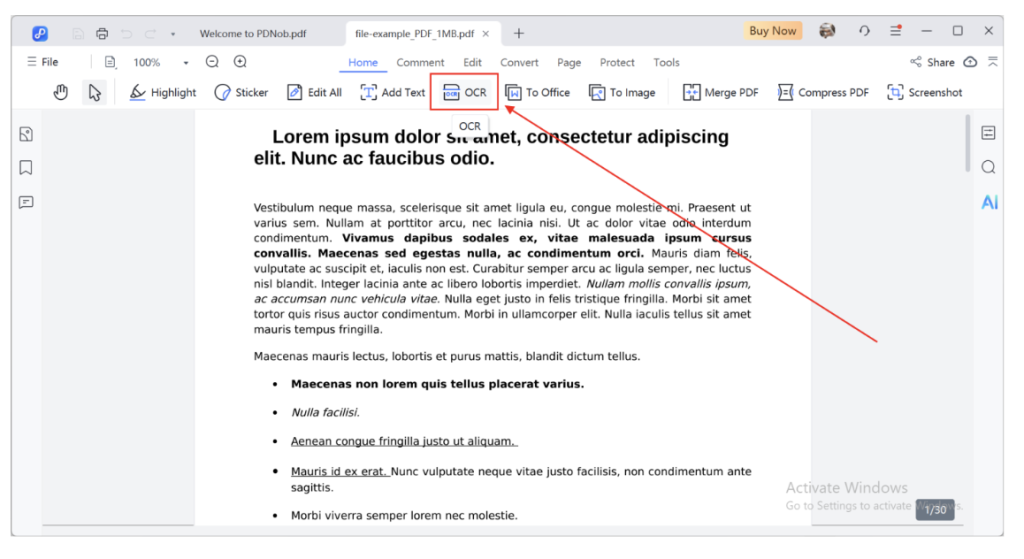
7. OCR (Optical Character Recognition)
The OCR function in Tenorshare PDNob is incredibly accurate and fast. It detects text from scanned documents or image-based PDFs and converts it into fully editable and searchable text. This is especially valuable for digitizing printed materials, invoices, or forms. Even low-resolution scans are handled efficiently. With OCR, you can save hours of manual typing and editing, turning static images into usable, editable content within seconds.
Part 3: Tenorshare PDNob Pricing
Tenorshare PDNob offers flexible plans for different needs. Here’s what I found while Tenorshare PDNob Review:
| Plan | Price | AI Credits | Cloud Storage | Key Features |
| Free Trial | Free | 50 | 2GB | Test AI features, watermark on files, limited usage |
| 1-Year | $44.99 | 1200 | 20 GB | Edit, convert, protect PDF, unlimited usage |
| Lifetime(Most Popular) | $59.99 | 6000 | 20 GB | Full access forever, all features unlimited |
The free trial lets you test the main tools, while the yearly and lifetime licenses offer the best value for serious users.
Part 4: What Users Say About Tenorshare PDNob
Feedback across trusted platforms like G2 and Reddit shows that most users praise PDNob for its ease of use and reliability. Here’s what some have said about Tenorshare PDNob Review:
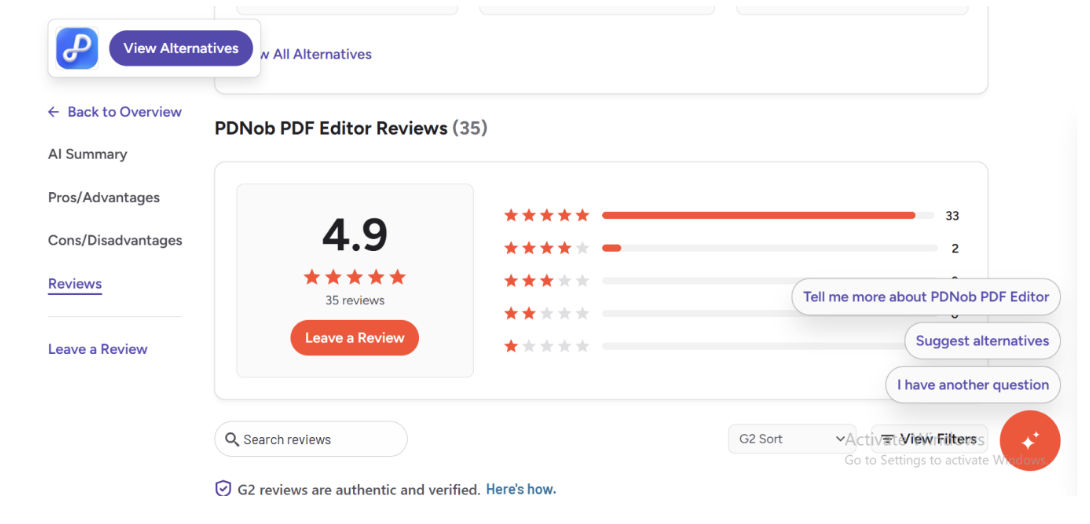
Anouar j., Small Business (4.5/5):
“The interface is clean and easy to navigate. I love how quickly I can edit or summarize documents without needing tutorials.”
Ankit D., Small Business (5/5):
“I had an absolutely positive experience. PDNob’s AI summarizer powered by GPT 4.1 and DeepSeek R1 makes document analysis quick and accurate.”
liuliu j., Mid-Market (4.5/5):
“It has all the tools I need editing, merging, converting, OCR, and compression all in one place.”
Users also appreciate that Tenorshare PDF editing features don’t slow down even with large files.
Part 5: My Personal Experience with Tenorshare PDNob
After using Tenorshare PDNob for several weeks, I can confidently say it exceeded my expectations. The software’s setup was fast, and I could start editing within minutes. The AI features were particularly helpful. I tested them with long reports, and the summaries were clear and accurate. The OCR function also worked smoothly, even with low-quality scanned files. I liked how responsive the interface felt every tool was easy to find. Compared to other editors I’ve tried, PDNob’s workflow felt more natural and organized.
Overall Tenorshare PDNob Review, I had a completely positive experience with PDNob. It’s a great choice for students, professionals, and businesses looking for a dependable and intelligent PDF editor.
Part 6: How to Use Tenorshare PDNob
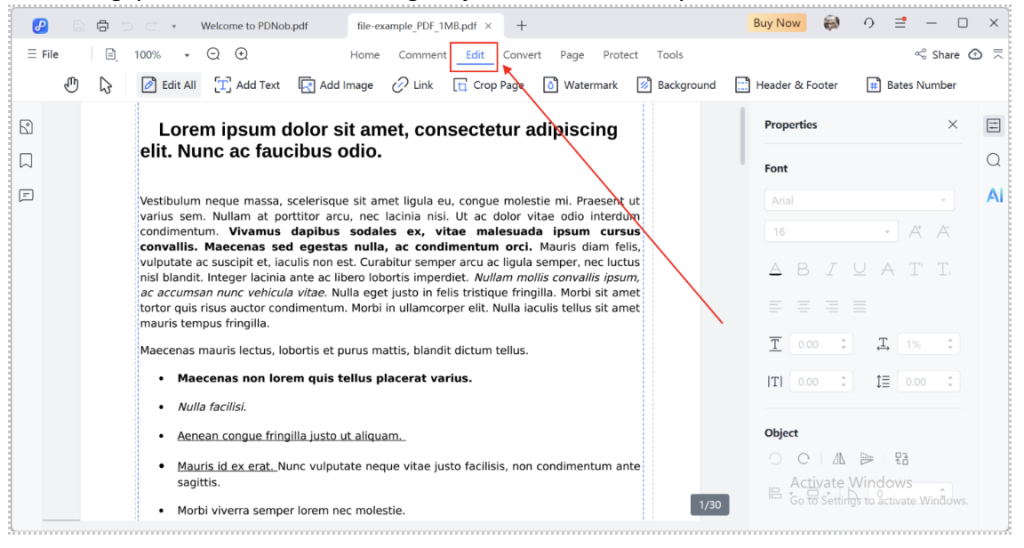
Step 1: Open PDF in Tenorshare PDNob and Click the Edit icon on the top toolbar.

click the edit icon
Step 2: Select the Add Text option from the toolbar.

select the add text option
Step 3: Click anywhere in the PDF where you want to type and enter your text.
Step 4: Adjust the font style, size, color, and alignment to match your needs.
Step 5: Click outside the text box to finish, or click the Text icon again to turn off continuous mode.
Note: Each function is simple, and the interface guides you step by step.
Part 7: Final Thoughts
After conducting this detailed Tenorshare PDNob Review, it’s clear that this PDF editor truly stands out for its simplicity, accuracy, and all-in-one functionality. It brings together essential tools like text editing, AI-powered summarization, OCR scanning, file conversion, and strong document security all within a clean, user-friendly interface. Whether you’re a student, professional, or business owner, PDNob makes managing PDFs faster and easier. I highly recommend Tenorshare PDNob to anyone who works with documents regularly. It’s reliable, affordable, and efficient offering a seamless editing experience that’s hard to match in today’s market.
FAQs
1. Is Tenorshare PDNob safe?
Yes, it’s completely safe. It uses encryption and strict security standards to keep your files private and secure during use.
2. Can Tenorshare PDNob work on both Windows and Mac?
Yes, Tenorshare PDNob supports both Windows and Mac systems, allowing users to edit, convert, and secure PDFs easily on any compatible device.
3. Does Tenorshare PDNob include AI features?
Yes, Tenorshare PDNob includes AI tools that summarize, explain, and extract key points from PDFs, saving users valuable time during document review.
4. Can Tenorshare PDNob handle scanned documents?
Absolutely. The OCR feature in Tenorshare PDNob quickly converts scanned PDFs or images into editable and searchable text without losing formatting accuracy.