
Smart Switch vs. iCareFone Transfer: How to Move WhatsApp Between Android Devices
If you’re switching from one Android phone to another, moving your WhatsApp data can be tricky. Many Samsung users turn to Smart Switch Samsung, thinking it will move everything. But does it really handle WhatsApp properly? On the other hand, tools like iCareFone Transfer promise a full WhatsApp transfer with ease. In this article, we’ll compare both options, show you how they work, how to transfer data from android to android and help you choose the better way to move your WhatsApp chats and media.
Part 1: What is Samsung Smart Switch?
Smart Switch Samsung is Samsung’s official tool to help users transfer data from their old phones to new Samsung devices. It supports transfers via cable, Wi-Fi, or computer.
What Can Smart Switch Transfer?
Smart Switch is useful for moving:
- Contacts
- Call logs
- Messages
- Photos and videos
- Installed apps
- Calendar events
- Music and documents
Limitations of Smart Switch
While Smart Switch covers most data types, WhatsApp chats are not fully supported. If you try to transfer WhatsApp using Smart Switch Samsung, it may move the app itself, but your chat history and media won’t come along unless they are backed up to Google Drive.
Who Should Use Smart Switch?
Smart Switch works well for users who:
- Are moving from any phone to a Samsung phone
- Don’t need to move WhatsApp chats
- Are okay using Google Drive for backups and restore
If WhatsApp is important to you, you may want to look at other tools
Part 2: What is iCareFone Transfer?
iCareFone Transfer by Tenorshare is a dedicated tool that helps users move WhatsApp data between phones with ease. It supports both Android and iOS devices, making it ideal for users switching between different platforms or brands. Unlike the smart switch app android, which only works with Samsung phones and doesn’t fully support WhatsApp, iCareFone Transfer works with all Android brands and provides full WhatsApp data transfer. This includes chats, images, videos, voice notes, and attachments. It doesn’t rely on Google Drive, so there’s no need to back up or restore using the cloud.
Key Features
- Works with all Android brands, not limited to Samsung
- No need to use Google Drive
- Transfers chats, photos, videos, and attachments
- One-click process – no complex steps
- Keeps chat history and media safe and complete
- Trusted by users worldwide for WhatsApp transfer
If you are switching between Android devices (Samsung to Xiaomi, or OnePlus to Samsung, for example), iCareFone makes it much easier to move WhatsApp without losing anything.
Part 3: Smart Switch vs. iCareFone Transfer – Feature Comparison
Here is a simple comparison of both tools based on important features:
| Feature | Smart Switch | iCareFone Transfer |
| WhatsApp Support | Limited (no full chat transfer) | Full support (chats + media) |
| Compatibility | Only for Samsung phones | All Android brands |
| Ease of Use | Moderate | Easy |
| Data Coverage | Basic app + files | Complete WhatsApp data |
Final Verdict
While Smart Switch Samsung is great for general phone data, it’s not the best option for WhatsApp. If WhatsApp is important to you, iCareFone Transfer is clearly the better choice. It offers a smoother process and complete transfer of your chat history, media, and attachments.
Part 4: How to Move WhatsApp Using iCareFone Transfer
Moving WhatsApp data with iCareFone is quick and simple. Here’s how you can do it step by step.
Step-by-Step Guide:
Step 1: Install the iCareFone Transfer app from the Google Play Store on your Android device.
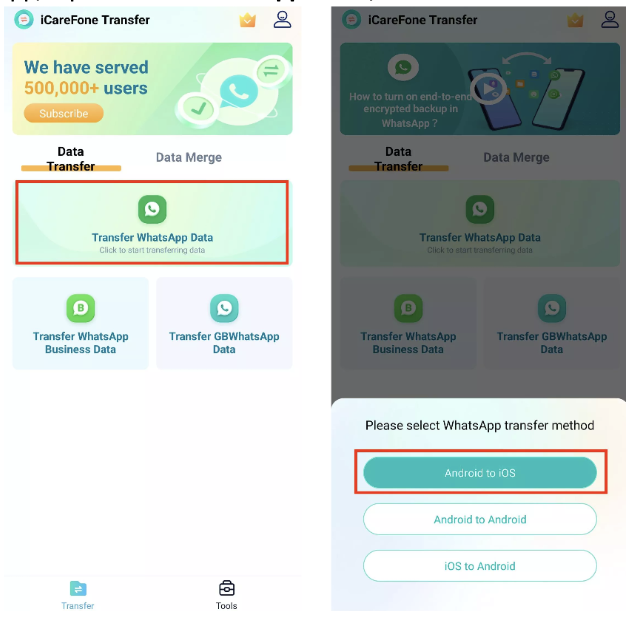
 Step 2: Open the app, tap “Transfer WhatsApp Data”, and choose “Android to iOS”.
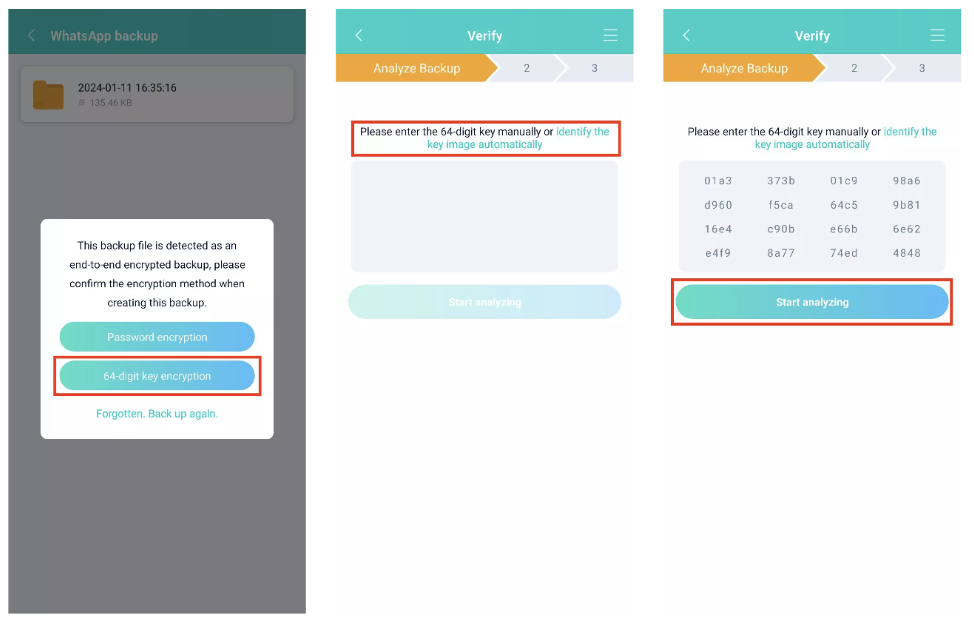
Step 3: Grant access to the backup folder and verify your WhatsApp account using your 64-digit key.
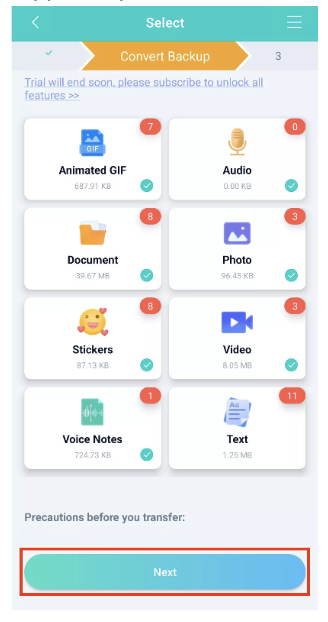
Step 4: Choose the specific WhatsApp data you want to move to your iPhone.
Step 5: Use a USB-C or OTG cable to connect your Android and iPhone. Once the transfer is complete, reinstall WhatsApp on your iPhone and check that your data has been successfully restored.

You can also check your transfer history in the app at any time.
How Long Does It Take?
The whole process usually takes 10 to 30 minutes, depending on how much WhatsApp data you have.
Why It Works Well
- No need for Google Drive or internet
- No risk of missing messages or media
- Clean, simple interface
- Works even if you are switching from one brand to another
FAQs
Q1: Can Smart Switch move my WhatsApp chats?
No, Smart Switch cannot move your full WhatsApp chat history. You’ll need to use Google Drive or a tool like iCareFone Transfer for that.
Q2: Is iCareFone Transfer free?
While the full transfer functionality requires a paid license, it is affordable and definitely worth the money for anyone who wants a smooth and secure data transfer experience for their WhatsApp data.
Q3: Is it safe to use third-party tools for WhatsApp data?
Yes, as long as you use trusted and verified software like iCareFone Transfer. It does not store or upload your data and follows privacy guidelines.
Q4: Can I use iCareFone without a PC?
Sure, you only need to install iCareFone WhatsApp Transfer on Google Play to complete the transfer between Android and iPhone and between Android devices.
Conclusion
Smart Switch Samsung is helpful for moving general phone data like contacts, apps, and media. However, it cannot move your full WhatsApp chat history. If you rely on WhatsApp for personal or work communication, this can be a problem. iCareFone Transfer, on the other hand, is designed specifically for WhatsApp. It works with all Android brands and does not rely on cloud backups like Google Drive. With just a few steps, you can move everything — from messages to photos — without losing anything. So, if WhatsApp is important to you, iCareFone Transfer is the better and more complete solution for switching between Android devices.