



ChatGPT Images 2.0 officially launched on April 21. It can generate commercial-grade visual assets from simple brand inputs, delivering results that meet the expectations people once had for Nano banana 2.
In this guide, you’ll get a quick overview of OpenAI GPT Image 2, learn how to use it on PixPretty step by step, and explore its key use cases.
What is GPT Image 2?
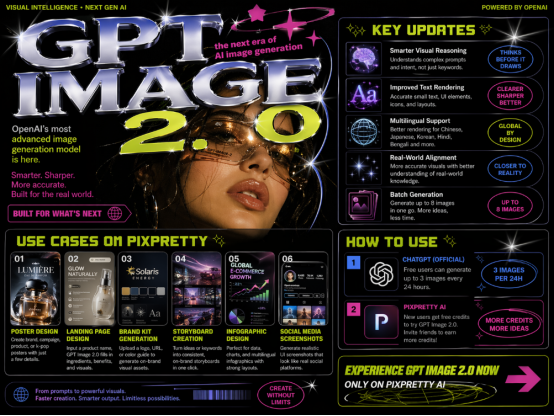
ChatGPT Images 2.0 is a next-generation image generation model developed by OpenAI, internally known as GPT-Image-2.
With stronger reasoning capabilities and improved text rendering, it goes beyond a typical creative tool – positioning itself as a reliable, production-ready visual workflow platform. This shift makes GPT Image 2 especially valuable for global marketers, content creators, and businesses that need reliable, high-quality visual outputs.
Key Updates of GPT Image 2
- Better handling of detailed instructions: It can interpret intent, context, and layered instructions, making it feel more like a “thinking” visual assistant rather than a system that simply follows text inputs.
- Dense text rendering: render small text, UI elements, and icons with high precision – something that has traditionally been a weak point for AI image generators.
- Multilingual text processing: GPT Images 2 shows significant improvements in rendering non-Latin characters, including Chinese, Japanese, Korean, Hindi, and Bengali, making it more reliable for global content creation.
- Stronger alignment with real-world knowledge: The model demonstrates better consistency with real-world information, helping generate visuals that are more accurate, context-aware, and usable in professional scenarios.
PixPretty Online has already integrated the latest GPT Image 2.0 model, allowing users to access these advanced capabilities directly in an easy-to-use, browser-based interface.
How to Use GPT Image 2 on PixPretty
Step 1: Enter PixPretty AI Official Site and click “Start for Free”
Step 2: Choose an Effect
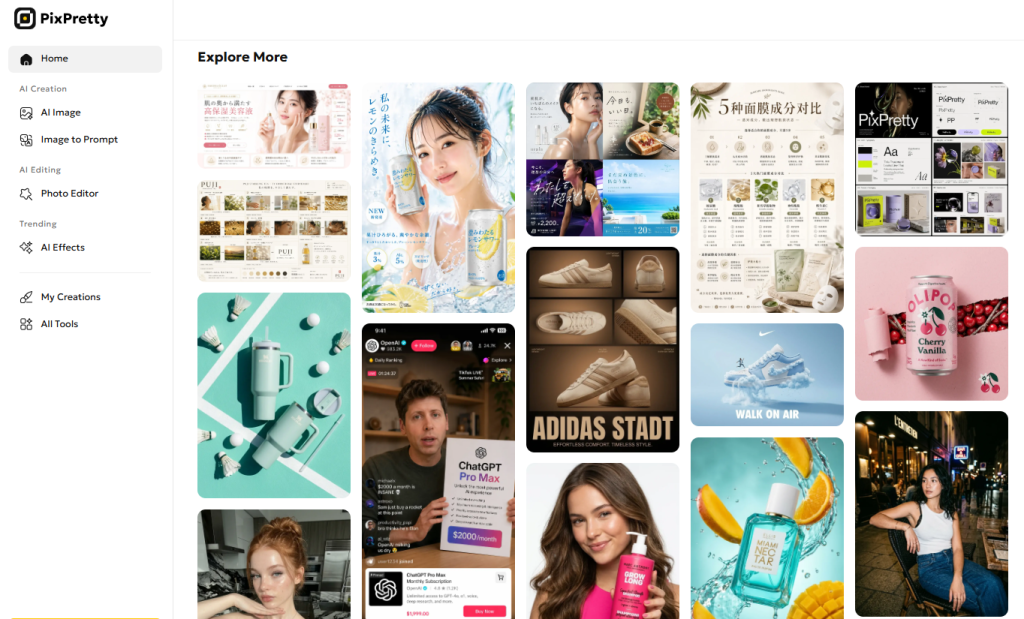
Browse the homepage to pick your favourite effect. Hover over it and click ”Create”; You can also access to the PixPretty AI image generator in the left sidebar
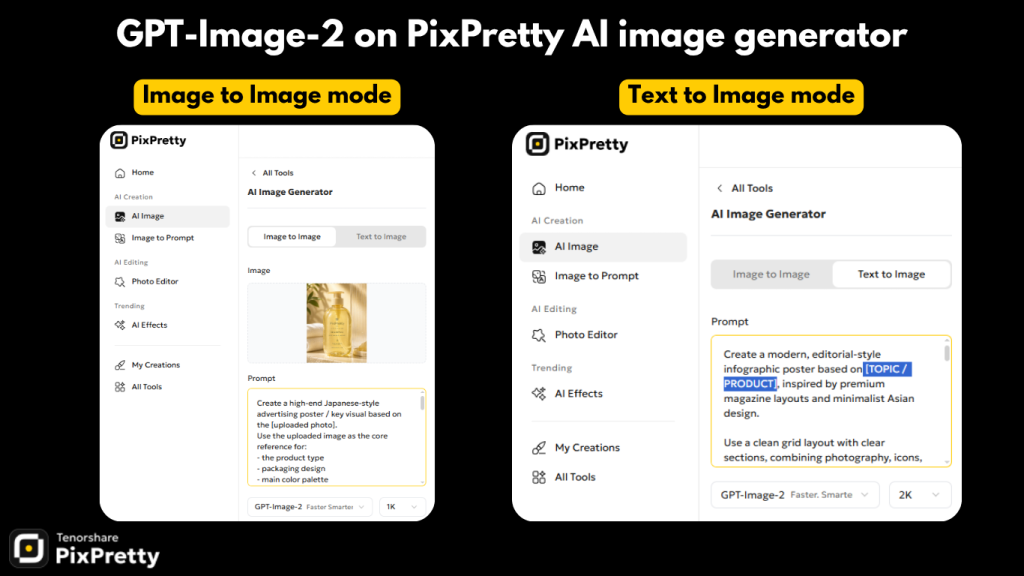
Step 3: Customize Your Settings
Choose Image to Image / Text to Image according to your need. If it’s Image to Image mode, upload an image of your product and edit the customized section(brand/product name/color guide…etc) in the prompt. Select the model and the ratio of the generated image.
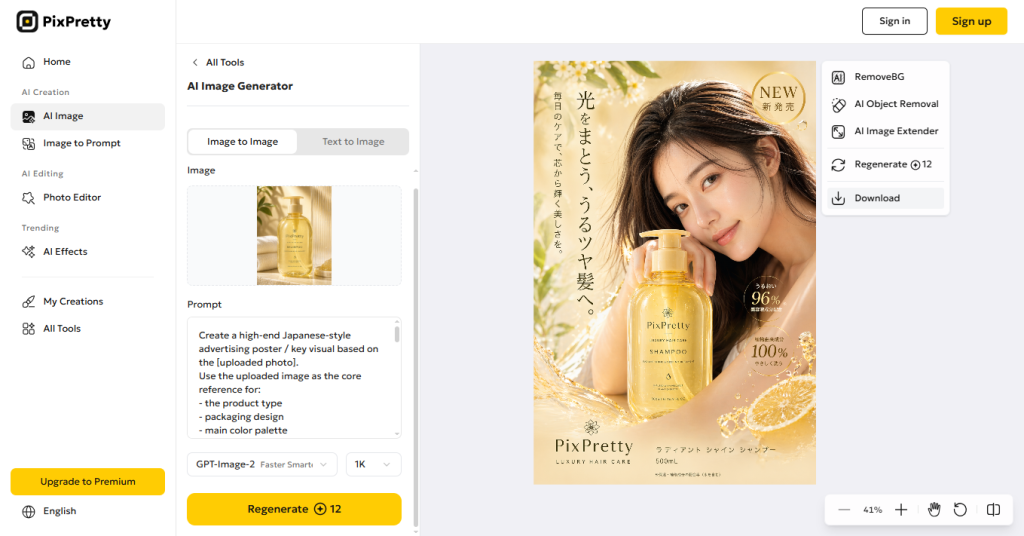
Step 4: Generate & Download
Make sure you choose the right model “GPT-Image-2”, and click “Generate”. Once the generation is finished, click the download button in the top-right toolbar.
Use Cases of GPT Image 2 on PixPretty
PixPretty brings GPT Image 2 prompts to its online platform, making it easy to generate high-quality visuals for a wide range of real-world use cases. Here are some of the most popular ones.
- Poster
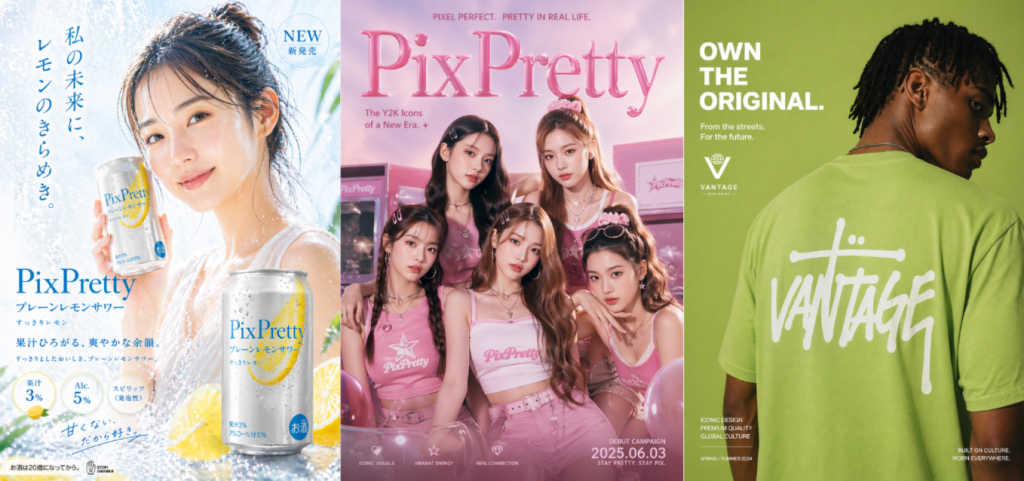
Whether it’s brand poster, campaign poster, product poster or even fan-made K-pop poster, GPT Image 2.0 can deliver commercially usable poster based on simple product or concept inputs.
- Website Page/Landing Page Design
Just input basic prompts like a product name, it intelligently expands inputs by incorporating product ingredients, benefits, and positioning.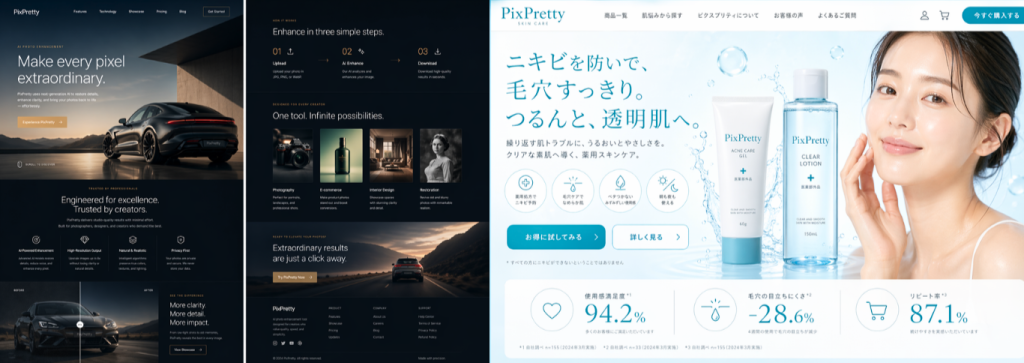
- Brand Kit/Brand VIS System
By using inputs such as a URL, logo, or color guidelines, GPT Images 2.0 can generate consistent brand visuals aligned with your identity.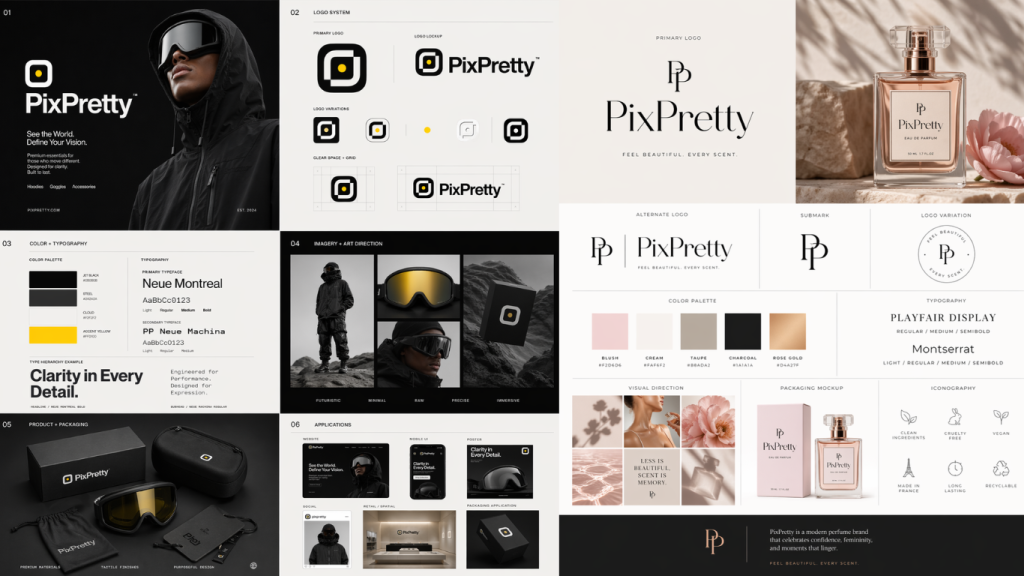
- Shot Storyboard
With just a single prompt or a set of brand keywords, it can generate coherent, multi-frame storyboard sequences that maintain narrative flow and visual consistency.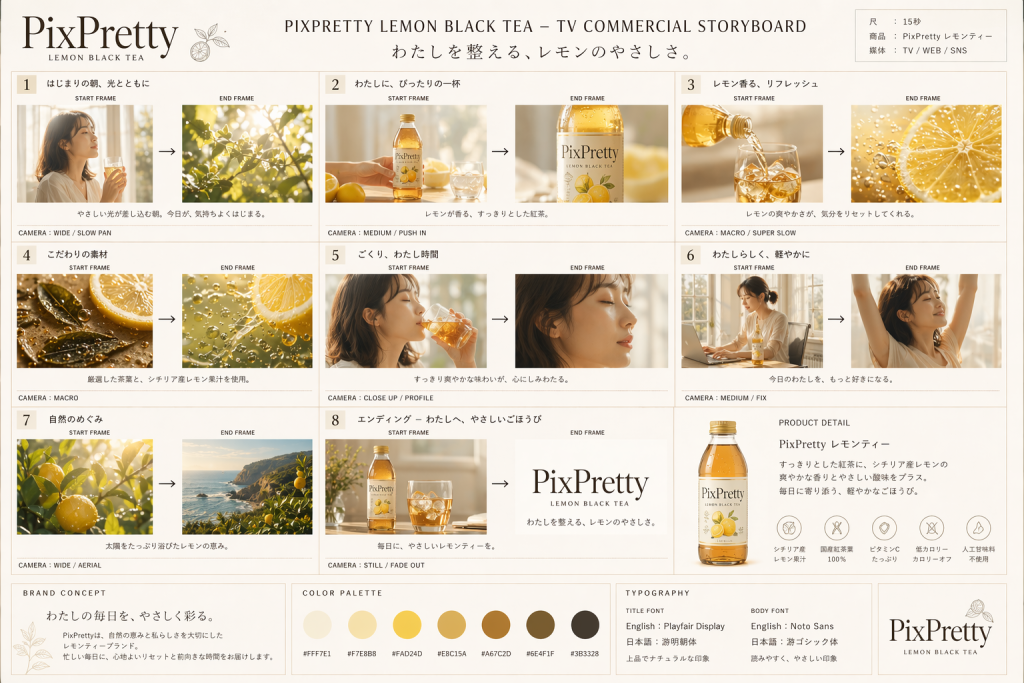
- Infographic Design
Its advanced text rendering and multilingual support make GPT Image 2.0 highly effective for infographic design, especially in terms of style, layout, and visual hierarchy. It performs particularly well for small text and structured layouts, making it ideal for recipes, textbooks, step-by-step tutorials, timelines, dashboards, and more.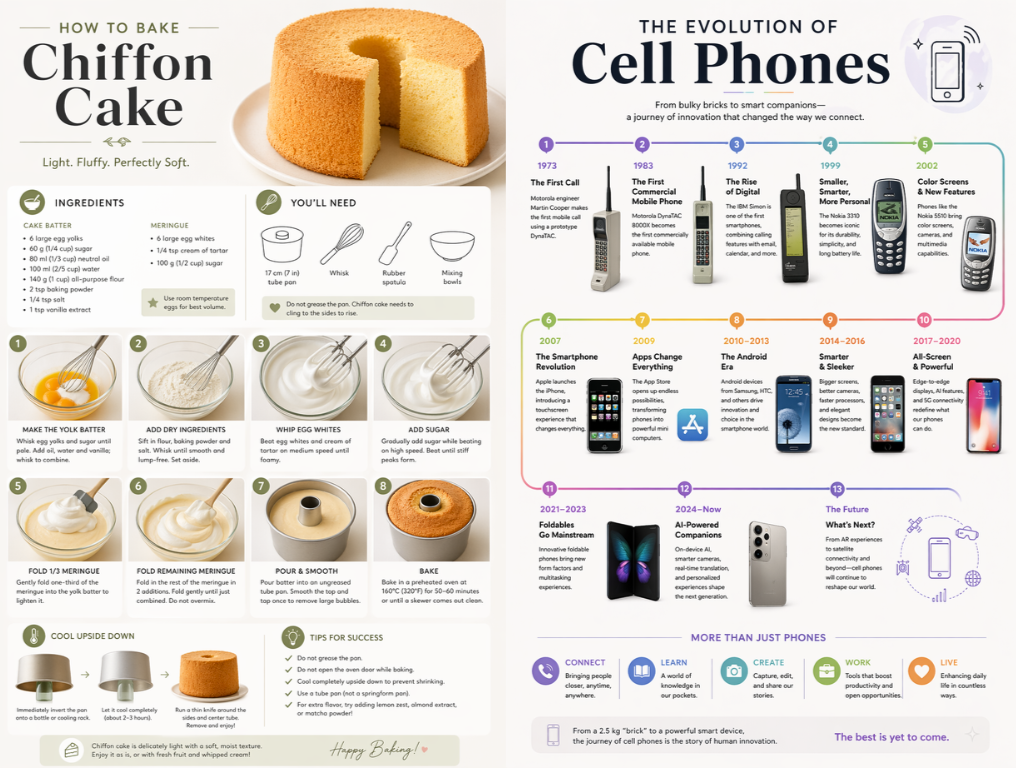
- Social Media Screenshot Generation
GPT Image 2 can generate highly realistic social media screenshots, with layouts and UI elements that closely match real platforms.
FAQ of GPT Image 2
Q1. How to use GPT Image 2 Online?
You can access GPT Image 2 directly through the official ChatGPT website. Simply start a conversation and generate images with your prompts.
In addition, you can also use GPT Image 2 on PixPretty, allowing you to create images through PixPretty AI image generator online with a more design-focused interface.
Q2. Is GPT Image 2 free to use?
GPT Image 2 is not completely unlimited or fully free. However, there are still ways to access it for free:
- ChatGPT Official Website: Free users can generate up to 3 images every 24 hours.
- PixPretty AI: New users can try GPT Image 2 for free, and additional credits can be earned through sharing referral links.