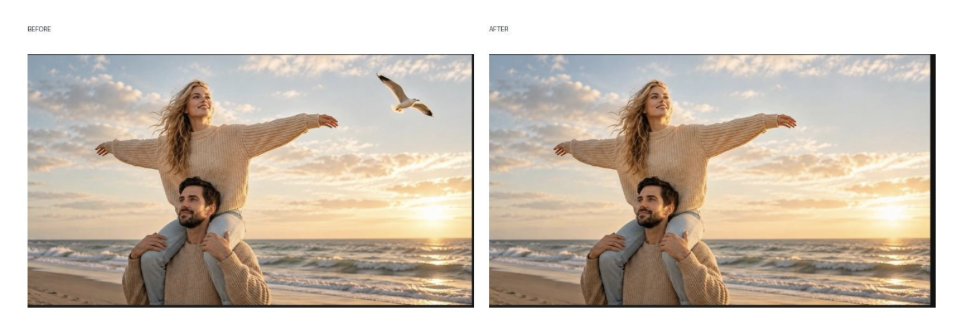
A passerby walks into a travel clip. A bird crosses a carefully framed beach shot. A logo or stray object distracts from the subject of a product video. Small distractions can change how a video feels, but cropping the frame may remove details you wanted to keep.
A video object remover offers another option: mark the unwanted area and let an AI-assisted workflow process it while preserving the rest of the composition as much as possible. The result depends on the object, its movement, and the background behind it, so a quick review is still important.
This guide walks through a real test using Media.io Video Object Remover: removing a bird from a short beach video. It also explains the four modes shown in the interface and the optional editing tools available after processing.
What Is a Video Object Remover?
A video object remover helps clean unwanted visual elements from footage. Depending on the selected mode, you may mark an area with a brush or describe the object in a prompt. The tool then processes the video according to that selection or instruction.
Video cleanup is different from editing a still image. A moving object may shift position from frame to frame, and a camera pan can change the background behind it. A result that looks convincing in one frame may still show a trace, blur, or inconsistent patch later in the clip. For that reason, preview the full processed segment before using it.
What Can You Remove from a Video with AI?
Unwanted people: Try removing a passerby who walks through a travel shot or appears in the background.
Moving objects: Clean up selected distractions that move through the scene, such as a bird in the sky or an object crossing the frame.
Text and captions: Depending on the footage and mode, attempt to remove unwanted on-screen text, captions, or timestamps.
Logos and stickers: Use an appropriate workflow to address visible marks or graphic overlays.
Other distractions: Tidy up small visual elements that compete with the main subject.
These are use cases to test, not a guarantee that every object can be removed cleanly. Large objects, complex textures, fast motion, and areas that hide important background details can make reconstruction harder.
How to Remove an Object from a Video with Media.io
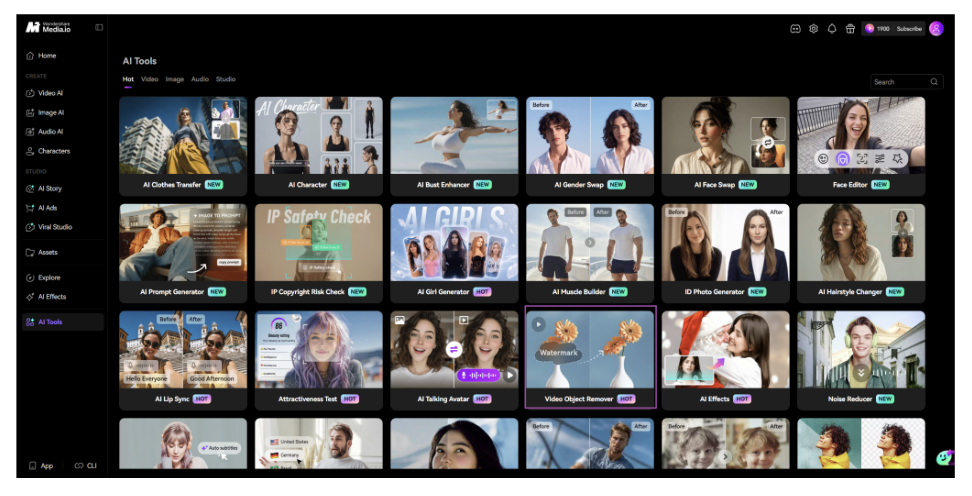
Start by opening Media.io and then open the video object remover tool. The steps below follow the interface and completed test shown in the screenshots.
Step 1: Open Video Object Remover and Upload a Clip
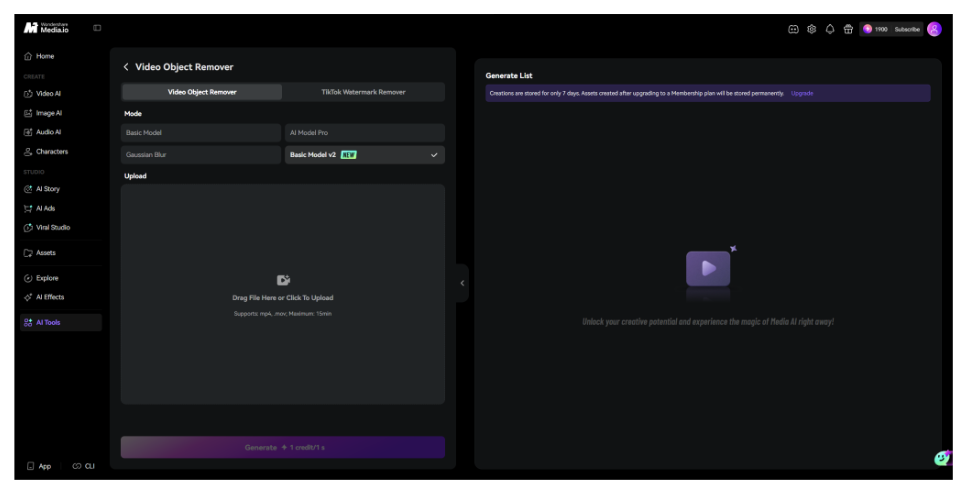
From Media.io’s AI Tools page, openVideo Object Remover. The workspace has a dedicated upload area and shows support for MP4 and MOV files, with a maximum duration of 15 minutes in the current tool workflow. Choose a clip in which the unwanted object is clearly visible.
Step 2: Choose One of the Four Processing Modes
Media.io Video Object Remover offers four modes for different removal workflows. Choose a mode based on how you want to select or treat the unwanted area.
Basic Model: The standard option for removing unwanted objects from video.
AI Model Pro: Lets you describe the object to remove in a text prompt.
Gaussian Blur: Uses a blur effect to obscure the selected area rather than reconstructing the background as a clean removal would aim to do.
Basic Model v2: An updated version of Basic Model, intended to offer improved performance.
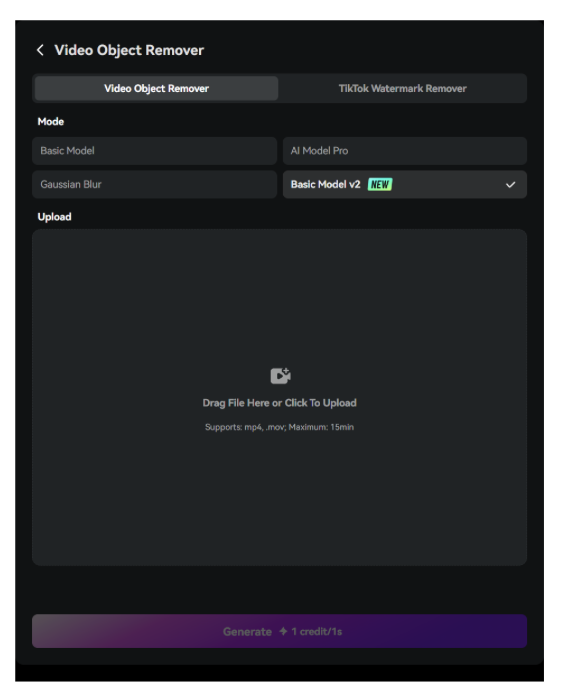
Mode descriptions are limited to the controls and behavior verified during this test.
Step 3: Mark the Unwanted Object
For our test, we selected Basic Model v2 and brushed over the bird in the sky, including its wings. Keep the marked area close to the object’s outline to avoid selecting more background than necessary.
Use the Brush size control to adjust the marking area. If the object moves, review the result across the clip; the screenshots do not confirm that one mark will track every movement automatically.
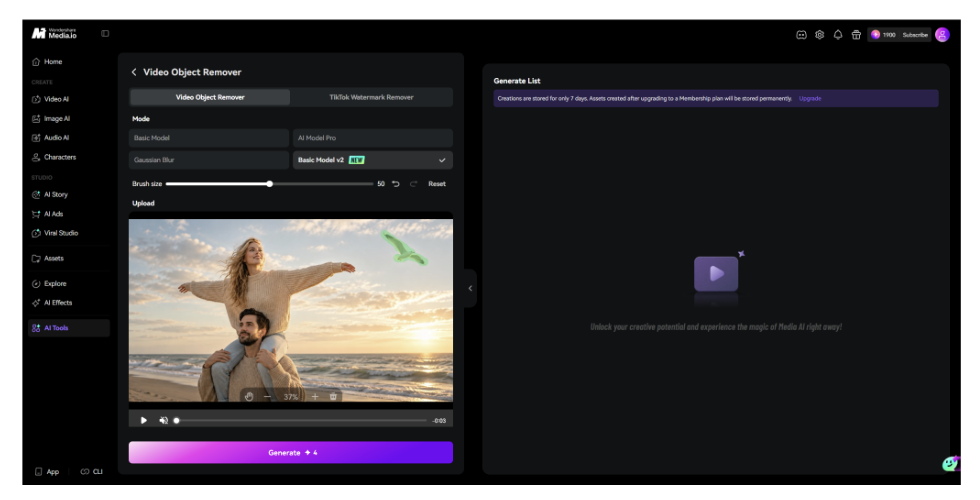
Step 4: Generate and Review the Result
Click Generate after checking the selection and the displayed cost. When processing finishes, the Generate List view presents the Original video and Video Eraser result side by side. Compare the same moment in both previews and inspect the area where the object appeared.
In our beach-clip test, the bird is visible in the Original video and absent from the corresponding Video Eraser preview shown in the screenshot. Check the full clip for traces or inconsistent background details, since results can vary with different footage.
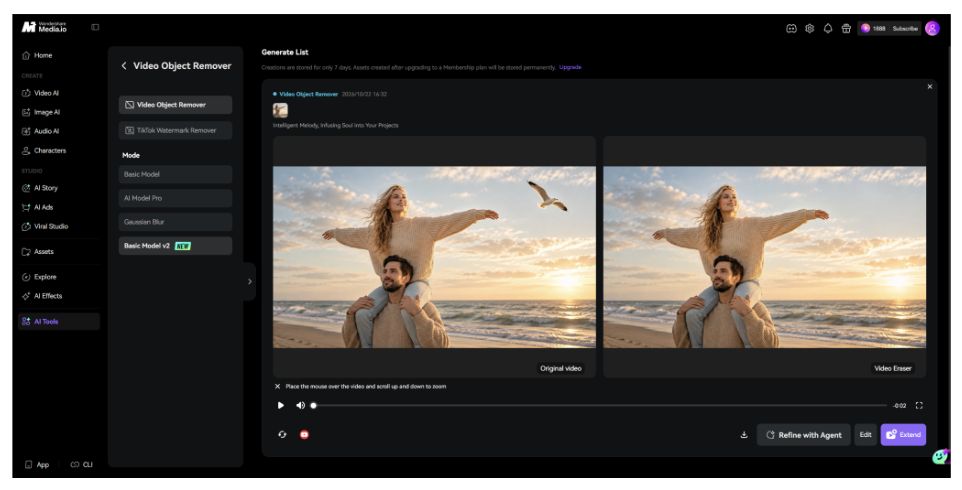
Actual interface screenshot from the test. Review the full clip before relying on a single frame.
What Can You Do After Removing an Object?
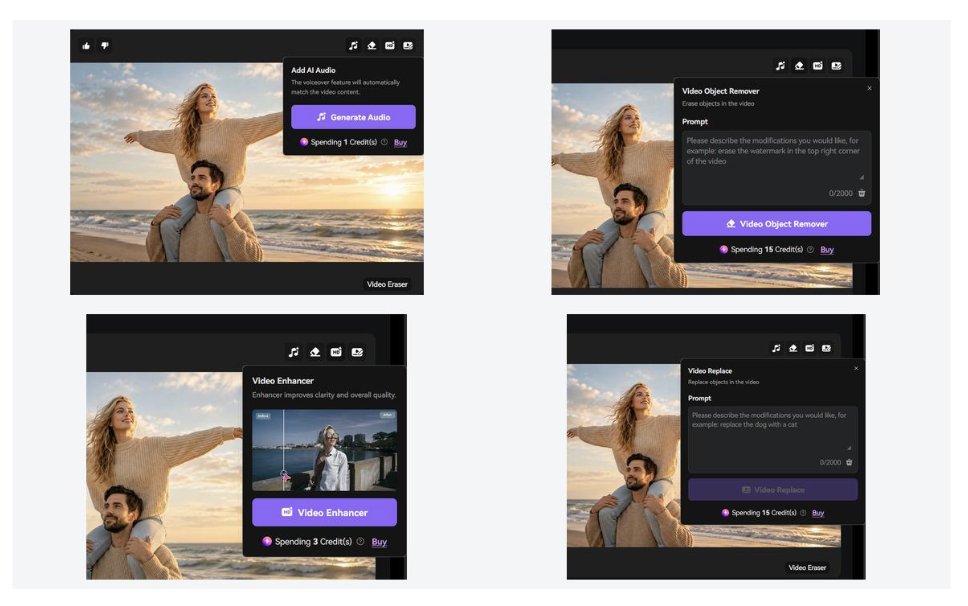
The result view also exposes additional editing options. These are optional follow-up tools, not required steps in the object-removal process:
Add AI Audio: Generates voiceover audio designed to match the video content.
Video Object Remover: Opens a prompt-based panel for describing another object to remove.
Video Enhancer: Offers a separate option to improve video clarity and overall visual quality.
Video Replace: Lets you describe an object to replace in the video.
These are separate tools with their own controls and displayed credit costs. Check the current interface before starting another operation, and review each result independently.
Bonus Feature: Remove TikTok Watermarks from Videos
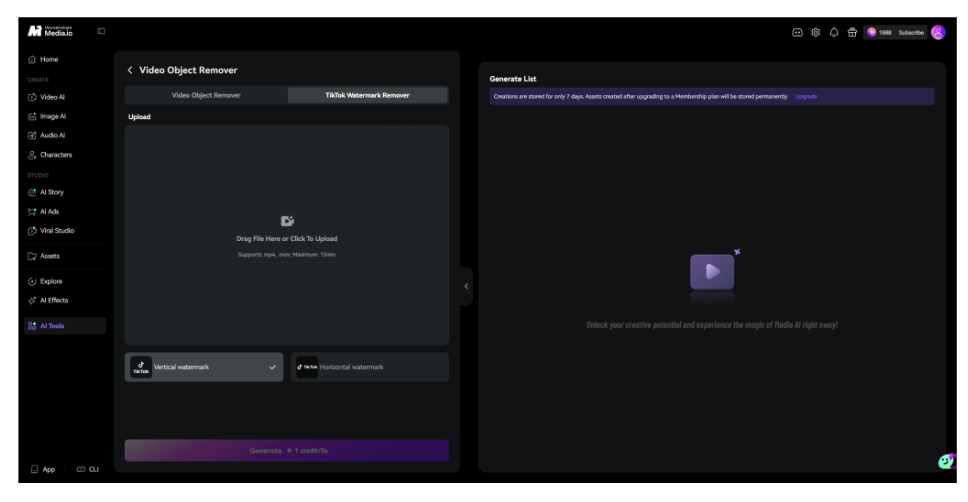
The workspace also includes a separate TikTok Watermark Remover tab, with options for Vertical watermark and Horizontal watermark. The upload panel supports MP4 and MOV files up to 15 minutes long.
This is a distinct workflow from removing arbitrary objects. Use it only for videos you own or are authorized to edit, and respect creators’ rights, attribution requirements, and applicable platform rules.
5 Tips for More Natural Video Object Removal
Select carefully. Cover the entire unwanted object, but avoid marking large areas of the surrounding scene unnecessarily.
Consider movement. Review the object across the clip rather than judging the result from a single frame.
Start with a manageable target. A small object against a relatively simple background can be easier to assess than a large object covering detailed scenery.
Check the background. Look for smudges, repeated textures, blur patches, or changes that draw attention to the removed area.
Review before exporting. Play the processed section from beginning to end and compare it with the original at the same timestamps.
Common Problems and How to Troubleshoot Them
The object is still visible: Check whether the selection covered the full object and whether it changes position during the clip. Consider trying another available mode.
The area looks blurred or patchy: The object may cover complex background detail. Adjust the selection and compare another result if credits and time allow.
The result looks good in one frame but not later: Inspect the entire clip, especially moments when the object moves or the camera changes direction.
The tool’s cost is unclear: Check the displayed credit cost for the selected mode before generating. Costs shown in screenshots may change.
Is There a Free Online Video Object Remover?
Media.io provides an online workflow. Free use depends on current access and usage limits, and some operations require credits. Check the cost shown for your selected mode before generating.
Conclusion
Removing a distracting person or object can help preserve a video’s framing. Media.io Video Object Remover offers four visible modes: Basic Model, AI Model Pro, Gaussian Blur, and Basic Model v2. In our beach-video test, the bird was absent from the result preview. Review the full clip before using the output.
To try the workflow, visit Media.io and open the video object remover page.
FAQs
- How do I remove an object from a video online?
Upload a supported clip, choose a suitable mode, mark the unwanted object or describe it in a prompt where supported, generate the result, and review the full processed section before downloading.
- Can I remove people from a video without cropping it?
An AI video object remover can attempt to remove a person while keeping the frame dimensions. The result depends on the person’s size and movement and on how much background is obscured.
- Is video object removal online free?
Availability and cost depend on the current tool mode and account benefits. Check the credit amount shown in Media.io before starting a generation.
- What is the difference between Video Object Remover and Video Replace?
The Video Object Remover prompt panel is for describing an object to remove. Video Replace is labeled for replacing objects, so the intended edit is different.
- Can I remove a TikTok watermark with Media.io?
The workspace includes a separate TikTok Watermark Remover tab with vertical and horizontal watermark options. Use it only on videos you own or have permission to edit.