



I always thought my laptop was pretty clean. I would uninstall apps I didn’t use and delete leftover folders, thinking that was enough. But I was surprised when my SSD was almost full, even though I hadn’t installed anything large recently. I found that most of the missing space was taken up by junk left behind by apps I thought I had already removed.
That’s when I decided to take it seriously and use IObit Uninstaller for a full cleanup to see what would happen. By the end, I had freed up about 23GB of space, my computer started up faster, and I realized that leftover files from old apps were the main reason my PC was slowing down.
My Laptop’s Setup and Test Conditions.
Here’s the machine I ran this on;
- CPU: Ryzen 5 3600
- GPU: GTX 1660
- RAM: 16 GB
- Storage: 500 GB NVMe SSD
- OS: Windows 11 Pro
Before I started, I noted a few key numbers:
- Free space on C drive: 12 GB.
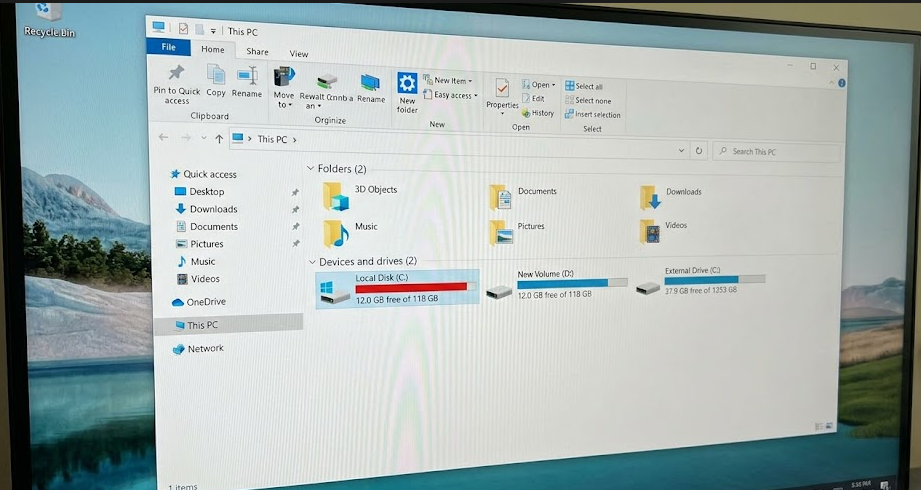
- Average cold boot to usable desktop: 55 seconds (timed with a stopwatch).
- Installed apps: years’ worth of tools, launchers, and games, with plenty already “uninstalled” via Windows settings.
My goal was simple: use IObit Uninstaller as my main tool and see how much space and responsiveness I could realistically get back.
What IObit Uninstaller Is (From My Perspective)
For me, IObit Uninstaller is more than just a different uninstall button. It’s a central hub for managing programs, bundleware, Windows apps, and some of the junk that comes along with them.
The current free edition is IObit Uninstaller 15 Free (V15.4.0, about 32 MB), and it works on Windows 11, 10, 8, 7, Vista, and XP. According to the official description, it’s designed as a top free uninstaller that can remove unused and bundled programs and built‑in apps in one click, while also cleaning temp files and stubborn items that regular uninstallers tend to leave behind.
In practice, I use it as my “control center” for:
- Removing programs and bundleware in batches
- Cleaning leftovers from old uninstalls
- Checking Software Health to find redundant setup files and traces
How It Actually Works Under the Hood (In Simple Terms)
The part that interested me most was how it could free up so much space.
IObit Uninstaller 15 uses:
- An upgraded uninstall engine that removes programs faster and more thoroughly, aiming to leave no leftover files or registry entries.
- Improved scanning algorithms that detect more residual files, privacy traces, and leftovers after uninstalls.
- An expanded stubborn program database, so it can deeply remove thousands of hard‑to‑uninstall programs that often leave junk behind.
- A Software Health module that analyzes installed software and cleans redundant files, and traces in one pass.
Compared with Windows’ built‑in Apps & features, which mainly runs each app’s default uninstaller, this gives me an extra layer. A system-level scan for what those uninstallers ignore, plus specific handling for stubborn or broken ones. I didn’t stop using Windows completely, but for this test, I treated IObit Uninstaller as my main removal and cleanup tool.
How I Used IObit Uninstaller Step by Step
Step 1: Find the heavy and suspicious apps
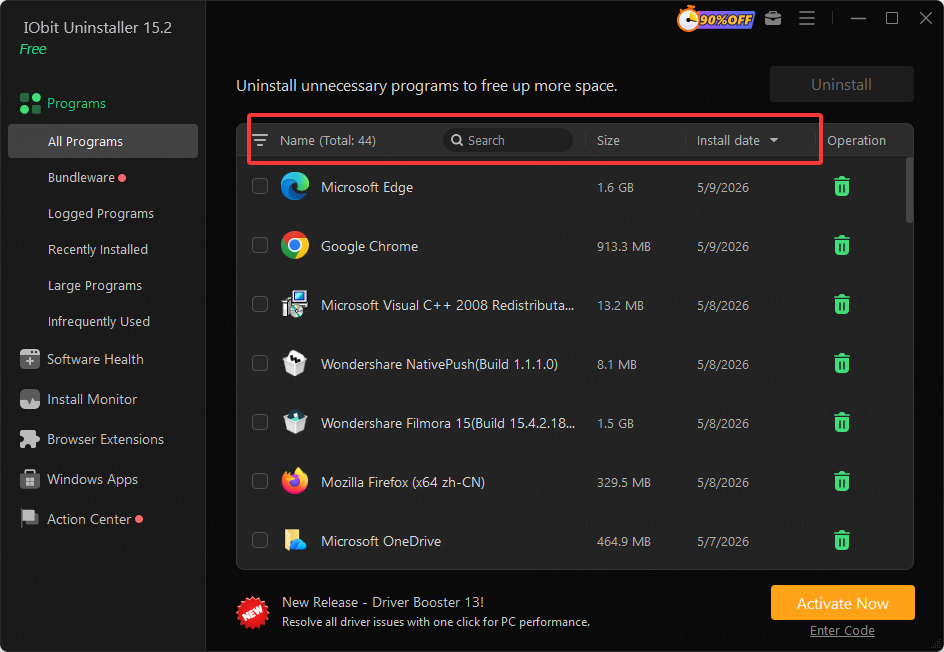
I opened IObit Uninstaller, and then I sorted the programs by size and installation date. That instantly exposed a lot of “dead weight” old video converters, game launchers, tools I’d used once, and leftover entries from software that had already “failed” to uninstall properly.
I selected a big batch of these apps and prepared them for removal inside this Uninstaller instead of using the regular Settings panel.
Step 2: Use a full uninstall with leftover scan
For most programs, I used the normal uninstall flow inside IObit Uninstaller and turned on the option to scan for leftovers afterward. Once the built‑in uninstall finished, the upgraded engine kicked in: it scanned for remaining files, folders, and registry entries linked to that app and showed them to me in a single list.
I reviewed the results and confirmed the cleanup. This was where I started to see just how much extra data each app had been leaving behind: logs, caches, config files, and various small folders.
Step 3: Tackle stubborn and broken uninstalls
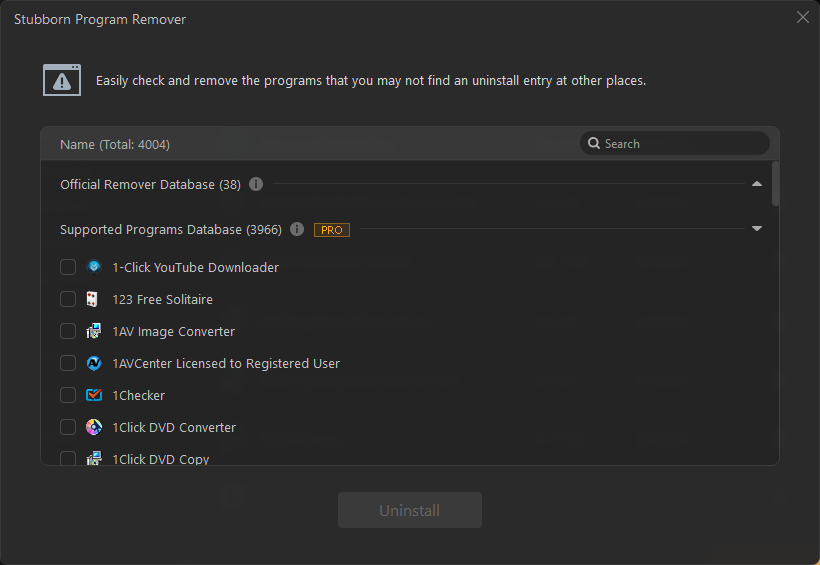
A few programs were classified as more difficult: they’d failed previously in Windows or had broken uninstallers. Here, the expanded stubborn program support and optimized engine did the heavy lifting.
I selected those items and let IObit Uninstaller run Stubborn Software Removal. It dug deeper into related components and cleared them out, something Windows had repeatedly failed to do.
Step 4: Run Software Health to catch hidden leftovers
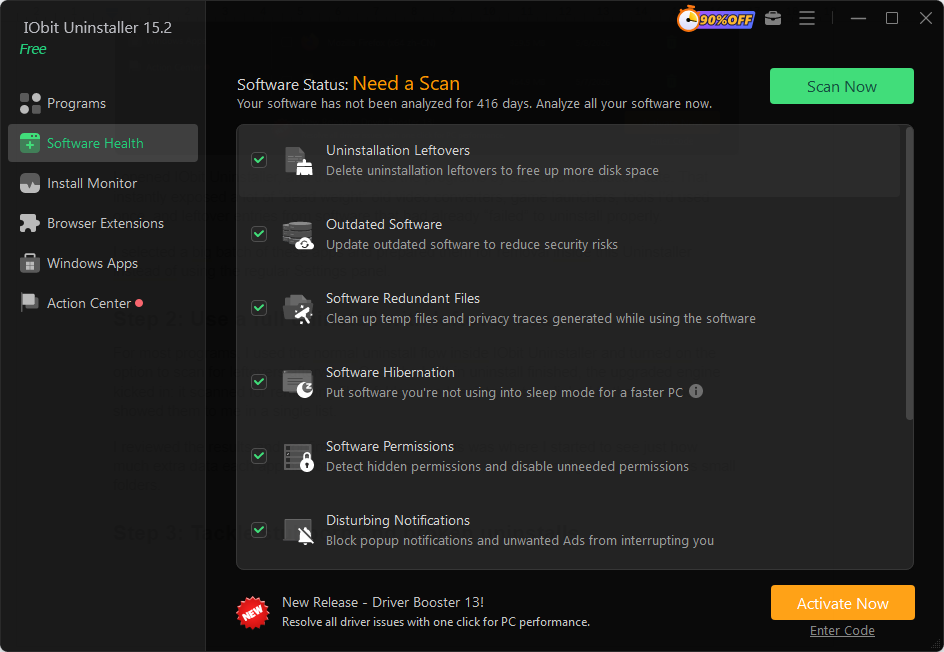
Once I was done with manual cleaning, for a full scan, I went to the Software Health section. This is where IObit Uninstaller showed me just how much was still lying around.
It flagged:
- Leftover files and folders from previous uninstalls
- Redundant setup packages and cached installers
- Other software traces not tied to active apps
With a single “Fix” action, I let it remove these items. After that, I ran one more quick check and confirmed there were no critical warnings left in Software Health.
The Results: Before vs After
To make this feel less vague, here’s what changed on my system after the cleanup.
Disk space on the C drive
- Before – 12 GB free
- After – 35 GB free
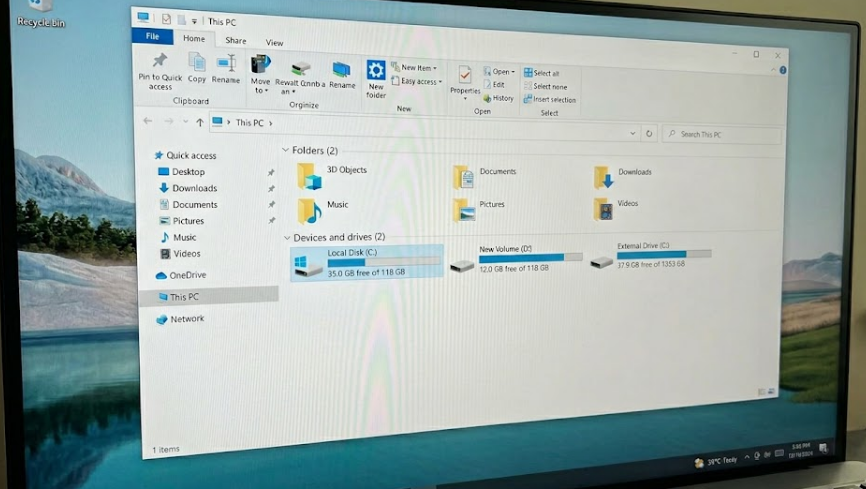
That is roughly 23 GB recovered, which aligns with the leftover data and redundant setup files removed.
Boot time
- Before – 55 seconds
- After – 40 seconds
I didn’t change my startup apps during this test, so I’m comfortable saying that cleaning out old components and junk helped speed up the boot.
Well, it obviously didn’t turn my PC into a brand-new machine overnight, but the combination of reclaimed space and a smoother startup made it feel much less weighed down.
Advantages
Real, trackable space savings
The combination of deeper uninstalls and Software Health cleanup gave me results I never got with Windows’ built-in tools alone.
Cleaner, more stable system
With old components, services, and folders gone, startup became snappier, and small glitches linked to legacy software stopped appearing.
Sustainable maintenance, not just a one-off fix
Knowing I can install something, test it, and then completely remove it with IObit Uninstaller makes me far less nervous about trying new software.
Downsides and Limitations I Ran Into
To keep this honest, there are a few things I didn’t love.
- Deep scans take time on a crowded system
- Running full Software Health checks and detailed leftover scans on a PC with years of history isn’t instant. I had to run those during breaks instead of in the middle of work.
- Plenty of features to learn
- Because IObit Uninstaller includes uninstalling, Software Health, install monitoring, and more, it took me a little time to get familiar with where things were and what each option did.
My Final Take
I wasn’t expecting to recover as much as 23 GB just by targeting junk from uninstalled apps, but running IObit Uninstaller across my system proved me wrong. It really helped me remove stubborn programs, including old leftovers with Software Health, and get back space I thought I’d lost for good.
If you keep deleting files and still wonder why your drive stays full, I must recommend doing what I did. Let IObit Uninstaller scan, clean, and show you how much hidden junk is actually sitting there. It doesn’t take long, and the payoff, in disk space, startup time, and peace of mind, is very real.