
Most beginners aren’t interested in futuristic technology; they need to make a video and don’t want it to take their entire day.
AI tools can really help with that, but only if you pick the right kind. An AI video generator can create clips from prompts, scripts, images, or avatars. An editor with AI features helps you fix real footage, add subtitles, clean audio, remove backgrounds, or resize videos for different platforms. Those are not the same job.
Searches for best free AI video generators 2026 usually bring up long lists, but free plans can hide limits: watermarks, short exports, low resolution, small credit packs, or fewer voice options. That’s why it’s important to test one real project before paying.
Top 8 AI Video Makers for Beginners in 2026
- Movavi Video Editor
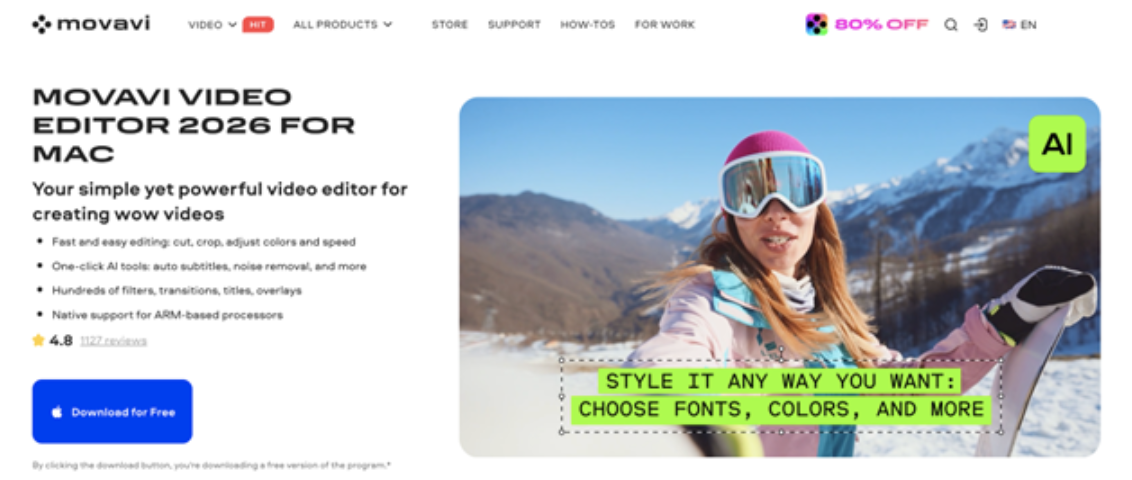
The video editor by Movavi gives you a normal timeline, so you can cut clips, add text, fix sound, place transitions, and export the finished video without dealing with a pro editor.
The AI tools focus on common editing problems. Auto subtitles turn your speech into text that you can style and edit. Background removal helps change the background to anything you want without a green screen. Noise removal can clean a voice track with keyboard clicks or traffic in the background. Motion tracking lets you pin text or other details to a moving object.
Movavi is not the best pick if you want the whole video generated from a prompt. It makes more sense when the footage is yours and you just need to edit it. For example, record a two-minute demo, cut it to 45 seconds, add captions, remove dead air, and make one horizontal export for YouTube plus one vertical cut for Shorts.
- Runway
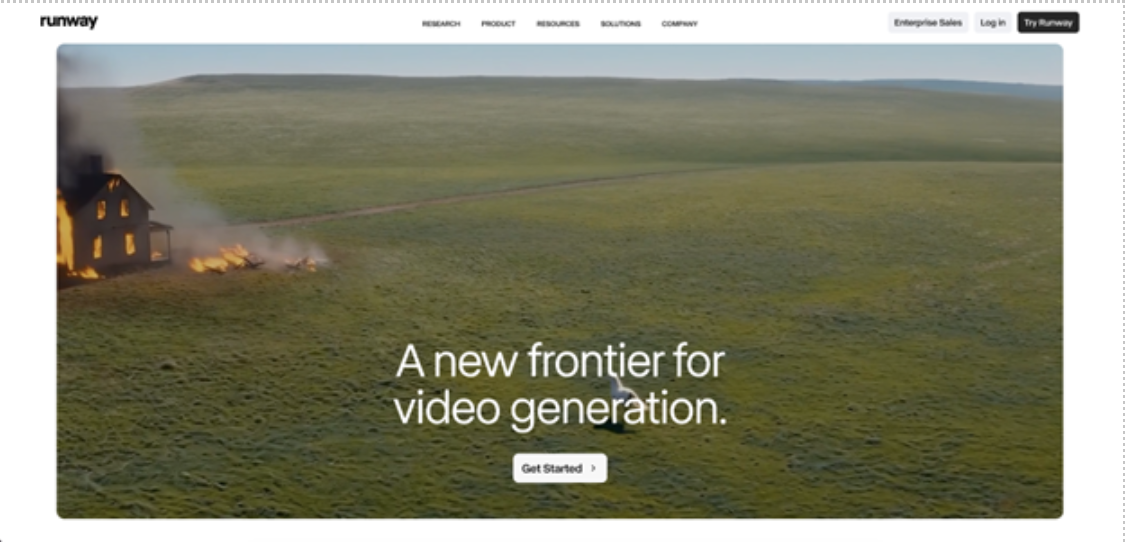
Runway is closer to the classic idea of an AI video generator. You type what you want to see, upload an image, or give the tool a visual reference, then generate short clips. It works well for shots you cannot easily film: a strange product teaser, a stylized city scene, a dreamlike music video loop, or a quick concept for an ad.
Its AI tools are built around visual generation. You can create clips from text, animate still images, adjust parts of a shot, or test several versions of the same scene. The results can look impressive, but they still need selection.
Runway is better for short visual pieces than full beginner edits. If you are making a talking-head tutorial, it will probably not be your main tool. If you need a few unusual shots to mix into a promo, it can save you from hunting through stock libraries for an hour.
- CapCut
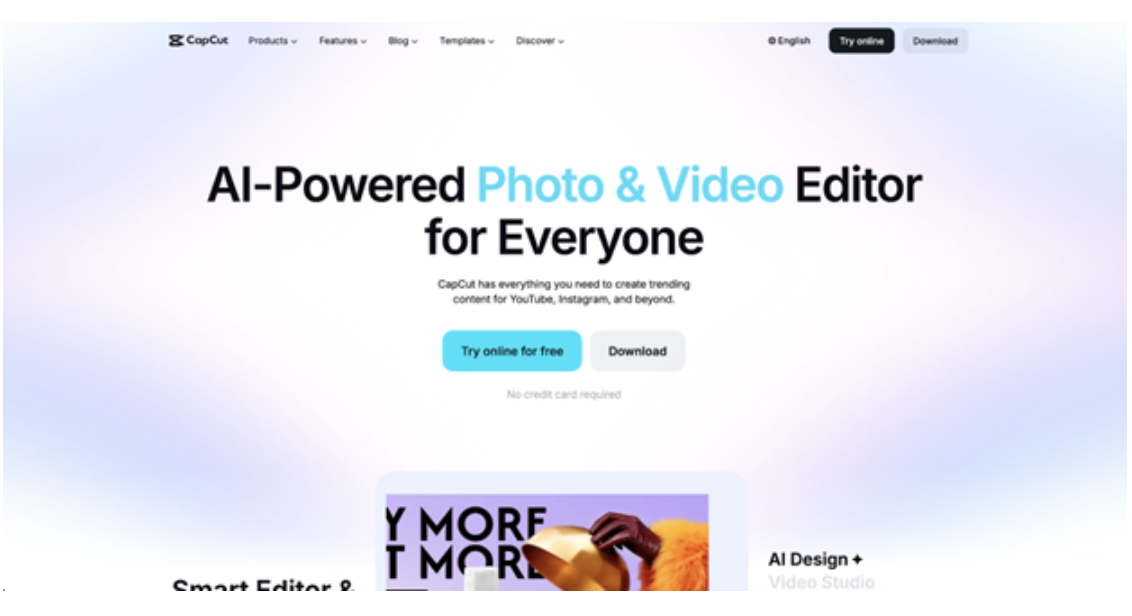
CapCut is quick and friendly to people who shoot on their phones. TikToks, Reels, Shorts, creator clips, meme edits, quick ads, and casual product videos all fit its style.
The AI tools cover auto captions, text-to-speech, background removal, resizing, templates, AI effects, and script-to-video features. Auto captions are probably the feature beginners will use most. Text-to-speech helps when you do not want to record a voiceover. Background removal can turn a messy talking clip into something cleaner without setting up a green screen.
CapCut’s danger is that everything can start to look like CapCut. Templates are fast, but viewers recognize them. Change the caption style, cut the first two seconds if they drag, choose music that fits the video rather than the trend, and remove effects that do not add anything.
- Synthesia
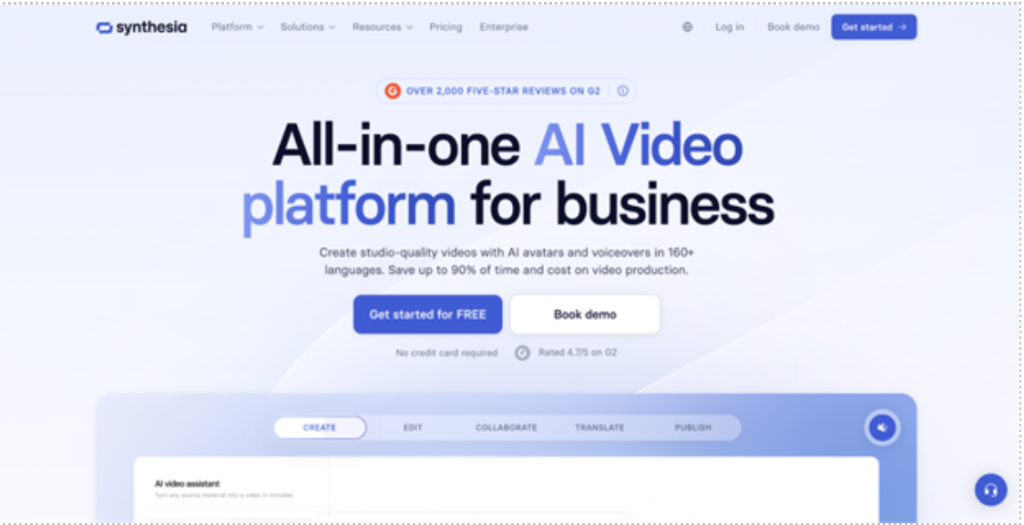
Synthesia is for videos where a presenter speaks to the viewer. You write a script, choose an AI avatar, pick a voice, and build scenes around the message. It fits training videos, onboarding clips, internal updates, software walkthroughs, and basic explainers.
The AI side covers avatars, voices, translations, script-to-video creation, and branded layouts. This is helpful when you need a person on screen but do not want to appear on camera. A company can explain a new tool to employees. A course creator can turn written lesson notes into a presenter-led video. A freelancer can make a client onboarding clip without booking a studio.
- VEED
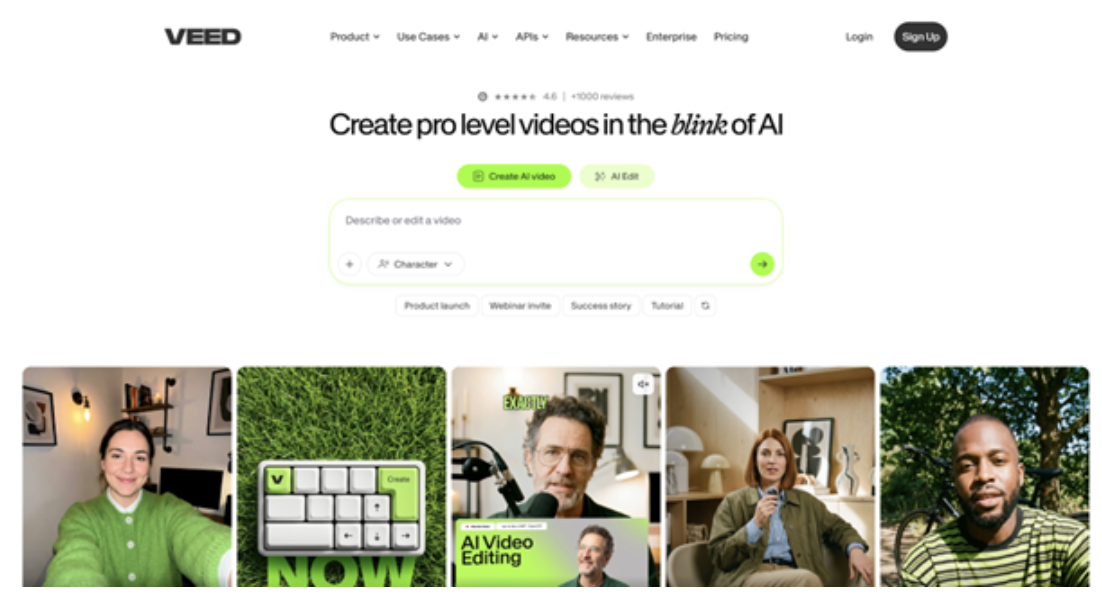
VEED is somewhere between an online editor and an AI video platform. You can record, edit, add subtitles, generate parts of a video, use avatars, clean audio, and prepare clips for social channels in a browser.
Its AI tools include text-to-video creation, avatars, subtitles, translations, dubbing, background removal, screen recording, and noise cleanup. It is a good fit for people who repurpose content. Take a webinar recording, cut out one useful answer, add subtitles, clean the sound, resize it for LinkedIn, and export it without installing software.
VEED is also useful for burning captions into the video or downloading subtitle files. That helps with YouTube uploads, online courses, and social posts where captions need to stay readable on a phone screen.
- Pictory
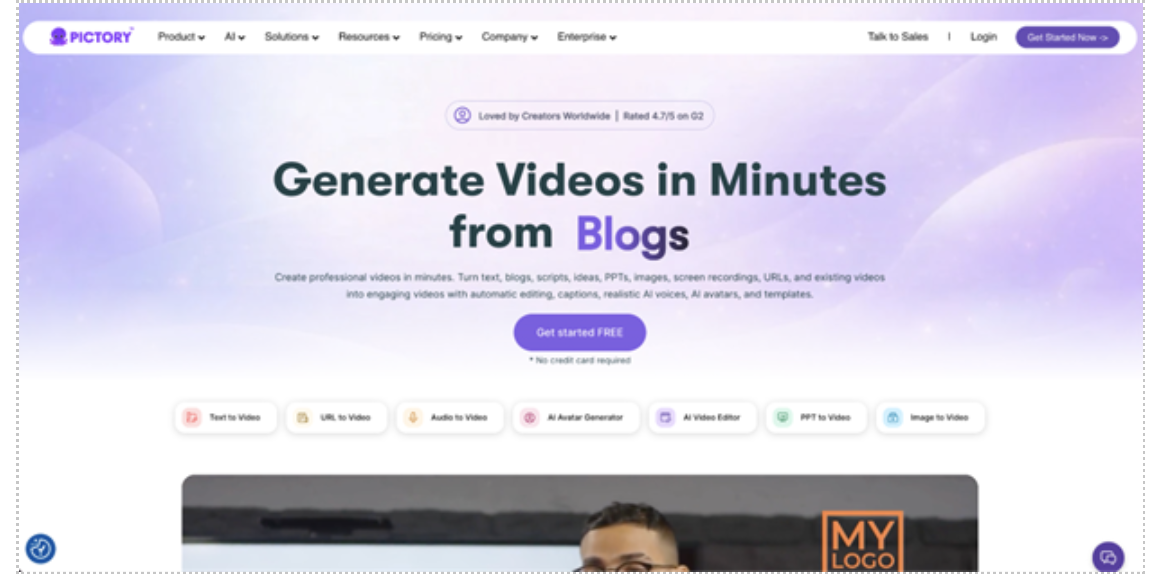
Pictory makes sense when the starting point is written content. You can paste a blog post, article, script, or URL, and the tool turns it into scenes with captions, visuals, and voiceover options. It is a practical AI video maker for people who already write a lot and want to reuse that material.
The AI tools split text into scenes, suggest visuals, add captions, and help create voiceovers. A blog post with five tips can become a short narrated video or a newsletter section can become a LinkedIn clip.
But keep in mind that the first version usually needs work. Pictory may choose stock clips that technically match the words but feel too generic. Treat Pictory as a fast draft builder, then edit it to give it a human touch.
- Descript
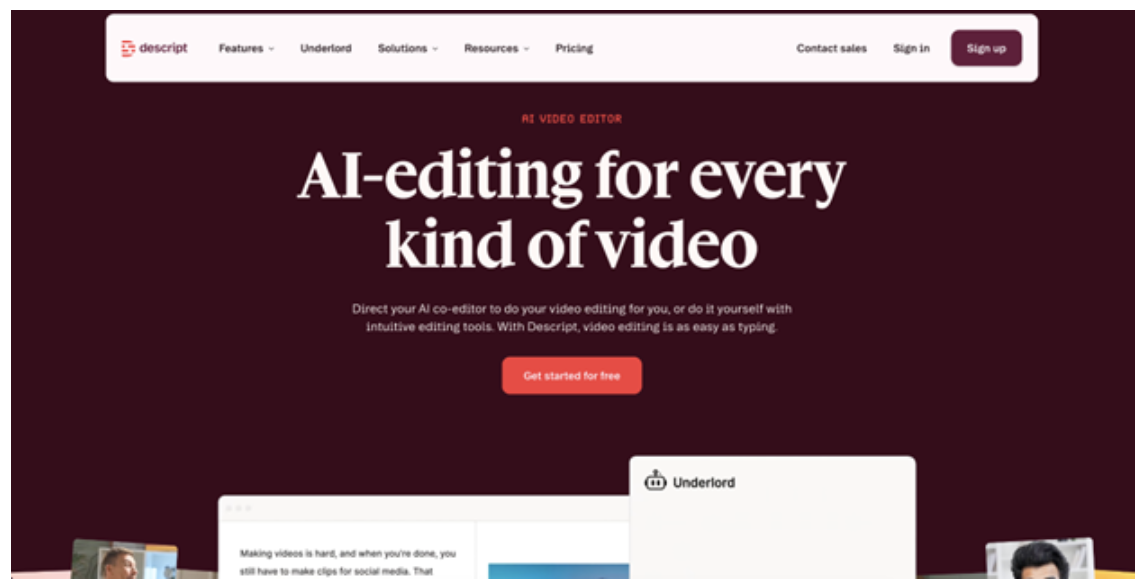
Descript is one of the easiest tools for speech-heavy videos. The transcript-based workflow can save a lot of time: you edit the words, and the matching video changes with them.
Its AI tools handle transcription, filler word removal, captions, voice cleanup, translation, eye contact correction, and AI voice features. Say you record a ten-minute tutorial and stumble through a few parts. In Descript, you can remove mistakes from the transcript instead of dragging clips around on a timeline. If the room audio sounds rough, the voice cleanup can make it more listenable.
Descript is not where you go for fantasy scenes or generated B-roll. It is better for making spoken content tighter. Record your explanation, cut the rambling parts, add captions, fix the voice track, and export a version that doesn’t feel raw.
- Canva
Canva is a comfortable choice if you already use it for thumbnails, social posts, slides, or small business designs. Its video tools are not built for heavy editing, but they are handy for quick branded clips.
The AI features include text-to-video, AI image creation, background tools, Magic Design, and script-based video creation. You can build a short promo with product photos, generated backgrounds, animated text, stock clips, and brand colors in the same workspace.
This works especially well for simple marketing pieces. Canva starts to feel limited when you need precise audio work or detailed timeline control, but for fast visual posts, it is easy to understand.
How to Choose Without Overthinking It
If you have no footage, try Runway for generated visuals, Synthesia for avatar videos, Pictory for article-based videos, or Canva for quick designed clips. If you have real footage, Movavi Video Editor, Descript, CapCut, and VEED are usually more practical.
Think about the final place where the video will appear. A 20-second TikTok ad needs fast captions and a strong opening. CapCut or Canva may be enough. A product demo needs cleaner cuts, better audio, and maybe two formats. Movavi is a safer choice there. A course lesson with a presenter can work in Synthesia. A podcast clip will be easier in Descript. A strange visual intro for a music project is more Runway’s territory.
If you are still unsure how to make AI videos, do a small test. Write a 60-word script. Use one image or one short clip and try to create a 30-second video. Check four things before you commit to any tool: export quality, watermark rules, caption editing, and how much fixing the result needs. If the “automatic” version takes an hour to repair, it is not saving you much time.