Removing a background used to be one of those jobs photographers quietly dreaded.
You would open the image, reach for the Pen Tool or masking brush, zoom in until individual hairs looked like suspension cables, and begin the slow process of separating your subject from everything behind them.
Then AI arrived and essentially asked: “Why are you still doing this manually?”
Today, free AI background removal tools can identify subjects, isolate complicated edges, and generate transparent backgrounds in seconds. They are not perfect, and professionals should still expect to make occasional refinements, but the amount of time they can save is difficult to ignore.
Whether you are preparing portraits, product photographs, social content, marketplace listings, or client graphics, the right AI background remover can turn a tedious editing task into something closer to a coffee-break job.
Here are seven options worth considering and, more importantly, what to look for when deciding which one actually belongs in your workflow.
1. Adobe Express
Adobe Express is one of the easiest places to start if you simply want a background gone without opening a full Photoshop project.
Upload an image, let the software identify the subject, and it can automatically remove the surrounding background.
The process is straightforward enough that you do not need advanced editing knowledge, which makes it particularly useful for quick social posts, profile pictures, simple product images, and marketing assets.
For photographers, its biggest advantage is convenience.
You can perform a quick extraction without building masks manually, then continue editing within Adobe’s wider ecosystem if the image needs additional work.
Best for: Quick edits and photographers already using Adobe products.
The limitation is that complicated images can still require manual refinement, particularly when the subject has fine hair, transparent clothing, or very low contrast against the background.
AI is clever. It is not psychic.
2. Canva
Canva is already widely used for graphics and social media content, so its background removal capabilities fit naturally into a broader design workflow.
For creators who regularly move between photography and graphic design, this can be particularly useful.
You can isolate a subject and immediately place them into a poster, presentation, social post, advertisement, or branded template without exporting files between several applications.
That workflow matters more than it sounds.
A background removal tool might save thirty seconds. A tool that removes the background and eliminates three additional export-import-export steps can save considerably more.
Best for: Social media creators, marketers, and photographers creating finished graphics.
Just keep in mind that access to certain background removal functionality may depend on Canva’s current plan structure and features.
3. remove.bg
Few tools are more closely associated with automated background removal than remove.bg.
Its entire purpose is wonderfully uncomplicated: upload a photograph and remove the background.
That simplicity is one reason it became so popular.
For obvious subjects photographed against reasonably distinct backgrounds, results can appear almost immediately. It works particularly well for portraits, headshots, product photographs, and straightforward commercial imagery.
From a professional perspective, the attraction is speed.
If a client suddenly needs twelve transparent-background headshots for a presentation that apparently became urgent five minutes ago, a specialised tool like this can be extremely handy.
Best for: Fast, straightforward subject extraction.
The main thing to watch is output resolution and free-use limitations, particularly if you need high-resolution files for professional delivery.
4. PhotoRoom
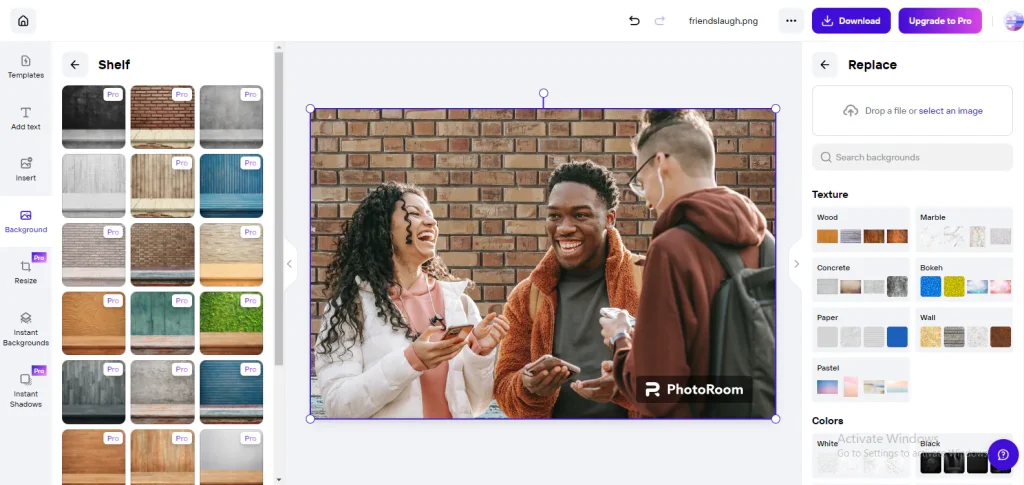
PhotoRoom has become especially popular with ecommerce sellers and product photographers because background removal is only the beginning of what it can do.
After identifying and extracting the main subject, you can quickly create clean product compositions, adjust backgrounds, generate simple studio-style scenes, and prepare imagery for online marketplaces or social channels.
This is particularly useful for photographers working with small businesses.
Instead of delivering a product cut-out and leaving the client to figure out what to do with it, you can potentially produce several ready-to-use variations much faster.
Best for: Ecommerce, product photography, and commercial social content.
When using automated backgrounds, however, always check shadows, reflections, and perspective. Nothing destroys the illusion of a professional product photograph faster than an object appearing to levitate two centimetres above the table.
5. Pixlr
Pixlr offers browser-based editing tools that sit somewhere between a simple background remover and a more traditional image editor.
That can be useful when automated removal gets you 90% of the way there but the remaining 10% needs human intervention.
After isolating the subject, you can continue adjusting the image without immediately switching to another editing application.
For occasional professional use, that flexibility can be valuable.
Best for: Editors who want background removal plus additional browser-based editing controls.
As always, inspect difficult edges carefully. Hair, fur, translucent materials, jewellery, and motion blur remain some of the quickest ways to expose an imperfect automated mask.
6. Fotor
Fotor combines AI-assisted editing with a relatively accessible interface, making it useful for photographers and content creators who want more than a single-purpose removal tool.
Background extraction can be incorporated into a wider workflow involving enhancement, retouching, resizing, and creative adjustments.
This makes it particularly practical when the final image is intended for digital marketing rather than archival photographic work.
Instead of treating background removal as an isolated task, you can complete several common editing steps in the same environment.
Best for: Everyday editing, promotional imagery, and quick content production.
The professional rule still applies: automated enhancement should make an image cleaner, not announce loudly that automated enhancement has been used.
Subtlety remains fashionable.
7. AI Portrait Editing Platforms
Dedicated portrait editing platforms deserve consideration when background removal is only one part of a much larger retouching job.
If you are editing people professionally, removing the background is rarely the final step. You may also need to correct skin tone, remove blemishes, adjust clothing, refine hair, balance colour, or process a large number of images consistently.
That is where platforms such as Evoto can fit more naturally into a professional workflow.
Instead of moving between separate utilities for background removal and portrait retouching, photographers can use tools that combine AI-assisted subject detection with broader editing functionality.
Best for: Portrait photographers, studios, and high-volume editing workflows.
This becomes particularly useful when you are processing an entire headshot session rather than a single photograph.
Saving two minutes per image does not sound extraordinary.
Saving two minutes across 300 images suddenly sounds considerably more interesting.
What Actually Makes a Good AI Background Remover?
The fastest tool is not automatically the best one.
For professional work, pay particular attention to edge detection.
Look closely around:
- Hair and fur
- Fingers
- Jewellery
- Clothing edges
- Transparent materials
- Motion-blurred areas
- Objects similar in colour to the background
A good extraction should preserve these details without creating obvious halos or jagged edges.
Resolution also matters.
Some tools provide impressive free previews but restrict high-resolution exports. That may be perfectly acceptable for an Instagram graphic and completely useless for a large print campaign.
Finally, consider what happens after the background disappears.
If you regularly need to continue retouching, colour grading, resizing, or compositing, a tool that integrates those tasks can be significantly more efficient than the fastest standalone remover.
AI Removes the Background. You Still Need to Check the Edges.
AI background removal has reached the point where manually masking every straightforward portrait or product photograph often makes little practical sense.
For simple images, modern tools can produce surprisingly clean results in seconds.
But professionals should resist the temptation to confuse “automatic” with “finished”.
Zoom in.
Check the hair.
Inspect the shoulders.
Look for strange transparency.
Make sure the algorithm has not quietly removed half an earring.
The best workflow is usually AI first, human review second.
Let automation perform the repetitive extraction work. Then use your own eye to refine the details that clients will actually notice.
Because the objective is not to prove that AI can remove a background.
It is to make the viewer forget there was ever a background there in the first place.