Formatted an SD Card by Mistake? What to Do Before You Use It Again
Few camera mistakes feel as final as pressing Format on the wrong SD card.
Maybe you believed yesterday’s shoot had already been copied to your Mac. Maybe two identical cards were sitting beside the laptop and the wrong one went back into the camera. Or perhaps you formatted a card while rushing to prepare for the next session.
Then you realize the originals are gone.
Do not start shooting on the card again.
A formatted card may still contain recoverable data, especially when formatting did not overwrite the actual storage and no new photos or videos have been recorded afterward. The priority is to preserve whatever remains before the card is reused.
Does Formatting Permanently Erase Everything?
Not every format works in exactly the same way.
A quick format or common in-camera format often recreates or resets file-system information so that the device sees available storage again. The previous files disappear from the directory, but portions of their data may remain on the card until new data replaces them.
That is different from a process that deliberately overwrites storage.
The distinction matters because recovery software needs the original data blocks to still exist. If they remain intact, software may be able to identify files even though the camera no longer shows them.
If those blocks have been overwritten, recovery becomes incomplete or impossible.
Continued shooting is therefore one of the biggest risks after accidental formatting. A creator who formats a card and immediately removes it is in a very different situation from someone who formats it and then records another 80GB of video.
Four Questions That Affect Recovery Chances
Before doing anything else, ask four questions.
- How Was the Card Formatted?
A quick or typical camera format may leave more underlying data available than a deliberate overwrite or secure-erase operation.
Do not assume every camera behaves identically, though. Formatting behavior varies by device and implementation.
- Has the Card Been Used Since?
This may be the most important question.
Every new photo, video, audio recording, or copied file can occupy space previously used by your lost data.
- Is the Card Still Detected Correctly?
A card that appears on Windows or macOS with approximately the correct capacity is usually a more suitable candidate for DIY software recovery than one that constantly disconnects or reports obviously incorrect storage.
- Is There Any Sign of Physical Failure?
Cracks, severe heat, liquid damage, or unstable detection change the situation. Formatting may not be the only problem.
What Not to Do After Formatting
When the files matter, treat the card as the source evidence for recovery.
Do not:
- shoot new photos or video,
- format the card again,
- copy “test” files onto it,
- run CHKDSK or First Aid before recovery,
- attempt file-system repair first,
- save recovered files back to the same card.
If the operating system displays another formatting prompt when you connect the card, choose Cancel.
The goal at this stage is not to make the card usable again. It is to extract valuable data before changing the storage any further.
How to Recover Files From a Formatted SD Card With Recoverit
When the formatted card is still readable by Windows or macOS and does not show signs of physical failure, a recovery scan can inspect the storage for remaining file data.
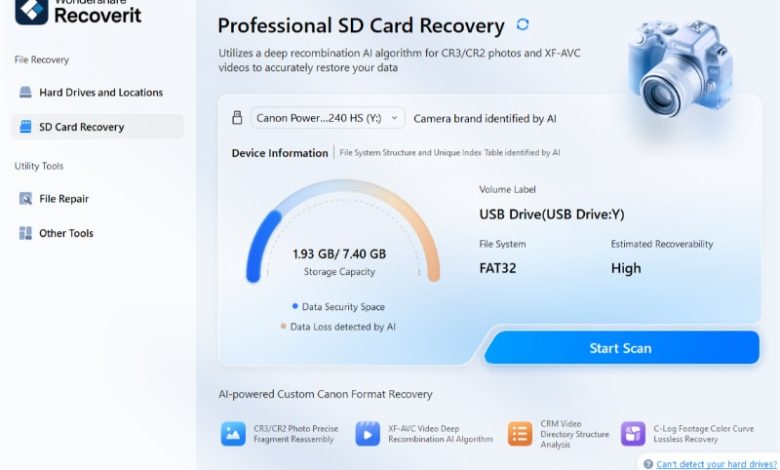
One option is Wondershare Recoverit, data recovery software for Windows and Mac. Its sd card recovery feature can scan formatted SD and microSD cards and identify photos, RAW files, video, documents, and other data. Recoverit works with computer drives and connected storage.
Step 1: Connect the Formatted Card
Use a reliable card reader rather than putting the card back into the camera and risking additional writes.
Wait for the operating system to detect it. If a prompt says the disk must be formatted before it can be used, cancel it.
Step 2: Select the SD Card in Recoverit
Open Recoverit and choose the SD Card Recovery area or the corresponding external storage entry.
Confirm the card’s size before starting.

Step 3: Scan the Formatted Storage
Start scanning and keep the card connected.
A creator-focused card may contain JPEGs, camera RAW files, large MOV or MP4 footage, audio, documents, and related sidecar files. Recoverit can organize results by categories and provide filters to narrow what appears.

Step 4: Filter and Preview Instead of Recovering Everything
Formatting can damage or remove the original folder structure. That means your old directory names may no longer be the best way to find what you need.
Search by file type, available dates, size, preview, and other surviving clues.
This is also where Recoverit’s newer AI Search workflow becomes relevant for creators. When supported,

Step 5: Recover to another Storage Location
Select the files that matter and recover them to the Mac, Windows PC, or another external disk.
Never choose the formatted SD card as the destination.
Only after the recovered files have been opened and verified should the original card be considered for reuse.

Why Original Filenames and Folders May Be Missing
A common surprise in formatted SD card recovery is that the file content returns without the neat directory structure the creator remembers.
That does not necessarily mean the recovery failed.
A file system stores more than the content of a photo or video. It also maintains information such as filenames, directories, allocation references, and other metadata used to organize the storage.
Formatting can damage or replace some of that bookkeeping even when the underlying photo or video data survives.
Recovery software may therefore recognize a JPEG, RAW photo, or video by its internal structure while being unable to reconstruct the original folder and filename accurately.
This is one reason preview, metadata, filters, and content-based search can be more useful than filenames after formatting.
What If a Recovered File Will Not Open?
Finding a filename is not the same as recovering a complete file.
A photo may appear with a thumbnail while part of the full-resolution image has been overwritten. A large video may have missing or damaged segments. A RAW file can retain some embedded preview data while the original sensor data is incomplete.
If critical professional files are only partially recovered, avoid writing to the source card and consider whether a more advanced recovery approach or specialist service is justified.
Do not repeatedly format the card in the hope that another format will improve recovery.
It will not.
What to Do With the Card After Recovery
Once your important data is safely stored elsewhere and verified, you can decide whether the card should return to production.
If the formatting was purely accidental and the card otherwise behaves normally, reformat it in the device where you intend to use it and test it before an important assignment.
If the card has produced repeated errors, unusual disconnects, write failures, or other reliability problems, replacing it is usually cheaper than risking another irreplaceable shoot.
For professional work, storage reliability is part of the production workflow.
Final Thoughts
Formatted SD card recovery is a race against new writes, not simply a race against time.
If you formatted the wrong card, stop using it, avoid repair tools, scan it before recording anything new, and save recovered material somewhere else. When filenames and folders are no longer useful, tools such as Recoverit can combine scanning, preview, filtering, and newer creator-oriented search features to help locate the files that still survive.
Recover first. Reuse the card later.
The post Wondershare Recoverit Enhances SD Card Data Recovery for Formatted Camera Storage appeared first on .