A $5,000 GPU connected through a bad I/O path behaves like a much slower system. The bottleneck isn’t where you think it is.
1. The GPU Tunnel Vision
Everyone optimizes compute — VRAM, model size, batch size, quantization. When the workstation stutters, the first instinct is to blame the GPU, the RAM, or the model.
But real failures under sustained AI workloads — training runs that freeze, inference that lags, displays that drop mid-session — almost never originate from the GPU. They originate from the I/O path nobody audits.
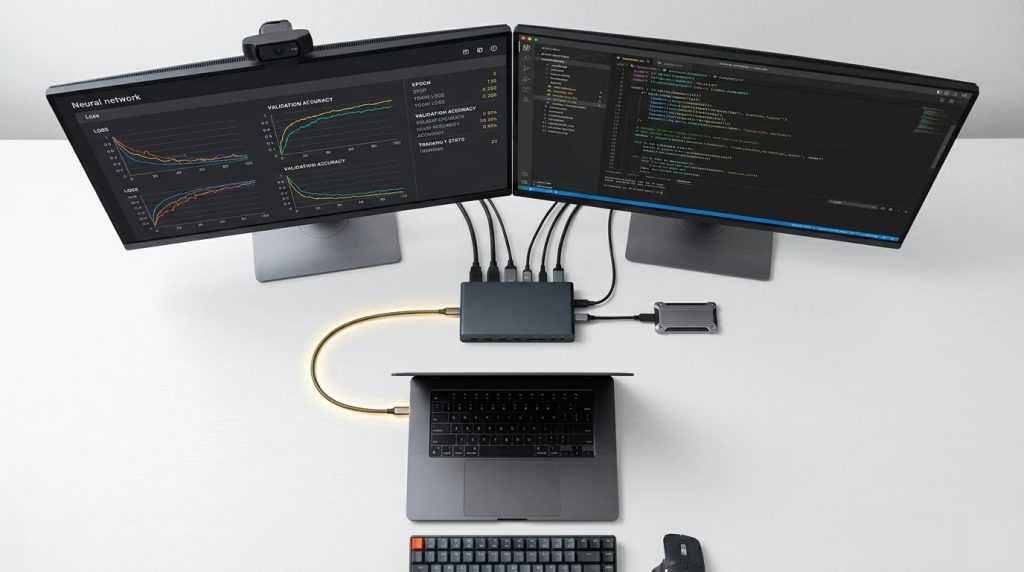
The I/O path is the silent killer. Every device you connect shares a single upstream cable: your Thunderbolt or USB-C connection. That single cable carries everything — display data, NVMe traffic, USB peripherals, Ethernet, and power delivery. When the system degrades, the GPU is almost never the culprit. The saturated bus is.
2. What “Under Load” Actually Means for I/O
AI workloads don’t just consume GPU cycles. They simultaneously demand:
- Sustained sequential reads from external NVMe (dataset loading — often 50–200 GB per model)
- Display output across multiple monitors (dashboards, IDE, terminal, training metrics)
- USB peripherals (camera, mic, keyboard, mouse)
- Network throughput (pulling model weights, pushing logs)
- Power delivery to the laptop (sustained 90–140W under continuous GPU load)
All of this runs through the same shared bus. That bus has a fixed bandwidth budget. When you exceed it, something has to give. The GPU doesn’t throttle — the I/O pipeline does. When the entire docking station stops responding, engineers assume hardware failure — but it’s almost always bus saturation. (Full diagnostic guide)
3. The Shared I/O Budget Nobody Talks About
Every device you connect consumes bandwidth from the same Thunderbolt or USB-C controller. The budget is finite:
| Protocol | Total Bandwidth | PCIe Effective |
|---|---|---|
| USB-C (basic) | 10–20 Gbps | N/A |
| USB4 | 40 Gbps | ~38 Gbps (optional) |
| Thunderbolt 4 | 40 Gbps | 32 Gbps max |
| Thunderbolt 5 | 80 Gbps (120Gbps Boost) | 64 Gbps |
A single 4K@60Hz display consumes about 12.5–13 Gbps. Two displays: 25 Gbps. That leaves roughly 15 Gbps on a TB4 connection for everything else — storage, USB, network.
A modern NVMe SSD over Thunderbolt can deliver sustained 3 GB/s (24 Gbps) reads. Add that to two 4K displays, and you’re at 49 Gbps — well over the 40 Gbps total. The controller cannot deliver what doesn’t exist.
Something has to give. Usually:
- The display flickers or drops frames as the MST hub renegotiates
- The SSD throttles from 3 GB/s down to 500 MB/s
- USB audio cracks or disconnects
- The entire bus resets
The display always has priority. Thunderbolt tunnels DP traffic first; all other traffic (PCIe, USB) comes second. When bandwidth gets tight, your storage and peripherals starve first — not your screens.
4. The Upgrade Death Spiral
This is the pattern that kills workstations:
- Week 1: Laptop + dock + one monitor. Works perfectly.
- Week 3: Add second monitor. Still fine.
- Week 5: Add external NVMe for model libraries. Occasional stutter.
- Week 7: Add USB webcam. Display starts flickering.
- Week 8: Add eGPU enclosure. Random disconnects.
Every upgrade consumed part of the shared budget. The engineer blames the newest device — the eGPU, the webcam, the SSD.
Wrong. The failure is cumulative. Remove any single device and the system stabilizes — not because that device was broken, but because you freed enough bandwidth for the remaining devices to function. This recurring disconnect pattern is one of the most misdiagnosed failures in workstation setups. (Why docking stations keep disconnecting)
Real examples: a MacBook Pro user found that plugging in a Thunderbolt monitor made an external SSD unusable (“Accessory needs more power”), while plugging the SSD first allowed both to work briefly before negotiation failed. Another user reported that a Thunderbolt NVMe drive disconnects entirely when a second 4K monitor is connected — not a power issue, but a bandwidth ceiling the controller cannot negotiate. These are predictable outcomes of shared bus limits, not hardware defects.
5. The Three Real Bottlenecks (Not the GPU)
-
Thunderbolt Tunneling Conflicts
Thunderbolt allocates bandwidth in tunnels: PCIe, DisplayPort, USB. These tunnels compete. A second display doesn’t just consume display bandwidth — it reduces the PCIe allocation available to your external SSD. The controller must dynamically reallocate lanes, and during that transition window, both devices may experience momentary dropouts.
-
Display Bandwidth Stealing PCIe Resources
This is the one nobody explains. On Thunderbolt, display output and data share the same pipe. Every pixel you push to a monitor is bandwidth your storage doesn’t get. Adding a third monitor can measurably slow dataset loading — by 30–50% or more. On a Thunderbolt 5 workstation running triple 4K@120Hz, the PCIe tunnel available for an external NVMe SSD drops from 64 Gbps to effectively 32–40 Gbps — a real, measurable penalty.
-
Power Delivery Instability
A dock delivering 90W to a laptop running an AI workload that demands 120W will trigger CPU/GPU throttling at the host level. The dock isn’t failing. It’s underpowered. Dell’s WD22TB4 delivers 130W to Precision laptops (designed for sustained AI loads) but drops to 90W on non-Dell hosts — a 40W difference that can mean severe throttling. If your battery percentage drops during a multi-hour training run despite being “plugged in,” the dock is underpowered — not broken.
6. How to Audit Your Workstation’s I/O Budget
You don’t need complex tools. Here’s a four-step manual audit:
- Map your devices – List every device: displays, storage, Ethernet, USB peripherals. Note their approximate bandwidth (one 4K display ≈ 12.5 Gbps; one NVMe SSD ≈ 24 Gbps at full speed).
- Add them up – Compare the total against your port’s limit (40 Gbps for TB4, 80 Gbps for TB5, 10 Gbps for basic USB-C). If you’re over, you will have intermittent failures.
- Stress test incrementally – Start with only displays. Run a sustained test (model load + disk I/O). Add one device at a time. The moment you see frame drops, disk read speeds halved, or peripheral disconnects — you’ve found the ceiling.
- Verify with disk benchmarks – Run Blackmagic Disk Speed Test while your displays are active. If read speeds drop by more than 30% when you add a second monitor, you’re bandwidth-limited — not disk-limited.
7. Building an AI Workstation That Doesn’t Degrade Under Load
- Separate display and data paths where possible – If your laptop has two Thunderbolt ports, use one for your dock/displays and the other for a direct-attached NVMe SSD. This bypasses the dock’s internal controller and removes one layer of contention.
- Use Thunderbolt 4 as the minimum – For dual-monitor plus storage setups, USB-C will work until it doesn’t. Thunderbolt 4 guarantees 40 Gbps and native MST support.
- Consider Thunderbolt 5 for multi-GPU or triple 4K workstations – Its 80 Gbps baseline and 64 Gbps PCIe effective bandwidth eliminate the contention that kills TB4 setups.
- Use the dock’s own high-wattage power adapter – 100W minimum, 140W+ for workstation laptops. Never rely on a laptop’s battery to supplement an underpowered dock.
- Connect high-throughput storage directly to a dedicated port – Do not run it through the dock’s downstream ports. For AI model caching, this is non-negotiable.
Why This Matters More Than GPU Specs
A $5,000 GPU connected through a saturated Thunderbolt bus performs like a much cheaper card. The pixels you push to your monitors, the dataset you load from an NVMe, and the model weights you transfer through the USB controller all compete for the same finite pipe.
The system isn’t broken. It’s just asking one cable to carry more than it was designed for.
Engineers obsess over memory bandwidth (TB/s) but ignore I/O bandwidth (Gbps). The gap between them is where AI workstations silently degrade — and where the smartest debugging is often just adding a second cable.