
You insert your SD card, and Windows immediately throws the warning: “You need to format the disk before you can use it.” Fine. You click Format. Seconds later, you see failure. No explanation. Just another error message.
So you do what everyone does, search “SD card won’t format“. You find registry tweaks, DiskPart commands, third-party tools, camera tricks, and phone methods. You try a few. Nothing works. Now you’re frustrated and unsure whether you’re making things worse.
Here’s the hard truth: the problem isn’t that there aren’t enough solutions. It’s that most people apply fixes blindly. A method designed to remove software write protection won’t fix a physically failing card. A formatting trick won’t revive a damaged controller. Random fixes fail because they don’t match the failure type.
This article replaces trial-and-error with a 5-minute diagnostic checklist. By answering a few simple questions, you’ll identify whether your micro SD card won’t format due to logical corruption, write protection, or physical damage, and then apply the correct fix. No wasted time. No unnecessary data loss.
The Pre-Diagnosis: Critical First Steps
Whenever you face an “SD card won’t format” error, the critical first step is to save your data.
Step 0: Rule Out the Obvious – Hardware Variables
Before touching software, eliminate basic hardware causes. Skipping this step leads to misdiagnosis.
Try a different card reader or USB port.
Cheap or failing USB card readers frequently cause format errors. Swap the reader or change ports.
Check the lock switch (full-size SD cards)
Ensure the physical slider on the card’s side is fully in the unlocked position. Even partial engagement can trigger write protection.
Try a different computer.
If the SD card works elsewhere, the issue lies with your OS, drivers, or reader, not the card.
The Goal:
If the card formats successfully in another setup, stop here. If it fails everywhere, the problem is intrinsic to the card. Proceed to diagnosis.
The Diagnostic Flowchart: Find Your Failure Type
Different people face their SD card errors due to different issues. The following diagnostic steps help you find the one you are facing.
The SD Card Symptom Checker: What’s Really Wrong?
This is the core of the guide. Follow the questions in order.
Diagnostic Question 1: Does Disk Management See the Card?
Action:
Press Win + X → Disk Management. Look for your SD card in the disk list.
Interpretation A: Not listed at all
The card isn’t communicating properly. This points to a severe hardware, reader, or contact failure.
Interpretation B: Listed as “No Media” or 0MB
This usually indicates controller failure. The card’s internal firmware can’t access memory chips. This is often the terminal.
Interpretation C: Listed with capacity (RAW, Unallocated, or formatted)
Good news. The card is detectable. The issue is logical, not physical. Continue.
Diagnostic Question 2: What Does the Status or Properties Say?
Action:
Right-click the SD card’s partition (if visible) in Disk Management and check its status or properties.
Common statuses and meanings:
- RAW / Unallocated: The file system or partition table is corrupted or missing.
- Healthy but inaccessible: File system corruption exists, but the structure remains.
- Write Protected: Either a software lock or firmware-level protection is active.
This step narrows the problem significantly.
Diagnostic Question 3: Can You Run chkdsk?
Action:
Open Command Prompt as Administrator and run: “chkdsk X: /f” (Replace X with the SD card’s drive letter.)
Interpretation:
- chkdsk runs and fixes errors: The issue was minor file system corruption.
- “The type of the file system is RAW. CHKDSK is not available…”: Confirms severe file system damage.
- chkdsk fails immediately: Suggests deeper logical or firmware-level issues.
Diagnostic Summary
At this point, you should clearly classify your problem as one of three types:
- Physical / Hardware Failure
- Write Protection Issue
- Logical / File System Corruption
Each requires a different solution. Guessing stops here.
The Solution Matrix: Applying the Right Fix
After completely diagnosing the issue, you must know how to apply the right fix and which fix to apply.
Match Your Diagnosis to the Cure
This section will directly link the fixes to the diagnostic steps from the previous section with actionable solutions.
If Diagnosis = Physical / Hardware Failure
Reality check:
If Disk Management doesn’t detect the card or shows 0MB / No Media, the software cannot repair it. The memory controller or flash chips are failing.
Your options:
- If data is critical: professional data recovery (expensive, not guaranteed)
- Otherwise, replace the card
No formatting tool can resurrect dead hardware.
If Diagnosis = Write Protection Issue
Reminder:
Recheck the physical lock switch.
Software-level protection:
Advanced users can attempt:
- DiskPart attributes disk clear readonly
- Registry edits affecting removable storage policies
These methods are error-prone and won’t help if the protection is firmware-based. If write protection persists alongside corruption, move to the next solution.
If Diagnosis = Logical / File System Corruption
This is where most “corrupted sd card won’t format” cases live.
The problem:
The SD card is detectable, but its partition table or file system is damaged. Windows’ built-in formatter and Disk Management often fail here, looping endlessly with errors.
Why Windows tools fall short:
They’re designed for healthy disks. When metadata is corrupted, they frequently refuse to proceed.
The Specialized Fix: 4DDiG Partition Manager
4DDiG Partition Manager is built specifically for low-level disk and partition repair, making it ideal for SD cards that won’t format due to logical corruption.
Why is it the right tool for this diagnosis
- Operates below the Windows file explorer layer
- Can handle RAW and unallocated states
- Uses a guided GUI instead of destructive commands
Key Features for This Problem
The key features offered by 4DDiG Partition Manager, making it an ideal solution, include:
Force Format & Repair
Formats SD cards Windows rejects.
Partition Management
Deletes corrupted partitions and rebuilds them cleanly, often the definitive fix.
File System Reconstruction
Recreates FAT32, exFAT, or NTFS structures properly.
The Workflow
To fix a corrupted SD card that won’t format:
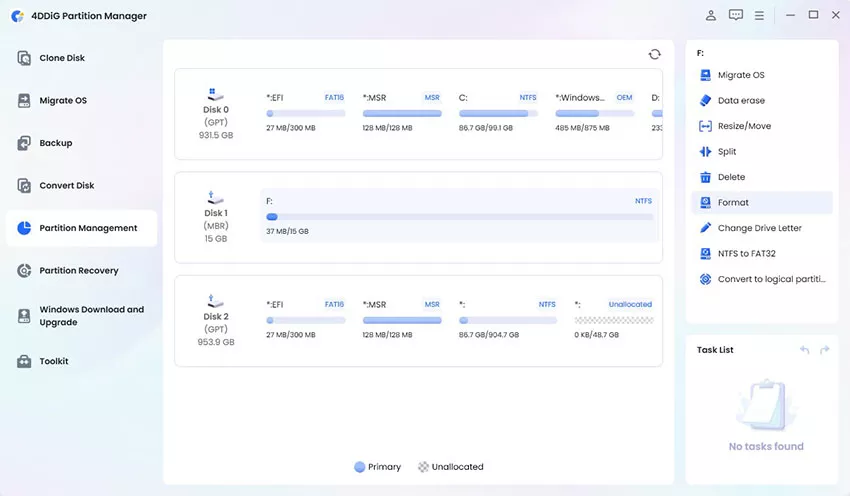
1. Launch 4DDiG Partition Manager and click “Partition Management”, then select the SD card and click “Format”.
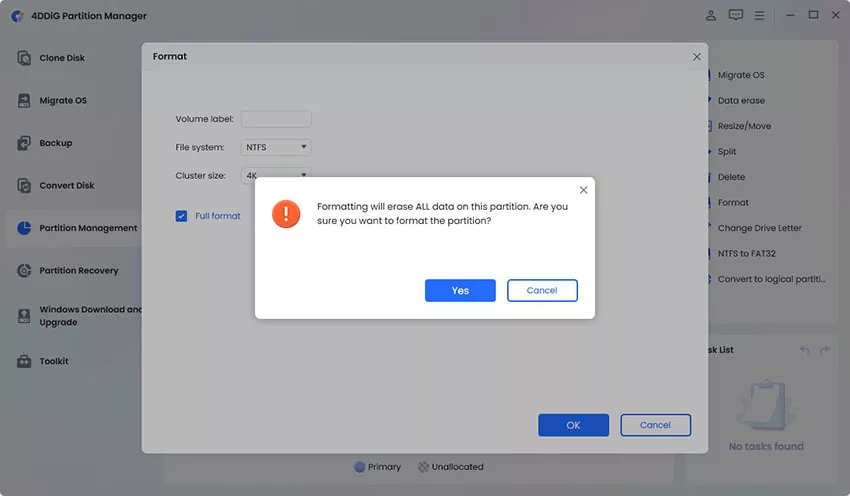
2. Create the new partition with details like “Label”, “File System”, etc., with 4DDiG so it will delete the old partition and click “OK” then “Yes”.
3. Click the “Execute Tasks” button and confirm by clicking “OK”. Wait as 4DDiG formats your SD card, then click “Done” when finished.
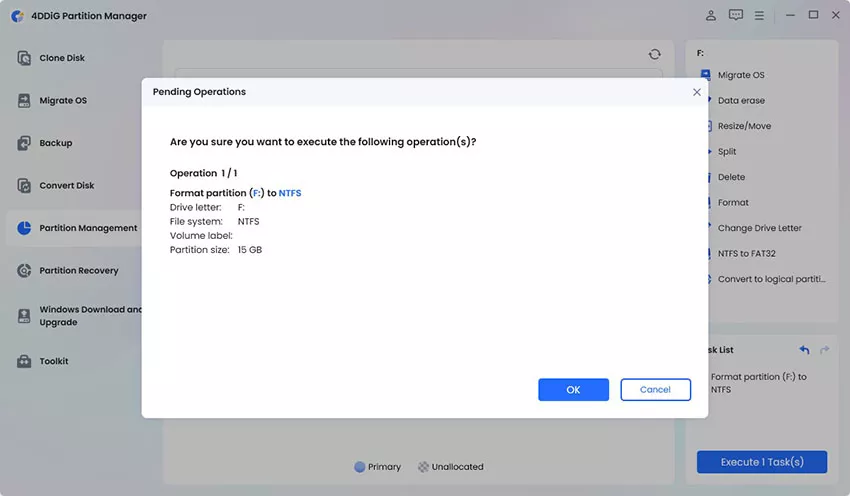
This process directly addresses how to fix a corrupted sd card that won’t format. without command-line risk.
Conclusion & Final Recommendation
If your SD card won’t format, random fixes waste time and increase risk. Diagnosis always comes first. Most dead cards are truly dead, but the majority of fixable cases are simple logical corruption that Windows tools can’t handle.
For those scenarios, a dedicated partition solution is the fastest, safest path forward. Stop guessing. Diagnose in minutes. And when logical corruption is the cause, use 4DDiG Partition Manager to rebuild the card correctly and get back to work.
FAQ
Q: Why won’t my sd card format even though it’s brand new?
Often, low-quality or defective cards fail early. Logical corruption can also occur during first use. Diagnosis in Disk Management reveals which.
Q: I need to format an SD card that won’t format in Windows 11. What’s the surefire method?
When Disk Management fails, deleting and recreating the partition using a dedicated partition manager is the most reliable fix.
Q: How to fix a micro sd card that won’t format in my phone or camera?
Remove it and diagnose it on a computer first. Phones and cameras can’t repair corrupted partition tables.
Meta Description:
SD card won’t format? Diagnose the real cause in minutes and apply the correct fix. Learn how to repair corrupted SD cards safely and effectively.