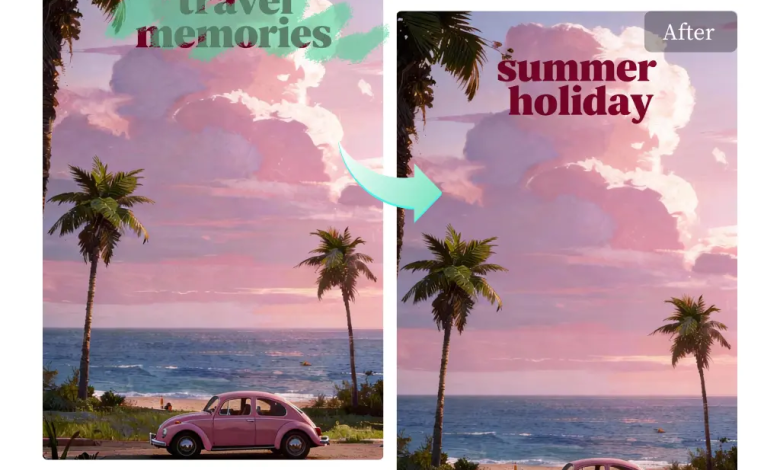
You snapped an amazing photo, but there’s one problem. A stray tourist, a distracting sign, or an ugly trash can is ruining the perfect shot. In the past, you’d need complicated software and a lot of patience to fix it. Now, you can clean up your images in seconds, and all you need are a few simple words.
Thanks to powerful AI, removing unwanted objects from your pictures has never been easier. You don’t need to be a graphic designer or pay for expensive programs. The best new tools let you simply tell the editor what to remove, and it does the job for you. This guide will show you how to do it for free in 2026.
Why Use a Text-Based Photo Editor?
For years, editing photos meant using tools like clone stamps, healing brushes, and complicated selection masks. It was a skill that took time to learn. Today, text-based photo editing changes everything. Instead of manually drawing around an object, you just type a command like “remove the car” or “erase the person on the left.” The AI handles the rest.
This approach is incredibly fast and intuitive. It understands your instructions and intelligently reconstructs the background where the object used to be. The result is a clean, natural-looking image without any complicated steps. A Free photo Text Editor is the perfect solution for anyone who wants professional results without the steep learning curve. It puts the power of complex editing into a simple text box.
The Best Free Tool for Removing Objects
When it comes to effortlessly cleaning up your photos, one tool stands out. The key is finding an editor that combines a simple interface with powerful AI that understands context. You need a tool that doesn’t just delete pixels but intelligently fills in the space with a realistic background, leaving no trace of the removed object.
A top-tier object remover uses advanced algorithms to analyze the surrounding area of your photo. It recognizes patterns, textures, and lighting to create a seamless patch. This means you won’t be left with blurry spots or weird-looking artifacts. It’s the ideal choice for creating flawless images for your social media, family albums, or professional portfolio.
Introducing EZRemove.ai: Your Go-To Solution
EZRemove.ai is designed to make photo editing accessible to everyone. It uses sophisticated AI to deliver precise results from simple text commands. You just upload your image, type what you want to remove, and watch it disappear.
What makes it so effective?
* Simplicity: There are no complex menus or tools. If you can type a sentence, you can edit a photo.
* Accuracy: The AI is trained to identify objects with high precision, from people and cars to small blemishes and text overlays.
* Realistic Results: It excels at recreating backgrounds. Whether it’s a brick wall, a grassy field, or a clear blue sky, the tool fills in the gaps flawlessly.
* Speed: The entire process takes just a few seconds, saving you a huge amount of time compared to manual editing methods.
How to Remove Anything from a Photo (Step-by-Step)
Ready to clean up your own pictures? The process is incredibly straightforward. Here’s a simple breakdown of how it works.
Step 1: Upload Your Photo
First, select the image you want to edit. Drag and drop it into the editor or click the upload button to choose a file from your computer or phone. For the best results, start with a clear, high-quality photo. While the tool works on most images, higher resolutions give the AI more data to work with, leading to a cleaner final image.
Step 2: Tell the AI What to Remove
This is where the magic happens. Once your photo is loaded, you’ll see a text box. Simply type a clear and descriptive command. Don’t just write “remove person.” Be specific for better results.
Here are a few examples of effective prompts:
* “Remove the two people on the right.”
* “Erase the blue car in the background.”
* “Take out the trash can next to the bench.”
* “Remove the date stamp in the bottom corner.”
Step 3: Let the AI Process Your Request
After you enter the command, the AI gets to work. It analyzes your photo, identifies the object you described, and carefully removes it. At the same time, it generates a new background to fill the empty space, matching the lighting, texture, and colors of the surrounding area. This usually takes just a few seconds.
Step 4: Review and Download
The tool will present you with the edited image. The unwanted object will be gone, replaced by a seamless, reconstructed background. Take a moment to zoom in and check the details. If everything looks good, you can download your perfected photo directly to your device. It’s now ready to be shared with the world.
Common Things You Can Remove from Your Pictures
This technology is useful for more than just fixing one or two photos. It can be used in many situations to improve your images.
Photobombers and Unwanted People
We’ve all had a great group photo or a beautiful landscape shot ruined by a stranger walking through the frame. Now you can easily remove them. This is also a sensitive and practical way to remove an ex-partner from a cherished photo without deleting the memory entirely.
Distracting Background Objects
Sometimes the main subject of your photo is perfect, but the background is cluttered. You can instantly remove distracting elements like:
* Trash cans or litter
* Traffic signs and cones
* Power lines and poles
* Cars or other vehicles
Cleaning up these details helps your main subject stand out and gives your photo a more professional look.
Skin Blemishes and Imperfections
The object removal tool is also great for light portrait retouching. You can use it to remove temporary blemishes like pimples or scratches. It can also be used to get rid of stray hairs or lint on clothing, ensuring your portrait looks polished and clean.
Watermarks and Text
Have a photo with a distracting watermark or a date stamp in the corner? A text-based remover can easily erase it. Just be mindful of copyright laws when editing photos you didn’t take yourself. It’s best used for cleaning up your own images that have been watermarked by a camera or app automatically.
Tips for Getting the Best Results
While AI makes photo editing easy, a few simple tricks can help you get even better results.
Be Specific with Your Text Commands
The more detailed your prompt, the better the AI can identify the correct object. Instead of saying “remove the sign,” try “remove the red stop sign on the left.” This helps the tool avoid mistakes, especially in a busy photo with multiple objects.
Use a High-Quality Image
Starting with a high-resolution photo gives the AI more pixel information to work with. This is crucial for recreating detailed backgrounds. A blurry or low-quality image can result in a smudged or less realistic fill.
Consider the Background Complexity
Removing an object from a simple background, like a beach or a clear sky, is very easy for the AI. Complex backgrounds with intricate patterns, like a crowded city street or a detailed brick wall, can be more challenging. In these cases, the AI does a remarkably good job, but it’s always a good idea to zoom in and inspect the result closely.
Do a Second Pass if Needed
For very tricky removals, you might see a tiny imperfection left behind. If this happens, you can often run the tool a second time. Just type a new command to clean up the specific little spot that needs a touch-up.
Frequently Asked Questions (FAQ)
Is it really free to remove objects from photos?
Yes, many powerful AI-powered object removal tools are available for free. Tools like EZRemove.ai offer a free way to make high-quality edits without needing to buy expensive software.
Will the final image look natural?
Modern AI is very good at creating realistic results. The tools analyze the surrounding pixels to fill the empty space with matching textures and lighting, so in most cases, you won’t be able to tell an object was ever there.
What kind of photos can I use?
You can use most common image formats, like JPG and PNG. The tools work on all kinds of photos, including portraits, landscapes, product shots, and group pictures.
Do I need to download any software?
No. The best modern photo editors are web-based. This means you don’t need to install anything on your computer or phone. You can access the tool directly from your browser, upload a photo, and start editing right away.
A Final Word
Cleaning up your photos is no longer a complicated or costly task. With free, AI-powered tools, anyone can remove unwanted objects and create perfect images in seconds. By simply typing what you want to change, you can fix photobombs, remove distractions, and make your favorite pictures look exactly how you want them to. Give it a try and see how easy it is to transform your photos.