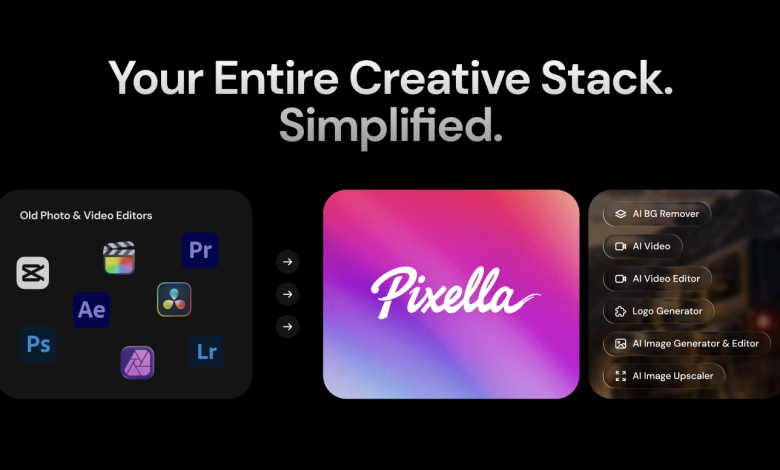
Most creators don’t need a professional editing suite. They need one image fixed, formatted, and ready to post — ideally without opening four different apps to get there. That’s the specific problem a Pixella review keeps circling back to, and it’s the one the platform’s AI Image Editor is most directly built to solve.
Six tools sit inside Pixella’s dashboard at pixella.ai — AI Image Generator, AI Background Remover, Image Resizer, AI Image Upscaler, AI Image Editor, and Logo Generator. The editor shares a canvas with all of them, which means generating, retouching, resizing, and upscaling happen in sequence without an export step between each one.
The segment itself has grown fast. Market.us put the AI image enhancer market at $2.6 billion in 2024, with a projected climb to $50.7 billion by 2034 — 34.6% CAGR. Photographer adoption was already at 75% in 2023, with most citing reduced manual editing time as the main reason for switching. The tools moved into standard workflow territory faster than most anticipated.
What the editor actually does
Two modes sit inside the image generation panel: Create and Edit. Create builds an image from a text prompt. Edit applies AI-driven changes to something that already exists. A styles panel runs alongside both, offering options like Watercolour and Oil painting, so the tool handles aesthetic shifts as well as cleanup. Anyone going through Pixella reviews online will notice that this dual-mode approach gets mentioned repeatedly as one of the more practical design decisions on the platform.
The canvas toolbar stays live throughout: Resize, Color, Shadow, Position. None of those go away when the editor is open. An image can move from generation to editing to resizing to upscaling without being exported or reopened anywhere.
On the generation side, the model selection is broader than it might first appear. Fourteen options are available in the dropdown — GPT Image 2, Flux 2.0, Flux 2.0 Pro, Flux Dev, Gemini 2.5 Flash, GPT Image 1.5, Ideogram v3, Nano Banana, Nano Banana 2, Nano Banana Pro, Recraft v2, Recraft v3, Seedream v4, and Pixella 1.0 — each producing noticeably different output depending on the style and subject matter.
What users say
Gary from the UK — 12 reviews on Trustpilot, unprompted — needed a low-resolution image converted to high definition. It took seconds. He gave it five stars and said he’d recommend it (May 2026). A designer based in the Netherlands left a separate one-review entry the same month: setup took no effort, and the image came out sharper than expected.
Both accounts skip the editor specifically, but that’s almost beside the point — what they describe is a platform where things work the first time without troubleshooting.
Who gets the most out of AI-assisted editing: a Pixella review breakdown
Prompt-based editing isn’t a universal fit. Some workflows get more out of it than others. The clearest matches:
- Social media managers who bounce between platforms daily and need images retouched and reformatted without splitting the session across multiple tools.
- E-commerce sellers and small business owners who want product visuals that look considered and clean, but have neither the time nor the appetite to learn dedicated editing software.
- Freelancers carrying several client accounts at once, who run style changes and final adjustments through the AI layer rather than reworking each element by hand.
The cases where it’s less suited:
- Compositing work that depends on precise manual masking and layer-by-layer control.
- Campaign-level retouching where a specific outcome is contractually or creatively required and prompt variability is a liability.
- High-resolution print production that demands a retoucher’s eye rather than an AI approximation.
62% of marketers are already using generative AI for image creation, per Salesforce and YouGov data. For that group, the question isn’t whether to use AI editing tools — it’s which one fits the existing process without adding friction. A quick look through Pixella reviews suggests the platform lands on the right side of that question for most non-specialist users.
The Brand Kit section inside Pixella stores logos, color palettes, and fonts. Anything saved there can be pulled into an edited image directly. Agencies and freelancers juggling multiple clients tend to get the most out of this — brand elements stay in one place instead of getting manually reapplied every time a new design starts from scratch.
Say the workflow starts with a blank canvas. A model gets picked from the dropdown — fourteen to choose from — an image comes out, a style goes on, the Edit tab handles whatever needs adjusting. Resizing follows: Instagram Story lands at 1080 x 1920 px, LinkedIn Post at 1200 x 628 px. If the image is headed for print, the upscaler runs last. No tab switching, no exports mid-session.
Does the editor actually deliver?
Photoshop users aren’t the target here — anyone comfortable with layers and blend modes probably isn’t shopping for a browser-based alternative. The tool is aimed at the considerably larger group that skipped dedicated editing software entirely, and just needs visual content turned around fast, in the right format, without a technical detour.
For that group, the answer is yes.
The prompt-based approach removes the skill requirement. The integrated canvas removes the app-switching. The template library — spanning e-commerce, events, professional, and social formats — removes the blank-page problem. What Pixella reviews keep pointing to is a tool that does what it’s supposed to do without getting in the way.
Whether Pixella fits a given workflow depends on what that workflow actually looks like — but for creators who prioritize speed and simplicity over granular control, the answer tends to be straightforward.