

Are you seeing the “iPad is disabled, connect to iTunes” message and feeling stuck? This usually happens after too many incorrect passcode attempts and can make your device seem completely locked.
The good news is it’s fixable. In this guide, we’ll show you how to unlock a disabled iPad and safely regain access without a passcode. If you’re also comparing reliable tools, you can check out this safe and tested iPhone unlocking software guide for more options. We’ll also introduce 4uKey, a simple solution to quickly unlock your iPad even if you’ve forgotten the passcode.
Let’s get started.
Part 1: Why is my iPad disabled?
If you see the message “iPad is disabled connect to iTunes,” it usually means the device has been locked for security reasons. Apple automatically disables the device after several incorrect passcode attempts to protect your personal data.
Here are some common reasons why this happens:
Too Many Wrong Passcode Attempts
The most common cause is repeatedly entering the wrong passcode. After several failed attempts, the iPad becomes temporarily disabled. If the attempts continue, the device may become permanently disabled.
Forgotten Passcode
Many users forget their passcode after changing it or not using the device for a long time. This can lead to a locked screen and the disabled message.
Children Entering Random Passcodes
If kids play with your iPad and try multiple random passcodes, the device may quickly become disabled.
Software or System Errors
In rare cases, software issues or failed system updates may cause the iPad to show the disabled message.
No matter the reason, there are still ways to unlock disabled iPad and regain access.
Part 2: How to Unlock a Disabled iPad Without Passcode (Using 4uKey)?
If your device shows the “iPad is disabled connect to iTunes” message, one of the simplest ways to fix it is by using Tenorshare 4uKey. This tool is designed to remove screen locks from iPhones and iPads when users forget their passcode or the device becomes disabled.
Unlike traditional methods that require complicated recovery steps, 4uKey provides a more straightforward way to unlock iPad without passcode through a guided process on your computer.
Key Features of 4uKey
- Removes multiple types of screen locks
The software can remove 4-digit passcodes, 6-digit passcodes, custom numeric codes, Touch ID, and Face ID locks. - Unlocks disabled or unavailable devices
Even if the iPad is completely disabled after many wrong attempts, the tool can restore access by removing the lock screen. - Beginner-friendly interface
The unlocking process is simple and designed for users without technical experience. - Fast unlocking process
In most cases, the passcode removal process takes only a few minutes after downloading the required firmware. - Additional unlocking capabilities
Besides removing screen locks, the software can also remove Screen Time passcodes and Apple ID restrictions in certain situations.
Because of these features, many users choose 4uKey when searching for how to unlock disabled iPad without using complex recovery tools.
Supported Devices
4uKey supports a wide range of Apple devices and operating systems.
Compatible devices include:
- iPad Pro
- iPad Air
- iPad Mini
- Standard iPad models
The software works with most iPadOS versions and can run on both Windows and macOS computers. This wide compatibility makes it a practical option for users who need to unlock iPad when it is disabled.
Follow these steps to unlock your disabled iPad using 4uKey.
Step 1: Download and Install 4uKey
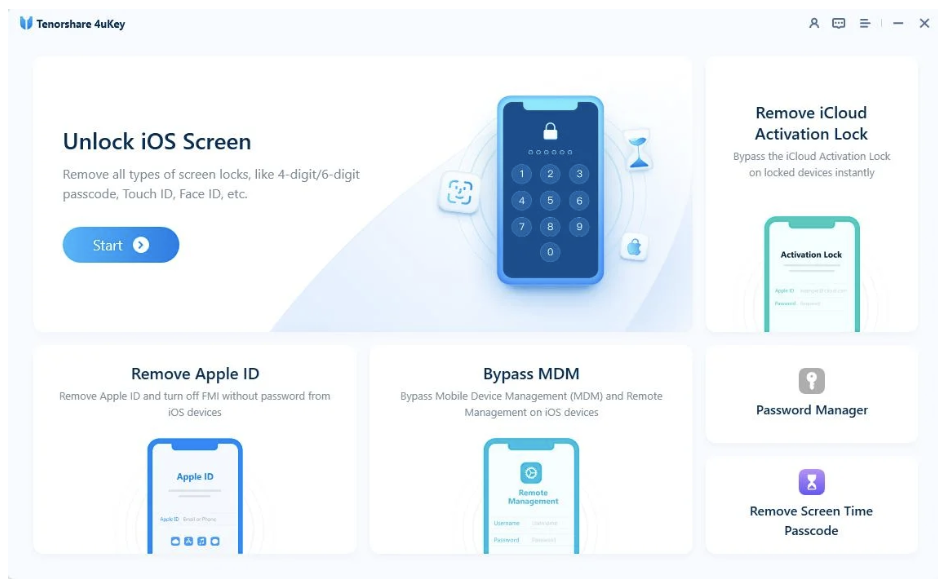
First, download Tenorshare 4uKey on your Windows PC or Mac. After installing the program, open it and click Start to begin the unlocking process.
Step 2: Connect Your iPad to the Computer
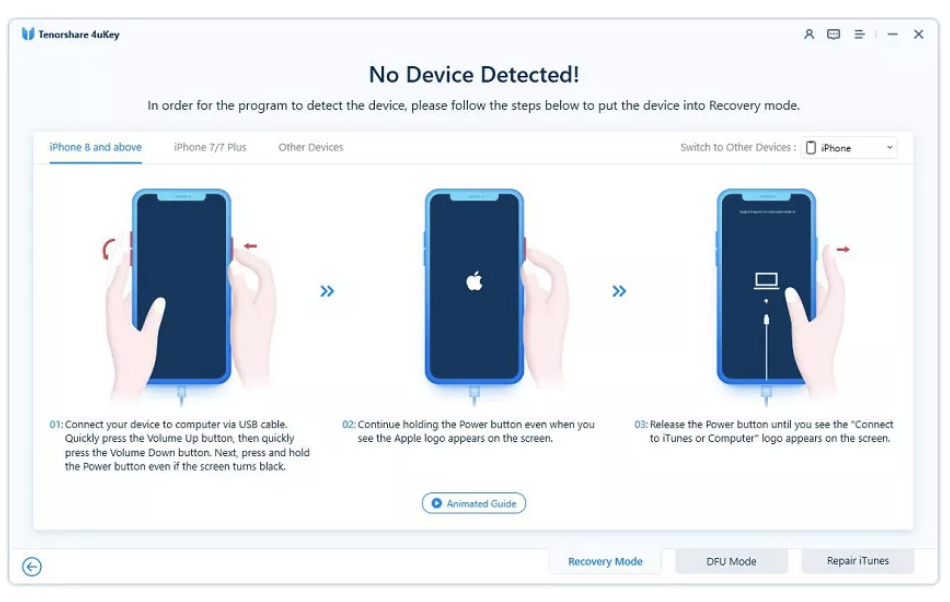
Use a USB cable to connect the disabled iPad to your computer. The program should detect the device automatically.
If the device is not detected, you may need to place the iPad into Recovery Mode or DFU Mode so the software can recognize it.
Step 3: Download the Firmware Package
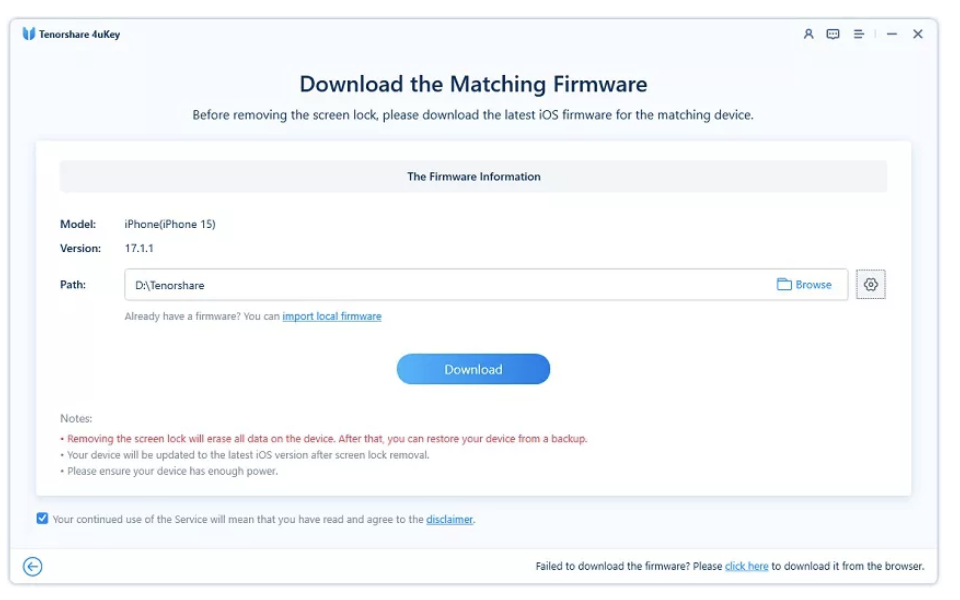
Once the device is detected, the program will ask you to download the latest firmware package needed to unlock the device.
Choose a location on your computer to save the file and click Download. Make sure your computer has enough storage space for the firmware.
Step 4: Start Unlocking the iPad
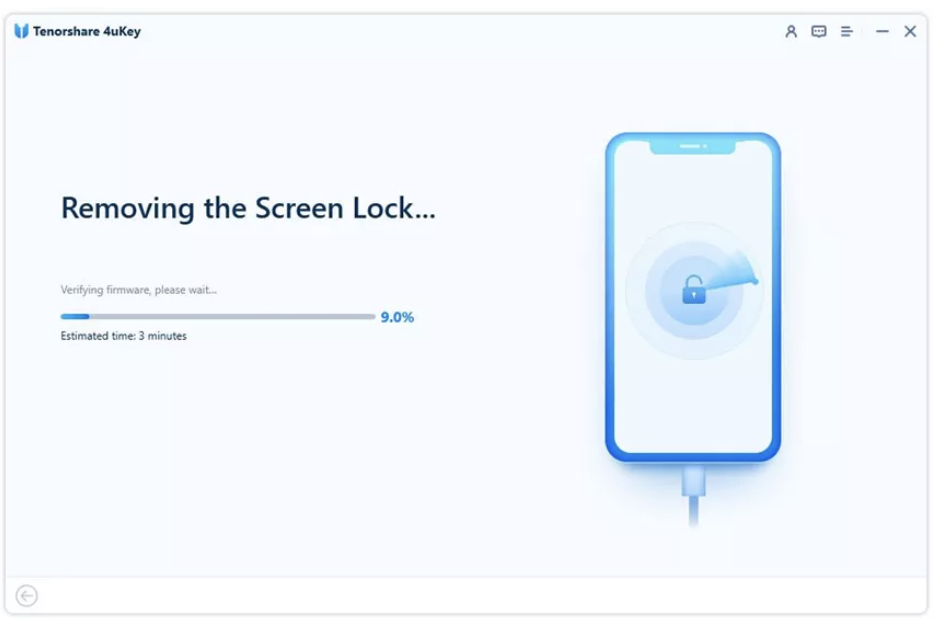
After the firmware is downloaded, click Start Remove. The software will begin removing the passcode from your iPad automatically.
This process usually takes a few minutes, and your device should remain connected during the entire process.
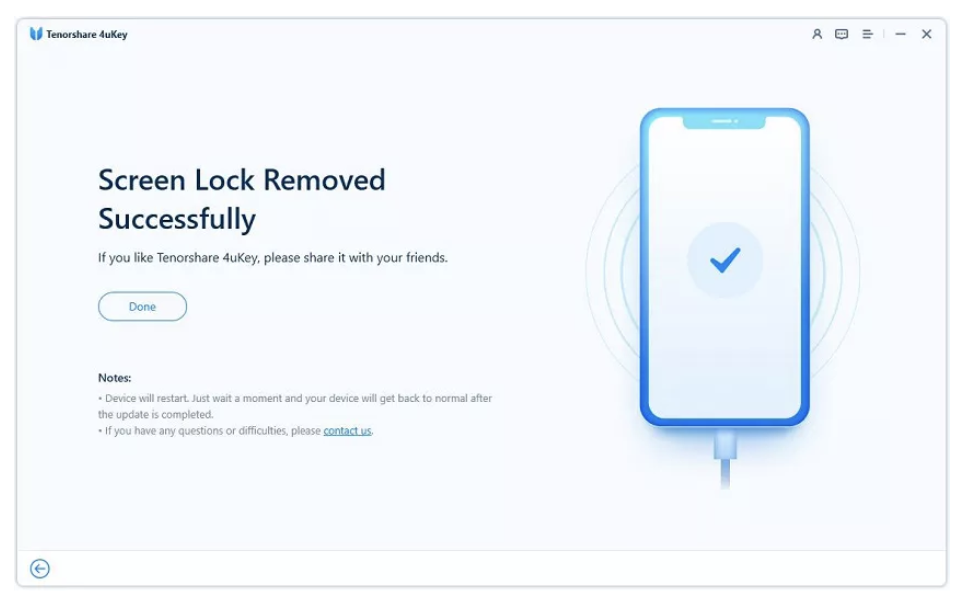
Step 5: Passcode Removed Successfully
Once the process is complete, the passcode will be removed from the iPad. The device will restart, and you can set it up again like a new device.
That’s how to unlock disabled iPad. You can create a new passcode and restore your data from an iCloud or iTunes backup if one is available.
Part 3: How to Fix “iPad Is Disabled Connect to iTunes”?
Apple also provides an official method to fix the iPad is disabled connect to iTunes issue using iTunes or Finder. This method restores the device and removes the passcode.
Here’s how to unlock iPad when it is disabled:
Step 1: Turn off the iPad
Press and hold the power button until the device turns off.
Step 2: Enter Recovery Mode
- For iPads with a Home button: hold Home + Power
- For newer iPads: press Volume Up > Volume Down > hold Power
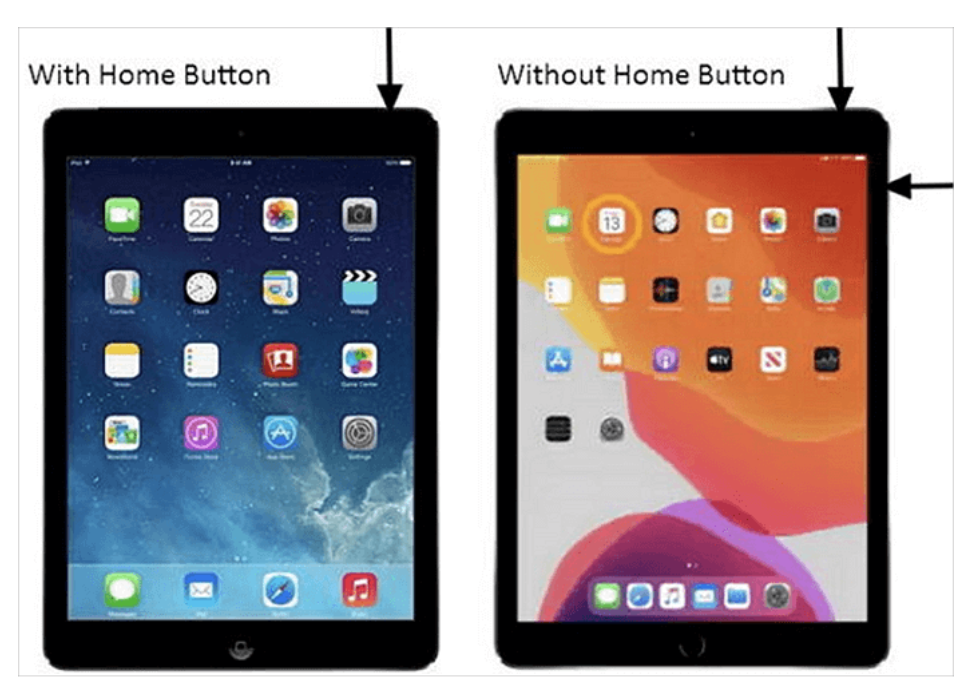
Keep holding the button until the recovery mode screen appears.
Step 3: Connect to the computer
Connect the iPad to a computer with iTunes or Finder installed.
Step 4: Restore the Device
When the restore or update option appears, choose Restore.
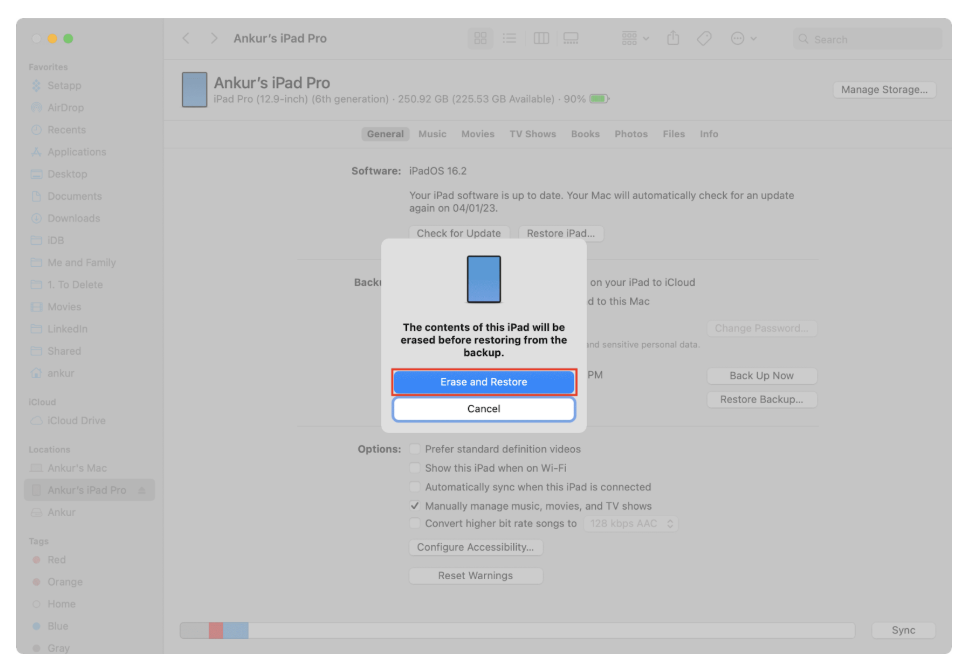
Step 5: Set Up the iPad Again
After the process finishes, the iPad will restart, and you can set it up as new or restore from backup.
Although this method works, it may erase your data if you don’t have a backup.
Part 4: How to Prevent Your iPad from Being Disabled Again
Once you unlock a disabled iPad, it’s important to prevent the issue from happening again.
Here are some useful tips:
-
Use a Passcode You Can Remember
Choose a secure passcode that is easy for you to remember but hard for others to guess.
-
Enable Face ID or Touch ID
Biometric security reduces the need to enter the passcode frequently.
-
Back Up Your Device Regularly
Always back up your iPad to iCloud or iTunes. This protects your data in case you need to restore the device.
-
Keep Your Passcode Safe
Store your passcode securely using a password manager if necessary.
-
Limit Access for Children
If children use your iPad, consider enabling parental controls or screen time restrictions.
These steps can help prevent the iPad is disabled connect to iTunes issue in the future.
Part 5: FAQs About Unlocking a Disabled iPad
Can you unlock an iPad without the passcode?
Yes, it is possible to unlock iPad without passcode. If your device is disabled, you can restore it using iTunes or Finder in recovery mode. This removes the passcode so you can access the iPad again. You can also use a tool like Tenorshare 4uKey, which helps unlock disabled iPad when you forget the passcode.
Will unlocking a disabled iPad erase data?
In most cases, yes. Unlocking a disabled iPad usually resets the device and removes the passcode. This means the data on the iPad may be erased. But if you have a backup in iCloud or iTunes, you can restore your data after unlocking the device.
How long does an iPad stay disabled?
The time depends on how many wrong passcodes were entered. At first, the iPad may be disabled for 1 minute or 5 minutes. After more wrong attempts, the waiting time becomes longer, like 15 minutes or 1 hour. If too many wrong passcodes are entered, the iPad will show “iPad is disabled connect to iTunes”, and you will need to restore the device to unlock it.
Conclusion
Seeing the message iPad is disabled connect to itunes can be stressful, especially if you don’t remember the passcode. Fortunately, there are several ways to fix the problem. You can restore the device using iTunes or Finder, or use a trusted tool to remove the lock screen.
If you are looking for a quick and simple solution to unlock iPad without passcode, Tenorshare 4uKey is a great option. It helps unlock disabled iPad in just a few steps and works with most iPad models and iPadOS versions. With its easy process and reliable results, 4uKey can help you regain access to your iPad without complicated steps.
