

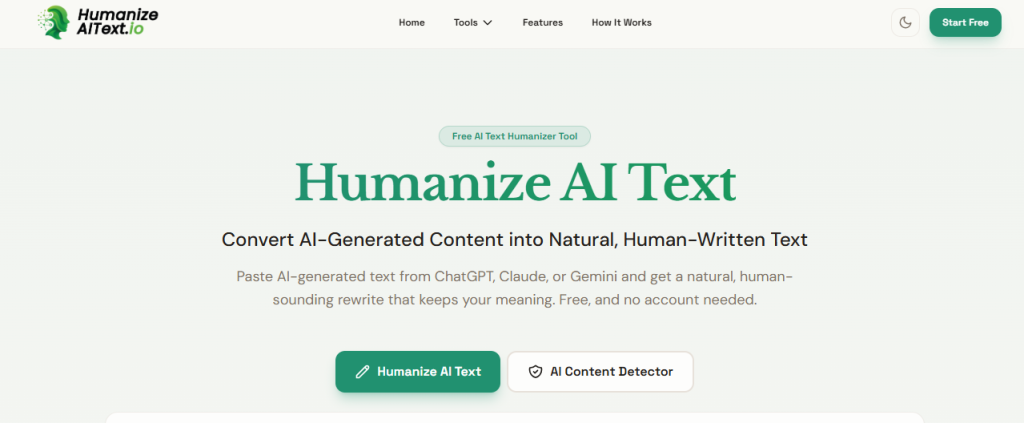
If you write with the help of ChatGPT, Claude, or Gemini, you’ve probably noticed the same thing every editor, teacher, and reader has started to notice: AI drafts have a “voice,” and it isn’t quite human. Sentences run the same length. Transitions repeat. The tone stays eerily even no matter the topic. HumanizeAIText.io exists to fix exactly that gap — turning a stiff AI draft into content that reads as if it came from a person, without losing the substance of what you wrote.
This guide walks through exactly how to use the tool for content writing, from a single blog paragraph to a full-length article.
What HumanizeAIText.io Actually Does
At a technical level, AI detectors like GPTZero, Turnitin, and Originality.ai flag content based on two signals: perplexity (how predictable each word choice is) and burstiness (how much sentence length and structure vary). Machine-generated text tends to score low on both — it’s smooth, even, and statistically predictable. Human writing is messier: sentence lengths swing, phrasing gets casual, and structure varies from paragraph to paragraph.
HumanizeAIText.io works by restructuring your draft to reintroduce that natural variation — while keeping your original facts, arguments, and intent intact. It also includes a built-in AI content detector, so you can check a draft’s AI-probability score before and after you humanize it.
Step 1: Prepare Your Draft
Start with your AI-generated draft in hand — this could be a ChatGPT blog post, a Claude-written product description, or a Gemini-drafted email. A few tips before you paste it in:
- Keep it under 1,000 words per pass. That’s the free-tier limit per submission, so longer articles should be run in sections (for example, by heading or subsection).
- Do a quick fact-check first. Humanizing changes phrasing and structure, not accuracy — so it’s worth confirming any stats, quotes, or claims are correct before you run the text through the tool.
- Decide what must stay untouched. Brand names, product names, direct quotes, and technical terms are worth noting so you can review them after the rewrite.
Step 2: Paste Your Text and Choose a Language
Head to the tool and paste your content into the input box. There’s no account or sign-up required. If you’re writing for an international audience, use the output language dropdown — the tool supports English (US, UK, AU, CA) along with dozens of other languages, including Spanish, French, German, Portuguese, Japanese, Arabic, and Hindi.
Step 3: Adjust the Humanization Controls
This is where HumanizeAIText.io differs from a lot of one-click humanizers — it gives you real control over how the rewrite behaves:
- Creativity Level — slide this toward “Conservative” for minimal changes (good for technical or factual content) or toward “Creative” for a more thorough rewrite (better for blog posts and marketing copy).
- Context Preservation — a higher setting keeps the rewrite closer to your original structure and meaning; a lower setting gives the tool more freedom to restructure sentences.
- Emotional Tone — choose Neutral, Positive, Negative, Casual, or Professional depending on the piece you’re writing. A product review might call for Positive/Casual; a white paper might call for Professional/Neutral.
- Formality — a separate dial for Formal vs. Informal phrasing, useful for matching your brand voice.
- Preserve Intent — toggle this on to make sure the core argument and message of your draft doesn’t drift during the rewrite.
- Human Natural Mistakes — an optional toggle that introduces the small, natural imperfections human writing tends to have, which can help long-form content read even less “polished-by-AI.”
For most content-writing use cases — blog posts, landing pages, email newsletters — a good starting point is a mid-range Creativity Level (around 50-60%), high Context Preservation (80-90%), and the tone/formality settings matched to your brand voice.
Step 4: Run the Humanizer and Review the Output
Click Humanize and the tool returns a rewritten version in seconds. Don’t treat this as a final draft yet — read it the way an editor would:
- Read it out loud. This is the fastest way to catch anything that still sounds mechanical or anything that now sounds too casual for your brand.
- Check names, numbers, and technical terms. Confirm nothing important was altered during the rewrite.
- Check flow between paragraphs, especially if you ran a long article in multiple sections — transitions between chunks can sometimes need a manual tweak.
Step 5: Run the Built-In AI Detector (Optional but Recommended)
HumanizeAIText.io also includes an AI Content Detector on the same site. Before you publish, it’s worth running your finished draft through it to see how it scores. If a section still reads as AI-generated, you can select just that portion, increase the Creativity setting, and run it through the humanizer again.
Practical Use Cases
Bloggers and content writers can use the tool to take a ChatGPT-drafted outline-to-article and give it a voice that matches their existing site content — which matters both for reader trust and for search visibility, since Google’s guidance on generative AI content makes clear that helpfulness and originality matter more than how a page was produced.
SEO teams can use it to humanize AI-assisted drafts before publishing, reducing the risk of content reading as generic or templated — a pattern Google’s Search Central team has specifically called out as a spam policy concern when content is produced at scale without real editorial value added.
Students can use it to refine the phrasing of AI-assisted research notes or outlines into their own natural voice — though it’s always worth checking your institution’s specific policy on AI tool use before submitting coursework.
Marketers can use the Emotional Tone and Formality controls to quickly adapt one AI-drafted piece of copy into multiple tone variants for different channels — a more casual version for social captions, a more formal version for an email campaign.
Tips for Better Results
- Run shorter, focused passes rather than pasting in an entire 3,000-word article at once — the tool performs best within its word limit, and it’s easier to spot-check smaller sections.
- Adjust Context Preservation up for content where factual accuracy is critical (how-to guides, technical documentation) and down for content where a more conversational rewrite is the goal (opinion pieces, social captions).
- Combine the humanizer with a manual edit pass. No tool — human or AI — replaces a final read-through before publishing.
- Use the free study tools on the site, like the Word Counter and Readability Checker, to double-check your finished content meets length and reading-level targets before you publish.
Final Thoughts
HumanizeAIText.io is built to solve a specific, common problem: AI-assisted drafts that are useful in substance but flat in voice. Used well — as one step in a workflow that still includes fact-checking and a human editing pass — it’s a fast way to close that gap and get content that reads naturally, keeps your meaning intact, and is ready to publish.