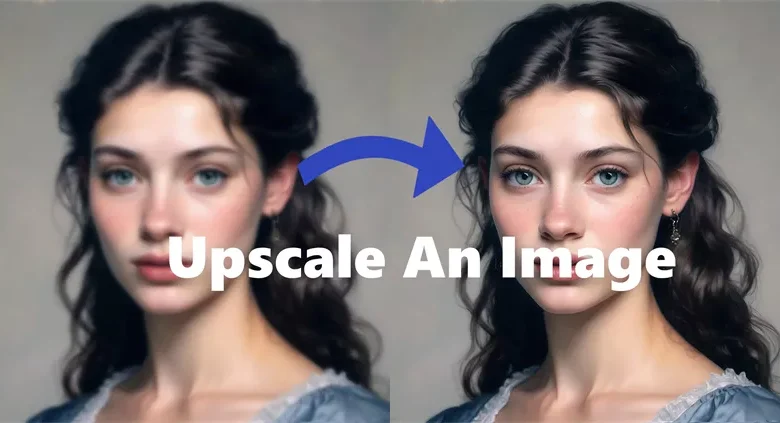
If you’ve ever opened an old family picture or a low-resolution phone snapshot, you’ve probably seen the familiar mix of blur, pixelation, noise, or strange distortions. Sometimes the image looks so damaged that it feels beyond saving, as if every detail has faded away. That’s exactly what modern AI photo upscaler and restoration tools aim to do.
What if you could enlarge the photo and restore its lost detail at the same time? What if fixing a blurry or corrupted picture didn’t require professional Photoshop skills or hours of manual adjustments? Instead of simply stretching pixels, AI upscalers rebuild detail intelligently, reduce noise, and repair damage.
In this guide, you’ll see why AI-powered enhancement works dramatically better than traditional resizing, and you’ll discover a simple, beginner-friendly tool that can repair, upscale, and restore nearly any image.
Why Traditional Upscaling Often Fails?
Traditional photo upscaling methods use simple mathematical interpolation, nearest neighbor, bilinear, or bicubic resizing. These methods can enlarge an image, but they can’t add new details. The result is usually a soft, mushy, or fake-sharp photo that looks even worse when viewed closely.
If you’ve ever tried to enlarge a JPEG with visible compression artifacts, you’ve likely seen these problems firsthand. Upscaling tends to increase:
- Noise and grain
- Blocky compression artifacts
- Jagged or stair-step edges
- Loss of texture and fine detail
- Over-sharpened halos when you try to compensate
These issues become especially noticeable with old photos, screenshots, or low-quality phone images. Traditional tools simply don’t understand what the “missing” detail should look like; they only stretch what’s already there. This is where AI-driven enhancement changes everything.
What is an AI Photo Upscaler/Restorer?
An AI photo upscaler is more than a fancy resizer. It uses deep learning, neural networks, and pattern recognition to predict and reconstruct missing details. Instead of stretching pixels, AI models analyze patterns across millions of training images to intelligently restore:
- Sharp edges
- Skin texture
- Fabric patterns
- Natural background detail
- Color accuracy
- Noise-free shading
This means photo upscaling becomes both enhancement and restoration. Modern AI tools can denoise, sharpen, remove compression artifacts, repair light damage, and upscale resolution, all in one workflow. In many cases, the final image looks clearer than the original even before enlargement.
Recommended Solution – 4DDiG Photo Enhancer
4DDiG Photo Enhancer isn’t just an upscaler; it’s a full AI photo repair and enhancement studio for anyone dealing with blurry, pixelated, compressed, or corrupted pictures. While traditional tools focus only on size, this one can actually fix the photo first and then enlarge it with detail-rich clarity.
Core Capabilities:
- Repair photos that won’t open or display distortions, blank areas, or header/frame errors
- De-pixelate, denoise, and sharpen blurry images
- Recover lost details using deep-learning reconstruction
- Upscale image resolution while preserving natural texture
- Support for JPEG, PNG, TIFF, BMP, and RAW camera files
- Batch enhancement for large photo collections
- Safe workflow, as the program never overwrites your originals
- Built-in preview mode for side-by-side comparison
Simple 4-Step Workflow
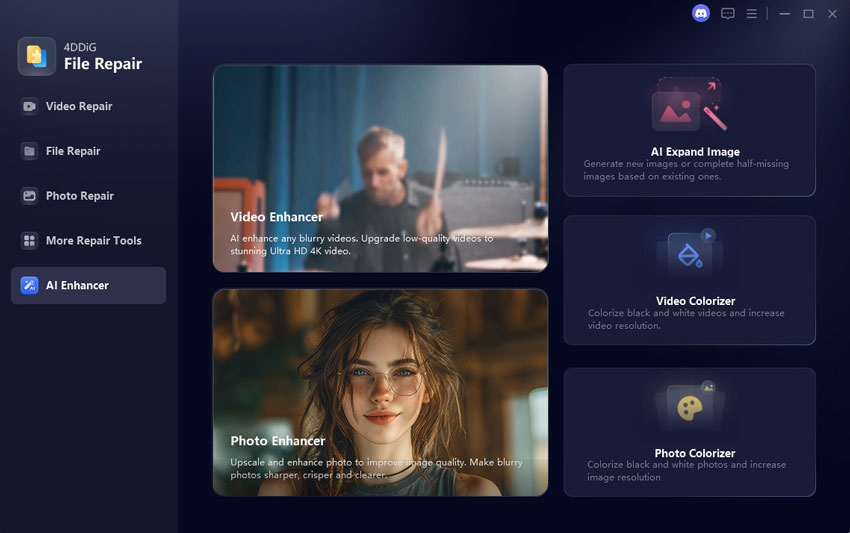
Here’s how easy it is to repair, upscale, and restore your photos:
a. Add Your Image(s)
Open the 4DDiG File Repair on your computer and choose “AI Enhancer”. Click “Photo Enhancer” and then click the “Add Photos” button to add your images for upscaling.
b. Start the Upscale Process.
Select your enhancement model, resolution, and enhancement methods, then click “Enhance.” The AI analyzes and reconstructs details automatically.
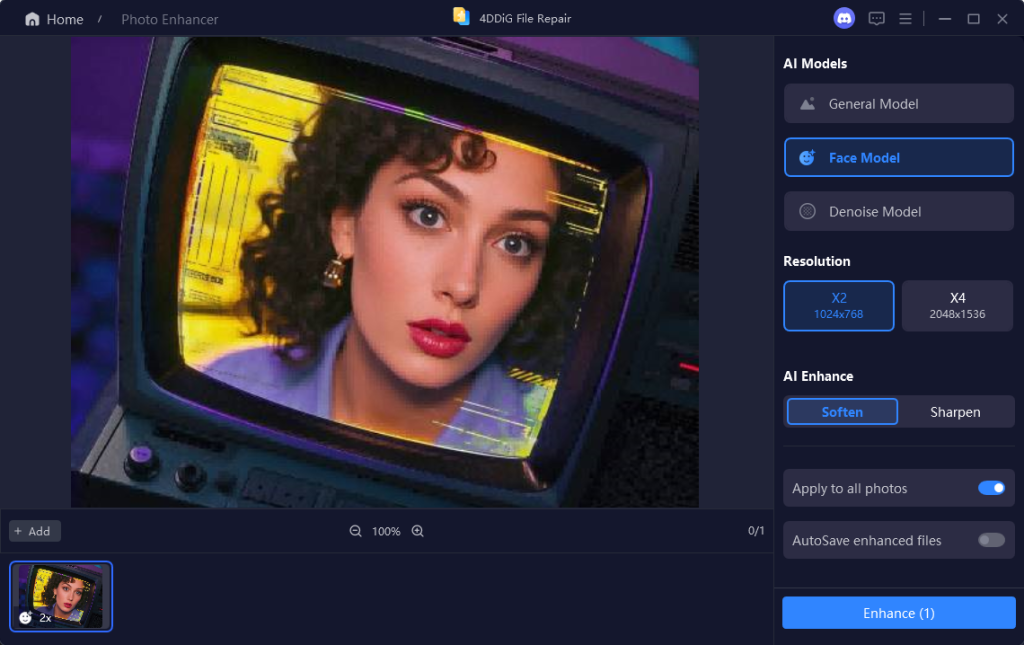
c. Preview the Results and Save.
Zoom in, compare before and after, and inspect edges, faces, backgrounds, and textures.
Click “Save” and export the new image. Your original file stays untouched and protected.
If you are satisfied with the results,If you’ve been searching for a reliable AI photo upscaler that also fixes corruption, artifacts, and blur, this balanced, all-in-one approach is one of the most beginner-friendly options.
Free & Open-Source / Budget Alternatives
There are free editors and open-source tools that provide basic photo upscaling, sharpening, or noise removal. Some even dabble in lightweight AI models.
These tools are fine for simple tasks, but they often fall short when dealing with:
- Heavy compression
- Grainy or noisy images
- Old, scanned photos
- Damaged or partially corrupted files
- Large batch processing
- RAW photo enhancement
Most free options lack deep restoration, artifact removal, or high-quality resolution enhancement. They also tend to produce inconsistent results. That’s where reliability truly matters, especially for precious old photos or large archives. A dedicated AI repair & upscaling tool is a more reliable choice.
Prevention & Best Practices Before Upscaling
To get the best possible results, it helps to follow a few simple guidelines:
- Start with the highest-quality source you have (original resolution, RAW files, or uncompressed scans).
- Avoid multiple JPEG re-saves since each one reduces detail and introduces artifacts.
- Keep backups so you never lose your original image.
- If scanning prints, scan at high DPI in a well-lit, dust-free environment.
- Avoid extreme upscaling (like 8× or 16×) unless necessary; moderate enhancement produces more natural results.
- Apply AI enhancement before doing any manual editing for maximum quality.
Following these habits ensures that any AI tool, whether for restoration or enlargement, has better data to work with.
FAQ
Q: Can an AI photo upscaler really make a pixelated image look sharp?
Often, yes. AI models can reconstruct missing textures, edges, and fine detail with surprising accuracy. Results vary depending on how damaged the original is, but for many blurry or low-res photos, AI enhancement dramatically improves clarity.
Q: Is it safe to use an AI tool on my photos — will the original get overwritten?
Yes. With the recommended tool, your original file is never overwritten. The software generates a new enhanced image, keeping the original safe for future reference.
Q: Do I need a powerful computer to run the upscaler?
Not necessarily. Basic enhancement works well on low-end hardware. For very large images or batch processing, a mid-range computer will improve speed, but it isn’t necessary.
Conclusion
AI-powered restoration and enhancement have completely transformed the way we upscale and repair images. Instead of blurry, pixel-stretched photos, you can now recover texture, sharpen edges, fix compression artifacts, and enlarge resolution, all with one tool.
Whether you’re trying to upscale bad quality photos, repair old family pictures, or batch-enhance an entire archive, today’s AI technologies make professional-level results accessible to everyone. For the fastest, easiest path to crisp, restored images, consider trying a dedicated AI photo upscaler that also repairs corruption and damage.
With just a few clicks, your photos can look clearer, cleaner, and more detailed than ever; no Photoshop expertise is required.
Meta Description:
Restore blurry, pixelated, or damaged photos in 2025 using an all-in-one AI photo upscaler alternative to Photoshop. Upscale, repair, denoise, and batch-enhance images easily.