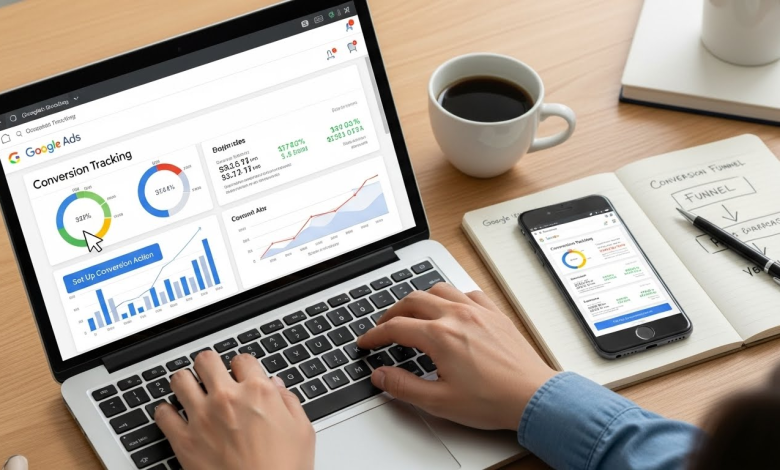
Struggling to understand whether your Google Ads campaigns are truly driving results? Many businesses spend heavily yet see vague data and uncertain ROI due to incomplete or poorly configured conversion tracking.
Seasoned marketers overcome this challenge with precise Google Ads Offline Conversion Tracking, leveraging Google Tag Manager Consultants and advanced tracking solutions. By accurately capturing every customer interaction from clicks and form submissions to offline sales, you can measure true campaign performance.
This guide provides expert strategies, actionable steps, and practical setups to enhance tracking accuracy, optimize campaigns, and generate better leads and conversions without leaving results to chance.
Google Ads Offline Conversion Tracking Explained in Depth
Unlock actionable insights with offline conversion tracking. Discover how every click transforms into measurable results, bridging the gap between online campaigns and real-world conversions.

Step 1: Understanding Offline Conversion Tracking
Google Ads offline conversion tracking goes beyond clicks and online forms. It captures phone calls, in-store visits, lead form submissions, and other offline actions.
This allows businesses to measure the true impact of their ads, not just the online touchpoints. Unlike standard online tracking, offline tracking provides concrete ROI data, helping identify which campaigns, keywords, and audiences deliver actual leads and sales.
Step 2: Preparing Your Data Sources
Before setup, gather CRM leads, HubSpot CRM tracking, or goHighLevel CRM tracking information. Each record must include a unique identifier, such as a GCLID (Google Click Identifier), to link the ad click with the offline conversion.
Organize data in a structured format, ensuring all relevant fields (customer name, contact info, conversion date) are ready for import. Proper preparation prevents mismatches and ensures high match rates when uploading offline conversions.
Step 3: Setting Up Conversion Actions in Google Ads
In Google Ads, navigate to Conversions > New Conversion Action > Import > Other Data Sources, then select offline conversions. Map your CRM fields to Google Ads parameters carefully.
Include transaction date, conversion type, and GCLID for accurate tracking. This setup enables Google Ads to connect clicks with real-world results, offering precise insights into which campaigns, keywords, and ads generate Better Leads and Conversions.
Step 4: Using Google Tag Manager for Automation
Implement Google Tag Manager Consultant strategies to handle multiple tracking tags efficiently. GTM allows you to manage all tracking platforms with one Tag Manager, consolidating Google Ads conversion tracking, Facebook offline conversion tracking, and CRM integrations.
You can also set up remarketing tags and enhanced conversion tracking with minimal errors. Centralized management ensures consistent, accurate data collection across all campaigns.
Step 5: Advanced Tracking Solution Tips
For ultimate flexibility, integrate manual tracking with server-side solutions. This allows you to copy and track any conversion event, whether it’s an eCommerce purchase, lead form submission, or phone inquiry.
Use Zapier integration to automate syncing between your CRM and Google Ads. This setup ensures real-time conversion updates, prevents lost data, and provides a scalable solution for campaigns of any size.
Step 6: Monitoring & Optimization
Once tracking is live, continuously monitor conversion metrics in Google Ads. Adjust campaigns based on insights from Better Leads and Conversions reports. Check that enhanced conversion tracking is capturing all critical events.
Use data to identify high-performing campaigns, refine targeting, and reallocate budgets to maximize ROI. Regular audits ensure your offline conversions are always accurately attributed, giving you a complete view of campaign performance.
Comparison Table: Tracking Methods
| Feature | Online Tracking | Offline Conversion Tracking |
| Data Source | Website clicks & interactions | CRM, phone calls, in-store visits |
| Accuracy | Moderate | High |
| ROI Insight | Partial | Full |
| Automation | Standard GTM | Advanced GTM + server-side + Zapier |
| Remarketing Capability | Limited | Advanced & Personalized |
Setting Up Google Ads Conversion Tracking Step by Step
When thinking about how to set up conversion tracking in google ads, a precise tracking setup separates profitable campaigns from wasted spend. This section breaks down conversion tracking into controlled, testable steps, ensuring every click, lead, and offline action is accurately measured inside Google Ads.
Step 1: Install Conversion Tag with Full Control
The foundation of accurate tracking starts with correct tag placement and trigger logic. Begin by creating a conversion action inside Google Ads. Select the correct goal type based on your business objective.
Generate the Google Ads conversion tag and deploy it using Google Tag Manager. Avoid direct website placement to maintain flexibility. Configure triggers only for confirmed actions, such as thank-you pages, successful checkouts, or form submission events.
Use precise conditions, not generic page views. This prevents inflated data and ensures conversion tracking accuracy from day one. Always validate tag firing through preview mode. One misfired trigger can corrupt your entire dataset.
Step 2: Enable Enhanced Conversion Tracking Correctly
Standard tracking is no longer enough. Enhanced tracking fills the attribution gaps. Enable enhanced conversion tracking inside Google Ads and Google Tag Manager. This allows Google to match hashed customer data like email addresses, phone numbers, or names with logged-in users.
Configure data capture at the form or checkout level. Ensure data is collected only after user consent. Use GTM variables to pass customer information securely and accurately.
Enhanced tracking dramatically improves match rates. This results in stronger attribution models, smarter bidding, and consistently better leads and conversions across campaigns.
Step 3: Link CRM Data for Offline Attribution
Real conversions often happen outside the website. CRM integration closes that gap. Integrate HubSpot CRM tracking or goHighLevel CRM tracking with Google Ads. Capture the GCLID at the first touchpoint and store it inside your CRM lead records.
Map CRM fields precisely when setting up Google Ads offline conversion tracking. Include conversion timestamps, conversion names, and values. Accuracy here determines whether Google can correctly attribute offline actions.
Step 4: Test the Entire Conversion Flow End to End
Submit test leads using internal email addresses. Push test data through manual tracking or automated workflows. Confirm that conversions appear correctly inside Google Ads within the expected timeframe.
Check for delays, missing GCLIDs, or mismatched conversion names. Validate both online and offline events. Testing ensures your tracking reflects reality, not assumptions. Repeat testing after any website, CRM, or campaign changes. Stability protects data integrity.
Step 5: Refine Campaigns Using Conversion Intelligence
Analyze conversion rates, cost per conversion, and lead quality signals. Segment results by campaign, keyword, and audience. Identify which inputs generate Better Leads and Conversions, not just volume.
Adjust bidding strategies using real conversion data. Shift budget away from low-quality sources. Expand only where tracking confirms profitability. When conversion tracking is precise, optimization becomes predictable, scalable, and defensible.
Frequently Asked Questions
Can I track offline leads in Google Ads accurately?
Yes, and it is one of the most critical upgrades you can make.
Google Ads offline conversion tracking allows you to connect ad clicks with actions that happen outside the website, such as phone calls, sales meetings, or closed deals.
The process relies on capturing the GCLID at the first click and storing it inside your CRM. When a lead converts offline, that data is uploaded back into Google Ads. This closes the attribution gap and reveals which campaigns generate real revenue, not just form fills.
How does enhanced conversion tracking improve campaign results?
Enhanced conversion tracking improves attribution by increasing match accuracy between users and conversions. It securely uses hashed identifiers like email addresses or phone numbers after a conversion occurs.
This improves Google’s ability to attribute conversions even when cookies fail. Higher match rates lead to smarter bidding, stronger audience signals, and more reliable reporting. Over time, campaigns optimize toward users who actually convert.
Conversion Tracking Is the Foundation of Profitable Google Ads
Accurate tracking is not a feature. It is the system that determines whether Google Ads generates profit or burns budget. Without precision, optimization decisions are based on assumptions, not performance.
When conversion tracking is implemented correctly, every click has context and every lead has value. Google Ads offline conversion tracking connects campaigns to real outcomes, not surface-level metrics. This clarity allows advertisers to scale with confidence.
Advanced setups using Google Tag Manager, enhanced conversion tracking, and CRM integrations transform Google Ads into a revenue intelligence platform. You gain full visibility across online and offline touchpoints.
Brands that invest in advanced tracking solutions consistently achieve better leads and conversions. They optimize faster, waste less budget, and outperform competitors relying on incomplete data.