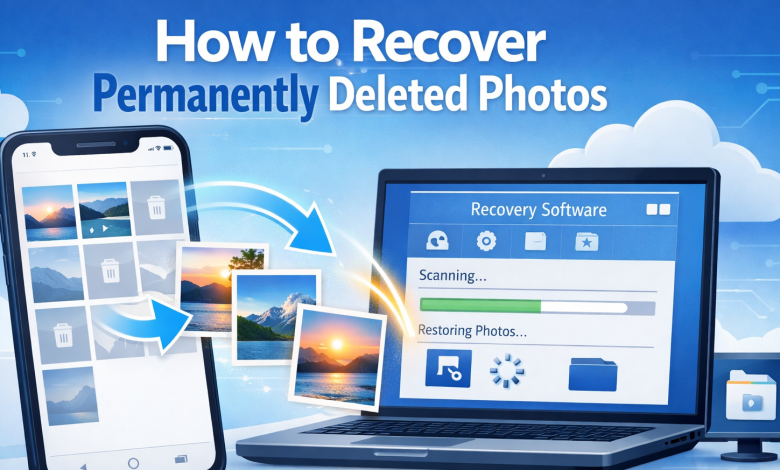
Losing photos can feel like losing memories forever, especially when they disappear from the Recently Deleted folder as well. Most people do not know this fact: your photos will remain visible to you in many situations. The complete disappearance of all your photos does not happen in most situations. The majority of cases will allow you to retrieve your lost photos.
Whether you deleted them by mistake, cleared your Recently Deleted album, or wiped your device entirely. The guide provides complete coverage of all available recovery methods, which include both no-cost built-in solutions and professional-grade photo recovery applications.
Can You Recover Permanently Deleted Photos?
Yes, but this depends on timing and whether a backup exists.
- The easiest way to recover deleted files within 30 days is through the Recently Deleted album. The data can be recovered through iCloud, iTunes and Finder after permanent deletion because a backup exists.
- The data remains permanently deleted because there is no backup available, yet users can retrieve it through professional tools like Gbyte.
- Data recovery becomes extremely difficult or completely impossible when new files overwrite existing data.
| Key Insight: The iOS system keeps photo information stored in flash memory until permanent deletion occurs. The system marks photo storage space as free after deletion, but retains the photo’s actual data until new data overwrites it. This is the window that recovery tools exploit. |
Method 1: Check the Recently Deleted Folder
The first step in searching for lost photos should lead you to this specific folder. The recovery process provides a no-cost solution that enables users to restore their data using iOS’s built-in recovery function.
Steps to Restore:
- Open the Photos app on your iPhone.
- Scroll down and tap Albums, then select Recently Deleted.
- Tap Select in the top right corner.
- Choose the photos you want to restore.
- Tap Recover and confirm.
| Remember: Photos in Recently Deleted stay there for 30 days, which ends with iOS deleting them permanently. The first approach should be used when the album exists without contents or 30 days have elapsed. |
Method 2: Restore from iCloud Backup
If your photos are no longer in the Recently Deleted album and you have iCloud Backup enabled, this is your next best option.
Steps to Restore:
- Go to Settings on your iPhone.
- Tap General, then Transfer or Reset iPhone.
- Select Erase All Content and Settings.
- Set up your iPhone and choose Restore from iCloud Backup.
- Select a backup created before the photos were deleted.
Method 3: Use Gbyte Recovery Software (No Backup Needed)
When free methods fall short, Gbyte is the most effective solution for recovering permanently deleted photos. The software executes a scan of the device’s flash memory to retrieve inaccessible image data, which iOS has not yet deleted.
Why Gbyte Stands Out?
- The software retrieves deleted photographs from devices that lack backup files. The user can view some recoverable pictures before deciding to retrieve them.
- supports all types of media, which enables users to restore deleted WhatsApp images and content from other applications.
- performs read-only scanning, which protects all your device data from being changed or deleted.
- works with all current iOS versions.
How to Use Gbyte?
- You need to install Gbyte on your Windows or Mac computer, then connect your iPhone through an account.
- The direct scan option needs you to select Recover from iOS Device, while the existing backup option needs you to select Recover from iCloud Backup.
- Gbyte performs a deep scan, which detects all recoverable photo files and organises them into different categories. `
- The preview gallery allows you to search for specific photos by using date and size filters.
- The photos you want to recover need to be selected by you before you click Recover for saving them to your computer or syncing them back to your device.
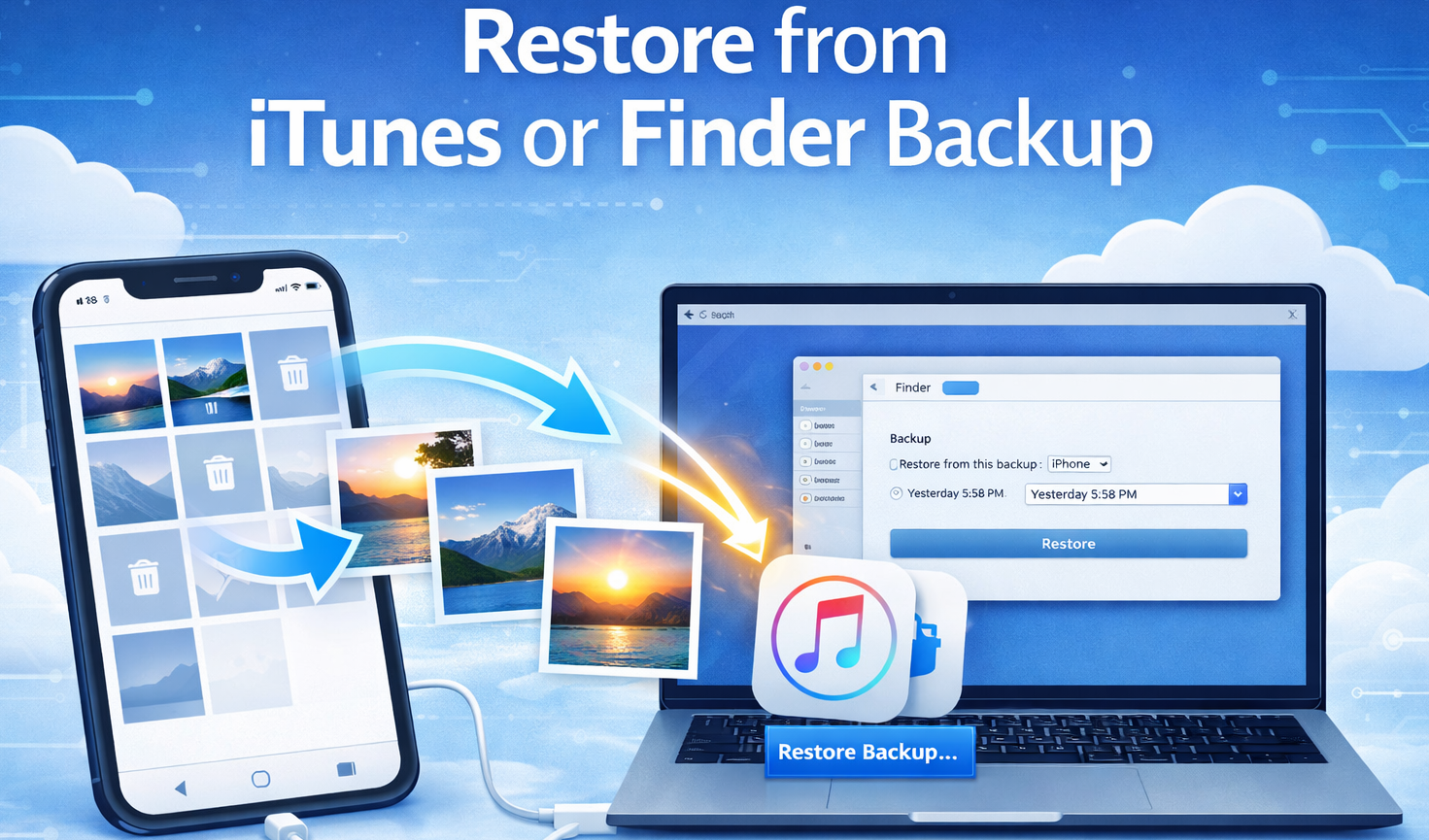
Method 4: Restore from iTunes or Finder Backup
If you often back up your iPhone using iTunes on Windows or Finder on Mac, your deleted photos may still be saved in one of those backups.
Steps to Restore:
- You need to use a USB cable to connect your iPhone to your PC or Mac device.
- You need to launch iTunes on Windows or Finder on Mac to proceed.
- The user needs to click Restore Backup and choose a backup date that existed before the deletion.
- The process will finish when your device restarts with all the restored data.
 Method 5: Recover Photos via iCloud Photos (Web)
 Method 5: Recover Photos via iCloud Photos (Web)
If you have iCloud Photos enabled, deleted images may still be retrievable directly from iCloud’s web interface.
Steps:
- Open a browser on any device and go to iCloud.com.
- Sign in with your Apple ID.
- Open Photos and check the Recently Deleted folder or browse your photo library.
- If found, select the photos and click Recover.
Method 6: Check Other Cloud Storage Apps
Some iPhone users do this kind of automatic backing up to third-party cloud services, which can be quite unknown to them. So, before getting turned off by it, check out these ones for a change:
Google Photos:
Stores deleted files in its Trash folder for a period of 60 days after users remove them from their account.
Dropbox stores
Deleted files for 30 days in its Deleted Files section, while paid users receive extended storage time.
OneDrive
Keeps deleted items in its Recycle Bin for a maximum period of 93 days.
Comparison: All Recovery Methods at a Glance
Here are all the comparison that are given below:
| Method | Works Without Backup | Difficulty | Data Loss Risk |
| Recently Deleted | No | Easy | None |
| iCloud Backup | No | Medium | High |
| iTunes / Finder | No | Medium | High |
| iCloud Photos Web | No | Easy | None |
| Other Cloud Apps | No | Easy | None |
| Gbyte Software | Yes | Easy | Low |
Tips to Maximize Your Recovery Success
Here are all the tips to learn how to recover permanently deleted photos from phone that are given below:
- You should not start using your iPhone after you discover missing photos because any activity you perform will result in permanent data loss.
- Turn on Airplane Mode as your first step because it will prevent iCloud synchronization
- You must not take new photos, install applications, or download content until you complete your recovery attempts.
- You must take immediate action because every minute of device operation decreases the available time for recovery.
- Use trusted encrypted recovery tools because they ensure your personal photo collection remains private.
Frequently Asked Questions
Are permanently deleted photos really gone forever?
Not necessarily. If a backup exists in iCloud, iTunes, or a third-party app, recovery is straightforward. Even without a backup, professional tools like Gbyte can scan device flash memory for unoverwritten data, making recovery possible in many cases.
How long can photos actually be recovered?
From Recently Deleted: up to 30 days. From cloud backups: depends on when the backup was taken.
Can I recover photos without any backup at all?
Yes, but only using professional recovery software. Tools like Gbyte scan raw flash memory directly, bypassing the need for any iCloud or iTunes backup.
Does iCloud keep deleted photos forever?
No. iCloud’s Recently Deleted folder holds photos for 30 days, after which they are permanently removed from Apple’s servers as well. Acting within that window is critical.
Final Thoughts
The ability to know how to recover permanently deleted photos depends on the time of the attempt. The recovery window decreases with every passing hour because you keep using your device. Automatic backup systems should remain active at all times from this point onward. The current situation shows that you still have recovery options because there are no backups available. The situation requires immediate action.