Slow startup times are one of the most frustrating PC performance issues, especially in today’s AI-driven digital environment where speed and efficiency matter more than ever. A system that once booted in seconds may now take minutes to reach the desktop. Background programs, junk files, outdated registry entries, and poor configuration settings all contribute to the slowdown. Fortunately, IObit Advanced SystemCare offers an AI-powered solution to diagnose, clean, and optimize your startup process intelligently. If used properly, this tool can noticeably reduce boot time and restore smooth, responsive performance.
Below is a complete guide on how to fix slow PC startup times with Advanced SystemCare 19, including its AI-enhanced features, step-by-step optimization process, and additional PC maintenance tips.
Why Your PC Slows Down at Startup
Understanding the cause makes fixing the issue easier. Slow startup typically results from:
1. Too Many Startup Programs
Most apps silently add themselves to Windows startup. Antivirus tools, cloud apps, update managers, messaging apps, and background services all launch at boot—and each one adds seconds to your startup time.
2. Junk Files & Temporary Data
As your PC runs, it accumulates:
- Cache files
- Temporary setup data
- Log files
- Crash reports
These slow down disk access during boot.
3. Fragmented or Corrupted Registry Entries
Invalid or outdated registry entries force Windows to process unnecessary instructions every time it starts.
4. Outdated or Failing Hardware
Old HDDs, insufficient RAM, and slow system processes significantly increase boot time.
5. Background Services You Don’t Need
Services from software you barely use still load in the background, consuming memory and CPU at startup.
A proper optimization tool identifies these issues quickly. This is where Advanced SystemCare becomes extremely useful.
Key Features That Make a Difference

Advanced SystemCare (ASC) is designed to diagnose and speed up your system automatically. Its tools work together to deliver faster boot times and overall better performance. Below are the features specifically helpful for reducing PC startup time:
1. Startup Optimizer
The standout feature for boot time improvement. It:
- Lists all programs, services, and scheduled tasks running at startup
- Shows their impact level
- Allows you to Disable or Delay non-essential entries
You instantly see which software is responsible for long boot times.
2. 1-Click Health Checker / AI Scan
This identifies:
- Junk files
- Registry errors
- Privacy traces
- Startup issues
- System weaknesses
One click cleans, repairs, and optimizes your PC.
3. Deep Clean Tools
ASC offers specialized cleaners:
- Junk File Clean
- Registry Clean
- Shortcut Fix
- Privacy Sweep
These reduce unnecessary load on your system while booting.
4. Turbo Boost
Disables non-essential services when you want maximum performance—useful for gaming or heavy workloads.
5. System Optimization Tools
These include:
- Disk optimization
- Internet booster
- Hardware acceleration
Together they help the system operate faster after startup as well.
6. Lightweight Operation
Unlike many PC tools, ASC can improve system performance without consuming heavy system resources.
How to Use Advanced SystemCare for Maximum Results
The following steps directly target slow PC startup issues using Advanced SystemCare 19.
Step 1. Launch & Run a Full Scan
Open Advanced SystemCare and choose either:
- AI Mode for smart automatic scanning, or
- 1-Click Health Checker for a thorough manual scan.
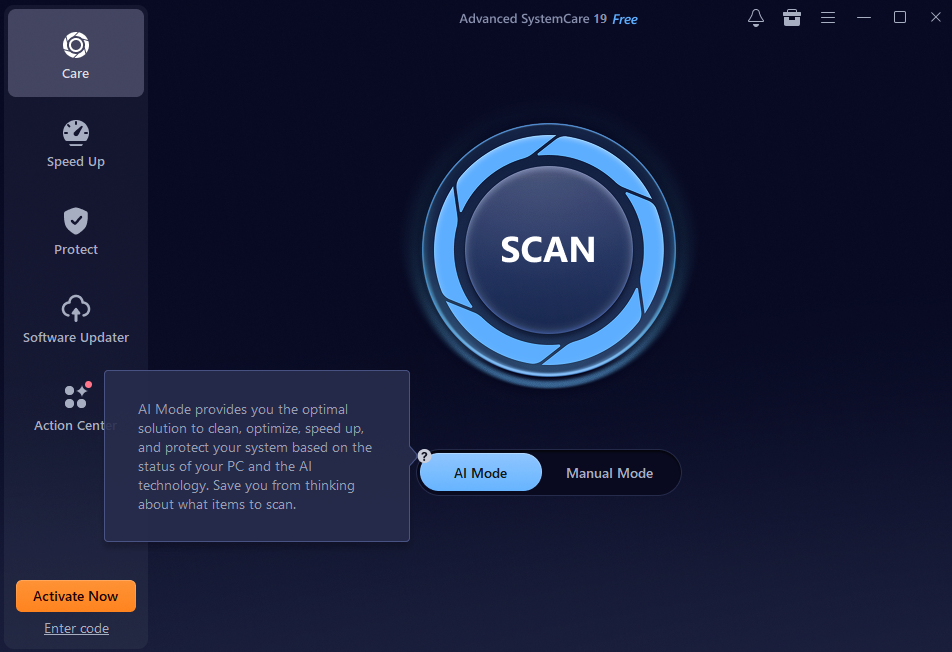
ASC will detect:
- Junk files
- Registry faults
- Startup bottlenecks
- Privacy traces
- Invalid shortcuts
- System vulnerability
What to do:
Click Scan, wait for results, then review the summary.
This initial scan already helps lighten the startup load by removing unnecessary data.
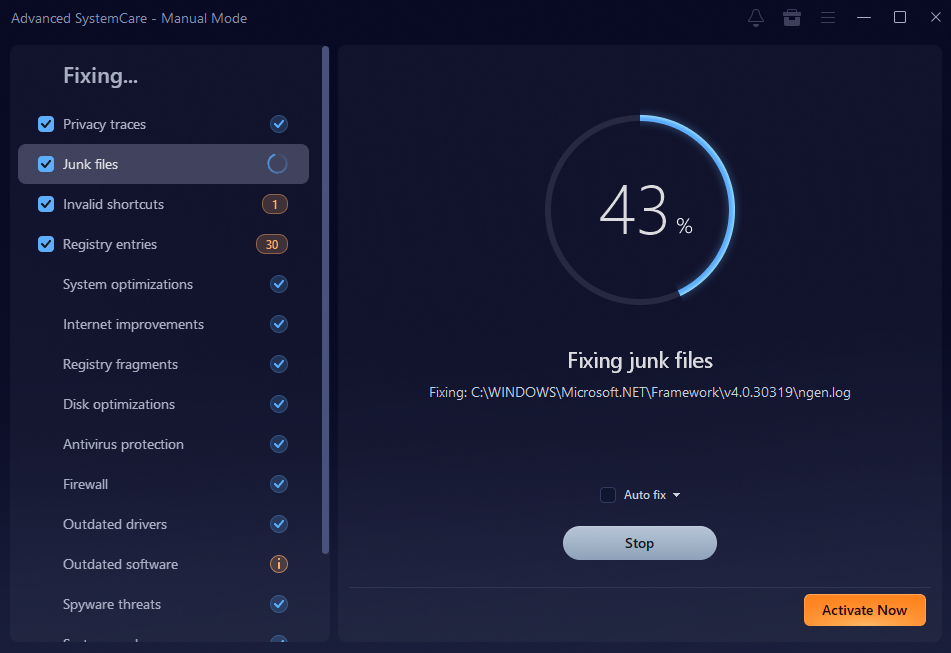
Step 2. Clean & Fix Detected Issues
Once the scan results appear:
- Check each category
- Review items that ASC flags
- Ensure no essential system files or developer tools are selected (rare but worth checking)
Then click Clean or Fix.
This removes several hidden causes of startup slowdowns, especially registry issues and temporary file overload.
Step 3. Use Startup Optimizer for Boot Speed Boost
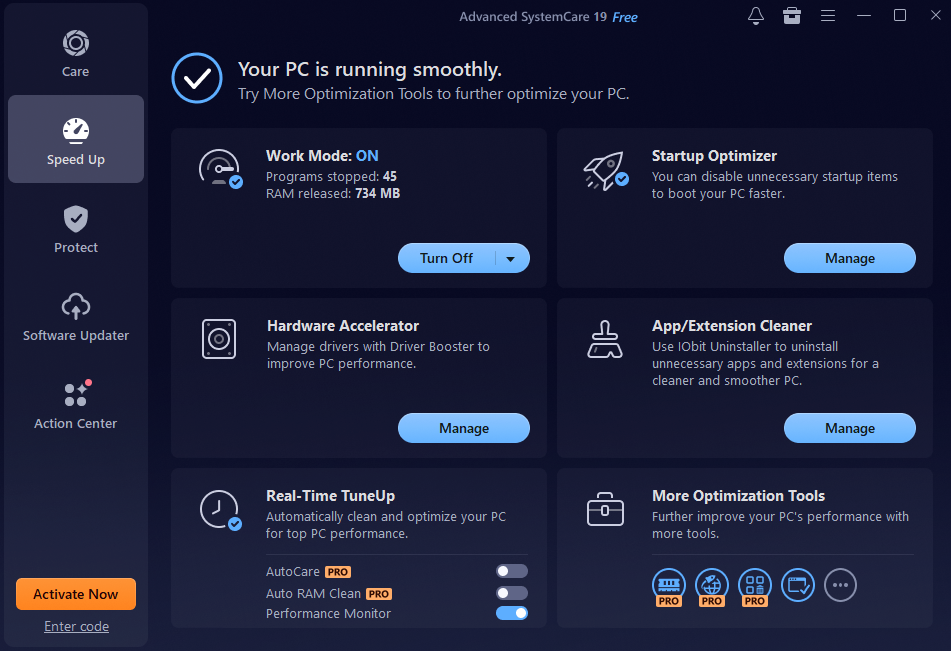
This is the most important step.
How to access it:
- Go to the Speed Up tab
- Select Startup Optimizer
ASC will categorize items into:
- Startup programs
- System services
- Scheduled tasks
- Browser add-ons
Each entry shows:
- Impact on startup time
- Usage rate
- Safety recommendations
What to do:
- Disable programs you don’t need at boot
- Delay items you need but don’t require immediately
- Keep security software enabled
This alone can cut your startup time dramatically—often by 20–60%.
Step 4. Adjust ASC Settings for Faster Boot (Optional)
For users who want minimal background load:
Turn off ASC auto-launch:
- Click the Settings gear icon
- Go to General Settings
- Disable Load Advanced SystemCare Tray at Windows startup
This prevents ASC from adding itself to the startup queue.
Step 5. Enable Turbo Boost for Faster Post-Startup Performance
Turbo Boost disables unnecessary background services for a performance jump.
How to use:
- Navigate to Speed Up
- Select Turbo Boost
- Configure for Work, Game, or Economy mode
This doesn’t directly impact startup time, but dramatically improves system responsiveness right after Windows loads.
Additional Tips for Better PC Optimization
Even with a powerful optimizer, some manual improvements help speed up startup further.
1. Upgrade to SSD
If you still use an HDD, upgrading to an SSD is the biggest improvement you can make. Boot time often drops from 2 minutes to under 20 seconds.
2. Uninstall Unused Software
Extra apps often run background services. Remove unwanted software from:
- Control Panel
- Windows Settings
- or use a deeper uninstaller for residue files
3. Update Drivers
Outdated drivers can cause delays in system initialization.
- Use Device Manager
- Or manufacturer tools
- Avoid random third-party driver websites
4. Reduce Visual Effects
Windows animation settings drain old systems. Set to “Adjust for best performance” for an instant speed boost.
5. Keep Windows Updated
Patch performance issues, security flaws, and driver incompatibilities by installing essential updates.
6. Regular Disk Cleanup
Tools like Windows Disk Cleanup or third-party PC Cleaner utilities help keep your storage free of unnecessary load.
Final Thoughts
Slow PC startup times are a common but fixable issue. With the right optimization steps, your system can boot significantly faster and perform more efficiently. Advanced SystemCare provides all the tools needed to scan, repair, and optimize your PC without complicated settings or technical effort.
Using features like Startup Optimizer, Health Checker, Junk File Clean, and Turbo Boost, you can restore fast boot times in just a few minutes of configuration. Complement these tools with a few general PC maintenance habits, and your system will stay fast, responsive, and stable over the long term.