Cloning a hard drive is easily the most popular strategy for upgrading to a high-speed NVMe SSD or migrating your operating system to a new machine. It promises a seamless copy-paste experience of your entire digital workspace – including your OS, personal files, and installed software – without requiring a clean reinstall.
However, few things are as frustrating as completing a hour-long cloning process, swapping out your drives, turning on your PC, and being greeted by a black or blue screen displaying “Boot Device Not Found,” “No Bootable Device,” or an error code like 0xc000000e (BCD Error).
If you are stuck staring at a non-bootable screen after disk cloning, don’t panic. Your data is not lost. Here is an in-depth breakdown of why these errors happen and how you can resolve them quickly.
Why Do Boot Errors Occur After Disk Cloning?
Understanding the root cause helps prevent future headaches. When Windows boots, it doesn’t just read files from the hard drive – it relies on specific boot configuration structures:
- Corrupted or Pointed Boot Configuration Data (BCD): The BCD database tells the Windows boot manager where to locate the operating system loader (winload.exe). During a clone, if the BCD entry retains the disk signature or drive letter of the original disk rather than the new target drive, Windows will fail to find the OS path.
- GPT vs. MBR Mismatch: Modern computers use UEFI boot mode with GPT partition tables, while older systems use BIOS/CSM with MBR. If the partition scheme of the target disk doesn’t match the boot mode configured in your BIOS, the system cannot initialize the boot loader.
- Missing EFI System Partition (ESP) or MBR Sector: Incomplete cloning operations often copy the main system partition (C: drive) while accidentally omitting the hidden EFI System Partition (for UEFI) or System Reserved Partition (for MBR), leaving the new drive without boot code.
- Multi-System or Network Deployment Desync: In enterprise or lab settings, executing a multi-system network clone without properly updating hardware-specific boot pathways across target machines frequently results in widespread BCD errors.
The Traditional Repair Method
To resolve “Boot Device Not Found” manually, IT technicians traditionally rely on the Command Prompt inside a Windows Installation USB or Windows Recovery Environment (WinRE).
The typical manual procedure involves executing command-line strings:
DOS
bootrec /fixmbr
bootrec /fixboot
bootrec /rebuildbcd
bcdboot C:\Windows /s S: /f ALL
While effective in experienced hands, this command-line route is notoriously tricky:
- Drive Letter Confusion: In the WinPE recovery environment, drive letters often shift (e.g., your actual C: drive might become D: or E:), causing bcdboot commands to target the wrong partition.
- Access Denied Errors: Running bootrec /fixboot on modern UEFI/GPT Windows 10 or 11 systems frequently throws an “Access is denied” error requiring manual EFI partition assigning and formatting via diskpart.
The Modern Solution: Wittytool Disk Clone Boot Repair
To eliminate the steep learning curve and risks associated with manual command-line troubleshooting, specialized utilities offer automated boot loader restoration.
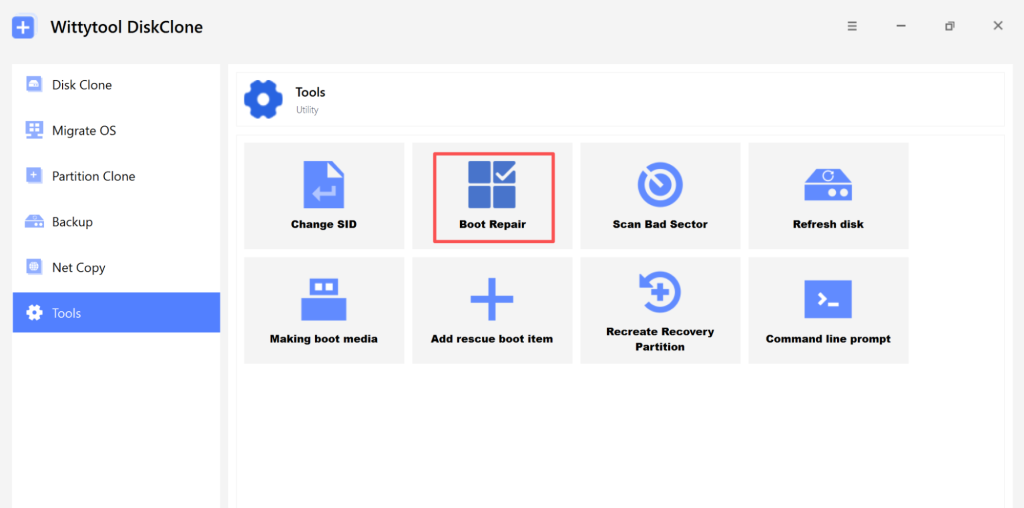
As a comprehensive disk migration and system management tool, Wittytool Disk Clone comes equipped with a dedicated Boot Repair engine. Designed specifically to resolve post-cloning startup failures, it automatically detects partition layout mismatches, rebuilds corrupted BCD databases, and re-links system paths – all without requiring manual terminal commands.
How to Repair Boot Errors with Wittytool:
Step1. Create a Bootable Rescue Drive: Install the software on a working PC and create a WinPE bootable USB drive using the built-in media creator.
Step 2. Boot the Target PC: Insert the bootable USB into the unbootable computer, power it on, and enter the BIOS/UEFI boot menu to boot from the USB drive.
Step 3. Run Boot Repair: Once inside the WinPE recovery environment, open the utility toolkit and select “Boot Repair.”
Step 4. One-Click Scan & Fix: The tool will automatically scan attached disks for installed Windows operating systems, analyze the EFI/MBR boot structure, and repair missing or misconfigured BCD entries automatically.
Step 5. Reboot: Remove the USB drive and restart your PC. Windows will boot smoothly into your desktop.
Best Practices to Prevent Boot Errors When Cloning
Disconnect the Source Disk First: Before booting up the target drive for the very first time after cloning, physically disconnect the original source disk. Having two identical disk signatures connected simultaneously can confuse Windows and corrupt the boot manager.
Verify Boot Mode in BIOS: If your cloned drive uses GPT, ensure your BIOS boot mode is set to UEFI. If it uses MBR, ensure CSM/Legacy mode is enabled.
Clone Whole Disks, Not Just Partitions: Always choose system disk cloning over individual partition copying to ensure hidden EFI and boot partitions are migrated intact.
By understanding how boot paths function and leveraging automated utilities like Wittytool, resolving disk cloning startup errors becomes a quick, hassle-free process.