Most AI tools arrive with a promise and a demand: adopt this new system, change your workflows, train your team, migrate your data. Manufacturers have heard this pitch before — from PLM vendors, ERP providers, and now from a new generation of AI platforms. The pitch is usually compelling. The reality is usually disruptive.
There is a different approach emerging. It doesn’t ask you to change anything. It simply starts working.
The Problem No One Talks About Enough
Manufacturing companies have a product data problem that lives in the gap between design and production. Engineers work in CAD tools — SolidWorks, Fusion, CREO. Their designs generate bills of materials: structured lists of every part, component, and assembly required to build something.
But getting that BOM out of the CAD environment and into the hands of procurement, production planning, suppliers, and contractors is where things quietly fall apart.
The standard workflow looks like this: export to Excel, email to someone, wait for questions, send a revised version, receive a contractor’s version back, reconcile the differences manually, repeat. Every step is manual. Every step introduces error. Every handoff loses context.
This isn’t a new problem. It’s just one that has been accepted as the cost of doing business in engineering.
What an Invisible AI Agent Actually Means
The AI agent concept, in most industries, is pitched as something you interact with — a chatbot, an assistant, a co-pilot. You ask it questions. It responds. You collaborate.
In manufacturing, the more valuable version is one you never have to talk to. These systems — sometimes called invisible AI agents for manufacturing — watch what comes in, understand what they’re looking at, take the appropriate action, and update the relevant data structures without waiting for instructions.
The “invisible” framing matters. It signals a design philosophy: AI that earns trust not through interaction but through consistent, reliable background execution. No prompts required. No workflow changes needed. Just results.
Where This Fits in the Current AI Agent Landscape
The broader AI agent discussion tends to focus on software development, customer service, and knowledge work. Manufacturing has been underrepresented in that conversation, which is puzzling given that it’s one of the domains where the gap between data that exists and data that’s usable is most costly.
A single BOM error — a wrong part number, an outdated revision, a missing supplier reference — can delay a production run by days and create rework costs that dwarf the value of any single component. The error is rarely the result of incompetence. It’s the result of a data pipeline that depends entirely on humans to transfer structured information from one system to another without introducing mistakes.
This is exactly the category of task that AI agents are well-suited to handle: high-volume, structured, repetitive, consequential. The data is available. The rules for what “correct” looks like are knowable. The cost of errors is measurable. The returns on automation are immediate.
How OpenBOM’s Approach Differs from Traditional Automation
Earlier attempts to automate this problem involved rigid integrations: a scripted connection between a CAD system and an ERP, for example, that required a dedicated implementation project and broke whenever either system updated.
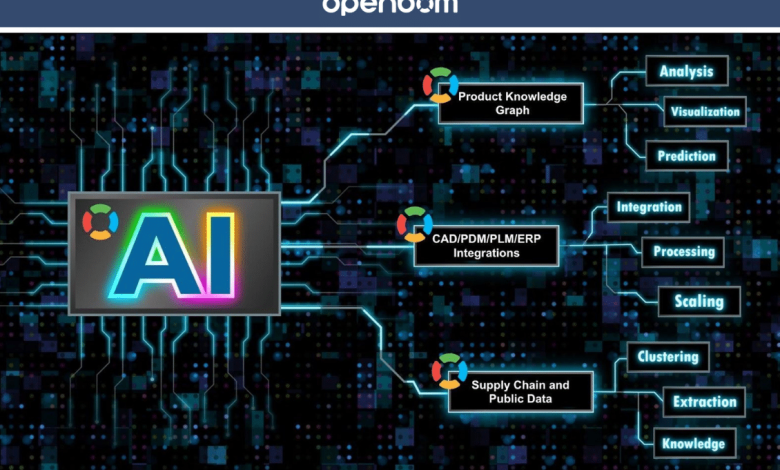
OpenBOM, a platform built specifically for AI-powered product data management in engineering, has developed a more adaptive approach. Rather than relying on fixed field mappings, it uses the organizational knowledge graph — the accumulated record of how parts have been described, structured, and referenced across past projects — to interpret incoming data in context.
A supplier might call a component by a different name, use a different unit of measure, or format part numbers differently. The agent can recognize the match rather than reject the record. This is the practical value of training AI on domain-specific data rather than general text: it understands the vocabulary and conventions of the specific engineering environment it operates in.
What “No Migration Required” Actually Looks Like
One of the barriers to AI adoption in manufacturing is the assumed cost of change. Companies that have been operating with their current data structures for years are understandably reluctant to undertake a migration project in order to access AI capabilities.
The invisible agent model sidesteps this by meeting data where it already lives. If a team still sends BOMs as Excel files, the agent processes Excel files. If contractors deliver data in CAD formats, it handles those formats. The platform’s multi-tenant architecture means different teams — internal and external — can participate in the same data environment without standardizing on the same tools.
The result is that engineering teams often don’t experience the adoption of AI as a distinct event. They receive supplier data the same way they always have. What changes is that the data is already parsed, validated, and integrated by the time a human looks at it.
The Business Case for Ambient AI in Manufacturing
The manufacturing sector is under increasing pressure to move faster, with fewer errors, across more complex supply chains. The companies that will handle this pressure best are not necessarily those that build the most sophisticated AI systems — they are those that find ways to make AI operate invisibly within the workflows their engineers already know.
The invisible agent model is not a temporary workaround. It is a design principle: AI that works best when it isn’t noticed, that produces value before anyone has to decide whether to adopt it.
Conclusion
For companies navigating the transition from spreadsheet-based product data management to something more intelligent, the invisible AI agent approach offers a path that doesn’t begin with a six-month migration and a change management program.
It begins with a file arriving in your inbox — and the data already being correct on the other side.OpenBOM’s AI Agent capabilities are available through an early access program, with broader rollout ongoing.
Try OpenBOM free for 14 days and see what invisible AI actually looks like in your workflow.