




How to Enhance the Resolution of a PDF: Complete Guide to Crisper Files
PDFs are used for various purposes, such as reports, ebooks, invoices, presentations, etc. However, they sometimes come out blurry or unreadable, which hinders both personal and professional workflows. But not anymore. Whether you have created it yourself or received it from someone, modern PDF enhancer tools can help restore its clarity. In this post, you’ll learn how to enhance the resolution of a PDF offline and online with ease.
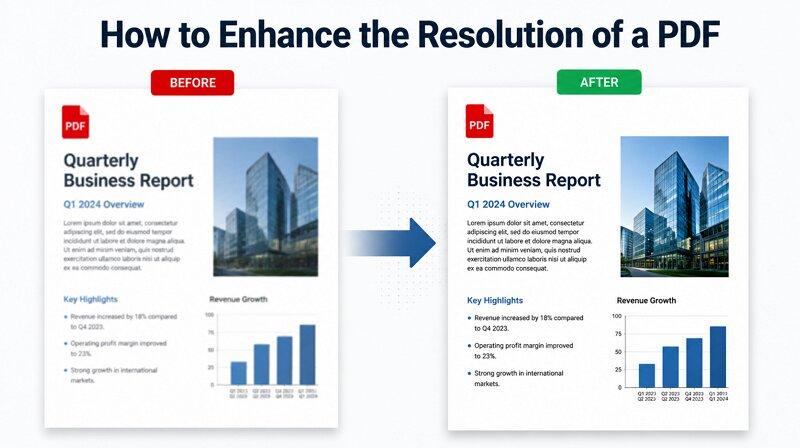
Why Is Your PDF Blurry? Understanding PDF Quality and DPI
The cause behind low PDF quality lies in its type. Vector PDFs use formulas rather than pixels to display lines, text, and graphics. This makes them infinitely scalable, so they remain sharp at any zoom level. However, the raster or scanned PDFs are wrapped in a container. They consist of fixed pixels that blur when enlarged or printed.
Enhancing such a PDF means increasing its DPI (Dots Per Inch). It is the number of dots a printer or screen can display per inch, thus measuring the sharpness and detail of PDFs.
A PDF at 72-150 DPI is suitable for on-screen reading but gets pixelated on large displays or in printed copies. However, professional editing and archiving require 300+ DPI to make sure the images in text in PDF files are readable, even at larger sizes.
Traditional PDF tools help enhance PDFs, like academic papers, contracts, etc., by resizing the existing pixels. They often reshuffle blurry pixels without reconstructing missing detail, resulting in minimal improvement.
The Smartest Way: Enhance PDF Quality with AI PDF Resolution Enhancer
Compared with traditional interpolation, which only enlarges the PDF, AI technology is the game-changer. AI Super Resolution analyzes patterns in a PDF and reconstructs missing text and image in PDFs. This method converts blurred or highly compressed text into crisp, readable data wwithout artifacts.
HitPaw FotorPea is a comprehensive desktop software that uses advanced AI technology to enhance PDF quality without any manual operations. With a user-friendly interface, it supports direct PDF upload into its AI Enhancer module.
This PDF enhancer allows automated, multi-model processing, i.e., Denoise, Text Sharpening, and Upscale (up to 8x), to help achieve the studio-quality results. You can also enhance multiple PDFs at once to save time and effort. What’s even more fantastic is that everything is done locally with 100% data privacy.
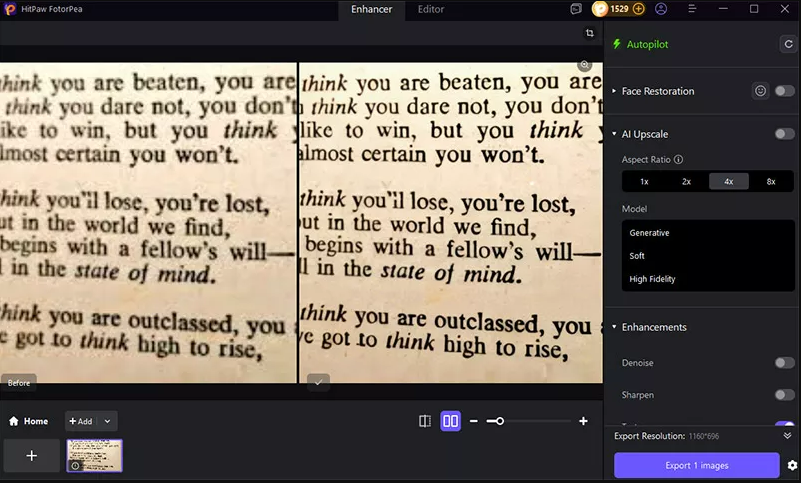
Step-by-Step: How to Use HitPaw FotorPea as a PDF Resolution Enhancer
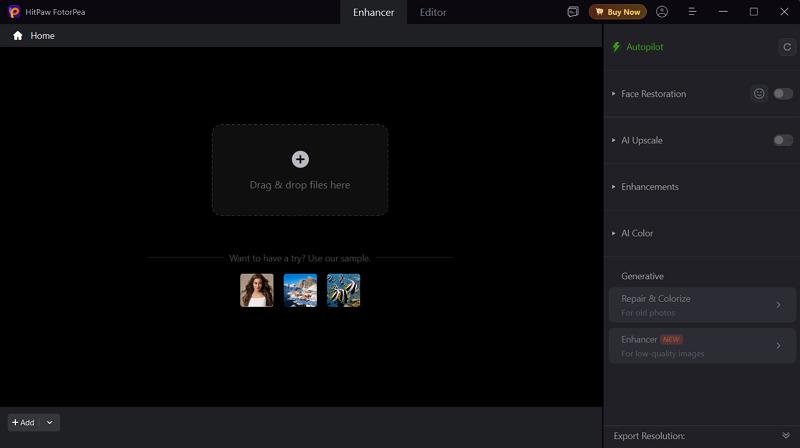
Step 1. Upload PDF
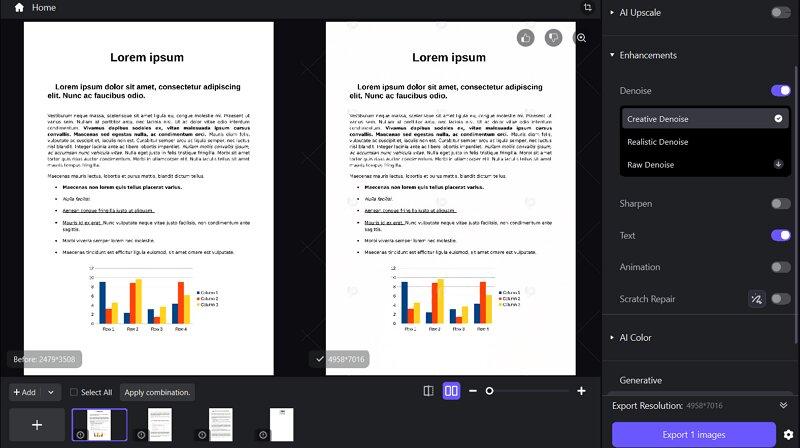
To enhance PDF quality, you will need to download, install, and launch this software. Now, click “Enhance Photos Now,” browse and upload the blurry PDF file into the main window.
Step 2. Select the AI Model
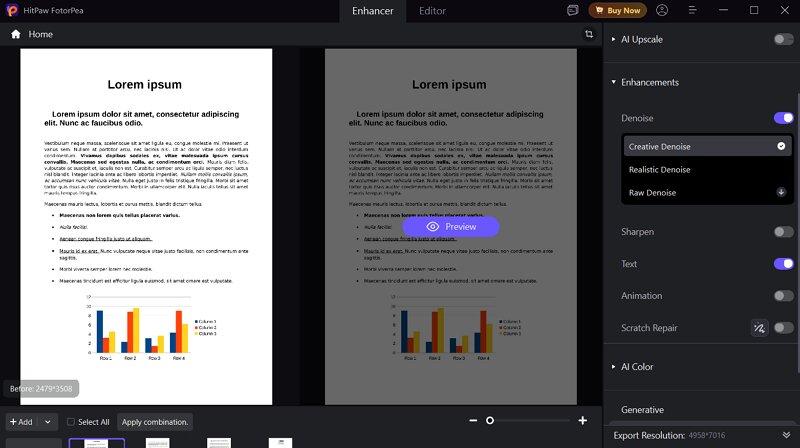
Next, you can see the various AI models from the side column. To improve the appearance of a PDF file, turn on the “Denoise” and “Text” options under the “Enhancements” models.
Step 3. Preview and Export
Lastly, check the results by tapping the “Preview” button. If it’s fine, click the gear icon, go to “AI Enhancer,” and select “Export DPI” with a value of 300 or as needed. Hit “OK” > “Export.”
The Professional Alternative: Increase PDF Resolution in Adobe Acrobat Pro
Adobe Acrobat is known as the gold standard among professionals due to its efficient work for enhancing and editing PDF documents. Its scan file enhancement function improves the visual quality of scanned PDF files, course materials, reports, etc.
However, OCR improves overall readability by adding searchable text, which is ideal for archiving and digital distribution. You can also use its filters, like text sharpening, background removal, and more, to achieve your preferred results.
Let’s learn how to enhance the resolution of a PDF with Adobe Acrobat Pro:
Step 1. Open the PDF
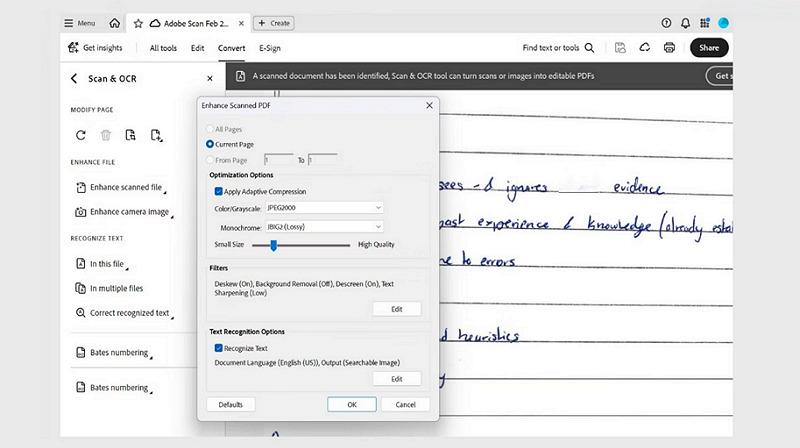
First of all, upload the scanned PDF into the main tool. Now, you have to choose “Scan & OCR” from the “All Tools” menu.
Step 2. Enhance the File
Next, select “Enhance scanned file,” and a pop-up page will appear. You can now pick the pages you want to enhance. Also, check the “Recognize Text” box to enable OCR.
Step 3. Adjust PDF Settings
Finally, open the “Settings” and adjust the scanned PDF settings as required. Then, hit “OK” and choose “Enhance.” That’s all!
The Quick Fix: Enhance PDF Quality Online Free
For those who look for a PDF quality enhancer online free, i2PDF is a great choice that enables you to quickly enhance PDF files, contrast, digitized historical documents, etc. It helps clean up scanned photos, sharpen the images and text, and increase PDF resolution effortlessly.
It works especially well for handwritten content, such as class notes and meeting minutes, making it easier to read and better for printing. However, the output isn’t editable because pages are processed as images.
Below are the steps on how to use the i2PDF enhancer online:
Step 1.
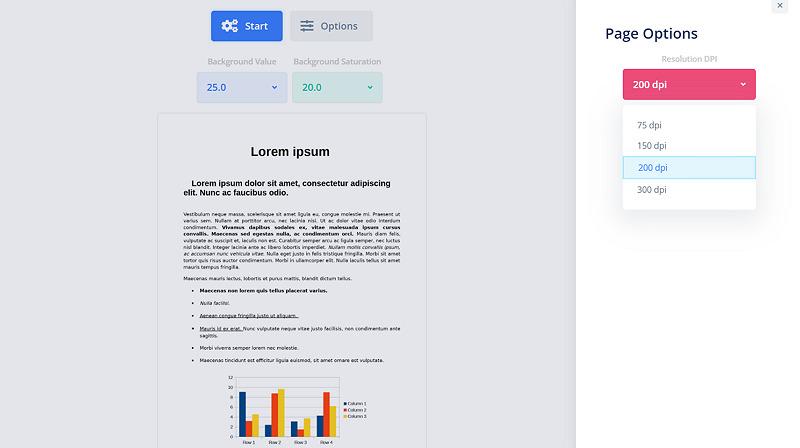
Open this tool in your browser and click “Choose Files” to upload the PDF document.
Step 2.
Next, choose the “Background Value” and “Background Saturation” from their drop-down menus. Also, tap “Options” and choose the preferred DPI.
Step 3.
Finally, press the “Start” tab and wait for the processing to finish. Hit “Download,” and you’re all done.
Comparison Table: Which PDF Resolution Enhancer Wins?
To quickly understand which PDF quality enhancer delivers the best results, the following table compares key features of all three tools. Let’s have a look:
| HitPaw FotorPea | Adobe Acrobat Pro | i2PDF | |
| Enhancement Core | Generative AI (Reconstruct missing details) | Optimize Existing Data & OCR | Basic Interpolation |
| Text Sharpening | Excellent (Specialized Text Model) | Moderate (Vectorize fonts only) | Poor (Often jagged edges) |
| Resolution Limit | Up to 4K/8K UHD (300 DPI) | Limited to source quality | Moderate (Up to 300 DPI) |
| Batch Processing | Yes (Fast enhancement) | Yes, (Require additional setup) | Not available |
| Data Privacy | 100% secure local processing | Secure (Adobe Document Cloud) | Low (Risky server storage) |
Conclusion
In 2026, blurry or low-quality PDFs are no longer a hurdle. This guide has covered how to enhance the resolution of a PDF file with various tools. While each one is worth using, an AI PDF resolution enhancer like HitPaw FotorPea is an excellent solution. It helps achieve superior quality and higher DPI with complete data privacy. Let’s try it today.
Frequently Asked Questions
Q1: Can an AI PDF resolution enhancer really fix pixelated scanned text?
Yes, an AI PDF resolution enhancer like HitPaw FotorPea can convert pixelated scanned text into crisp, readable content by reconstructing missing strokes and outlines.
Q2: Does increasing PDF DPI from 72 to 300 automatically enhance PDF quality?
It depends. Simple resampling does not restore detail even after converting the DPI to 300. You will need AI enhancement to regenerate lost pixels and improve sharpness.
Q3: How can I enhance PDF quality online free without software installations?
For PDF quality enhancement without installation, upload the PDF to a cloud-based tool like i2PDF, adjust the settings as preferred, and download the output.