
You must be looking for how to extend C drive if you’ve ever seen the “C drive full” warning on your PC. You’re not alone, as several Windows users ultimately experience issues of low disk space in the main system partition. With this step-by-step guide, you will learn to extend C drive in Windows 10 and Windows 11 without loss of data.
You can use the built-in Windows utilities or an easy-to-use partition utility. In either case, we will discuss some of the safest ways of restoring space and ensuring your system operates efficiently.
Part 1. Why Your C Drive Gets Full
As you face the C drive full issue, performance in Windows drops drastically. The apps hang, updates keep failing, and the startup process is even slower.
The most frequent causes are the following:
- Windows updates and restore points can consume tens of gigabytes.
- System cache and temporary files log along with error reports automatically.
- Large applications and games installed on C drive quickly fill it.
- Hibernation and paging files used for memory and sleep mode take significant space.
- Many users forget to move downloads or installers to another drive.
Ignoring a full drive can lead to system instability, update failures, and even data corruption. Before you start extending or resizing partitions, it’s wise to back up important data to an external drive or cloud storage.
Part 2. How to Extend C Drive – 3 Proven Methods
You can extend your system partition in several ways. The right method depends on how much unallocated space is available and whether you want a graphical interface or command-line control.
Method 1: Extend C Drive Using 4DDiG Partition Manager
When Windows’ native tools can’t extend your C drive because the unallocated space isn’t adjacent, you’ll need a professional disk management solution. One example is 4DDiG Partition Manager, often regarded as one of the best partition manager options for beginners and advanced users alike.
How to use it?
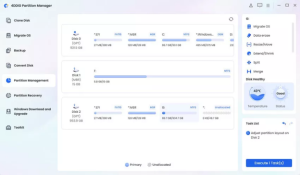
Step 1. Run 4DDiG Partition Manager on your computer. Choose “Partition Management” from the left sidebar and click “Extend/Shrink.”
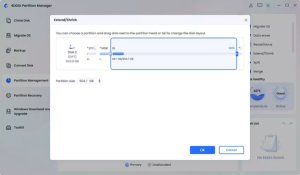
Step 2. Drag the slider on your C drive to extend it to your desired size and click “OK” then “OK” in the pop-up window.
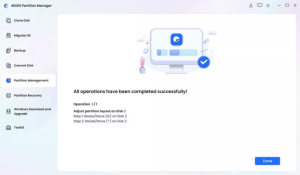
Step 3. Click the “Execute Task(s)” button on the right side of the screen and click “OK” to apply the changes.Then, you just need to wait till 4DDiG successfully completes the process. Click “Done” once complete, and your C drive is extended.
Why this works well:
- You can extend the C drive without losing data, even when the space isn’t directly beside it.
- No need for command-line knowledge with its user-friendly interface.
- Safely moves data and adjusts partitions automatically.
For non-technical users, this approach offers the most intuitive experience. You don’t have to delete or reformat anything. Just drag, preview, and apply changes confidently.
Method 2: Extend C Drive Using Disk Management (Built-in Tool)
If you want to stick with Windows’ native utilities, the Disk Management tool works well in certain cases.
1.Press “Win + X” and select “Disk Management”.
2.Right-click your C drive and choose “Extend Volume”.
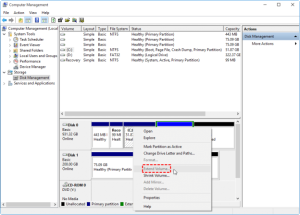
3.Follow the wizard to select the unallocated space and click “Finish” once you are satisfied.
4.Restart your PC and confirm changes in “This PC.”
The process looks almost the same in both Windows 10 and Windows 11, though some labels to extend the C Drive in Windows 10 and 11 might differ slightly.
If you find “Extend Volume” greyed out, it means there’s no unallocated space immediately next to the C drive. Windows Disk Management cannot move or rearrange partitions, so you must manually delete or shrink the drive next to C to create free space. If this feels risky, revert to a tool like 4DDiG Partition Manager, which handles non-adjacent space safely.
This is the classic example of “disk management extends volume greyed out”, one of the most common roadblocks users face when resizing partitions.
Method 3: Extend C Drive Using CMD (DiskPart Command)
If you want in-depth control, then you can use the command prompt with the DiskPart command to extend your drive.
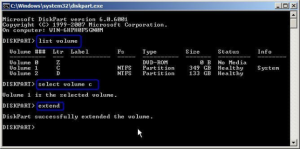
1.Search for “CMD” in Windows Search and right-click the “Command Prompt” option to select “Run as Administrator”.
2.Run the following commands one by one:
- diskpart
- list volume
- select volume C
- extend
- exit
3.Exit the command prompt and restart your computer.
This extends C drive using CMD method, which is powerful but unforgiving. A single mistyped command could modify the wrong partition. Always back up your system first, and ensure there’s unallocated space available on the same disk.
Part 3. Tips to Prevent “C Drive Full” in the Future
Once you’ve extended C drive, it’s crucial to manage it properly to avoid repeating the problem. Here are some smart maintenance tips to increase C drive space over time:
- Clean temporary files regularly with “Disk Cleanup” or “Storage Sense” in Windows.
- Move personal files to other drives, like the D or E drive for media, downloads, and games.
- Disable hibernation if unnecessary, as it can free up several gigabytes instantly.
- Adjust System Restore points to reduce the allocated storage for restore files.
- Use tools like 4DDiG Partition Manager periodically to check and rebalance partition sizes when needed.
Routine disk care ensures smoother updates, faster performance, and fewer low-space warnings.
Conclusion
Storage space management is the key to a stable and responsive Windows PC. If you have a full C drive, open the Windows Disk Management tool. In case it is not working or the Extend Volume option is greyed, use the CMD technique or a secure GUI-based tool, such as 4DDiG Partition Manager.
Always back up data before resizing, confirm unallocated space, and apply changes carefully. Learning how to extend C drive properly not only prevents system slowdowns but also keeps your Windows 10/11 PC running efficiently for years to come.
Meta Description:
Learn how to extend C drive safely in Windows 10/11 without losing data. Fix “C drive full” and boost PC speed using Disk Management, CMD, or partition tools.