
Best PDF Translator Tools in 2026: How AI Is Making Document Translation Easier
Key Takeaways
- PDNob PDF Editor is the best overall free PDF translator. It works offline, supports OCR in 30+ languages, preserves formatting, and adds no watermarks.
- DeepL delivers the most fluent translations for European language pairs but caps free files at 5 MB and has no offline mode.
- SlideSpeak is the top choice for design-heavy PDFs online. It preserves tables, columns, and visual layouts better than any other free browser-based tool.
- Google Translate is free and unlimited but destroys all PDF formatting. Only use it when layout does not matter.
- Adobe Acrobat Pro is the most capable tool for post-translation editing, but at $23.99/month it is only worth it for existing Adobe users.
- For scanned or image-based PDFs, tools with built-in OCR can help, PDNob PDF Editor can handles this offline.
- For sensitive documents (legal, medical, financial), never upload to a cloud-based tool, use PDNob PDF Editor, which never sends your file to any server.
- Formatting loss is the most common PDF translation problem. It happens when a tool extracts plain text instead of recognizing PDF structure. PDNob, SlideSpeak, and Adobe Acrobat Pro avoid this.
- The best AI for translating PDFs in 2026 combines ChatGPT + DeepSeek (PDNob) or ChatGPT + Azure (SlideSpeak) for context-aware, fluent output.
Introduction
Translating a PDF sounds simple. In practice, it is anything but the wrong tool strips your tables, scrambles your columns, and returns a wall of plain text with none of the original structure intact. With dozens of AI-powered options flooding the market in 2026, choosing the best PDF translator is harder than ever.
We tested seven leading tools across five weighted criteria, which is, translation accuracy, formatting preservation, OCR support, language coverage, and pricing. Using real-world documents including a 28-page financial report, a 16-page marketing brochure, and a scanned administrative form. This guide gives you the honest results.
Whether you need the best free PDF translator online, the best AI for translating PDFs, or the best PDF translation service for sensitive offline documents, you will find your answer here.
📌 Note:
Want to skip straight to the top pick? PDNob PDF Editor earns the #1 spot for offline use, OCR support, and formatting preservation. Jump to Tool #1 below, or download it now.
Part 1. What Makes a PDF Translator the Best?
Not all PDF translators compete on the same terms. A tool that tops the leaderboard for casual use may be completely unsuitable for legal contracts or scanned documents. Before diving into the rankings, here is the five-criterion framework we used to evaluate every tool.
The 5 Criteria We Used to Evaluate Every Tool
| Criterion | What We Tested | Weight |
| Translation Accuracy | Fluency, context-awareness, technical and legal term handling across 3 language pairs | 30% |
| Formatting Preservation | Tables, multi-column layouts, fonts, images, and page structure after translation | 25% |
| OCR Support | Ability to extract and translate text from scanned or image-based PDF files | 20% |
| Language Coverage | Total number of supported languages; quality on non-Latin scripts (Chinese, Arabic) | 15% |
| Price and Free Tier | Free plan limits, paid plan value, no-sign-up options, watermark policy | 10% |
Online vs. Offline vs. AI-Powered — What Is the Difference?
Understanding these three categories is essential before choosing a tool:
- Online tools are browser-based. You upload your PDF to a third-party server, the tool translates it in the cloud, and you download the result. Fast and convenient, but your file leaves your device.
- Offline tools are desktop applications. Translation happens entirely on your computer. No upload, no internet dependency, no data exposure. Best for sensitive or confidential documents.
- AI-powered tools use large language models (GPT-4, DeepSeek, DeepL Neural) to understand context, not just swap words. In 2026, the best AI PDF translators produce translations that closely match human quality for most document types.
📌 Note:
Online PDF translators require uploading your file to a third-party server. For confidential documents, legal contracts, medical records, financial reports always choose an offline tool.
Part 2. Quick Comparison: 7 Best PDF Translators at a Glance
Here is the full ranking at a glance before we break down each tool in detail.
| # | Tool | Best For | Free Tier | OCR | Offline | Format | Score |
| 1 | PDNob PDF Editor | Offline / Privacy / Scanned PDFs | Yes, no watermark | Yes (30+ lang) | Yes | Excellent | 9.5 / 10 |
| 2 | DeepL | European language accuracy | 5 MB limit | Yes | No | Good | 8.8 / 10 |
| 3 | SlideSpeak | Design-heavy PDFs and slides | Yes | No | No | Excellent | 8.6 / 10 |
| 4 | Adobe Acrobat Pro | Adobe ecosystem / in-PDF editing | No (paid only) | Yes | Yes (Pro) | Excellent | 8.4 / 10 |
| 5 | DocTranslator | Large files up to 1 GB | No (discontinued) | Yes | No | Very Good | 8.0 / 10 |
| 6 | Google Translate | Quick, free, simple documents | Unlimited free | Yes | No | Poor | 7.2 / 10 |
| 7 | ChatGPT | Short, nuanced, context-rich content | 3 files per day | No | No | Poor | 7.0 / 10 |
Part 3. The 7 Best PDF Translators Reviewed in Depth
Tool #1: PDNob PDF Editor — Best Overall PDF Translator
Platform: Windows, Mac Price: Free Languages: 30+ (OCR and translation) Offline: Yes
Our Score: 9.5 / 10
PDNob PDF Editor is the standout recommendation in this guide for one key reason: it is the only free tool that combines offline translation, built-in OCR for scanned PDFs, and full formatting preservation in a single desktop application. No file upload, no watermark, no per-page fee.
The translation engine integrates both ChatGPT and DeepSeek, giving it the context-awareness to handle technical manuals, academic papers, and legal documents with a level of nuance that purely statistical translation models cannot match. In our tests translating a 28-page financial report from English to German, PDNob preserved every table, chart caption, and header, output that would have required 30+ minutes of manual reformatting in Google Translate.
Key Features
- Offline translation: your file never leaves your computer
- OCR with 30+ language support: translates scanned and image-based PDFs
- AI assistant (ChatGPT + DeepSeek) for context-aware, fluent translation
- Full formatting preservation: tables, multi-column layouts, images, fonts
- Edit, annotate, compress, and convert PDFs in the same application
- Free to use with no watermarks on translated output
How to Translate a PDF with PDNob PDF Editor (Step-by-Step)
1. Download and install PDNob PDF Editor for Windows or Mac (free).
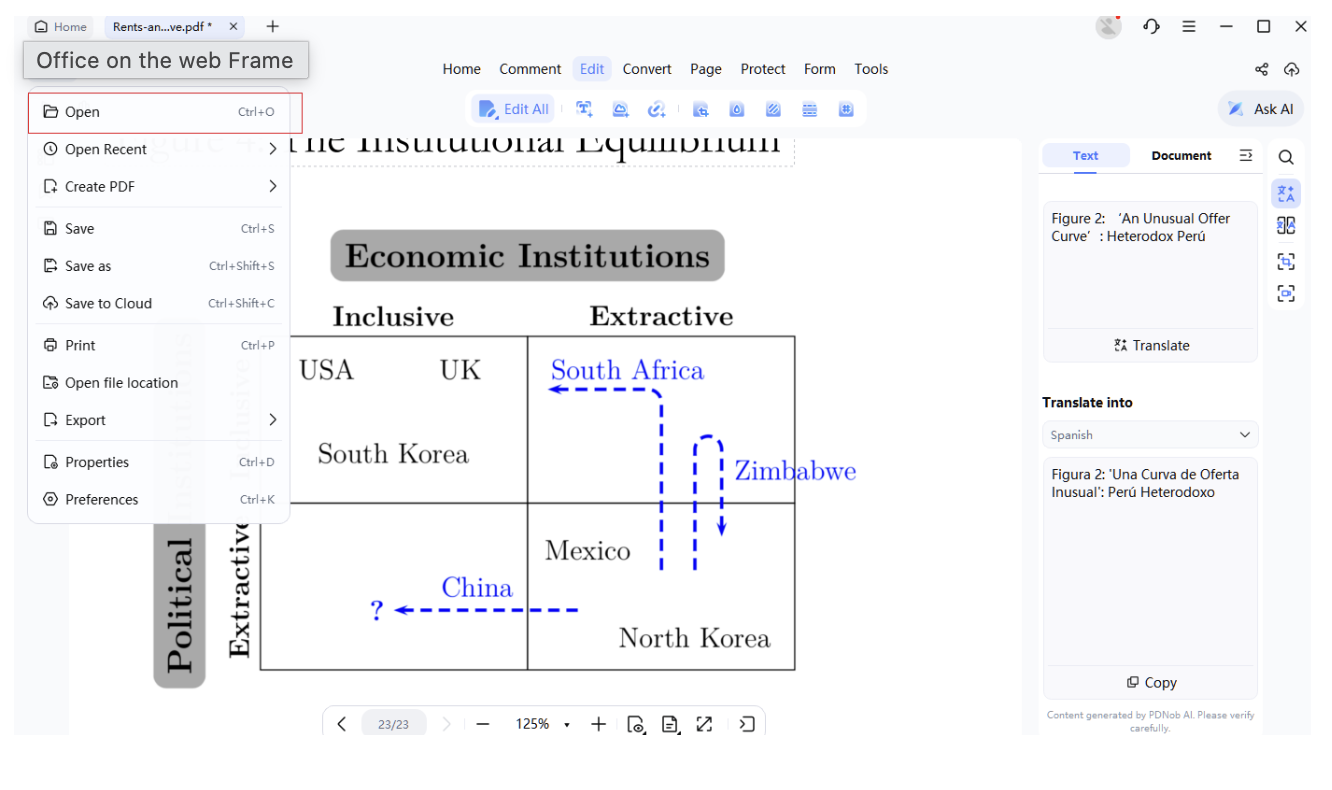
2. Open your PDF: drag and drop the file into the application, or go to File > Open.
3. If your PDF is scanned or image-based: click the OCR button, select the source language, and run OCR to create an editable text layer.
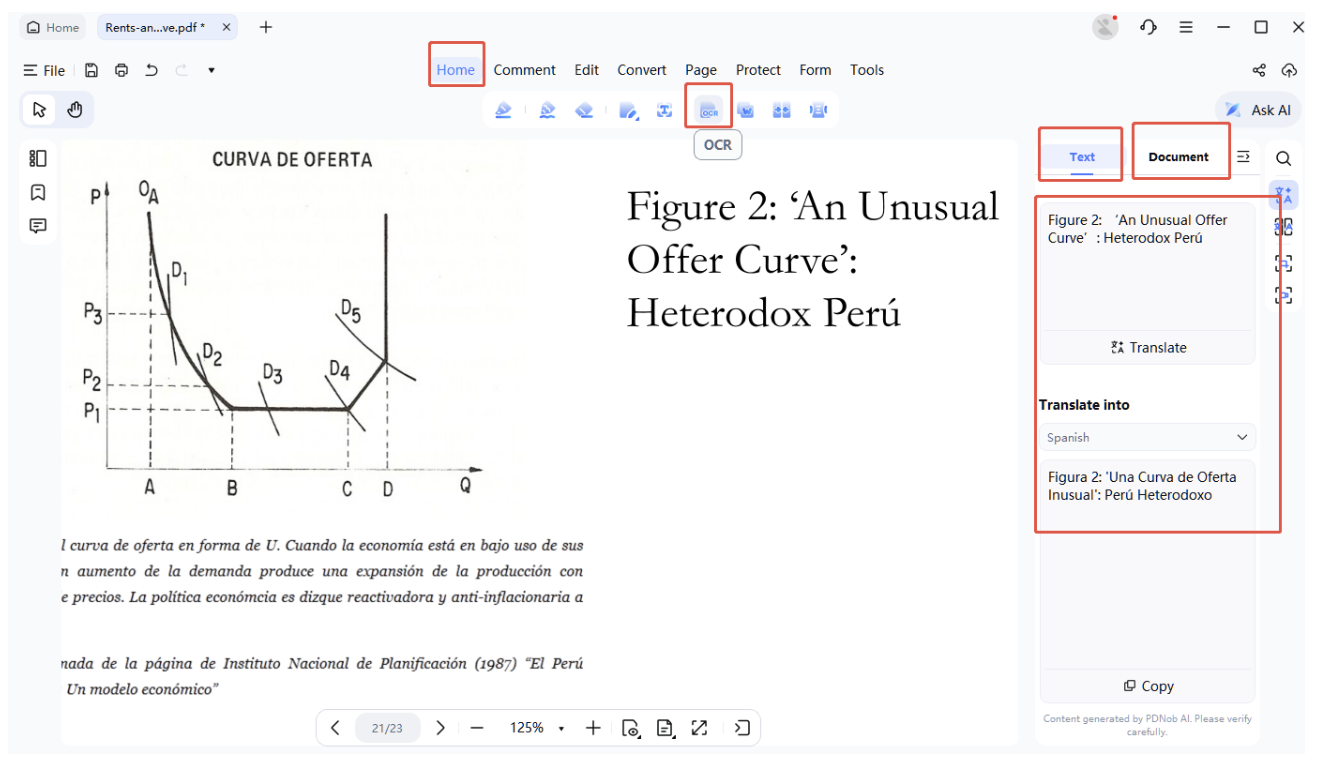
4. Click the AI Assistant icon in the toolbar. Select Translate from the menu.
5. Choose your target language from the dropdown (30+ languages available).
6. Click Translate. PDNob processes the document locally and returns the translated version with original formatting intact.
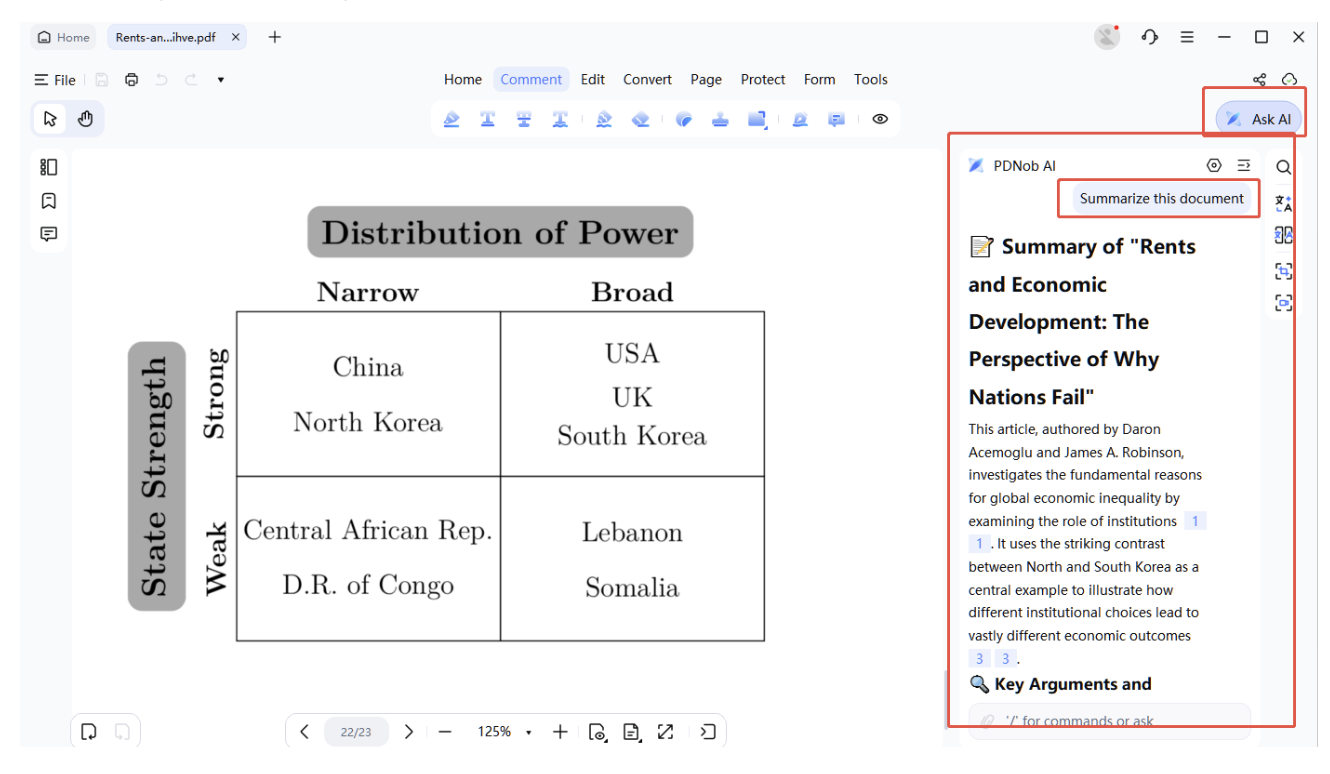
7. Go to File > Save As and save your translated PDF. Done — no upload, no watermark.
Pros and Cons
| Pros | Cons |
| ✔ Completely offline — zero privacy risk | ✘ Desktop installation required |
| ✔ Free with no watermark | ✘ No browser-based access |
| ✔ OCR in 30+ languages | ✘ Fewer languages than Google Translate (175+) |
| ✔ Full formatting preservation | |
| ✔ AI-powered (ChatGPT + DeepSeek) | |
| ✔ No file size limit |
Best for: privacy-sensitive documents, scanned PDFs, formatted business reports, academic papers, and any user who needs reliable offline translation without paying.
📥 Download:
Download PDNob PDF Editor for free. Translate any PDF offline in 30+ languages. No upload, no watermark, no limits. Works on Windows and Mac.
Tool #2: DeepL — Best for European Language Accuracy
Platform: Web, Windows, Mac Price: Free (5 MB limit) / From $8.74/month Languages: 30+
Our Score: 8.8 / 10
DeepL consistently produces the most natural, fluent translations among all tools we tested, particularly for European language pairs (English-German, English-French, English-Spanish). Its neural network architecture grasps sentence-level context in a way that Google Translate’s phrase-based approach does not, making it especially strong for legal briefs, technical documentation, and literary content.
The free tier translates PDFs up to 5 MB per file, which covers most standard documents. Pro plans add custom glossaries — useful for brand names, proprietary terminology, and consistent technical vocabulary across long documents. DeepL is GDPR-compliant and deletes uploaded files after translation.
The main limitation is language coverage: DeepL supports around 30 languages, versus 175+ for Google Translate. It also has no offline mode, so every file is uploaded to DeepL’s servers.
| Pros | Cons |
| ✔ Best-in-class fluency for European languages | ✘ Only ~30 languages (no offline mode) |
| ✔ GDPR-compliant, files deleted post-translation | ✘ 5 MB cap on free plan |
| ✔ Custom glossary support (Pro) | ✘ Formatting preservation is good but not excellent |
| ✔ Free tier available (5 MB) | ✘ Asian language quality lags behind European pairs |
Best for: legal firms, technical writers, and businesses requiring precise European language translations.
Tool #3: SlideSpeak — Best for Design-Heavy PDFs
Platform: Web Price: Free Languages: 141
Our Score: 8.6 / 10
SlideSpeak is purpose-built for documents where visual design matters as much as translated content, marketing brochures, pitch decks, product catalogs, and annual reports. Powered by ChatGPT and Microsoft Azure, it preserves the original layout with exceptional fidelity, including custom fonts, branded color blocks, image positions, and multi-column text flows.
In our test on a 16-page marketing brochure, SlideSpeak was the only online tool (other than Adobe Acrobat Pro) that returned a translated PDF requiring zero manual reformatting. Its 141-language support is also significantly broader than DeepL.
The main gap is OCR: SlideSpeak does not support scanned PDF translation. If your file is image-based, you will need to run OCR first with another tool before uploading.
| Pros | Cons |
| ✔ Excellent formatting preservation for design PDFs | ✘ No OCR — cannot translate scanned PDFs |
| ✔ 141 languages supported | ✘ Online only — file uploaded to servers |
| ✔ Free to use, no sign-up required for basic use | ✘ Large files may be slow to process |
| ✔ ChatGPT + Azure powered for high accuracy | ✘ No offline mode |
Best for: marketing teams, designers, and anyone translating visually complex PDFs where layout integrity is non-negotiable.
Tool #4: Adobe Acrobat Pro — Best for Adobe Ecosystem Users
Platform: Windows, Mac, Web Price: From $23.99/month Languages: 40+
Our Score: 8.4 / 10
Adobe Acrobat Pro remains the most capable PDF tool on the market for post-translation editing. Unlike every other tool in this list, Acrobat lets you translate a document and then immediately edit the translated text, fix any layout issues, add digital signatures, apply password protection, and export to any format, all within the same application.
Its OCR is industry-standard, and formatting preservation is excellent across even the most complex document structures. The translation feature draws on AI models to deliver fluent output in 40+ languages.
The only barrier is cost. At $23.99 per month, Adobe Acrobat Pro is a significant investment, and there is no free plan for PDF translation. For users already paying for Adobe Creative Cloud, it is the obvious choice. For everyone else, PDNob PDF Editor delivers comparable formatting preservation and OCR quality at affordable cost.
| Pros | Cons |
| ✔ Best-in-class post-translation editing capability | ✘ No free plan for translation |
| ✔ Excellent OCR and formatting preservation | ✘ $23.99/month is expensive for casual users |
| ✔ Digital signatures and password protection built in | ✘ Overkill for users who only need translation |
| ✔ Works offline (desktop version) | ✘ Slower workflow vs. dedicated translation tools |
Best for: professionals already in the Adobe ecosystem who need to translate, edit, and sign documents in a single workflow.
Tool #5: DocTranslator — Best for Very Large Files
Platform: Web Price: Paid plans only (free plan discontinued) Languages: 50+
Our Score: 8.0 / 10
DocTranslator‘s primary strength is scale. It handles PDF files up to 1 GB in size and up to 5,000 pages per document, far beyond the limits of every other tool in this guide. For teams processing large document archives (government document libraries, legal case files, annual report collections), DocTranslator is the practical choice.
Translation quality uses AI models including GPT for accuracy, and layout preservation is very good for standard document structures. The main change since 2025 is that DocTranslator has discontinued its free plan entirely. All access now requires a paid subscription.
| Pros | Cons |
| ✔ Handles files up to 1 GB and 5,000 pages | ✘ No free plan (discontinued) |
| ✔ AI-powered translation with good layout preservation | ✘ Online only — files uploaded to servers |
| ✔ 50+ language support | ✘ No offline mode |
| ✔ Suited for bulk and enterprise volume | ✘ Expensive for individual or occasional use |
Best for: enterprise teams and government organizations needing to translate very large PDF archives at volume.
Tool #6: Google Translate — Best Free Option for Simple Text
Platform: Web, iOS, Android Price: Free (unlimited) Languages: 175+
Our Score: 7.2 / 10
Google Translate is the most accessible PDF translator on the planet: completely free, no sign-up required, and unlimited in use. It supports 175+ languages, more than any other tool in this guide. For simple, single-column text documents where you need a rough translation quickly and formatting does not matter, Google Translate is entirely sufficient.
The critical limitation is formatting. Google Translate strips every PDF down to plain text. Tables disappear, multi-column layouts collapse into a single column, images are removed, and the document structure is lost entirely. If you need the translated content to look like the original document, Google Translate is not the right tool.
💡 Tip:
Google Translate is free and works well for getting the meaning of a simple text document. But it may destroys PDF formatting. If your document has tables, multi-column layouts, or any visual structure, use PDNob PDF Editor or SlideSpeak to preserve the layout during translation.
| Pros | Cons |
| ✔ Completely free with no limits | ✘ Destroys all PDF formatting (tables, columns, images) |
| ✔ 175+ languages — widest coverage | ✘ No offline mode |
| ✔ No sign-up required | ✘ Translation accuracy weaker than DeepL for technical content |
| ✔ Instant processing | ✘ Output requires full manual reformatting for formatted documents |
| ✔ Basic OCR for scanned PDFs |
Best for: quick, rough translations of plain text PDFs where formatting is irrelevant.
Tool #7: ChatGPT — Best for Short, Nuanced Content
Platform: Web, iOS, Android Price: Free (3 files/day) / ChatGPT Plus from $20/month Languages: 100+
Our Score: 7.0 / 10
ChatGPT is not a PDF translator in the traditional sense. It reads the content of your PDF and translates it within a conversation window. This gives it a unique advantage for short documents requiring nuanced, context-sensitive translation, a legal clause where the precise wording matters, a marketing email where tone must be preserved, or a technical spec where jargon needs careful handling.
Where ChatGPT falls short is exactly where Google Translate falls short: it returns plain text. PDF formatting is completely lost, and free users are limited to uploading three files per day. For long documents, ChatGPT may also truncate content or miss sections.
| Pros | Cons |
| ✔ Excellent contextual understanding and tone preservation | ✘ Returns plain text — all formatting lost |
| ✔ Flexible — can be prompted for specific style or terminology | ✘ 3-file-per-day limit on free plan |
| ✔ 100+ languages | ✘ May truncate very long documents |
| ✔ Good for short, nuanced documents | ✘ No offline mode |
| ✘ Not purpose-built for PDF translation |
Best for: short contracts, email threads, or brief documents where precise meaning matters more than layout.
Part 4. Best PDF Translator by Use Case
The right tool depends on your situation. Here is the direct recommendation for the most common PDF translation scenarios.
Best PDF Translator for Academic Papers
Academic papers typically feature two-column layouts, footnotes, citations, equations, and bibliography sections, all of which break in Google Translate and ChatGPT. PDNob PDF Editor preserves two-column structures and citation formatting while its OCR handles scanned journal articles. For European-language academic content, DeepL adds superior fluency.
- Top pick: PDNob PDF Editor (formatting + OCR + free)
- Strong alternative: DeepL (for European language pairs)
- Avoid: Google Translate (destroys multi-column layout)
Best PDF Translator for Legal Documents
Legal documents require exact clause numbering, header formatting, signature block positioning, and above all, confidentiality. Uploading a legal contract to a free online tool is a significant privacy risk.
- Top pick: PDNob PDF Editor (offline, no upload, formatting preserved, free)
- Strong alternative: Adobe Acrobat Pro (if in-document editing after translation is needed)
- Avoid: Any cloud-based free tool for confidential content
📌 Note:
Legal documents often contain personal data, privileged information, or trade secrets. Never upload these to free cloud-based translation services.
Best PDF Translator for Business Reports and Financial Documents
Business reports demand preserved tables, chart captions, branded fonts, and consistent multi-page formatting. A financial report returned as a wall of plain text is useless.
- Top pick: PDNob PDF Editor (tables, charts, and fonts preserved, offline)
- Strong alternative: SlideSpeak (for design-heavy branded reports)
- For very large archives: DocTranslator (up to 1 GB)
Best PDF Translator for Scanned and Image-Based PDFs
Scanned PDFs have no text layer, they are essentially photographs of pages. Most online tools fail entirely on scanned content. OCR (optical character recognition) must run first to extract the text before translation can happen.
- Top pick: PDNob PDF Editor (built-in OCR in 30+ languages + offline translation in one step)
- Strong alternative: Adobe Acrobat Pro (industry-standard OCR, but paid)
- Avoid: SlideSpeak, ChatGPT (no OCR support)
Part 5. Full Feature Matrix — All 7 Tools Compared
| Feature | PDNob | DeepL | SlideSpeak | Adobe Pro | DocTranslator | ChatGPT | |
| Translation accuracy | Excellent | Excellent | Very Good | Very Good | Very Good | Good | Excellent |
| Formatting preservation | Excellent | Good | Excellent | Excellent | Very Good | Poor | Poor |
| OCR (scanned PDFs) | Yes (30+) | Yes | No | Yes | Yes | Basic | No |
| Works offline | Yes | No | No | Yes (Pro) | No | No | No |
| Free tier | Yes | Yes (5MB) | Yes | No | No | Unlimited | Limited |
| No watermark (free) | Yes | Yes | Yes | N/A | N/A | Yes | Yes |
| Languages | 30+ | 30+ | 141 | 40+ | 50+ | 175+ | 100+ |
| File size limit (free) | No limit | 5 MB | ~10 MB | N/A | N/A (paid) | Unlimited | 3 files/day |
| Privacy | Full local | GDPR | Encrypted | Local opt | Cloud | Cloud | Cloud |
| Price | Free | $8.74+/mo | Free | $23.99/mo | Paid | Free | Free / $20+ |
| Our score | 9.5/10 | 8.8/10 | 8.6/10 | 8.4/10 | 8.0/10 | 7.2/10 | 7.0/10 |
Which Tool Should You Choose?
Here is the decision at a glance:
- Best free PDF translator overall: PDNob PDF Editor
- Best PDF translator online for casual use: SlideSpeak (formatting) or Google Translate (no formatting needed)
- Best AI for translating PDF with high fluency: DeepL (European) or PDNob (global, offline)
- Best PDF translation service for professionals: Adobe Acrobat Pro (if already in Adobe ecosystem)
- Best for scanned PDFs: PDNob PDF Editor
- Best for very large document archives: DocTranslator
Part 6. How to Translate a PDF Without Losing Formatting
Formatting loss is the single most common complaint about PDF translation. Here is why it happens and how to avoid it.
Why Do PDF Translators Destroy Formatting?
PDFs store content as fixed, positioned elements — not as flowing text like a Word document. When a tool extracts text for translation, it pulls the words out of their positional containers. Unless the tool rebuilds the PDF structure around the translated text (a complex process called PDF structure recognition), the output is plain text with no layout.
Tools like Google Translate and ChatGPT do basic text extraction. Tools like PDNob PDF Editor, SlideSpeak, and Adobe Acrobat Pro use PDF structure recognition to rebuild the layout after translation — which is why their output matches the original document.
Best Practices to Preserve PDF Formatting
- Choose a tool with native PDF structure recognition, not plain text extraction.
- For scanned PDFs, run OCR first to create a proper text layer — then translate.
- Test one page before processing the full document to verify formatting quality.
- For complex multi-column documents, use PDNob offline for the most reliable results.
- If using an online tool, avoid files with very tight text spacing or custom embedded fonts — these are the most likely to misalign.
Part 7. Best PDF Translator Online Free — Quick Reference
If you need a browser-based solution with no software installation, here is the comparison of the best free online PDF translators:
| Tool | Languages | Free File Limit | Format Preserved | Sign-up Required | Best For |
| SlideSpeak | 141 | ~10 MB | Excellent | No | Design-heavy, formatted PDFs |
| Google Translate | 175+ | Unlimited | None | No | Plain text, quick rough translation |
| DeepL | 30+ | 5 MB | Good | No | European language accuracy |
| ChatGPT | 100+ | 3 files per day | None | Yes | Short, nuanced text content |
| DocTranslator | 50+ | No free plan | Very Good | Yes | Large files (paid only) |
Part 8. Frequently Asked Questions
8.1 What is the best PDF translator online for free?
For free online use, SlideSpeak offers the best combination of formatting preservation and translation quality. Google Translate is free and unlimited but strips all formatting. For the best overall free experience (online or offline), PDNob PDF Editor is the top recommendation, it is free, adds no watermarks, and works completely offline.
8.2 Which AI is best for translating PDFs?
PDNob PDF Editor uses ChatGPT and DeepSeek for context-aware offline translation. DeepL provides the most natural AI translations for European languages. SlideSpeak (ChatGPT + Microsoft Azure) excels at design-heavy documents. For scanned PDFs, PDNob’s AI combined with OCR is the strongest free option.
8.3 Can I translate a PDF without losing formatting?
Yes — with the right tool. PDNob PDF Editor, SlideSpeak, and Adobe Acrobat Pro all preserve PDF formatting during translation. Google Translate and ChatGPT do not. The difference is whether the tool uses PDF structure recognition or plain text extraction.
8.4 Is there a completely free PDF translator with no limits?
Google Translate is free and unlimited but destroys formatting. PDNob PDF Editor is also free with no file size limit, no watermarks, and works offline — making it the best truly free option for users who need their translated PDF to look like the original.
8.5 How do I translate a scanned PDF?
Scanned PDFs need OCR before translation. PDNob PDF Editor handles this in one workflow: open the file, click OCR, select the source language, run the OCR, and then translate using the AI assistant. The result is a translated, formatted PDF — all offline. Most online tools fail entirely on scanned content.
8.6 Is DeepL the best PDF translator?
DeepL is the most accurate translator for European languages and is excellent for clean, text-based PDFs. However, its free tier limits files to 5 MB, it has no offline mode, and it does not handle scanned PDFs well. For European language pairs and straightforward documents, DeepL is outstanding. For scanned files, offline use, or sensitive documents, PDNob PDF Editor is the stronger choice.
8.7 What is the best PDF translator for academic papers?
PDNob PDF Editor and DeepL are both strong choices for academic papers. PDNob preserves two-column layouts, footnotes, and citation formatting, and works offline for confidential research. DeepL produces highly fluent translations for European-language journals. Avoid Google Translate for academic content — it collapses multi-column layouts and produces less reliable technical translations.
8.8 Can I translate a PDF offline without uploading it?
Yes. PDNob PDF Editor is specifically designed for this. It runs entirely on your Windows or Mac computer, translates using built-in AI (ChatGPT + DeepSeek), supports 30+ languages with OCR, and never uploads your file to any server. It is currently the best free offline PDF translator available in 2026.
Conclusion
Finding the best PDF translator in 2026 comes down to matching the tool to your situation. Here is the summary:
- For quick, free, rough translations of plain text documents: Google Translate is sufficient.
- For formatted PDFs online with no installation: SlideSpeak is the best free option.
- For European language fluency: DeepL delivers the most natural results.
- For Adobe users who need to edit after translating: Adobe Acrobat Pro.
- For very large file archives at enterprise scale: DocTranslator.
- For everything else, such as scanned PDFs, sensitive documents, formatted reports, academic papers, offline use, and zero cost: PDNob PDF Editor is the clear best choice.
PDNob PDF Editor is the tool that combines offline translation, OCR for scanned PDFs, full formatting preservation, AI-powered accuracy, and a genuinely free tier with no watermarks, all in a single desktop application. It is the recommendation we would make to any user who needs reliable PDF translation without compromise.