
| What is AI photo merging?
AI photo merging is the process of blending two or more images into a single, believable photo — the AI cuts out the subjects, matches lighting and perspective, and fuses the edges so the result looks like one shot. A collage, by contrast, simply places separate photos side by side in a layout, with visible borders and multiple scenes. |
On an iPhone it is an easy distinction to blur, because both live under the word “combine.” The Shortcuts app even has a “Combine Images” action. But it stitches photos into a grid or strip — a collage. AI merging does something fundamentally different, and understanding the gap helps you pick the right tool for the result you want.
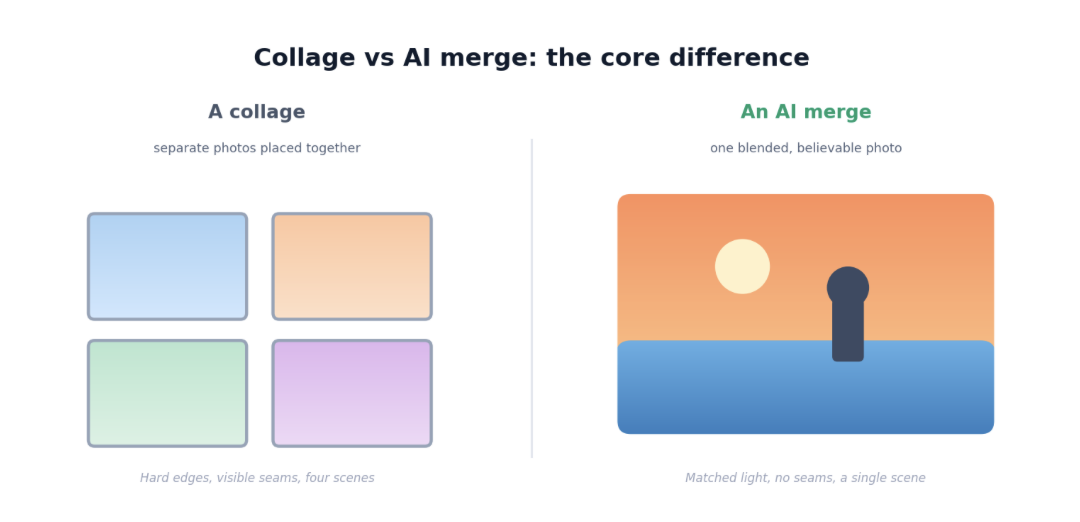
The core difference: separate tiles versus one blended scene.
What a collage actually is
A collage is an arrangement. You take several finished photos and place them together in one canvas — a two-by-two grid, a strip, a Pinterest-style board. Each photo keeps its own borders, lighting and background; the viewer clearly sees multiple images sharing a frame. That is exactly what you want for a recap, a mood board or a before-and-after where the separation is the point. Tools like the iPhone Shortcuts action, Instagram’s layout feature, and most collage apps do this well, and they do it instantly because there is no real image processing involved — just placement.
What AI photo merging does instead
AI merging aims for the opposite outcome: not “here are several photos together” but “here is one photo that never existed.” It takes the subject from one image and places it into another so convincingly that a casual viewer assumes it was all shot at once. The example below is a portrait and a landscape merged into a single scene — no borders, no grid, one continuous photo.
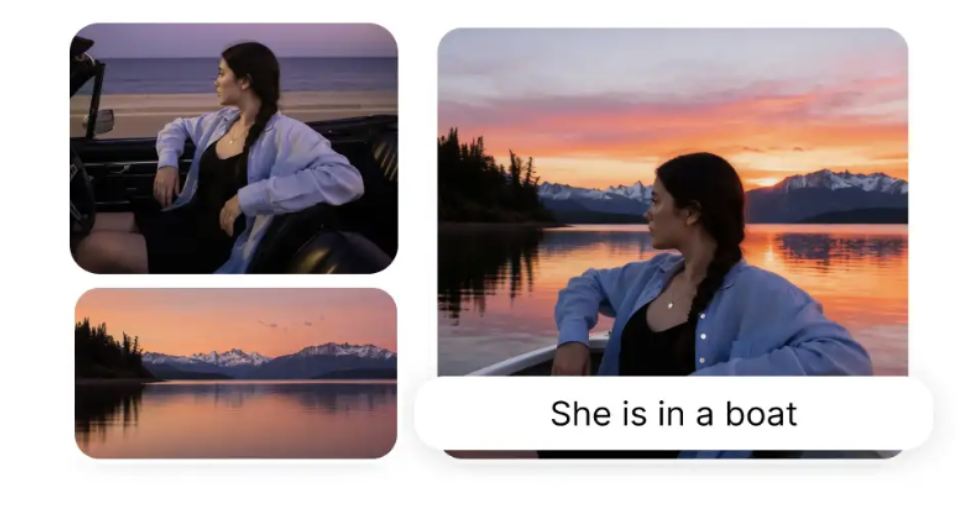
A portrait and a sunset lake, merged into one shot — “She is in a boat.” (Overchat AI Image Combiner example.)
Collage vs AI merge, side by side
| Dimension | Regular collage | AI photo merge |
| Goal | Show several photos together | Create one believable photo |
| Result | Multiple scenes in a grid | A single continuous scene |
| Edges | Visible borders and gaps | Seamless, blended |
| Lighting | Each photo keeps its own | Matched across the images |
| Perspective | Independent per tile | Aligned so subjects share space |
| Skill / tool | Layout app or Shortcuts | AI image combiner |
| Best for | Recaps, boards, before/after | Composites, product scenes, group shots |
How the merge is done
The reason a merge looks like one photo comes down to four jobs the AI performs automatically — the same steps a retoucher would do by hand in Photoshop. It segments the subject (a precise cutout, not a rectangular crop), harmonises the lighting so the subject and background agree on where the light is coming from, aligns perspective and scale so nothing floats, and then blends the edges into a continuous image. A collage tool does none of this; it never touches the pixels inside each photo.
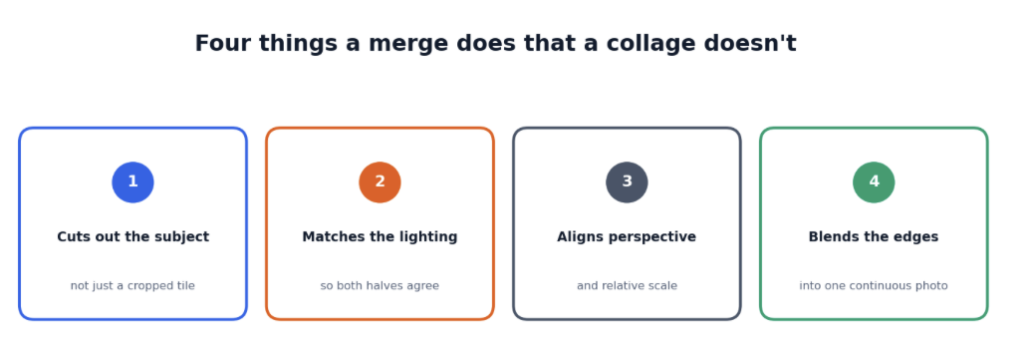
The four steps that turn two photos into one — and that a collage skips.
Because those steps are handled by the model, you do not need masking skills. You upload two images, describe the result in plain English, and the AI does the compositing. The busier example below — a person and a dog blended into a stadium crowd — shows how far the matching goes: the lighting and depth hold up even in a chaotic scene, which no collage could fake.
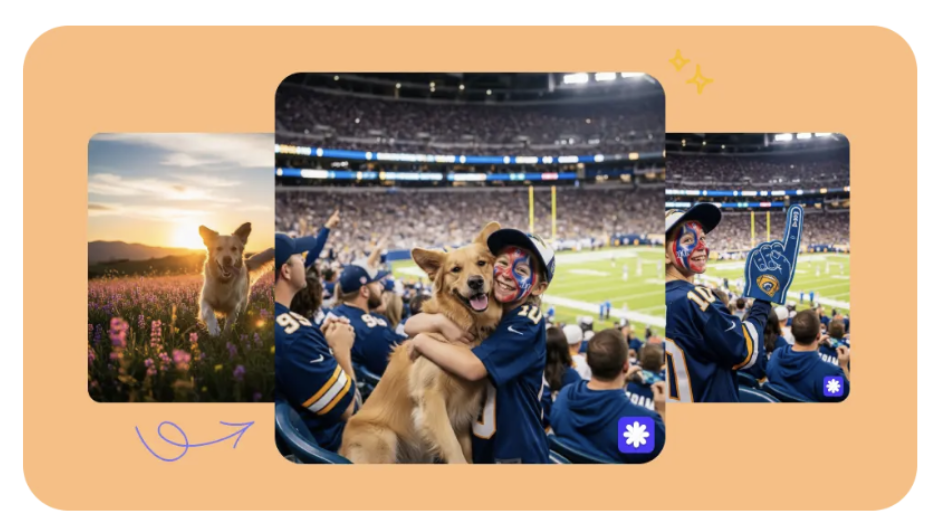
A person and a dog merged into a packed stadium — one scene, not a grid.
So which should you use?
It depends entirely on whether you want the photos to look separate or united.
| If you want to… | Use |
| Show a recap or mood board | A collage |
| Put a before and after side by side | A collage |
| Make two people look photographed together | An AI merge |
| Drop a product into a lifestyle scene | An AI merge |
| Place yourself into a new background | An AI merge |
| Stitch photos into a quick grid on iPhone | Shortcuts “Combine Images” |
Good to know: merging is one tool of many
If you go the AI route, it is worth knowing what you are signing into. The combiner most people use is one tool inside Overchat AI, an all-in-one platform with more than 150 purpose-built tools spanning image, video, audio and text — image generation, video creation, voiceovers, transcription and writing among them. They run on the latest models from GPT, Claude, Gemini, Grok, Kimi and Qwen, and it works on the web, iOS and Android; the company says it is used by more than 350,000 people. For an iPhone owner already paying for an AI subscription or two, the value is in the bundling: one Overchat plan can stand in for separate ChatGPT, Claude and Gemini subscriptions, so the image tools effectively come at no extra cost on top of the assistant you were paying for anyway.
Trying an AI merge yourself
To see the difference first-hand, open this AI image combiner in your phone’s browser — there is no separate app to install. Upload two photos, type how they should combine, and download the finished image straight to your camera roll. Unlike the iPhone “Combine Images” shortcut, which only stitches photos into a grid, this merges them into a single natural scene, with an HD, watermark-free result you can use commercially and export in five aspect ratios. The example below adds a puppy to a mall selfie — one photo, not two.
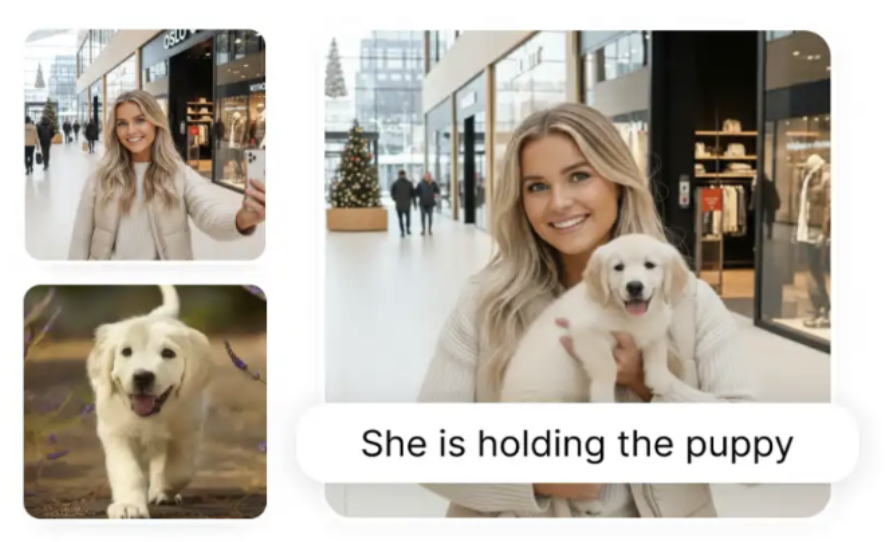
A mall selfie plus a photo of a puppy, merged into one shot — “She is holding the puppy.”
The quick test
Here is the one-line way to decide. If you want the viewer to see several photos, make a collage. If you want them to see one photo that never actually happened, merge. A collage arranges; an AI merge invents. Once you frame it that way, the right tool is obvious for whatever you are trying to make.
FAQ
What is the difference between AI photo merging and a collage?
A collage places separate photos side by side with visible borders. AI photo merging blends images into one seamless scene, matching lighting and perspective so it looks like a single photo rather than several.
Is combining photos on iPhone the same as AI merging?
No. The iPhone Shortcuts “Combine Images” action stitches photos into a grid or strip — a collage. AI merging fuses them into one believable photo, which Shortcuts cannot do.
How does AI make a merge look real?
It cuts out the subject, matches lighting and colour to the new scene, aligns perspective and scale, and blends the edges — the same steps a retoucher does, handled automatically.
Do I need Photoshop to merge photos?
No. An AI image combiner does the cutout, colour-matching and blending from your text description, so you can merge photos without masking or design skills.
When should I use a collage instead of a merge?
Use a collage when you want the photos to look separate — recaps, mood boards, before-and-after comparisons. Use a merge when you want them to look like one scene.
Does an AI-merged photo have a watermark?
On Overchat the output is an HD image with no watermark that you can use commercially. Some free tools add a watermark, so check before sharing.
Sources
Combiner details and the iPhone Shortcuts comparison (describe-to-merge, lighting/colour/depth/perspective matching, five aspect ratios, HD PNG output, no watermark, commercial use, in-browser on iPhone) verified on overchat.ai/image/ai-image-combiner, 2026. Before/after images are example results from the Overchat AI Image Combiner. Overchat platform details (150+ tools; models; web, iOS and Android; user figure) per the company, 2026.
Disclosure: this article features Overchat AI and links to its image combiner. Explanations reflect publicly stated capabilities, not paid placement.