In this world of high-quality visuals, the demand for 4K resolution has increased on social media, streaming platforms, and large displays. This makes creators upscale their old footage, HD content, and AI-generated videos, which weren’t captured in 4K.
However, it’s really difficult to increase video resolution without introducing artifacts. In this post, you’ll learn about both traditional and AI methods to upscale video to 4K and which one delivers the best quality.
What Does It Mean to Upscale Video to 4K?
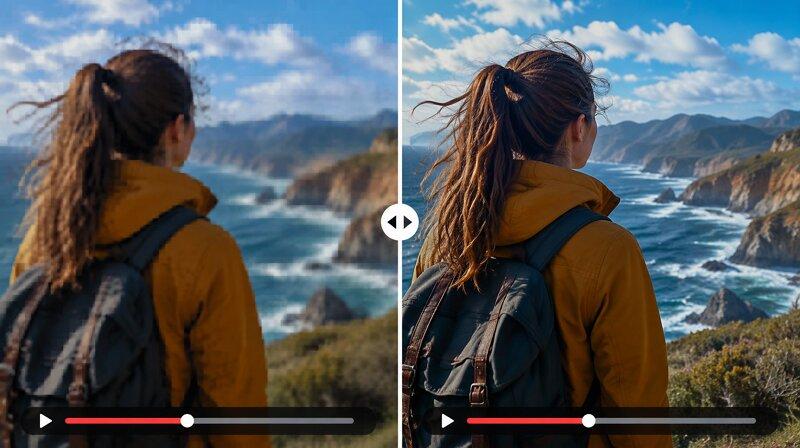
Upscaling videos to 4K means converting a low-quality video like 1080p to 3840×2160 resolution. The traditional methods may enlarge or stretch the pixels. However, AI upscaling involves reconstructing missing detail and enhancing overall visual quality while preserving natural texture.
Why Traditional Video Upscaling Fails?
Traditional video upscaling is not recommended, as it’s a mathematical process that only increases a video’s pixel count to fit a 4K screen. It only predicts missing pixels by analyzing the surroundings, but is unable to generate new details. This results in a blurry or soft video with an artificial look.
Quick Answer: What Is the Best Way to Upscale Video to 4K?
For the best results, use an AI tool like HitPaw VikPea, which upscales video to 4K with pixel-level precision. Instead of simple resizing, it uses trained neural networks to enhance video by analyzing video patterns and generating new pixels, delivering true 4K output.
Methods to Upscale Video to 4K (Complete Breakdown)
Whether you prefer desktop software or an online tool, no worries. Here are several methods to upscale videos to 4K that suit different needs. Let’s dive in:
Method 1 — HitPaw VikPea (Best AI Video Upscaling Method)
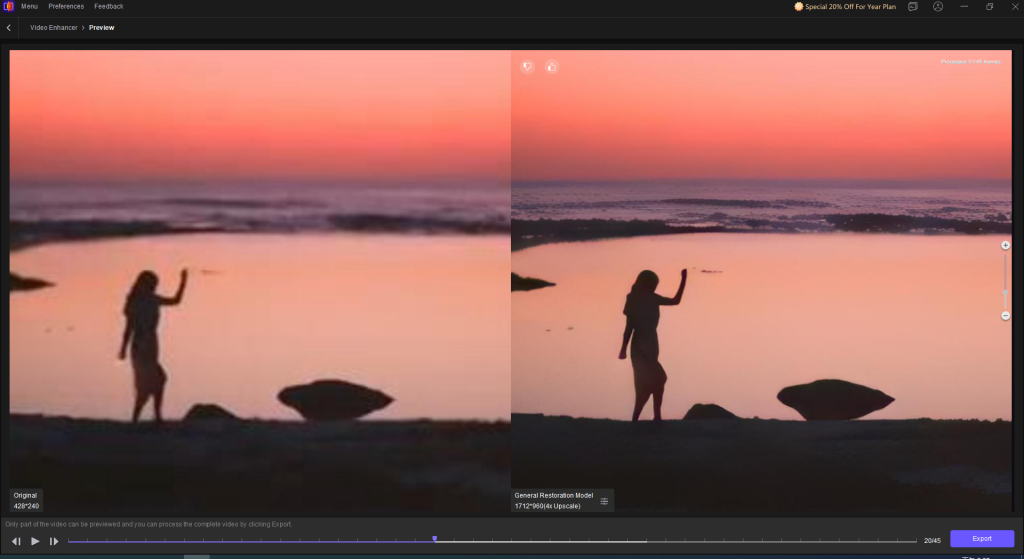
HitPaw VikPea is one of the most powerful and reliable 4K upscaling tools available. It is designed for beginners and professionals who need to increase their video resolution without complex settings.
It not only supports multi-model AI processing to enhance blurry, noisy, or low-quality videos but also upscales to 4K or 8K resolution with just one click. It also allows upscaling AI-generated videos from Kling, Sora, Veo, and Seedance models.
Whether you have to restore old family footage, improve marketing videos, or prepare content for better viewing or commercial use, it offers superb results by reconstructing missing pixels. You can even process multiple videos in a batch.
Here are the steps on how to upscale video to 4K with HitPaw VikPea:
Step 1. Upload Video
The first step is to install and launch this software. Now, click the “Video Enhancer” button to drag & drop the required video to the interface.
Step 2. Select the Enhancement Model
Next, choose from several specialized AI models, depending on your video requirements. It can be an AI Generative, AI Portrait, HD Sharpen, etc.
Step 3. Upscale to 4K and Download
Lastly, go to “Export settings” > “Resolution,” and choose “4K.” You can also adjust other basic and advanced settings. Then, tap “Preview, and if the video looks fine, hit “Export.”
Method 2 — Topaz Video (High-End Professional AI Tool)
Topaz Video is a remarkable enhancement and upscaling solution for professional editors. With its variety of advanced AI models, it supports frame-by-frame processing, noise reduction, and motion correction. You can’t only upscale videos to 4K resolution but also adjust the frame rate by creating new pixels.
Besides, it provides high accuracy for upscaling AI-generated and animated content. You can even enjoy both local and cloud rendering. It works well for upscaling archival videos, cinematic footage, or other high-end projects.
Method 3 — Adobe Premiere Pro (Manual Editing Workflow)
Adobe Premiere Pro is a well-known video editor that also serves as a traditional 1080p to 4K video upscaler. With its basic resizing and interpolation algorithms, it offers complete control over video settings. You can also use its neural filters to upscale videos while preserving detail.
Regarding how to upscale video to 4K Premiere Pro, create a 4K sequence and scale your footage to fit the frame. You can later use the sharpening effects to enhance the visual detail.
Method 4 — Online Video Upscalers (Quick but Limited Results)
For those who prefer not installing an upscaling software, online video upscalers like Canva are the right solution. You can upscale video to 4K online free without watermark, either with its one-click upscale tool or by using the manual adjustment slider for better control.
You can also access its enhancement and editing options if needed. Although online tools are convenient, they work only for short clips and may come with size limits, slow processing, and low-quality results.
Which Method Should You Use?
Choosing the right method to upscale videos to 4K depends on your type of footage, budget, and other requirements. Here is a quick overview to facilitate you:
- HitPaw VikPea: Try this software to quickly and automatically upscale videos without complex settings. It also runs smoothly on low-end PCs and delivers great results.
- Topaz Video AI: This is suitable for upscaling personal, professional, historical, and social media content with one-click parameter control.
- Adobe Premiere Pro: Ideal for professionals who need precise manual control over video settings with a traditional editing workflow.
- Online Video Upscalers: This is the best solution for upscaling short clips when convenience matters more than precision.
Best Use Cases for 4K Upscaling
Let’s explore different types of video content where 4K upscaling makes a difference in improving viewer experience:
- YouTube content creation: Upscaling upgrades older or new footage, making it look sharper and more professional on modern displays, which is ideal for viewer retention.
- TikTok & Instagram videos: Make short-form content visually appealing on mobile screens to help it stand out in a saturated market.
- Old home video restoration: Helps turn your cherished memories, like old or archived footage, into digital content compatible with 4K TVs and monitors.
- Marketing & advertising content: 4K upscaler makes product visuals and promotional videos look sharp on large-scale modern displays, building trust and boosting conversion
- AI-generated video enhancement: Upscaling AI-generated videos refines texture, hair, and facial features, creating natural-looking cinematic clips.
Conclusion
This post has provided both AI and traditional methods on how to upscale video to 4K, both online and offline. By choosing the right technique and following the respective steps, you can easily perform the task. However, for those who want to upscale videos to 4K without complex settings, HitPaw VikPea is the ultimate solution. It offers various AI models and helps achieve high-quality output.
FAQ
-
Can you upscale video to 4K without losing quality?
Yes, modern AI tools like HitPaw VikPea and Topaz Video AI can increase video resolution to 4K without losing quality. However, it also depends on the original video quality.
-
What is the best way to upscale video to 4K?
Using HitPaw VikPea is the best way to upscale videos to 4K resolution. With ease of use, it offers specialized AI models to produce professional-looking output.
-
Is AI better than Premiere Pro?
Adobe Premiere Pro is better for professional editing workflows because it offers precise manual control over scaling, color, and overall video adjustments.
AI tools like HitPaw VikPea and Topaz Video AI are more efficient for automatically upscaling videos to 4K while enhancing details with minimal effort.
In short: Premiere Pro is better for control, while AI is better for speed and automated enhancement.
-
Can 1080p become real 4K?
An efficient 1080p to 4K video upscaler can be helpful. It cannot turn a 1080p video into native 4K; however, you can upscale it to fill a 4K screen.
-
What is the difference between AI and traditional upscaling?
Traditional upscaling works on mathematical formulas that stretch existing pixels, resulting in blurry video. However, AI upscaling recognizes patterns and reconstructs textures to generate new pixels, resulting in sharper output.