
A lot of people search Private Twitter Viewer because they want context fast. Sometimes it’s research. Sometimes it’s safety. Sometimes it’s plain curiosity.
The problem is that this private twitter account viewer is also prime real estate for phishing pages. Many “viewer” sites look clean, show a search box, then push “verification” loops or fake login screens. This article compares popular tools for public browsing and analytics, and shows how to spot fake login pages before they take your account.
Important note upfront: on X (Twitter), protected posts are designed to be visible only to approved followers. If a site claims it can reveal protected posts to anyone, treat that claim as a red flag, not a feature.
Best 7 Twitter Private Account Viewer Tools
Not every tool in this space is the same. Some are simple public web viewers. Others are analytics tools. Some openly market “unlocking,” which should make anyone cautious.
Below is a practical comparison. Each tool section starts with a quick overview, then key features.
1. Twitgoon
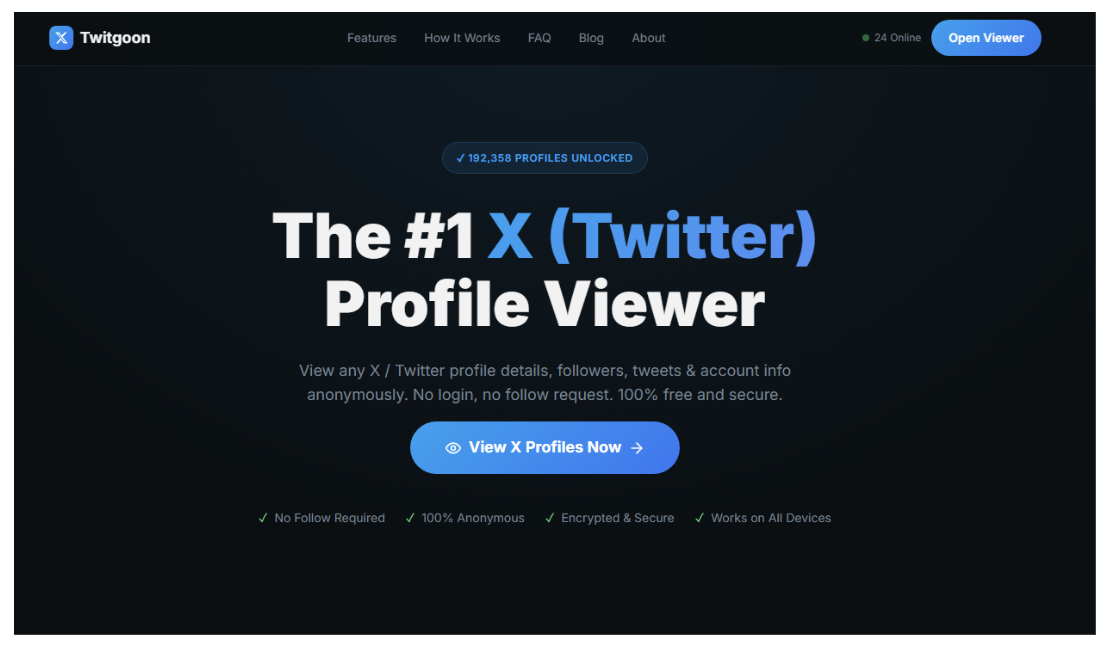
Twitgoon markets itself as a Private Twitter Viewer and even uses “unlock private accounts” language on its own site and “unlocking package” flow. That kind of promise conflicts with how protected posts work on X, so it should be treated with extreme caution.
The safest way to think about Twitgoon is as a public-context checker only. If a tool asks for payment, “verification,” or anything that looks like a bypass, that’s where risk spikes.
Key Features
- Public-context browsing when content is already public
- Watch-outs: paid “unlock” messaging and upsell funnels
- Best use case: quick public checks, not protected content
2. Twitter-Viewer.com
Twitter-Viewer.com positions itself as a login-free way to browse X content. The site emphasizes browsing without an account and presents itself as “private” in the sense of anonymous viewing, not private-post access. That’s an important difference. Still, public viewers can break when X changes access rules, so it’s smart to treat any results as “public-only, best effort.”
Key Features
- Browse public profiles and media without logging in
- Quick surface-level profile checks (bio, stats, media)
- Best use case: fast public context without signing in
3. TwStalker
TwStalker is commonly described as a public web viewer that lets users explore profiles, posts, and media without an account. It also highlights trend tracking features. This is useful for researchers or marketers who need public monitoring without logging in, but it does not change protected-post rules.
Key Features
- Public browsing without an X account
- Media and basic profile exploration for public accounts
- Trend monitoring in multiple regions
- Best use case: public monitoring and quick checks
4. Sotwe
Sotwe is often grouped with “Twitter viewer” sites, meaning it’s mainly used to browse public content through a web interface. Sites like this typically appeal to people who want public context without logging in. Because these tools depend on access paths that can change, reliability may vary over time, and any “private profile” claims should be treated as marketing, not a guarantee.
Key Features
- Public browsing focus for quick profile context
- Useful for lightweight public lookups
- Best use case: quick public visibility checks
5. Nitter
Nitter is an open-source front-end for Twitter designed to improve privacy and performance. The project notes that running an instance now requires real accounts due to changes by Twitter, but it remains an alternative way to view public content via an instance. Nitter is not a “private account viewer.” It’s a different interface for public content, and public instances can have uptime and rate-limit issues.
Key Features
- Open-source alternative front-end focused on privacy
- No “private-post access” functionality (public-only by nature)
- Best use case: lightweight public browsing via instances
6. Snaplytics X Viewer
Snaplytics offers an “X / Twitter Viewer” that claims public profile and post viewing without login. It positions itself around anonymous browsing for public content. Tools like this can be handy for quick checks, but they should never require your credentials.
Key Features
- Public profile and post viewing without login
- Basic public browsing workflows (profile, search, tweets)
- Best use case: quick public browsing without an account
7. Tweet Binder
Tweet Binder is known for analytics and tracking around public Twitter content like hashtags, mentions, and keywords. It describes “Twitter viewer” features in the context of analytics, not private bypass. For teams doing campaigns or trend research, analytics tools can be more useful than simple viewers, because they add measurement.
Key Features
- Public Twitter viewing plus analytics on performance
- Useful for hashtag and keyword monitoring
- Best use case: campaign tracking and public analytics
How Fake Login Pages Mimic X and Why It Works?

Phishing pages win because they look familiar. The page uses the X logo, a similar layout, and the same “log in to continue” language people see every day.
Two patterns show up again and again:
- A fake “viewer” page claims it found the content, then says you must log in to verify.
- A “verification” loop stalls until you’re pushed to a login form.
X itself warns about compromised accounts and recommends security steps like using two-factor authentication and not sharing credentials. The FTC explains phishing as scams that trick people into handing over personal information through messages or pages that look legitimate.
A simple reality check helps: if you are not on the official app or x.com, do not type your password.
The Three Things To Check Before You Trust Any Viewer

Before using any Private Twitter Viewer tool, run these three checks. They’re quick, and they block most scams.
- Domain and login behavior If the tool asks you to log in, or redirects you to a login page that isn’t x.com, close it. Phishing relies on off-brand login screens.
- Public-only clarity A safer viewer will clearly say it shows public content only. Protected posts are follower-only by design, and tools that promise otherwise are selling fantasy or risk.
- No installs, no notifications, no pay-to-reveal Forced downloads, browser add-ons, notification prompts, and paywalls that claim they can reveal protected posts are classic trap signals. The FTC’s guidance on avoiding phishing includes being cautious with unexpected prompts and suspicious requests.
Twitgoon As A Safer Public-Only Alternative
Here’s the honest way to position Twitgoon in a safety-first article: use it only for public context, and treat any “unlock private” marketing as a reason to slow down, not speed up. Twitgoon’s own pages include private “unlock” claims and paid package language, so readers should keep firm boundaries.
Login-Free Browsing Posture
A login-free posture is the biggest safety win. If you never type credentials into a third-party site, you cut out the main theft route. X recommends security features like 2FA, and phishing guidance warns against credential sharing.
Public Context Checks Only
Public context checks can still be useful. You can review bios, public links, and public posts on public accounts. For protected accounts, the only legitimate route is approval as an accepted follower.
Avoids Credential Capture Flows
Credential-capture flows usually follow the same pattern: “final step requires login.” A safer posture is to close any page that asks for credentials and use the official app or x.com for anything account-related.
If You Entered Credentials, What To Do Immediately

If you typed your password into a suspicious page, move quickly. This is not about panic. It’s about stopping follow-on damage.
- Change your X password from official settings X provides password reset guidance and notes that changing your password can log you out of other active sessions.
- Turn on two-factor authentication X explains 2FA as an extra layer of security beyond a password.
- Check for compromise signs X has guidance for what to do if your account has been compromised.
- Secure your email too Email is often the backdoor for resets. If your email is weak, the attacker can come right back.
- Report and move on If you got phished, the FTC provides guidance on recognizing and avoiding phishing and what to do next.
Frequently Asked Questions
Can any tool reveal protected posts without approval?
No legitimate tool can consistently show private posts to people who aren’t followers. Protected posts are designed to be seen only by approved followers.
Is “verification” always a scam?
Not always on official platforms, but “verification loops” on third-party viewer pages are a common scam pattern, especially when they lead to installs or login prompts.
What’s the safest way to browse X without logging in?
Stick to public-only viewing tools that do not ask for credentials and treat results as public context only. For anything account-related, use the official app or x.com.
What if I already typed my password into a viewer site?
Change your password immediately, enable 2FA, and follow X’s compromised account guidance.
Conclusion
Most Private Twitter Viewer searches start with curiosity, but scams are built to convert curiosity into credentials. The safest tools in this space focus on public content only, avoid logins, and stay honest about limits. Protected posts are follower-only by design, so any “instant access” promise should trigger scepticism.
Use the three trust checks, avoid installs and paywalls, and keep your password on official pages only. If you already entered credentials, change your password and enable 2FA right away